Improve MSP Efficiency with NAKIVO Direct Connect
Managed Service Providers that deliver backup, replication and disaster recovery services need secure, reliable access to remote client environments. The method used to establish these connections directly affects operational efficiency and security posture. This guide explains how MSP Direct Connect in NAKIVO Backup & Replication simplifies remote connectivity and walks through the configuration process step by step.
Why MSPs Need Reliable Remote Access with Direct Connect
Secure connectivity to client environments is foundational for any MSP delivering data protection services. The approach used to reach remote infrastructure affects not only day-to-day operations but also overall security. Because MSPs manage multiple client environments, they are high-value targets for cyberattacks, and connection misconfigurations can have serious consequences.
Traditional VPN-based setups often require installing and maintaining additional software across many client sites, which adds complexity as the number of accounts grows. MSP Direct Connect in NAKIVO Backup & Replication offers an alternative: It allows providers to establish secure connections with client environments without deploying VPN servers or clients.
The feature is also useful from the client’s perspective. A client that operates on-premises infrastructure without a VPN to the MSP’s site can use Direct Connect to enable data protection services. Similarly, a client who prefers not to grant full VPN access to their environment can limit connectivity to what the MSP needs by using this feature.
What Is NAKIVO MSP Direct Connect and How It Works
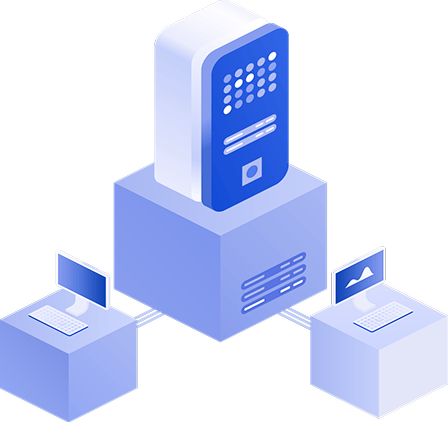
MSP Direct Connect is a feature in NAKIVO Backup & Replication designed for Managed Service Providers. It allows the MSP Director to access remote resources at a client site without establishing a VPN connection. The client’s Transporter initiates an outbound connection to the MSP Director, which means no ports need to be opened at the client site. This simplifies configuration and improves security. An MSP license is required to enable the feature.
A Direct Connect Transporter is a Transporter installed at the client’s local environment with the Direct Connect feature enabled. The installer is downloaded through the MSP Director interface and provided to the client for installation. The Transporter can be installed on a Windows or Linux machine. A master password is set during installation. Once installed, the MSP can add the Transporter to the Director and use it to discover the client’s environment, including hosts, machines and repositories.
Once connected, the MSP can perform backups of the client’s infrastructure and run other supported jobs, including full and granular recovery, replication and more. The connection and all data transfers between the MSP Director and the client Transporter are encrypted.
IP whitelisting is available as an optional security layer. When enabled, only Direct Connect Transporters from specified IP addresses can connect to the MSP Director.
The following ports must be opened on the firewall/router at the MSP site for the MSP Director:
- TCP port 4443 for initial connection setup
- TCP port 4442 for communication between the MSP Director and Direct Connect Transporters
A dedicated public TCP port must also be opened for each MSP Transporter that needs to communicate with a client’s Direct Connect Transporter. This is only necessary when performing data protection operations between a client site and the MSP site, such as backing up a client’s VM to an MSP repository or recovering data from an MSP backup repository to a client environment.
Example with multiple MSP Transporters and port forwarding:
- Public port 10055 for TCP port 9446 of MSP Onboard Transporter
- Public port 10059 for TCP port 9446 of MSP Transporter A
- Public port 10060 for TCP port 9446 of MSP Transporter B
Key Benefits of Direct Connect for MSPs
The main advantages of the MSP Direct Connect feature include:
- Encrypted, secure connections. All communication between the MSP Director and client Transporters is encrypted. IP whitelisting can be enabled to restrict access to trusted addresses only.
- Simple, fast configuration. Direct Connect eliminates the need for VPN server setup, reducing onboarding time for new clients.
- Flexible remote management. MSPs can manage client backup and recovery operations remotely through the Director interface.
- Multi-platform support. Direct Connect supports data protection for VMware vSphere, Microsoft Hyper-V, Proxmox VE and physical Linux/Windows workloads.
How to Enable MSP Direct Connect
To configure MSP Direct Connect, install a multi-tenant edition of NAKIVO Backup & Replication at the MSP’s site and install the NAKIVO Direct Connect Transporter at the client’s site.
- Open the MSP Console – the web interface of NAKIVO Backup & Replication installed in multi-tenant mode.
- Go to Dashboard and select the relevant tenant to open its settings.
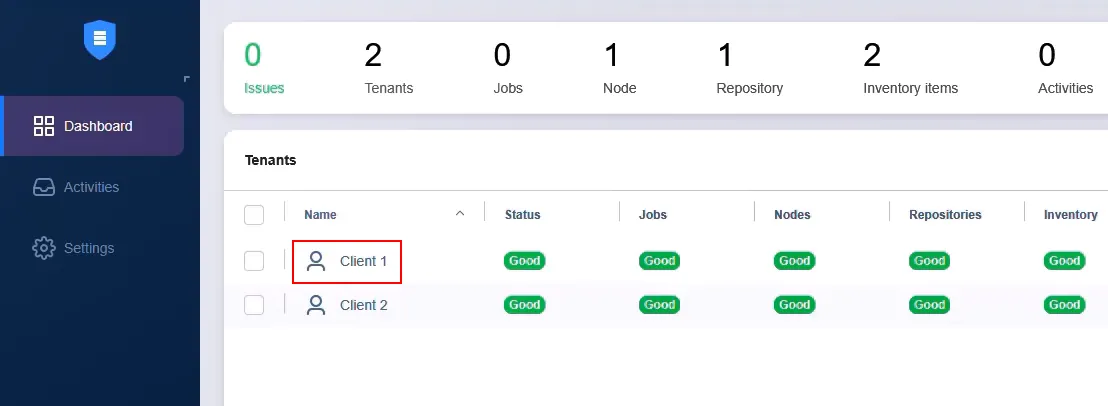
- Go to Settings > Nodes for the selected tenant.
- Click Download and select Direct Connect Transporter for Windows (or Linux). This example uses Windows.
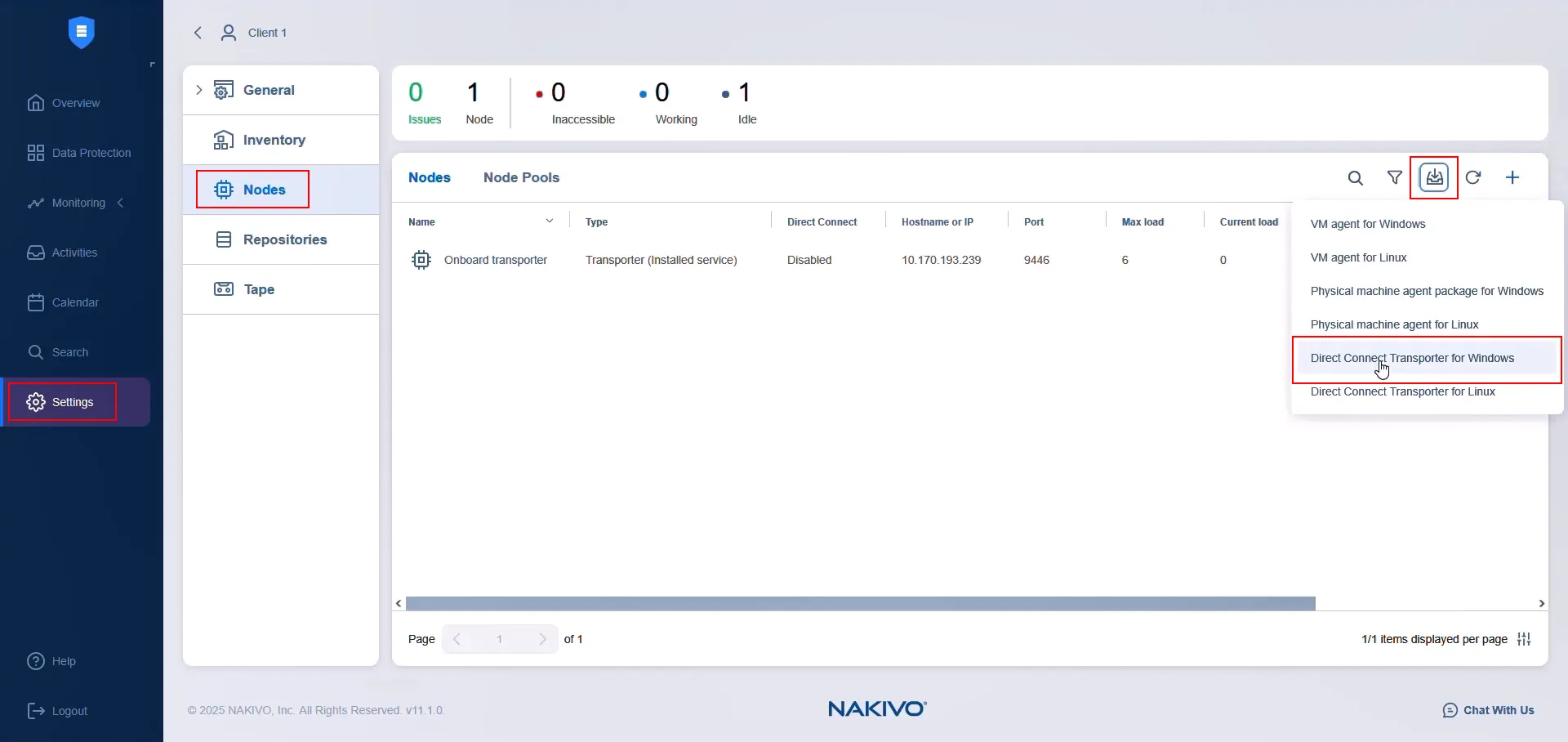
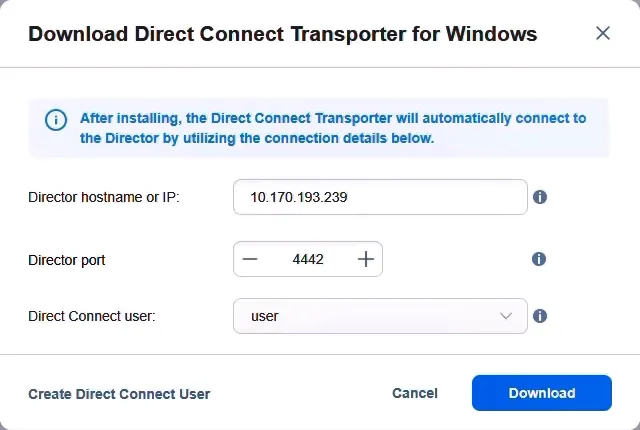
- In the pop-up window, enter the hostname or IP address of the machine where the Director is installed. This address must be reachable from the internet and open on the MSP’s firewall/router. Specify the port, which must also be opened on the MSP’s firewall/router. Select a Direct Connect user who is used to generate an application password required for authentication when the client’s Direct Connect Transporter connects to the MSP Director. If no Direct Connect users exist, create one now by clicking on Create Direct Connect User.
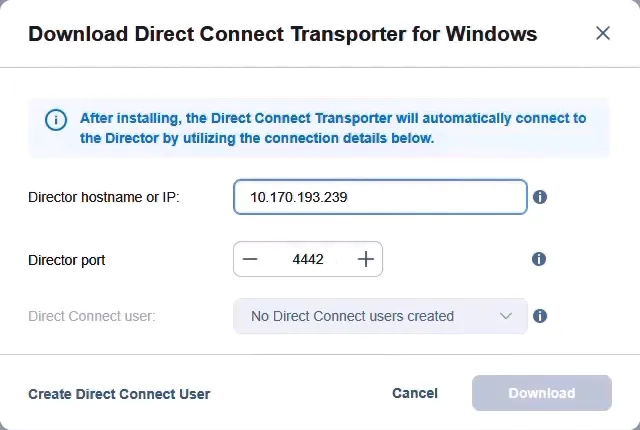
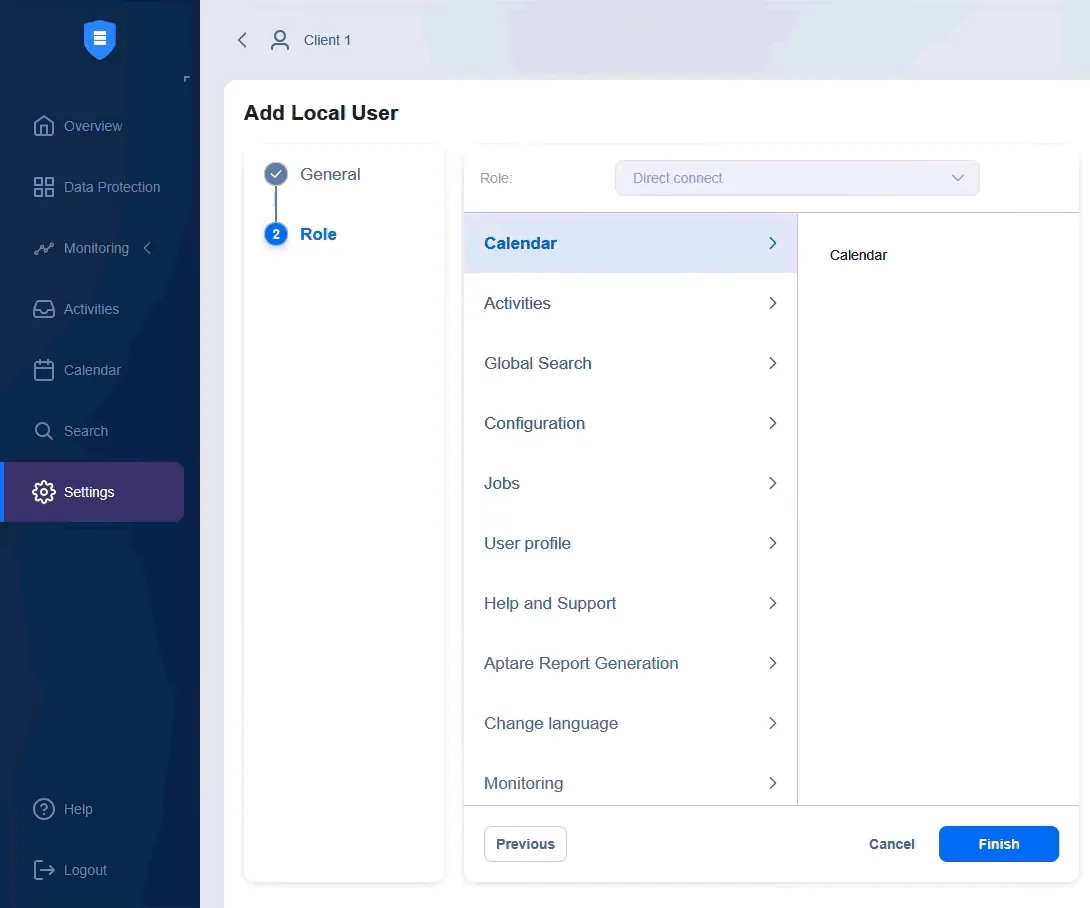
- On the Add Local User screen, enter a username, display name and password. Confirm the password and click Next.
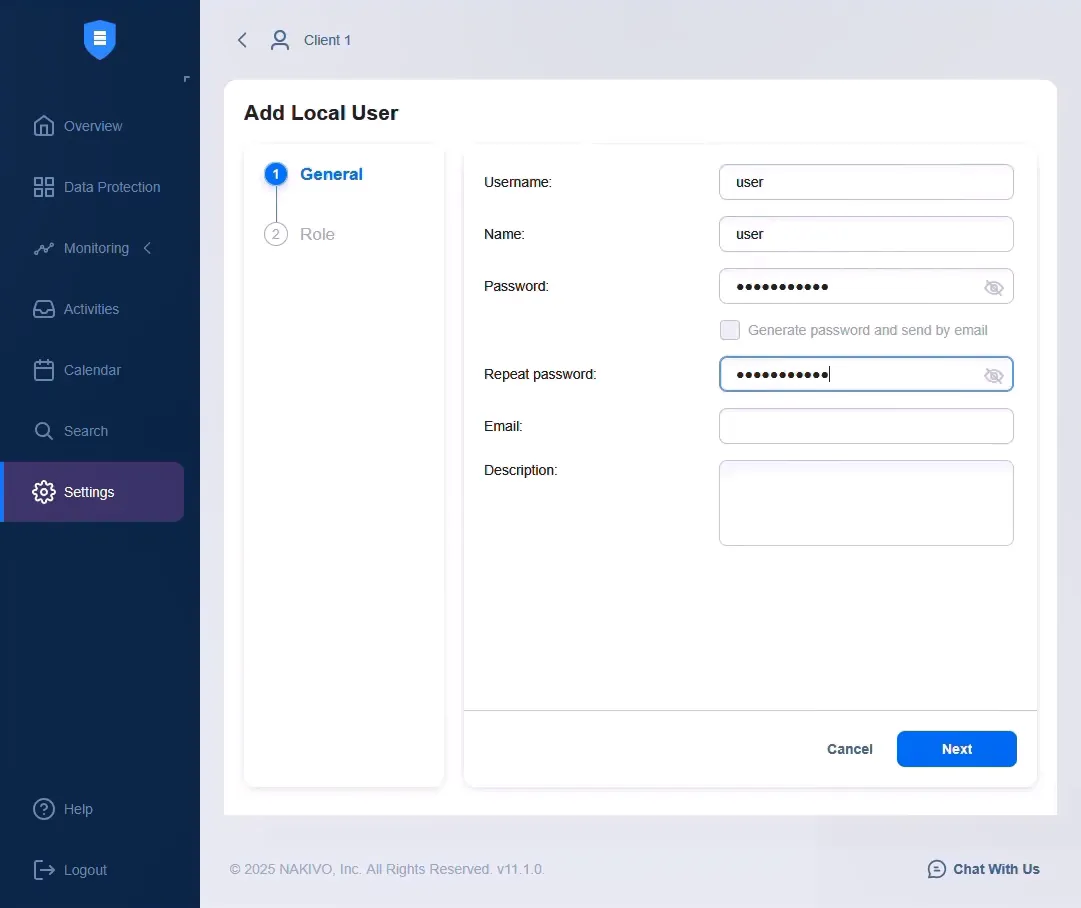
- Verify that the user’s role is set to Direct Connect. Click Finish to save the user settings.
- When ready, click Download to download the Direct Connect Transporter installation file. Wait for the download to complete.
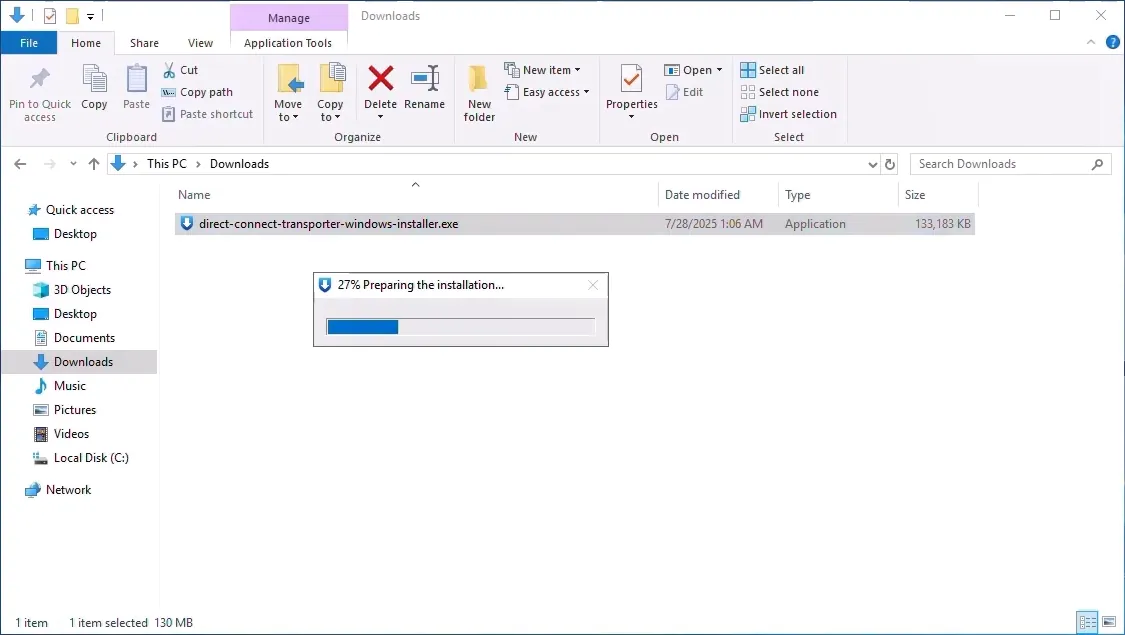
- The installation must be performed at the client site where the tenant’s infrastructure is located. Transfer the downloaded file to that environment and run it on the client’s machine.
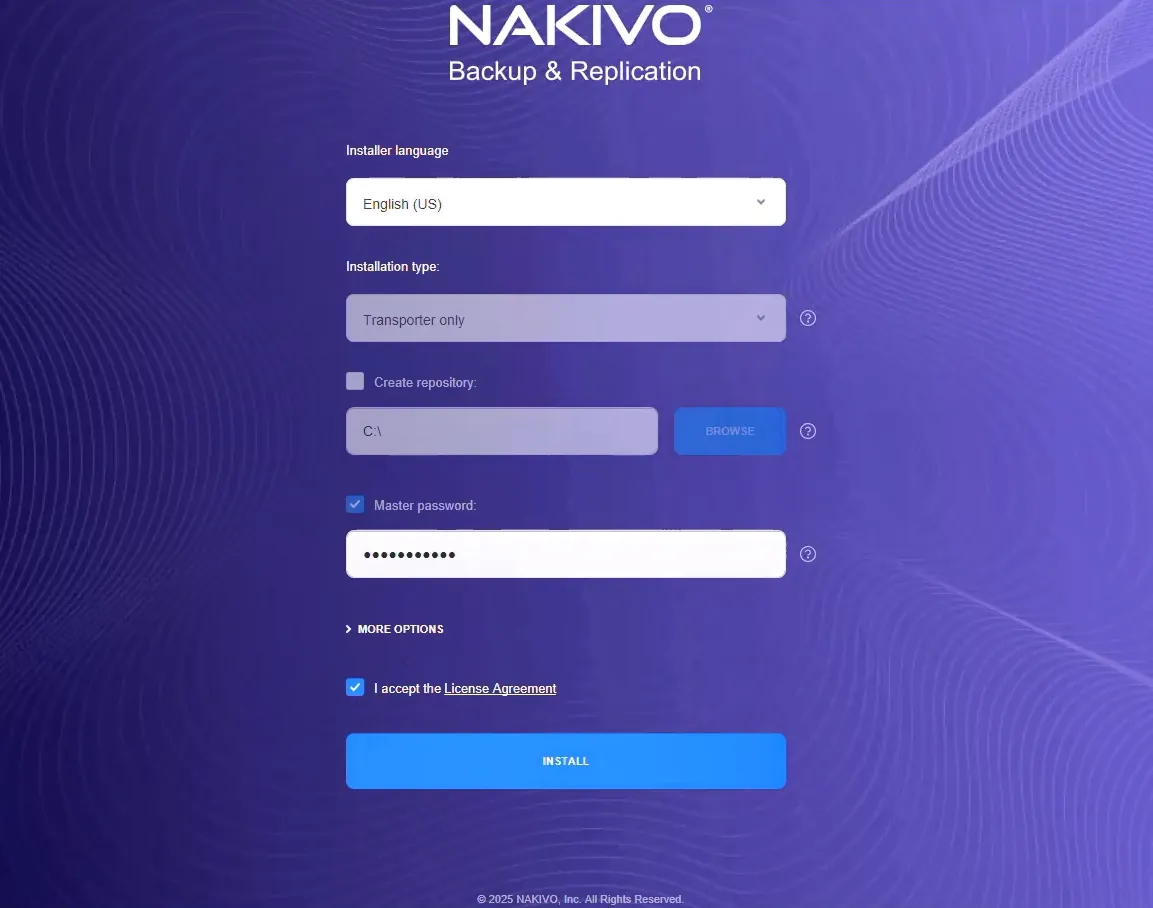
- Enter the master password and accept the license agreement. The MSP will need this password later to accept the Transporter in the Director. Click Install.
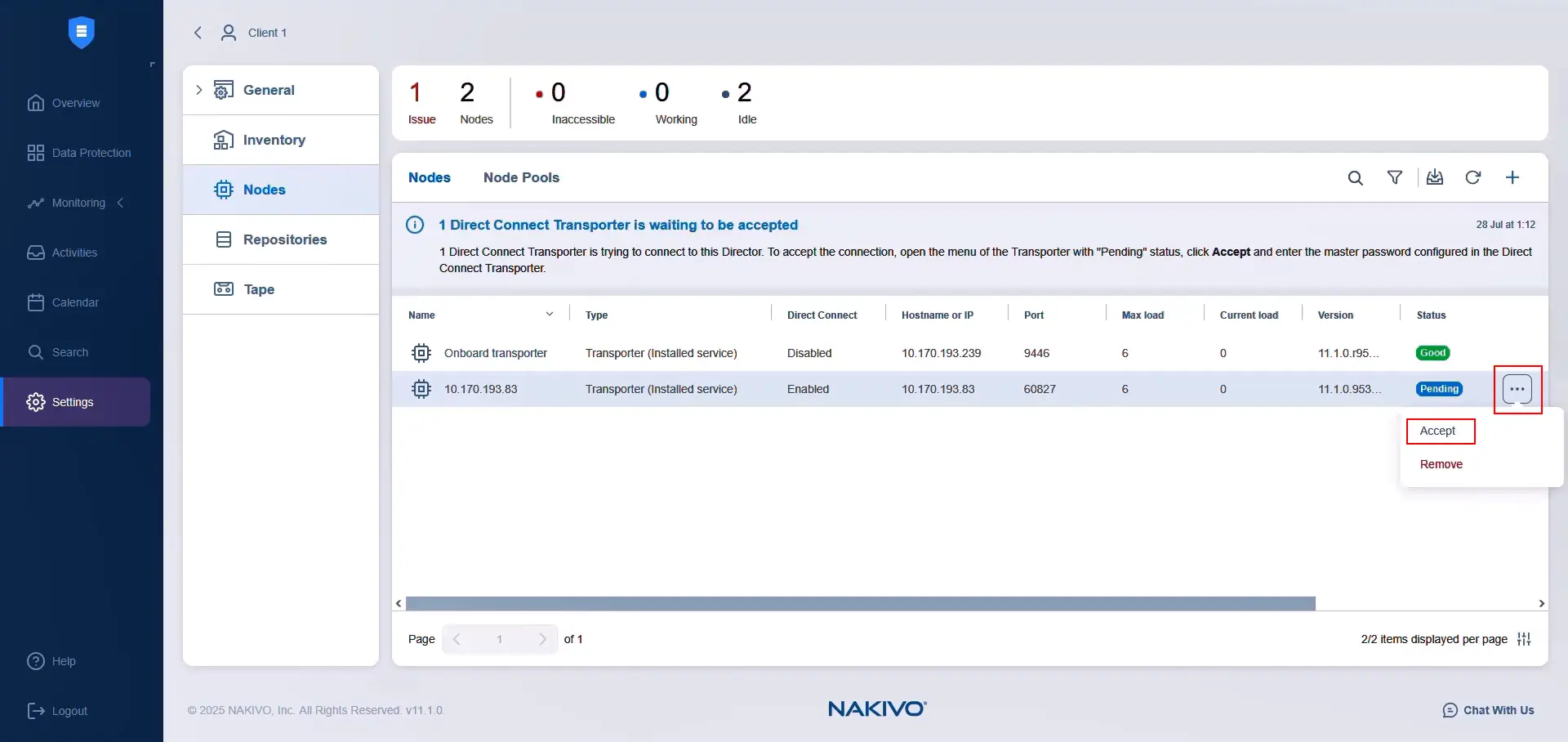
- Once installed, the Transporter appears automatically in the MSP Director interface. To accept it, select the Direct Connect Transporter on the Nodes dashboard, click the three-dot icon next to the Pending status and select Accept.
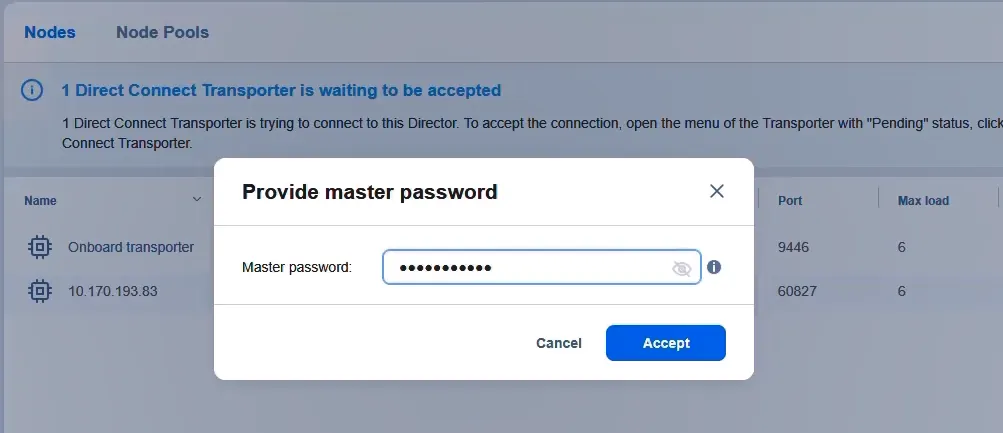
- Enter the master password set during installation and click Accept. Accept the certificate when prompted.
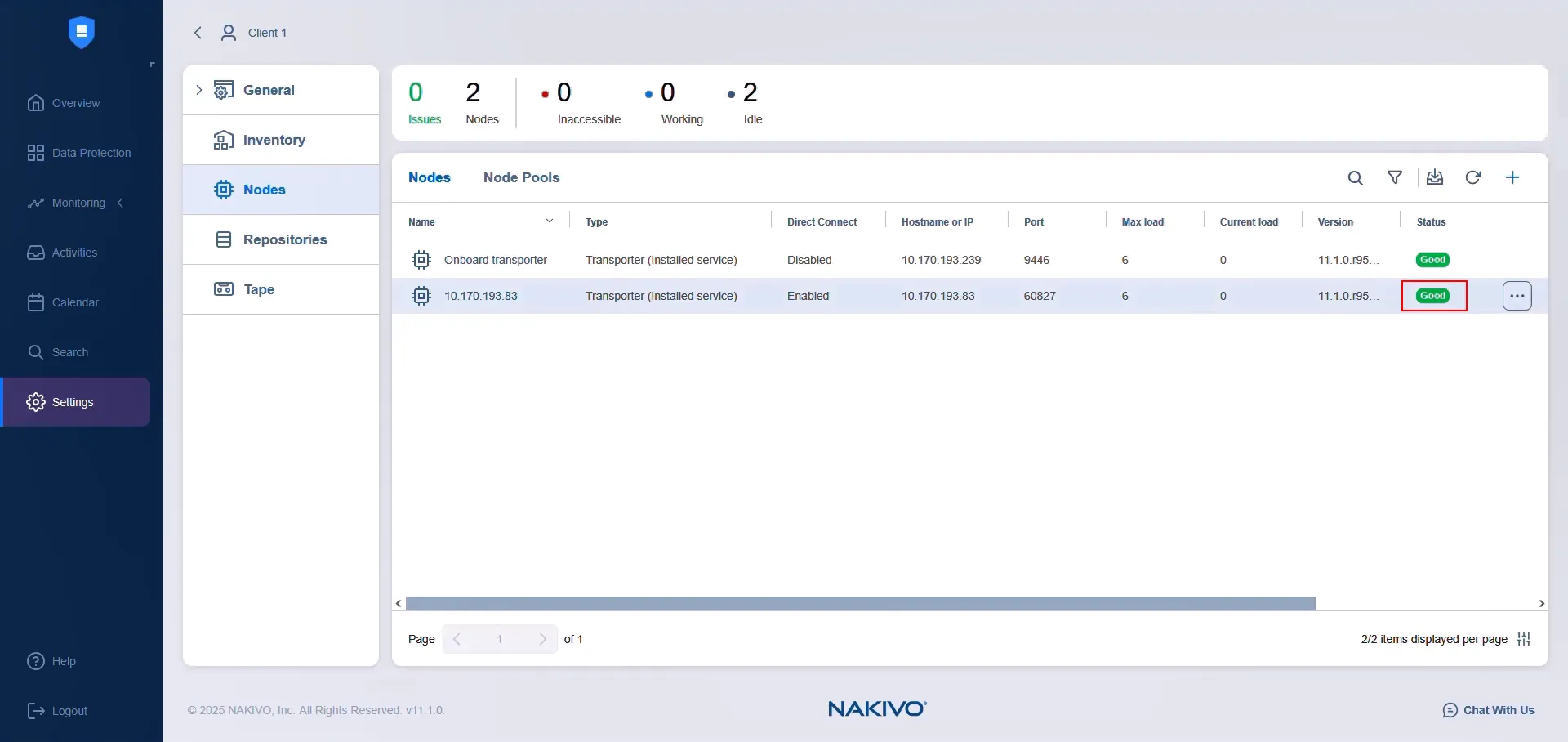
The Direct Connect Transporter status should now show as Good.
Adding a client environment to the inventory
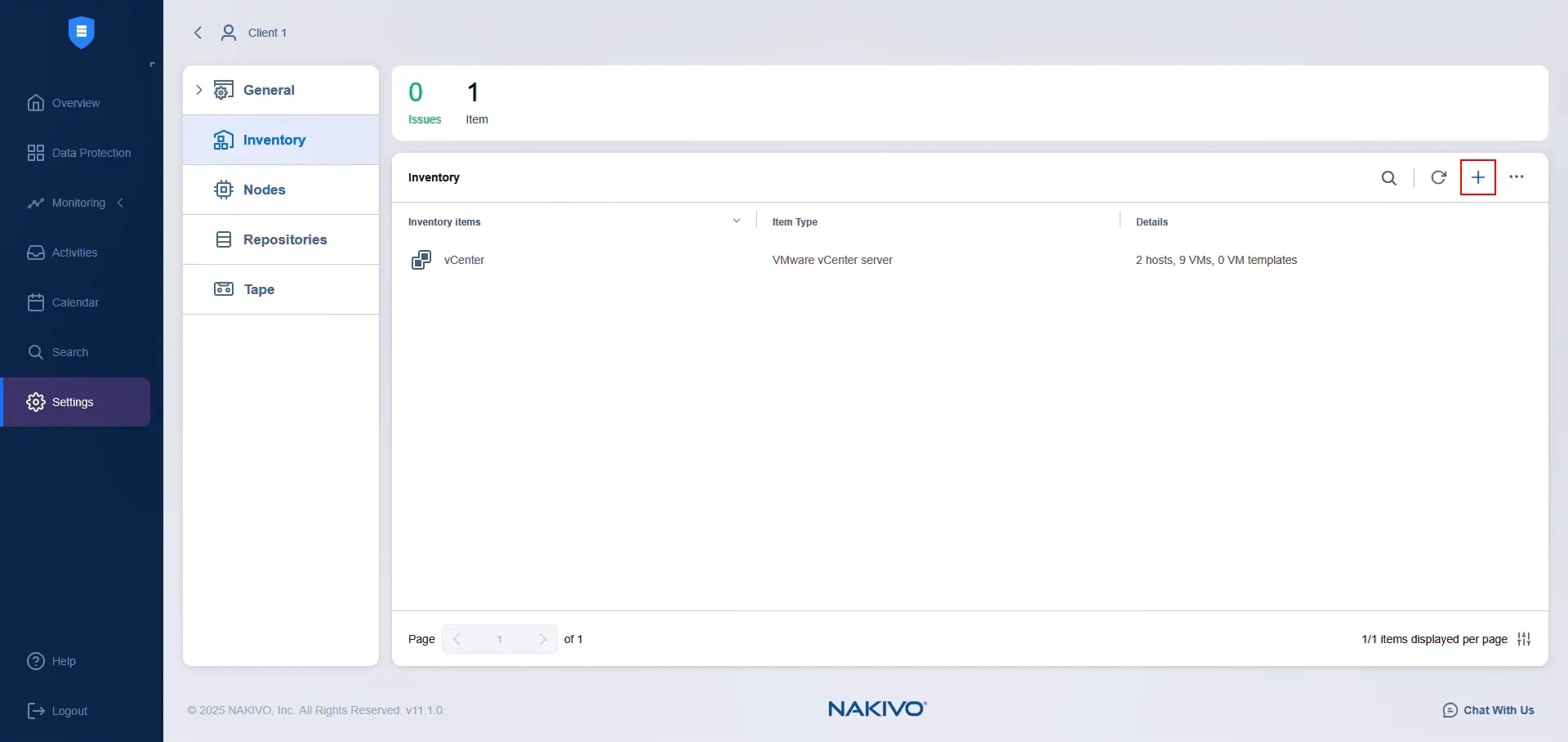
- Go to Settings > Inventory and click the plus icon to add new items to the NAKIVO inventory using Direct Connect.
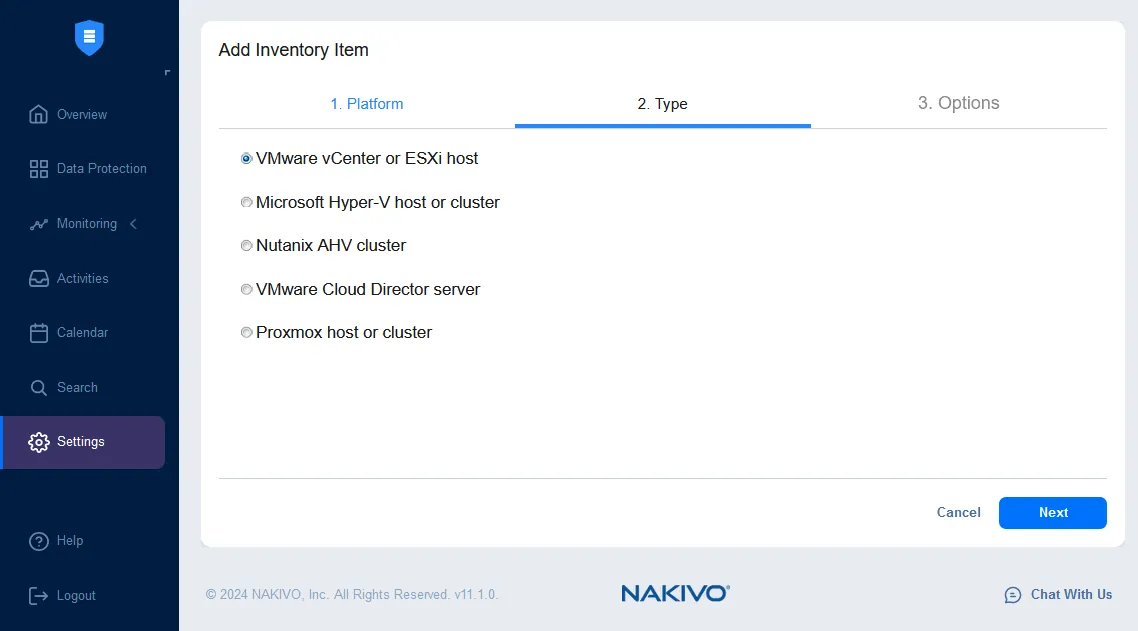
- Select the appropriate platform and type based on the item you want to add.
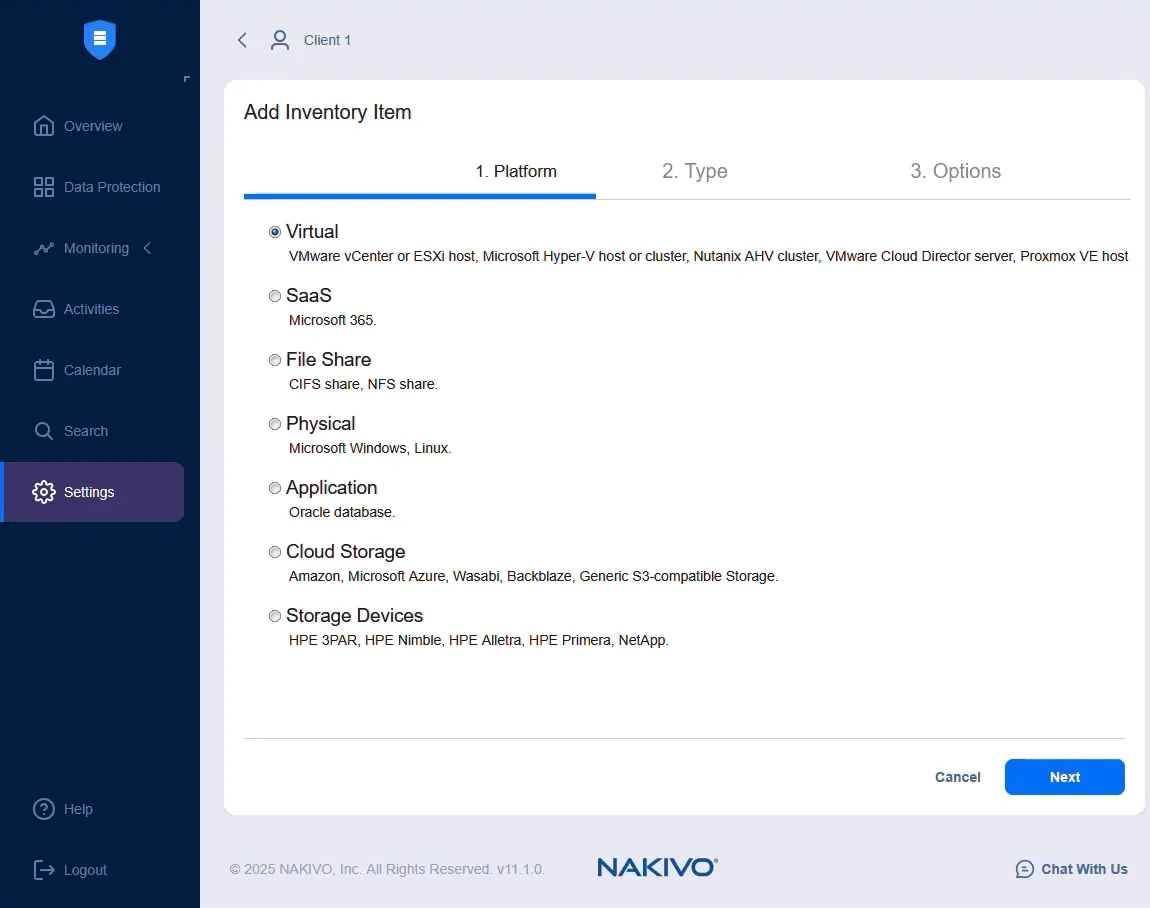
- You can add the client’s VMware ESXi (vCenter), Microsoft Hyper-V, Proxmox VE and Windows/Linux physical machines via Direct Connect.
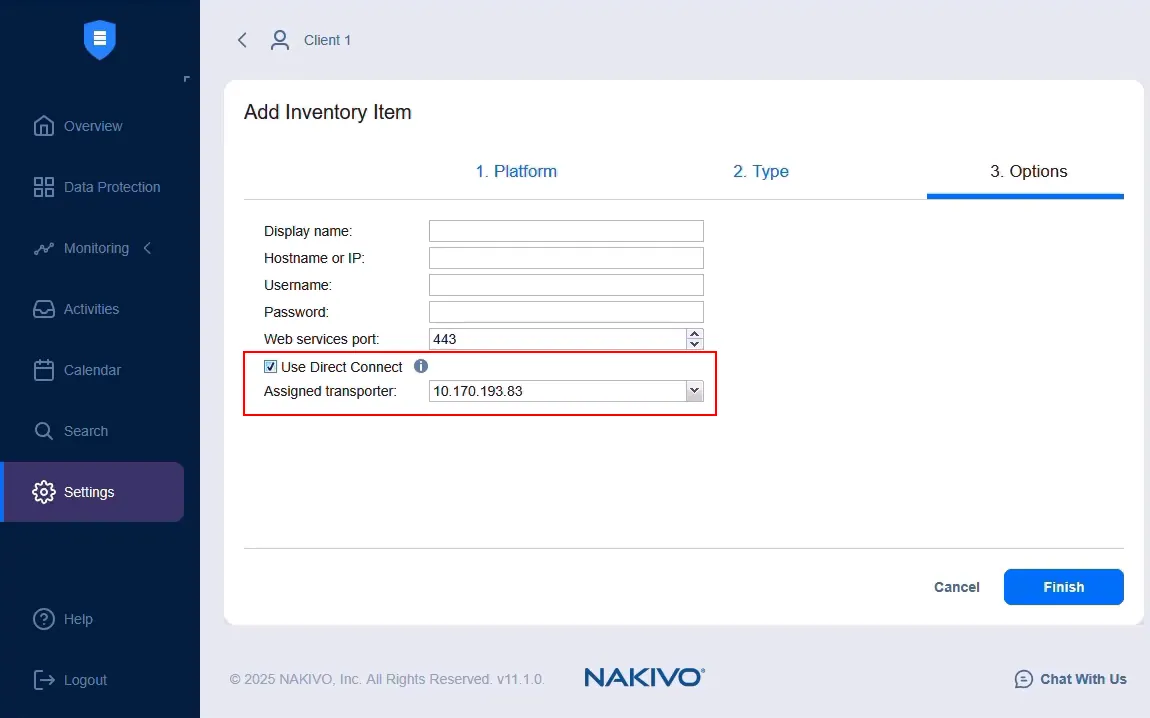
- Select the Direct Connect checkbox to use the Direct Connect-enabled node (the installed Transporter) when discovering VMware vSphere (including standalone ESXi hosts), Hyper-V, Promox VE or Windows/Linux physical machines.
Adding a backup repository at the client site
After adding the client’s infrastructure to the inventory, you can create a backup repository at the client site to store backups locally. The Direct Connect Transporter serves as the Assigned Transporter for this repository, managing all read and write operations.
- Go to Settings > Repositories and click the plus (+) icon.
- Click Create new backup repository.
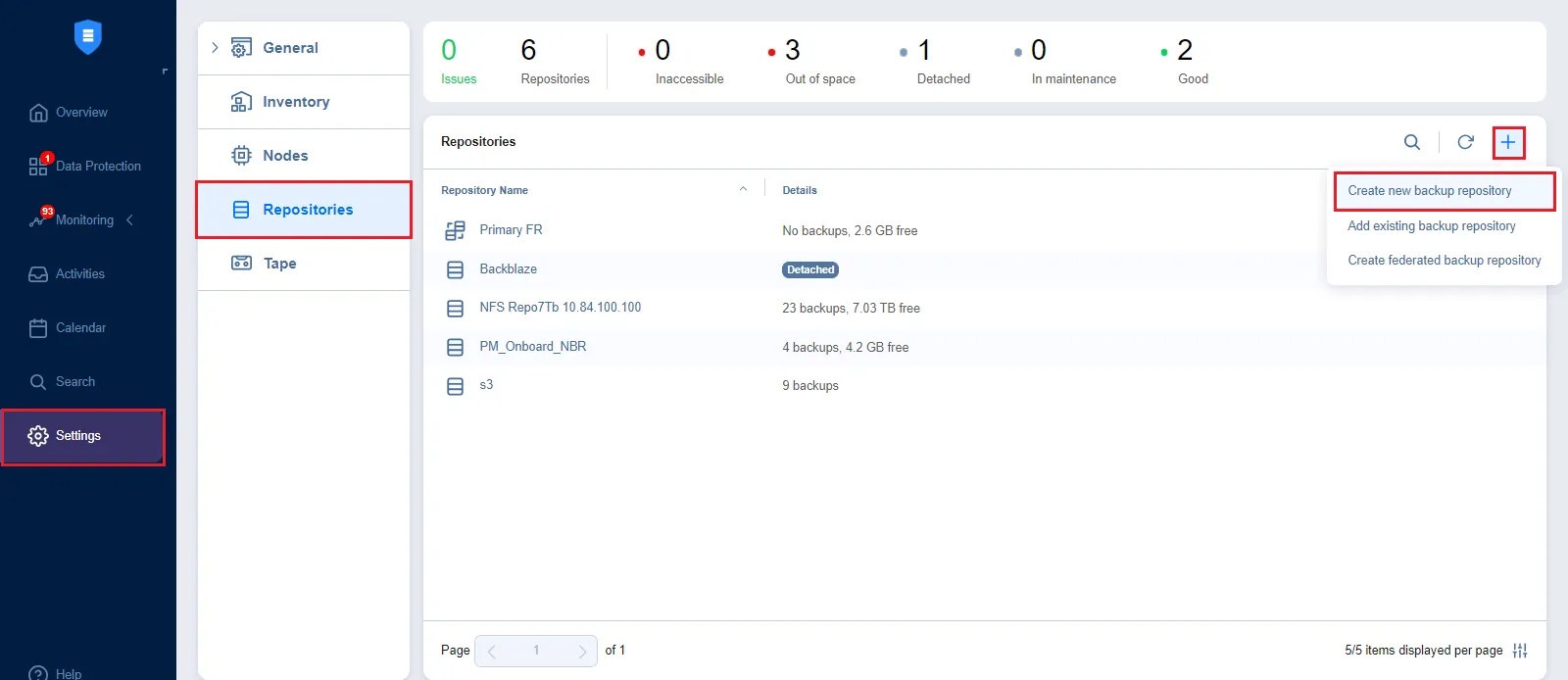
- Select the repository type based on the client’s storage (local folder, NAS share or other supported location).
- On the Name & Location tab, select the Direct Connect Transporter as the Assigned Transporter and specify the storage path on the client’s machine.
- On the Options tab, configure additional settings such as data size reduction and encryption as needed.
- Click Finish to create the repository.
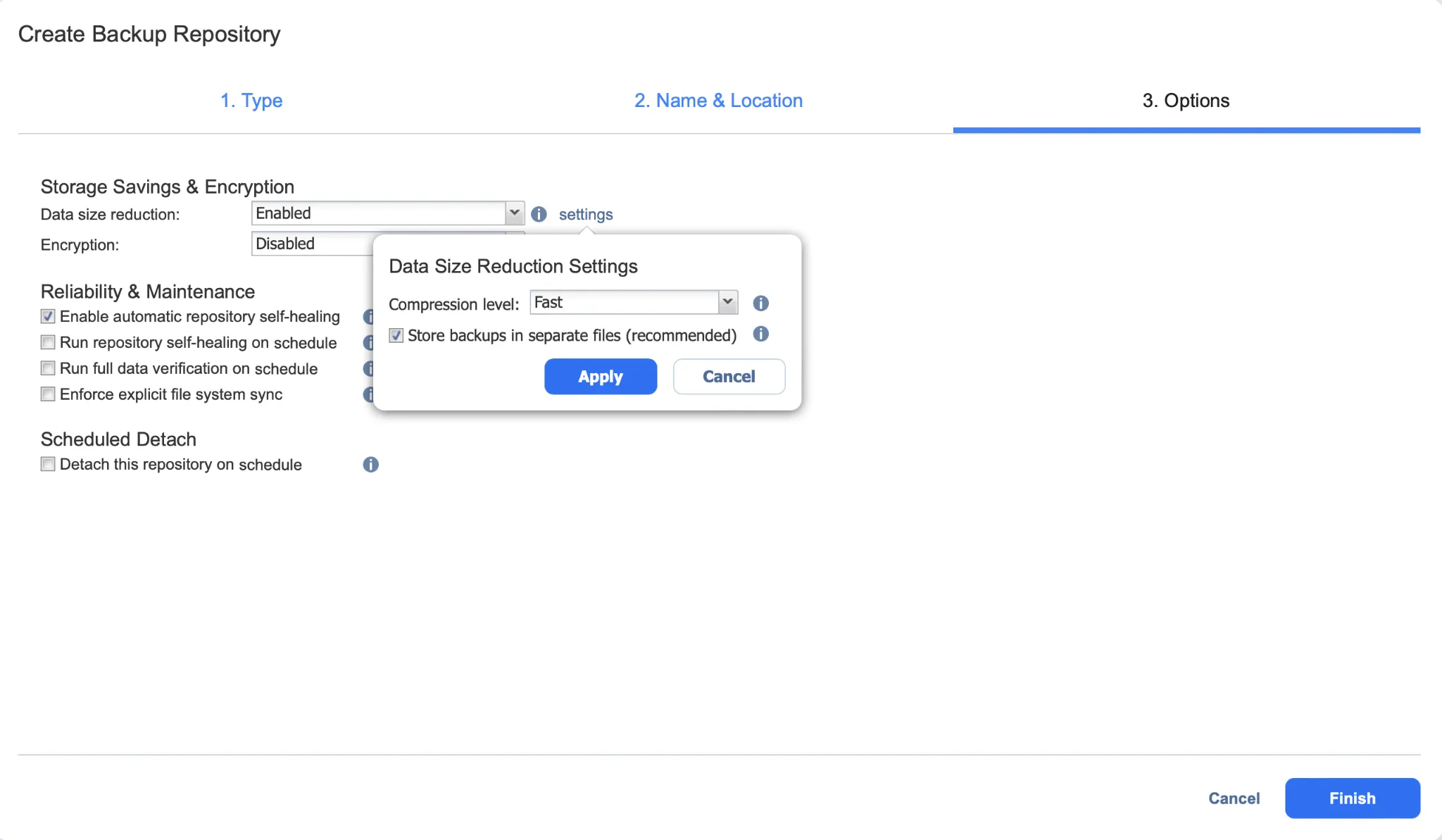
The repository is now available as a backup target for jobs protecting the client’s workloads. A single Direct Connect Transporter can manage multiple repositories at the client site.
Configuring the Transporter at the MSP’s side
To perform data protection operations between a client site and the MSP site – for example, backing up a client’s VM to an MSP repository or recovering data from an MSP backup repository to a client environment – you must open a dedicated public TCP port for each MSP Transporter. This allows the client’s Direct Connect Transporter to communicate directly with the MSP Transporters. You can configure this when adding or editing an MSP Transporter, or when assigning one to a local tenant during tenant creation or editing.
To add a new MSP Transporter:
- Select the master tenant, then go to Settings > Nodes. Click the plus icon and select Installed Service.
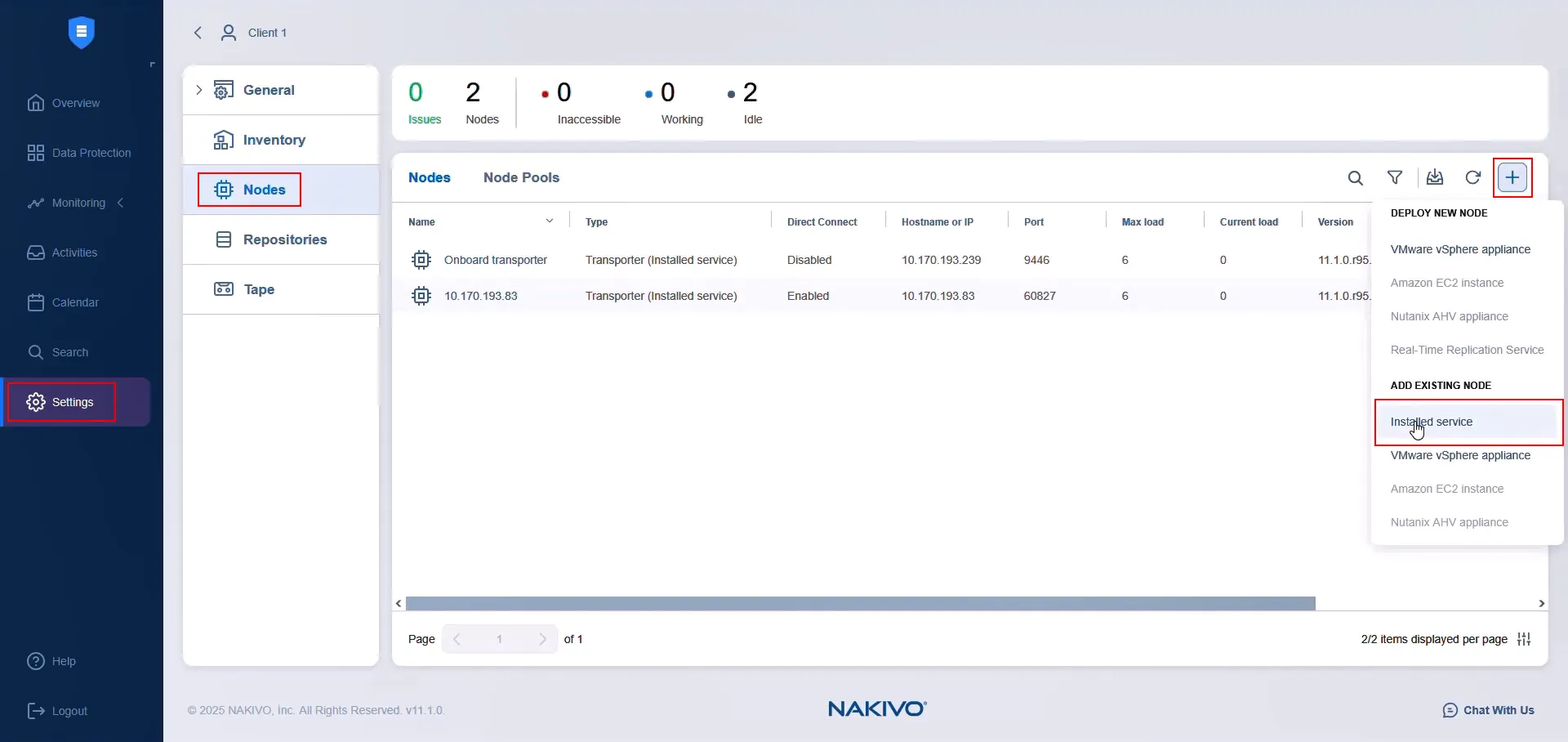
- Expand More Options and select Enable Direct Connect for this node. Enter the public IP address and public TCP port of the MSP Transporter. Verify that both are publicly accessible. Configure port forwarding if necessary. Click Connect to test the connection. Click Add to complete the setup.
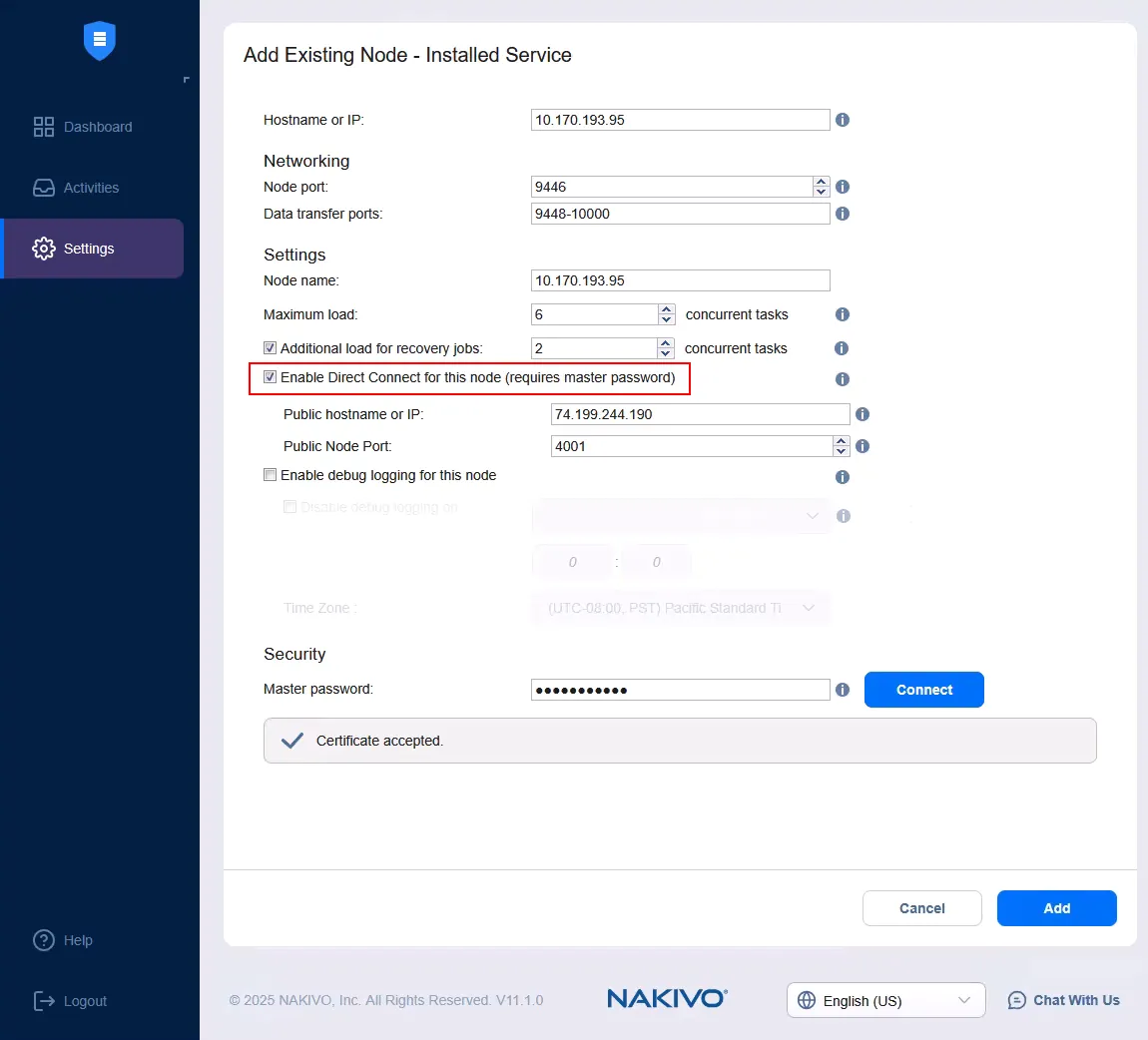
- Make sure the MSP Transporter is assigned to the MSP backup repository.
- To assign the MSP Transporter to the local tenant, go to the tenant’s settings and allocate the Transporter as a resource. You can do this when creating or editing the tenant.
Once both are in place, the client’s Direct Connect Transporter can communicate with the MSP Transporter, enabling cross-site data protection operations such as backing up client workloads to an MSP repository or recovering data from an MSP backup to the client environment.
Using the MSP Direct Connect whitelist
The Direct Connect whitelist is an optional security feature. When enabled, only Direct Connect Transporters from specified IP addresses can connect to the MSP Director. If no whitelist is configured, any Direct Connect Transporter can connect as long as its configuration file contains matching values.
To configure the whitelist for a local tenant:
- Select the tenant, then go to Settings > General > System Settings.
- Open the Configuration tab and select Allow Direct Connect Transporter connections from specific IP addresses only. A Settings link appears.
- Click Settings.
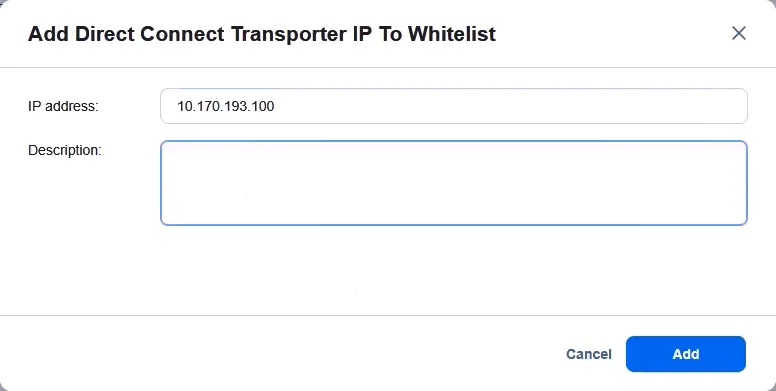
- In the Direct Connect Transporter IP whitelist dialog, click the plus icon, enter the IP address you want to allow and click Add.
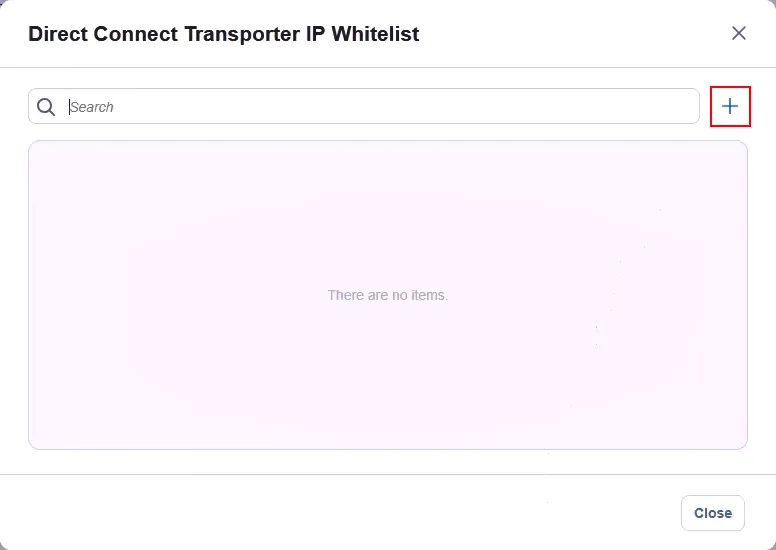
- Enter the IP address and, optionally, a description. Click Add to confirm.
Conclusion
MSP Direct Connect is a feature in the multi-tenant edition of NAKIVO Backup & Replication that enables Managed Service Providers to manage client data protection environments securely and without VPN configuration. Clients benefit from simpler connection setup with fewer network requirements. The feature supports Backup as a Service (BaaS), Replication as a Service (RaaS) and Disaster Recovery as a Service (DRaaS), helping both providers and clients streamline operations.
FAQ
What is NAKIVO MSP Direct Connect?
MSP Direct Connect is a feature in NAKIVO Backup & Replication that allows Managed Service Providers to access remote client environments for backup, recovery and replication without configuring a VPN. The client's Transporter initiates an outbound connection to the MSP Director, so no ports need to be opened at the client site. All communication is encrypted. An MSP license is required to enable the feature.
Does MSP Direct Connect require opening ports at the client site?
No. With MSP Direct Connect, the client's Transporter initiates an outbound connection to the MSP Director. No inbound ports need to be opened at the client site, which simplifies network configuration and reduces the client's attack surface.
What platforms does NAKIVO MSP Direct Connect support?
NAKIVO Direct Connect supports data protection for VMware vSphere, Microsoft Hyper-V, Proxmox VE and physical Windows/Linux workloads. You can use it to back up, replicate and recover virtual machines and physical servers across these platforms from a single MSP Director interface.
How do I configure NAKIVO MSP Direct Connect?
Install a multi-tenant edition of NAKIVO Backup & Replication at the MSP site. From the MSP dashboard, download the Direct Connect Transporter installer for Windows or Linux, then transfer it to the client's environment and run it. Once installed, the Transporter appears automatically in the MSP Director with a Pending status. Accept it by entering the master password, and the Transporter is ready for use. You can then add the client's infrastructure items to the inventory using the Direct Connect option.