Free ESXi: Restrictions and Limitations
VMware is a market leader in virtualization solutions, and VMware ESXi is a renowned type 1 hypervisor. Increasingly, individual users and organizations are deploying ESXi servers in their environments to run virtual machines. An ESXi hypervisor is provided as part of VMware vSphere, which, in turn, comes with different licensing options for each edition. Each VMware vSphere edition has its own price, but VMware also provides a free version of ESXi.
This blog post explores the features of free VMware ESXi as well as the restrictions and limitations that await you if you use this version of the ESXi hypervisor.
Applying a Free License to VMware ESXi
In February 2024, VMware announced the End Of General Availability of the free vSphere Hypervisor (ESXi 7.x and 8.x) after the Broadcom acquisition. However, if you obtained a license (serial number) for ESXi 8.0 before this date, you can still use this deployment of Free ESXi.
In April of the following year, VMware vSphere 8.0 Update 3e was released, and Broadcom provided a free edition of this version. Back in 2024, users had to manually enter a license key for the Free ESXi Hypervisor after installing ESXi from the standard installation image running in Free Trial mode, just like any other license key. However, in 2025, the new version of Free ESXi 8.0U3e was released as a separate ISO image with an embedded Free ESXi license key. The set of features in Free ESXi 8.0U3e is the same as those in Free ESXi 8.0.0, which was available before its deprecation.
Technically, you can copy your Free ESXi 8.0U3e key and use it on another ESXi host installed in Free Trial mode or with a paid license. However, you cannot use the Free Trial mode on Free ESXi 8.0U3e installed from the ISO image with an embedded Free ESXi license key. You can install a license key of a paid VMware vSphere edition on an ESXi installed from the Free ESXi ISO image (all paid features of a specific license will be unlocked in this case). This way, it is possible to use the custom ISOs for Dell, HP and other vendors, but always check the latest version of the license agreement first.
You can download the ESXi installer ISO image from the Broadcom web portal, for which you’ll need to have a Broadcom account. The installer file for a particular version (for example, 8.0U3e) of an ESXi hypervisor differs from that for the Trial version. A different set of features and capabilities is defined after the appropriate license is applied. There are two different images for the ESXi 8.0U3e installer with different build numbers:
- ESXi Free Edition – VMware-VMvisor-Installer-8.0U3e-24677879.x86_64.iso
- ESXi (Evaluation/Paid/Licensed) – VMware-VMvisor-Installer-8.0U3e-24674464.x86_64.iso
After installing ESXi as usual, a full-featured 60-day evaluation period is started. You can use all the features available in the Enterprise Plus edition during the 60-day evaluation period. If you apply your license before the evaluation period expires, you can only use the features allowed by your license. If the 60 days have passed and no license was applied, then all advanced features are locked, running VMs continue to function, but you cannot start powered-off VMs. ESXi hosts connected to vCenter Server are disconnected in this case. You need to assign a license (either free or paid) to get your ESXi server up and running again.
Where can you get a free license key? After registering on the Broadcom website, you can download the ISO image containing the embedded free license key for ESXi. On the Broadcom Support Portal, go to Free Downloads and click VMware vSphere Hypervisor. Then, click VMware vSphere Hypervisor once again. Click 8.0U3e as the release name. Accept the terms and conditions.
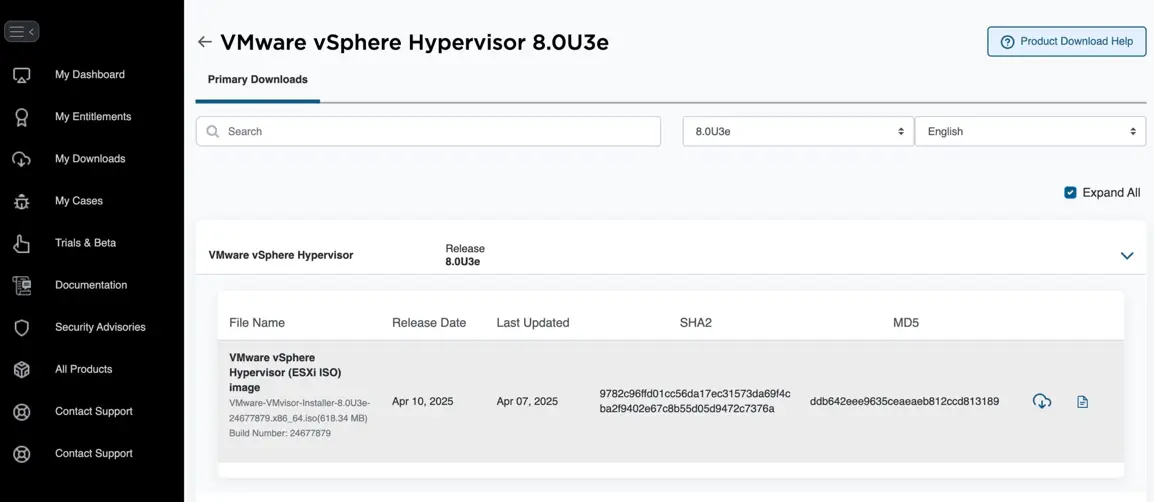
After downloading the installer with the embedded ESXi free license key, you can install the ESXi server.
- Once you have installed the ESXi server, open your web browser and enter the IP address of your ESXi host to open VMware Host Client.
- Enter root as the username and the password you specified during the ESXi installation to log in.
- In the left pane (Host Navigator), select Host > Manage and then select the Licensing tab.
As you can see in the following screenshot, the license name is vSphere 8 Hypervisor (Free ESXi) and the embedded license key is displayed below. The “Up to 8-way virtual SMP” string is displayed in the features column. SMP means Symmetric Multi-Processing – a feature that defines the number of cores that the host can schedule a VM to use simultaneously (8 cores/virtual processors in the case of using a free license). The expiration date is set to Never because the license is perpetual.
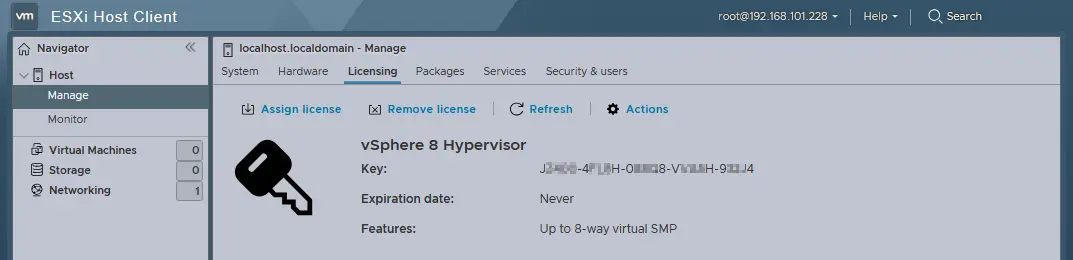
You cannot use 00000-00000-00000-00000-00000, which is the Trial license key, if you installed ESXi from the Free ESXi installation image. However, if you installed ESXi in the Trial mode from a regular ESXi installation image, the Trial license and full feature set are displayed in the Licensing tab.
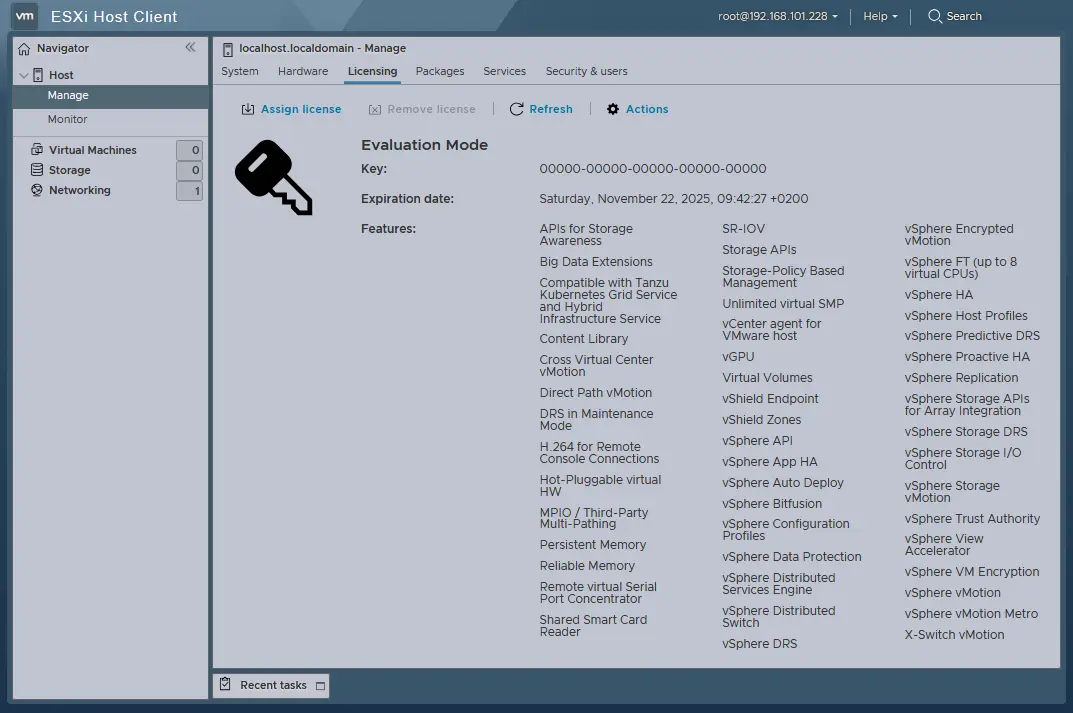
As shown in the screenshot above, a host is running in evaluation mode. In the current example, ESXi was installed on September 23 and the expiration date is November 22. A complete list of features available for the 60-day evaluation period is displayed on this page in the features section. The license key is displayed as 25 zeros in this case.
Let’s assign a free VMware ESXi license key. Click Assign License and enter your key (25 symbols). Click the Check License button, and if your license key is valid, click Assign license.
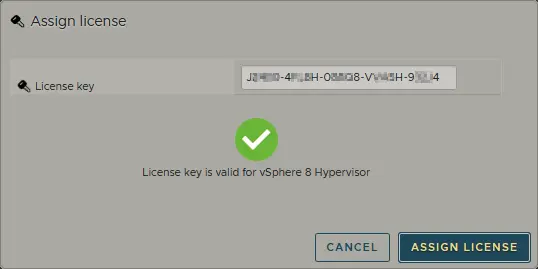
The license has been changed to vSphere 8 Hypervisor (Free ESXi).
How to Check Features Available with a Free License
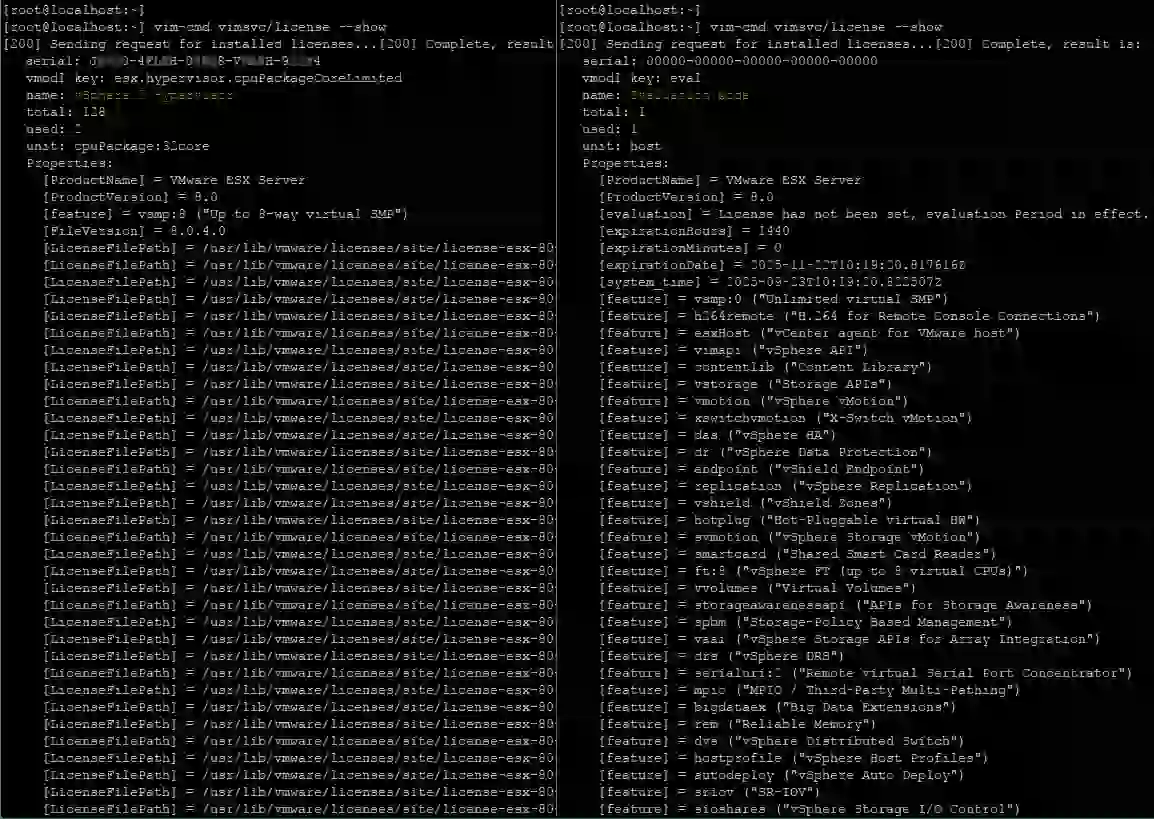
The first visual difference you may notice is displayed in the screenshots above. To view more detailed licensing information, use a console. In this example, PuTTY is used to access the ESXi console remotely via SSH. Make sure that SSH access is enabled in the ESXi settings. Enter the following command to view your license and available features:
vim-cmd vimsvc/license --show
In the screenshot below, you can see the output of this command for ESXi running in the free mode and for ESXi running in the evaluation mode. A list of available features is much longer for the ESXi server running in evaluation mode.
The List of Restrictions for Free ESXi
Now, let’s take a closer look at the restrictions when using an ESXi server version 8.0U3e with a free license. Depending on your environment, some restrictions may be unnoticeable while others can be critical:
- No official VMware support
- Max 8 vCPU per VM
- Cannot be managed with vCenter
- vStorage API is not available
No official VMware support
VMware provides no commercial technical support for free ESXi. You can ask the VMware community for support, and with any luck, you can find a solution to resolve your issue. While commercial VMware technical support operates 24/7 and typically provides answers quickly, assistance from the VMware community may take more time. VMware commercial support also includes software upgrades.
Max 8 vCPU per VM
If you create a VM with more than 8 virtual processors (for example, a VM with 9 virtual one-core processors or a VM with 5 virtual two-core processors), the VM is likely going to fail to start on free ESXi, displaying the error “There are insufficient licenses to complete this operation”. At the same time, with the Evaluation or Enterprise Plus editions, you can create a VM with up to 128 vCPUs (virtual Central Processors Units) assigned. The 8 vCPU restriction may not cause significant disadvantages, unlike the two restrictions that follow.
Cannot be managed with vCenter
The free version of an ESXi server cannot be managed with vCenter – the centralized server for managing hosts and virtual machines. If you try to add an ESXi host with a free license to vCenter Server, you can expect to get the error: “License not available to perform the operation”. Hence, you cannot migrate machines from one free ESXi host to another, nor can you use clustering features, because vCenter Server is required to perform these operations. This is a significant disadvantage if you are planning to use multiple ESXi hosts.
vStorage API is not available
VMware provides a data protection framework called vStorage API (Application Programming Interface) for enabling centralized backup of virtual machines at the host level. vStorage API enables third-party VMware backup solutions to perform backups more efficiently, as well as offload CPU, network and storage resources. ESXi Server Free Edition doesn’t allow applications to interact with the ESXi server via vStorage APIs; hence, VMs cannot be backed up from the free version of ESXi on a host level. In this case, your backup software should display an error message. You can only perform a legacy backup of VMs running on the free version of ESXi host, which requires agent installation on the guest operating system.
Features that Are Not Limited to Free ESXi
Now that we’ve gone through the disadvantages and limitations, let’s review the non-limited features and advantages of free ESXi.
Unlimited physical CPUs per host
The free ESXi license allows you to use an unlimited number of physical processors for an ESXi host (VMware vSphere Hypervisor). In older versions of ESXi, a free license is restricted to using up to 2 physical processors. The processor is virtualized but not emulated in the case of hardware virtualization and is one of its primary components.
Unlimited cores per CPU
The free ESXi license does not limit the number of cores per physical CPU. This feature allows you to utilize the hardware CPU performance rationally. One CPU core can be used as one virtual processor or one virtual processor core for a virtual machine.
Unlimited physical memory
Similar to physical CPUs and processor cores, physical memory is not limited in an ESXi server that has a free license. Along with unlimited CPUs and CPU cores, this feature allows you to deploy a powerful physical server with 4, 6 or more multicore CPUs with large amounts of RAM.
No expiration date
You only need to get a free ESXi license once since it never expires. This means that you can use the ESXi server free version as long as you want. If you need to assign a commercial license, you can do it at any time without re-installing your ESXi server. Just open the licensing options in your VMware host client or VMware vSphere client and enter the new license.
Conclusion
VMware changed its licensing policy. However, after a 14-month gap, you can start exploring the world of hardware virtualization with free VMware ESXi, also known as VMware vSphere Hypervisor. The ability to use unlimited hardware resources (CPUs, CPU cores, RAM) allows you to run a large number of VMs on the free ESXi host, with the limitation of 8 virtual processors per VM (one physical processor core can be used as a virtual CPU).
The primary disadvantages of using free VMware ESXi are the inability to utilize vStorage APIs and, consequently, the inability to use native backup applications for host-level VM backup, as well as limited access to centralized management through VMware vCenter Server. Despite the limitations, using free ESXi in a production environment is not prohibited by the license agreement.