How to Convert a Linux Physical Machine to a VMware Virtual Machine
When a Linux physical machine fails or needs to be modernized, rebuilding it manually can be time-consuming and error-prone. Physical-to-virtual (P2V) conversion provides a faster alternative by allowing IT teams to recover or migrate Linux systems directly into virtual environments.
With backup-based P2V recovery, administrators can convert a Linux physical server into a VMware virtual machine (VM) while preserving system state and configuration. This approach is especially useful for disaster recovery, hardware refreshes and infrastructure consolidation. Read this blog post to learn how to convert a Linux physical machine to a VMware VM using NAKIVO Backup & Replication as the P2V converter.

Use Cases for P2V Recovery
There are two main use cases for P2V recovery: Temporary P2V recovery and permanent P2V migration.
Temporary P2V recovery involves recovering a physical machine to a virtual machine from backup for a limited period of time; typically, while the original physical system is being repaired, reconfigured or replaced. This approach helps minimize downtime by allowing workloads to continue running in a virtual environment almost immediately after a failure.
If a physical server or workstation goes offline unexpectedly, it can be recovered to a VM from backup and operate in place of the failed system. In the case of a workstation, users can connect to the recovered VM remotely from any available computer and continue working with minimal disruption. The virtual machine remains in use until the physical hardware is restored or replaced.
Once the physical machine is operational again, all required data can be transferred back to it. The temporary VM can then be decommissioned and workloads can resume running on the physical system. To enable this recovery scenario, physical machines should be backed up regularly so that recent data is always available if a failure occurs.
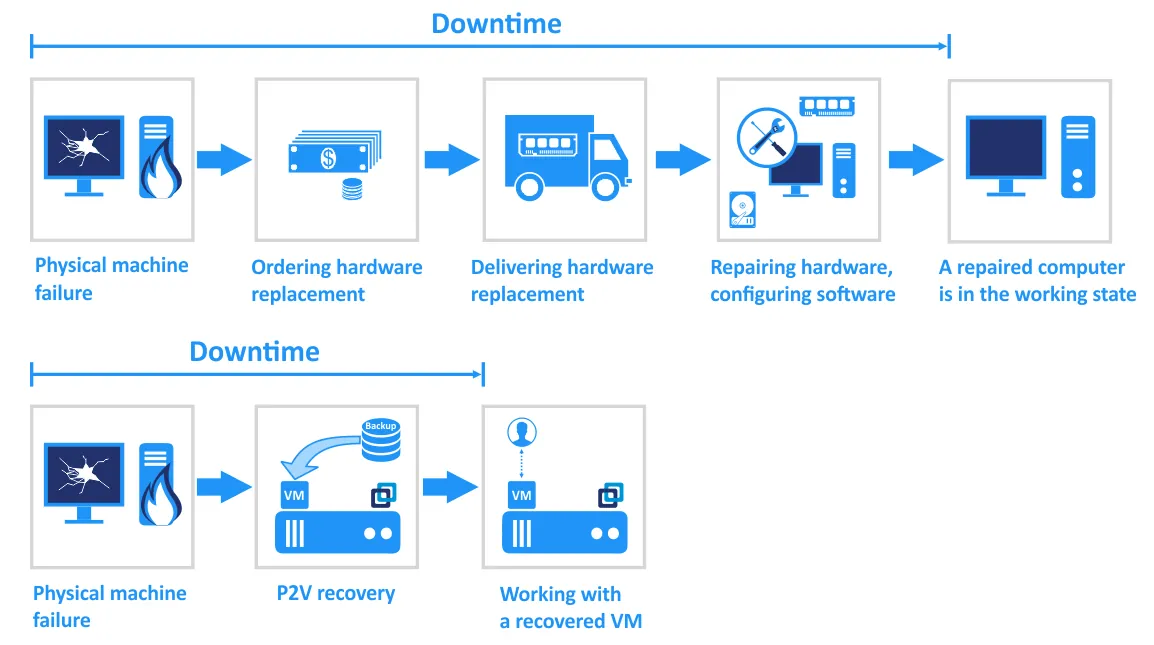
Permanent P2V migration is generally used during infrastructure modernization, when organizations transition from physical servers to virtual environments for long-term use. Instead of maintaining standalone hardware, workloads are permanently moved to VMs running on a hypervisor.
For example, when deploying a new server to host a hypervisor, you may choose to convert a physical Linux server to a VMware virtual machine (VM) or convert a physical Windows Server to a Hyper-V VM, depending on your target platform. In this scenario, the virtual machine becomes the primary production system, and the original physical hardware can be decommissioned.
NAKIVO Backup & Replication can be used as a P2V converter to facilitate this migration by restoring physical machine backups directly to a virtual environment.
How Linux Server Backup Works
Successful P2V recovery depends on having a reliable backup in place. Below is an overview of how Linux server backup works in NAKIVO Backup & Replication.
When a physical Linux server is added to the Inventory in NAKIVO Backup & Replication, a physical machine agent is deployed to enable communication with the Director and Transporters. During deployment, the inst.sh installer file is uploaded to the target Linux machine via SSH. The required security components, including the certificate.pem file and the bhsvc.id token file (containing the ID and pre-shared key), are then transferred to establish secure communication between the agent and the Director. The agent installation is performed silently.
After installation, the agent runs as a service and starts automatically (unless it is a one-time agent deployment). A physical machine agent cannot be installed on a machine that already hosts a Transporter component. However, a Linux machine with a pre-installed agent can be added directly to the Inventory. Once the agent is successfully deployed, the physical Linux server becomes visible in Inventory, and backup jobs can be created.
Requirements
The physical Linux server that you want to back up must meet the following requirements.
Hardware requirements
- 64-bit CPU (x86-64 architecture)
- Minimum 2 GB of RAM
- MBR or GPT partition table
Storage requirements
- Supported disk types and file systems on the source physical Linux server: Ext2, Ext3, Ext4, XFS, ReiserFS, NTFS, FAT32, Linux SWAP
- Supported LVM types: Linear, RAID 0, RAID 1
Network requirements
- The SSH server must be running on the Linux server (the
openssh-serverpackage must be installed). - The following TCP ports must be opened on the target physical Linux server:
- TCP 22 must be opened to establish SSH connections (secure logins and file transfer via SCP and SFTP).
- TCP 9446 is used by NAKIVO Backup & Replication to communicate with the machine.
Root privileges are needed to deploy the agent. You can enable access to the root user via SSH on the Linux machine, but it is not the best option in terms of security. If your user is not root, make sure that they can connect to the physical Linux machine via SSH and run the sudo command to get root privileges. Password authentication must be enabled on the SSH server.
The P2V Recovery Process for Linux Servers
Below is the P2V recovery sequence for Linux servers:
- Back up the physical Linux server to a repository.
- Export data from backup to the virtual disk of the appropriate format (VMDK, VHD or VHDX).
- Copy virtual disk files to the datastore that a hypervisor can access.
- Create a new VM and set it to use the exported disk.
- Start the VM on the physical machine running the hypervisor.
You can watch this video to learn how to convert a physical Linux to a Hyper-V VM:
P2V Recovery Workflow using NAKIVO Backup & Replication
Let’s walk through the complete P2V recovery workflow for converting a physical Linux server to a VMware virtual machine using a practical example. In this scenario, the source system is running Ubuntu 24.04 LTS, and the destination environment consists of an ESXi 9.0 host managed by vCenter Server 9.0. The Linux server is accessed using the account user1 with sudo privileges enabled.
No third-party P2V converters are used in this example. Instead, the physical Linux server is restored directly from backup to a VMware VM using NAKIVO Backup & Replication.
Adding a physical Linux machine to the Inventory
First, you have to add a physical Linux server to the Inventory in NAKIVO Backup & Replication.
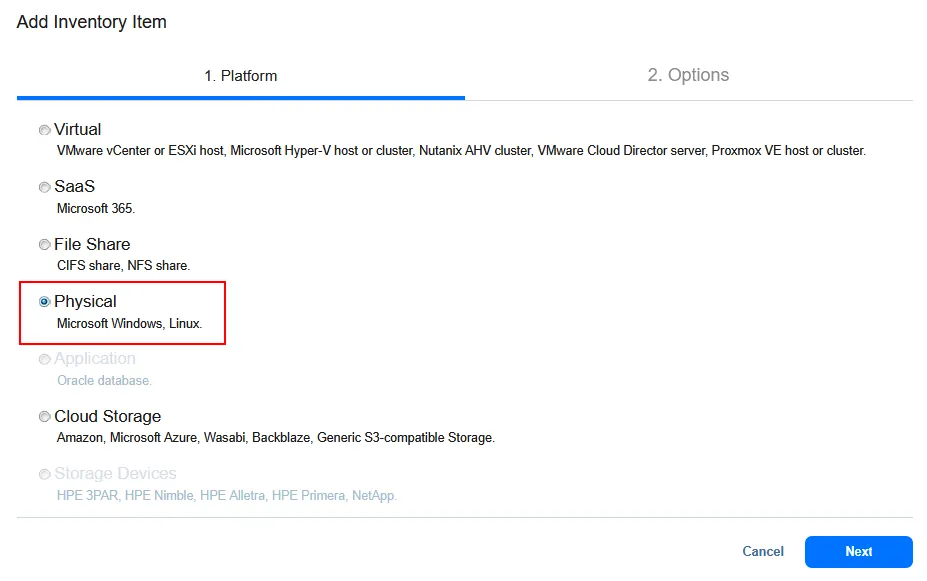
- Log in to NAKIVO Backup & Replication, go to Configuration > Inventory and click the Plus (+) icon to add a new item.
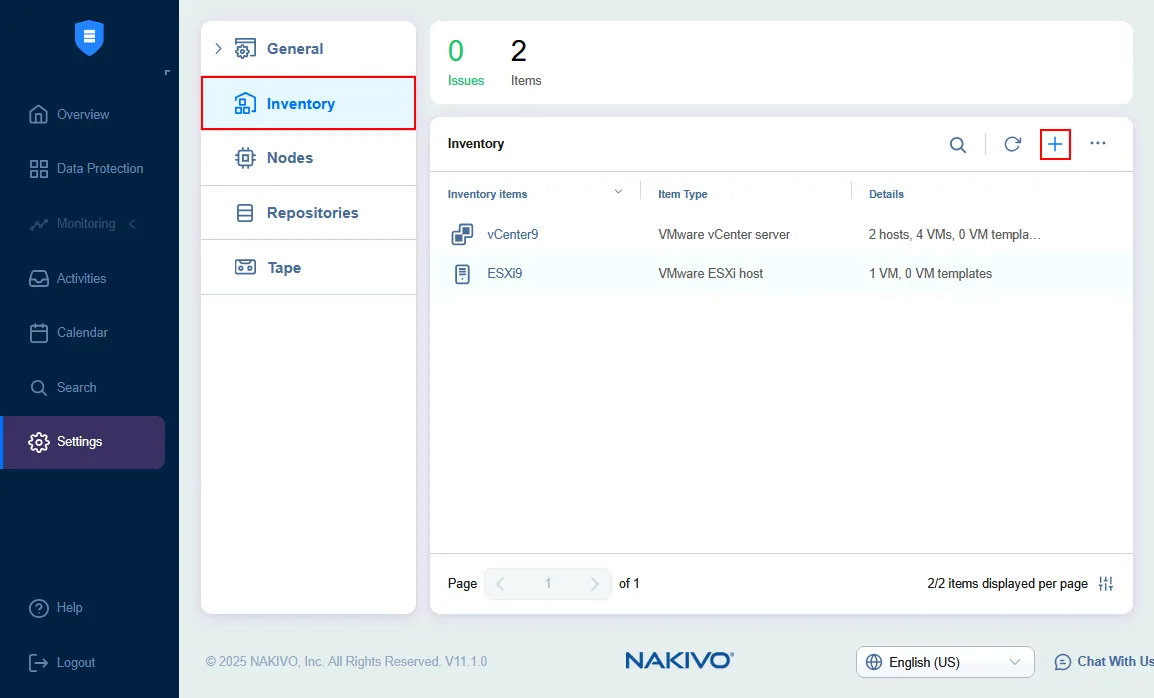
- Select Physical as the platform and click Next.
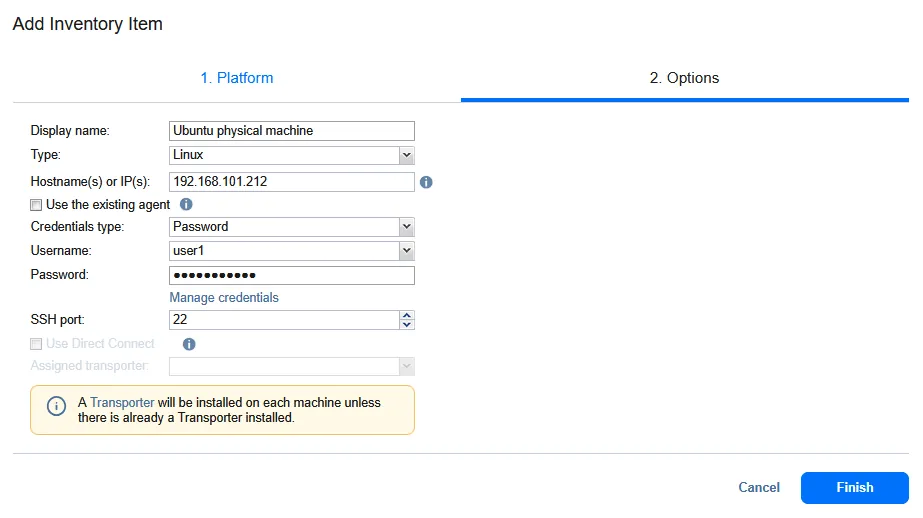
- On the Options page, set the required parameters.
- Display name: Ubuntu physical machine
- Type: Linux
- Hostname(s) or IP(s): 192.168.101.212
- Username: user1
Password: ******** - SSH port: 22
A physical machine agent or Transporter will be installed on your physical Linux machine.
Click Finish to add the physical machine to the inventory.
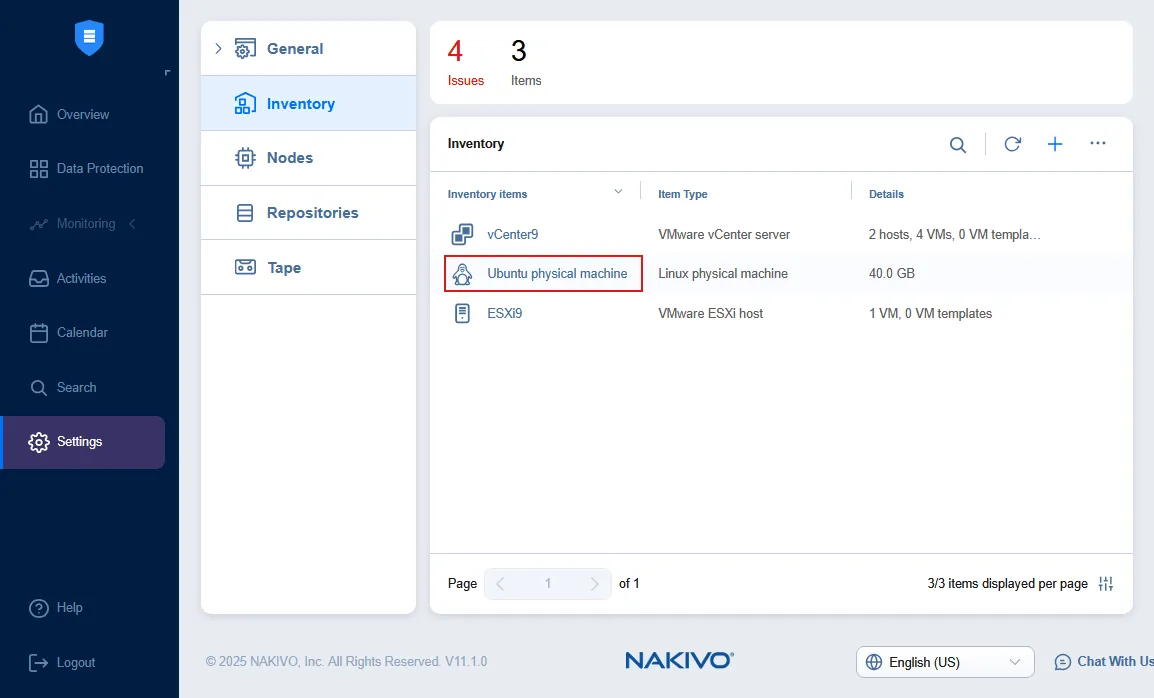
Now, you can see your physical Linux server in the Inventory.
Creating a backup of the physical Linux server
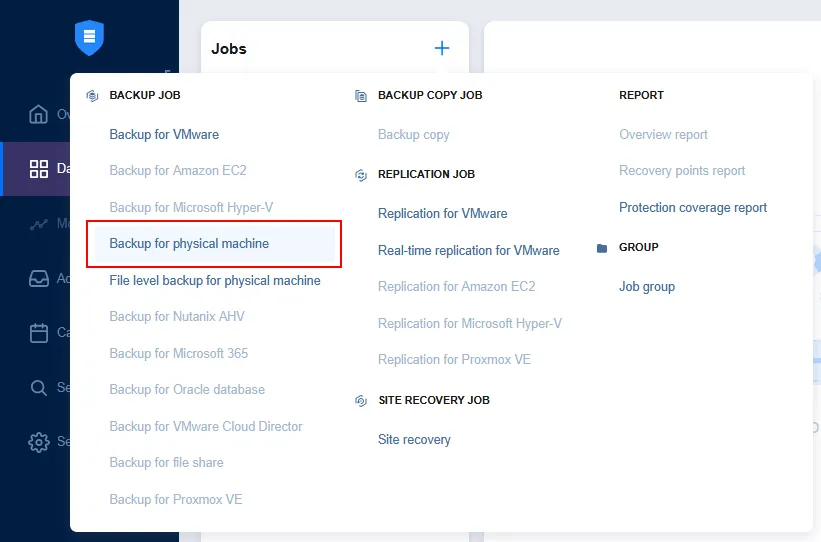
Create a new Physical machine backup job in NAKIVO Backup & Replication. On the Data Protection page, click the Plus (+) icon and select Backup for physical machine.
The New Backup Job Wizard for Physical Machine opens.
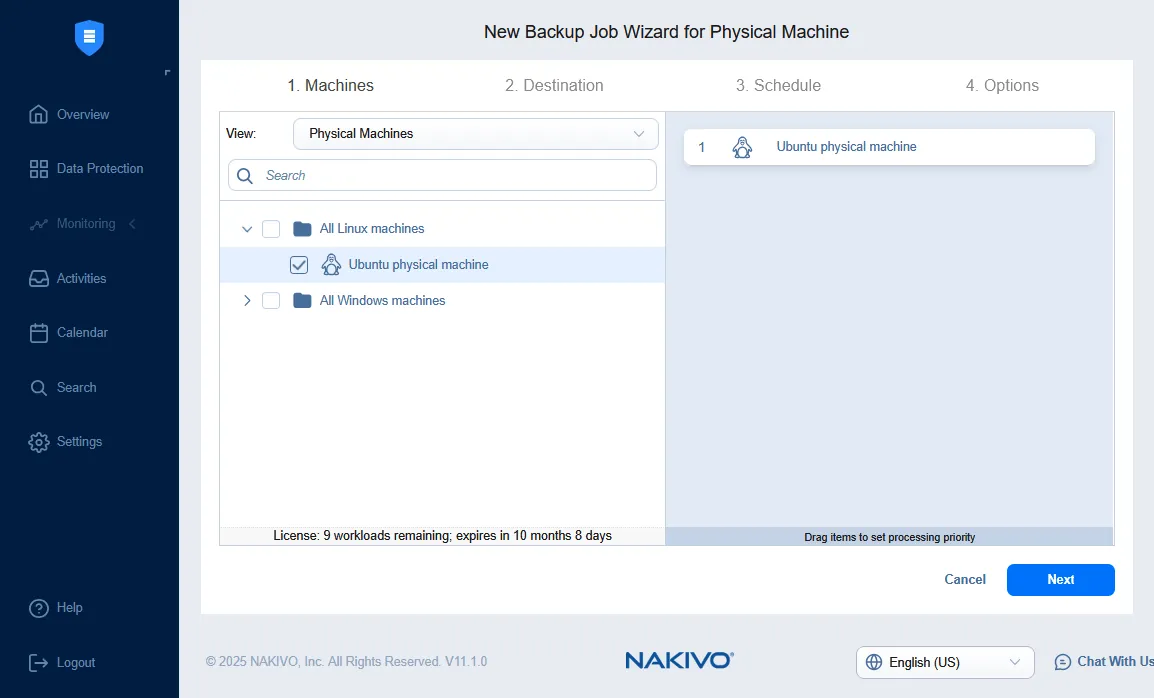
- Machines. Select the needed machine from the available list of physical machines. Linux and Windows machines are sorted in separate categories. Ubuntu physical machine is selected in this example. Click Next to proceed at every step.
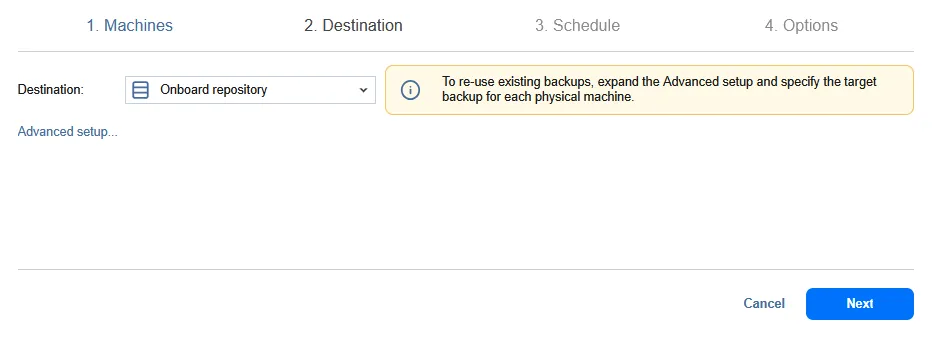
- Destination. Select a backup repository. In this example, the onboard backup repository is used to store the physical Linux backup. You can expand the options by clicking Advanced setup and your Linux server name (Ubuntu physical machine in this case) and then selecting the custom disks and partitions to back up.
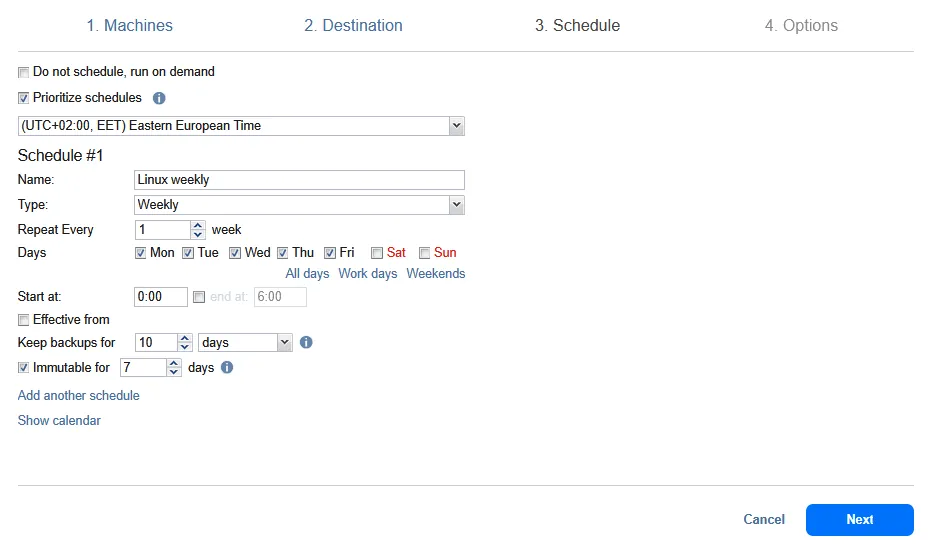
- Schedule. Select the required scheduling and retention options. You can enable backup immutability here.
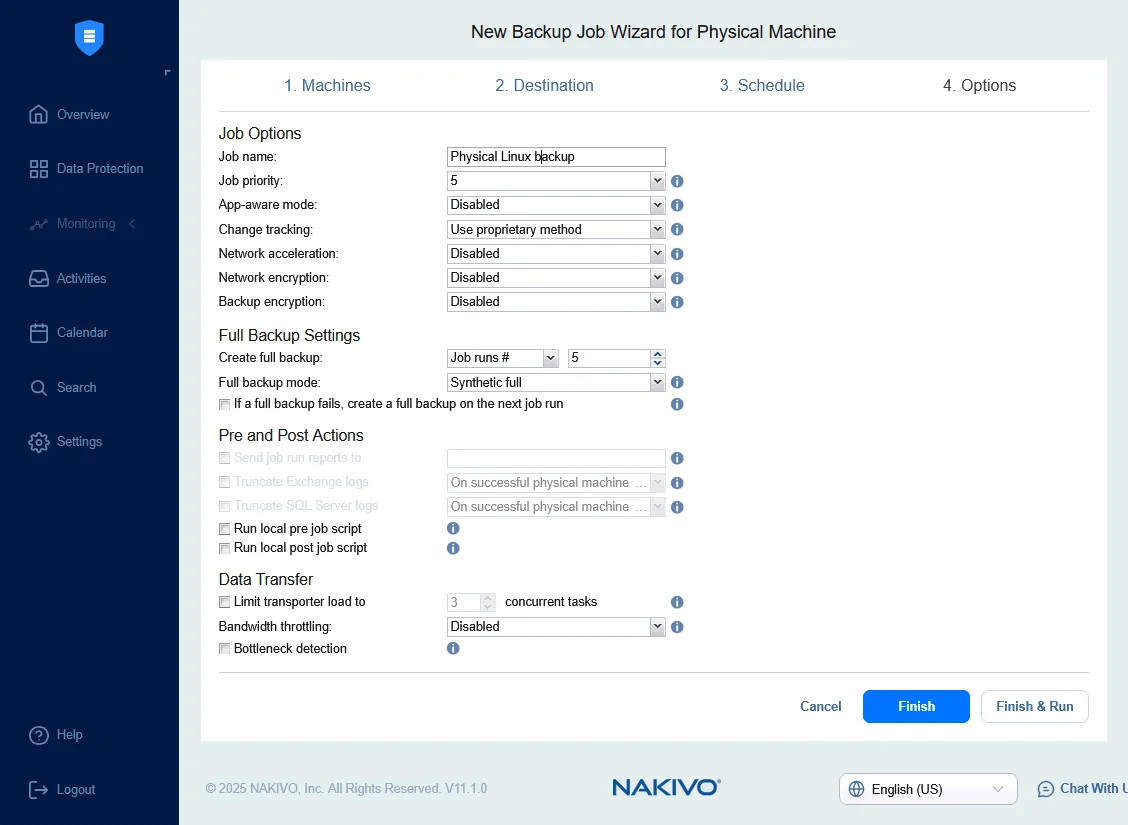
- Options. On this page, you can set the job name, enable or disable application-aware mode, select the change tracking method and set network acceleration and encryption. Keep in mind that you can only use the NAKIVO proprietary change tracking method, unlike jobs for VMware and Hyper-V VMs, since you are backing up a physical machine and not a VM on the host level.
When you configure all job options, click Finish to complete the job creation, or hit Finish & Run to save the settings and run the job.
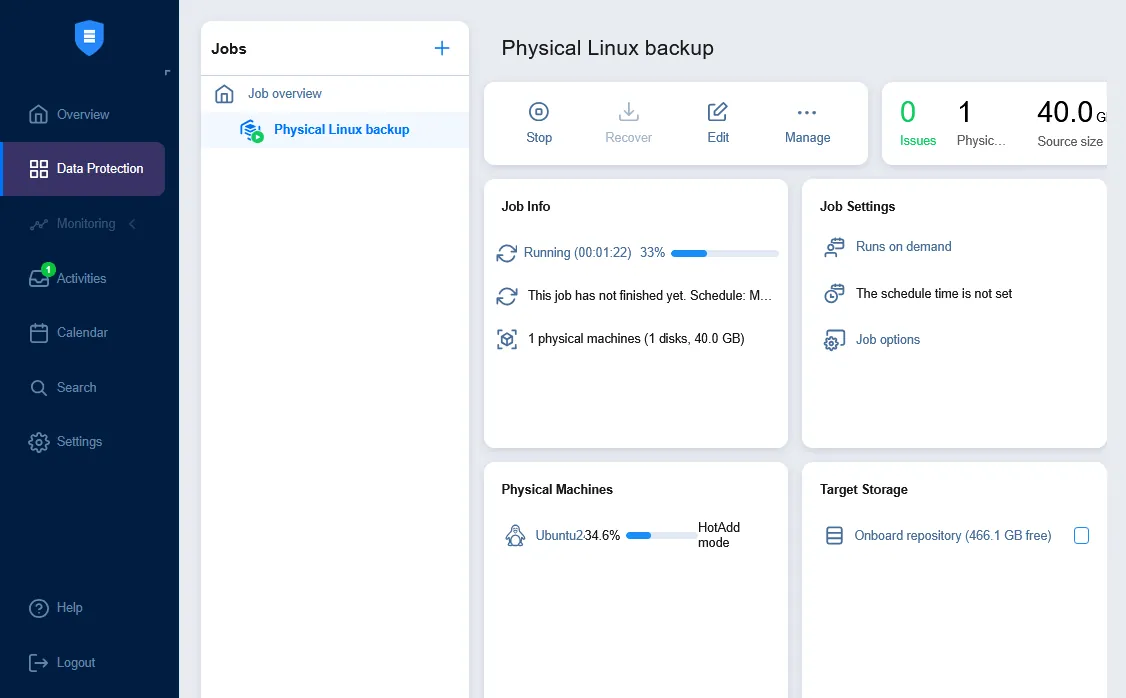
Wait until your physical Linux server is backed up. The backup progress is displayed in the web interface of NAKIVO Backup & Replication.
Backup export
Once your physical Linux server is backed up, you can perform machine recovery and conversion to the Hyper-V or VMware VM with NAKIVO Backup & Replication by using backup export.
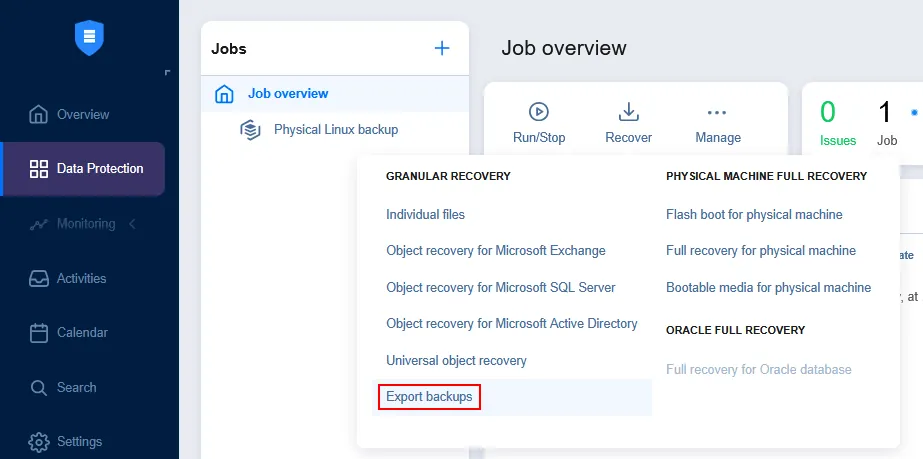
On the Data Protection page, click Recover > Export backups to export data from a backup to a virtual disk of the appropriate format.
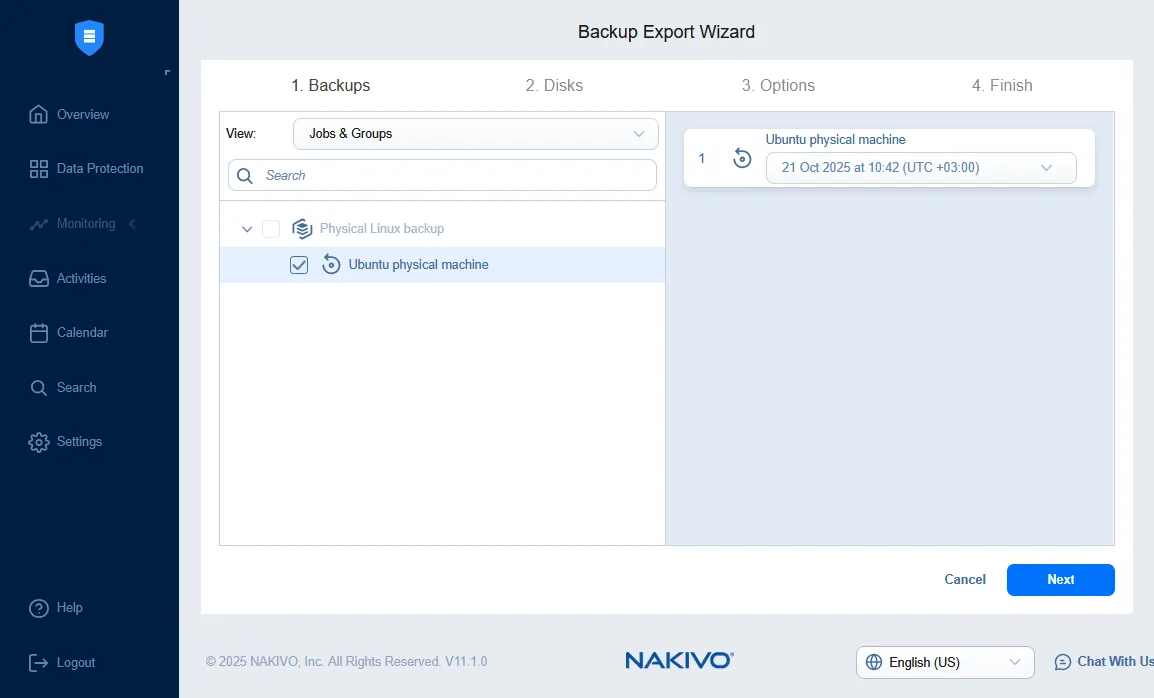
The Backup Export Wizard opens.
- Backups. Select the backup of your physical Linux server and the needed recovery point. By default, the latest recovery point is selected. Click Next at each step to continue.
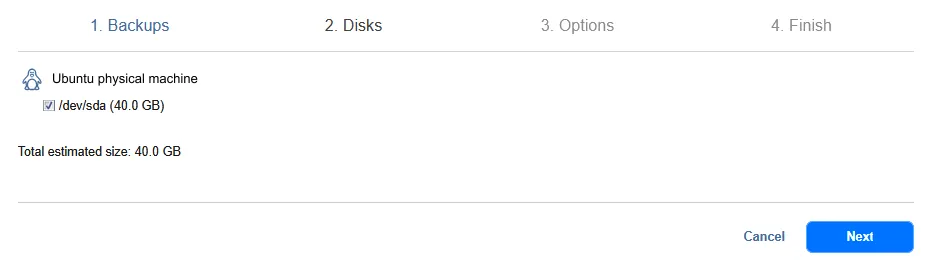
- Disks. Select the required disks from the backup. By default, all existing disks are selected.
- Options. Select the backup export options.
- Export format: VMDK
- Export location: CIFS share
- Path to the share: \\FILESERVER\Share07
- Credentials type: Password
- Username: backupuser
- Password: ********
Click Test Connection to check that you have entered the correct credentials with sufficient read/write permissions.
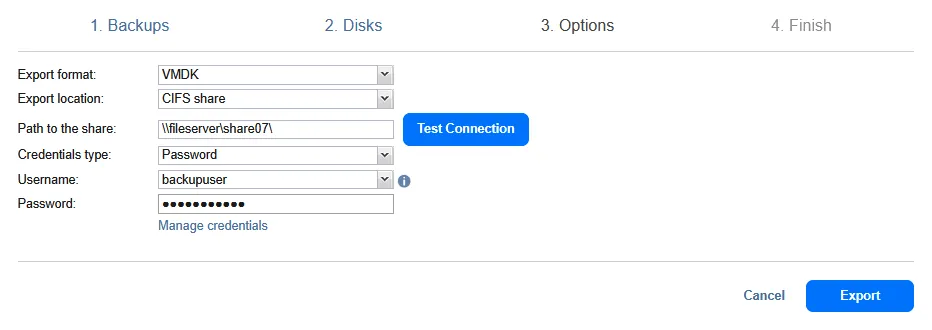
Once the connection is tested successfully, click the Export button to start the process.

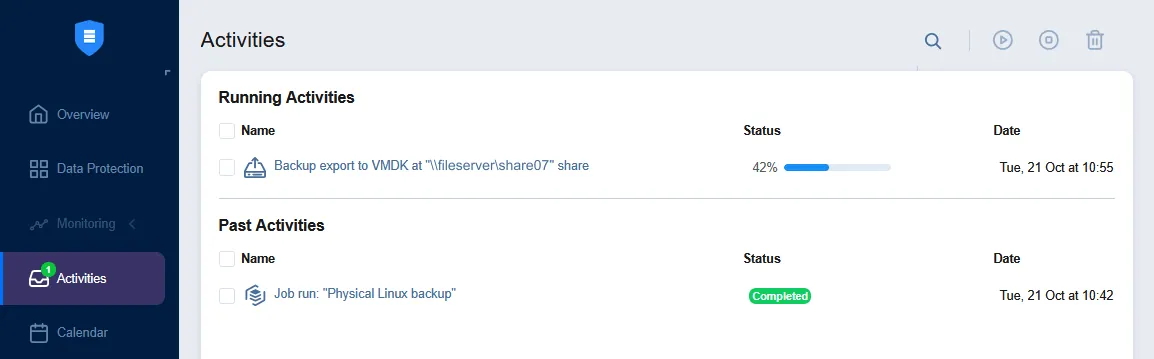
- Finish. When the backup export starts, you can switch to the Activities tab and monitor the progress.
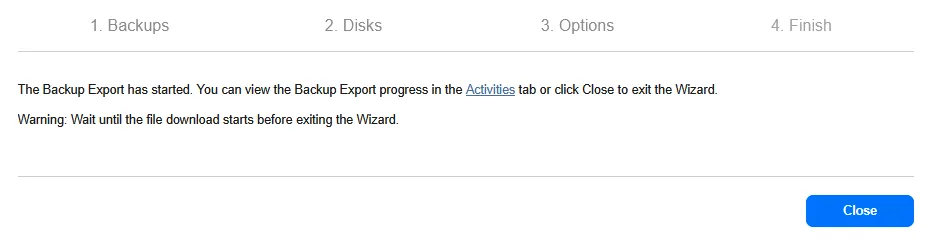
Wait until the Backup Export job is completed.
Copying exported disks to the ESXi datastore
When the Backup Export job is complete, you can see the virtual disk files in the defined location. In our case, it is a shared folder, and two VMware ESXi virtual disk files are stored there:
Ubuntu_Physical_Machine_Disk1_Tue--21-Oct-2025-at-7-42-36-(UTC-+00-00).vmdk
Ubuntu_Physical_Machine_Disk1_Tue--21-Oct-2025-at-7-42-36-(UTC-+00-00)-flat.vmdk
The ESXi format of a virtual disk requires two files: A disk descriptor file (.vmdk) and a file that contains raw data (-flat.vmdk). The names of the exported files contain the name of the physical machine defined in the Inventory, the disk number and the day of the week, date, time and time zone. Note that the format of these files is similar to thick-provisioned. After importing them to a datastore used by a hypervisor, you can convert the virtual disks to the thin-provisioned format.

- You can rename the virtual disk files for additional convenience.
Physical_Linux_Recovered.vmdk
Physical_Linux_Recovered-flat.vmdk
- Note that if you rename a virtual disk data file and a virtual disk descriptor file, you must edit the virtual disk descriptor file and, in the # Extent description section, replace the old name of the virtual disk data file with the new one.
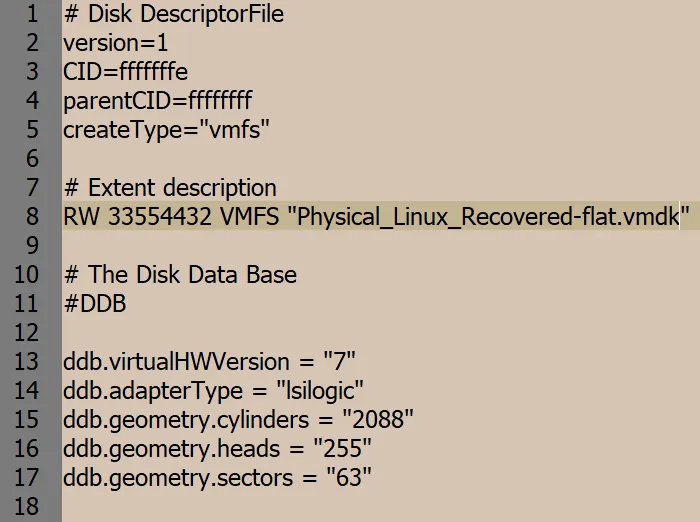
Copy the virtual disk files to the datastore. In this example, VMware vSphere Client is used to connect to vCenter and configure the ESXi host.
- In VMware vSphere Client, go to Datastores and select the datastore connected to the ESXi host that you want to use for running the recovered Linux server. In this example, the name of the selected datastore is datastore50. Next, open the Files tab and click New Folder to create a new directory in the selected datastore.
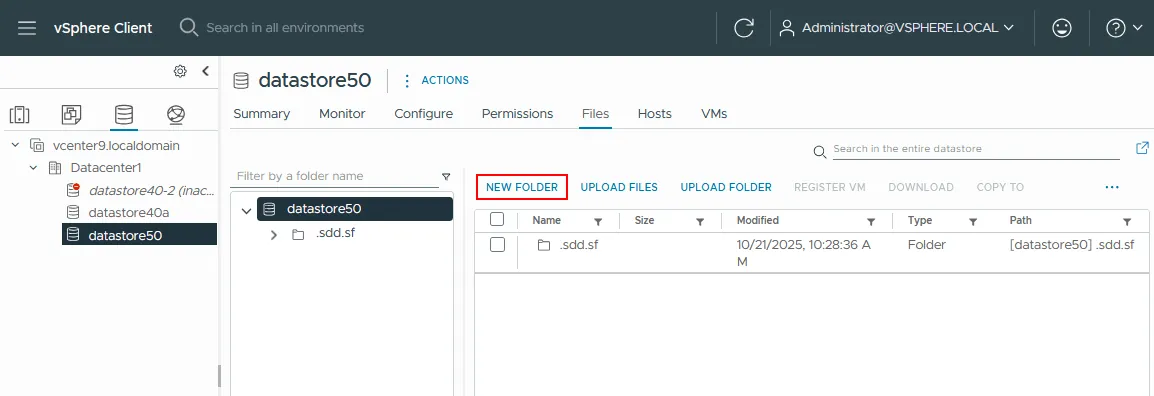
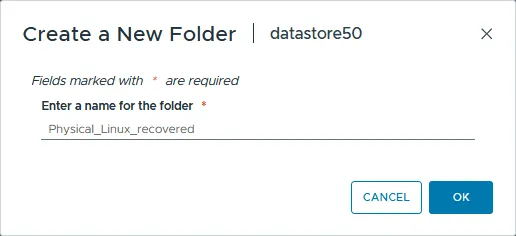
- Define the name for the new directory (for example, Physical_Linux_recovered).
- The Physical_Linux_Recovered directory is created in datastore50.
- Open the created directory, click Upload Files and select the two exported files (
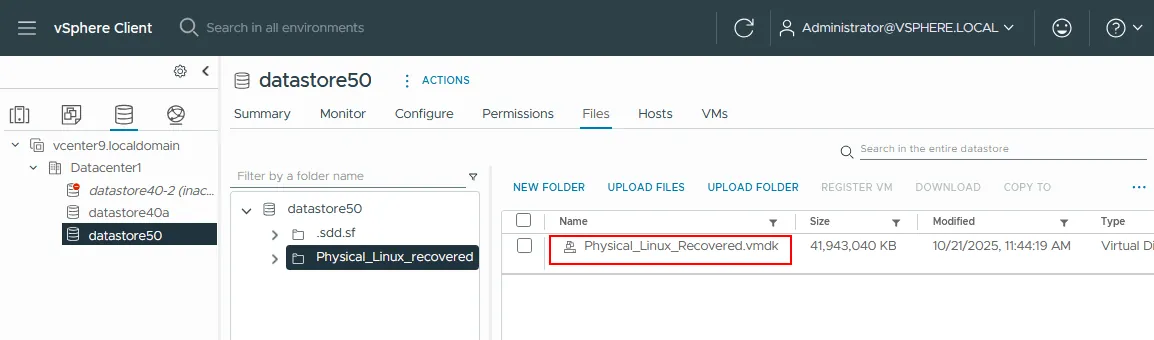
.vmdkand-flat.vmdk) to upload.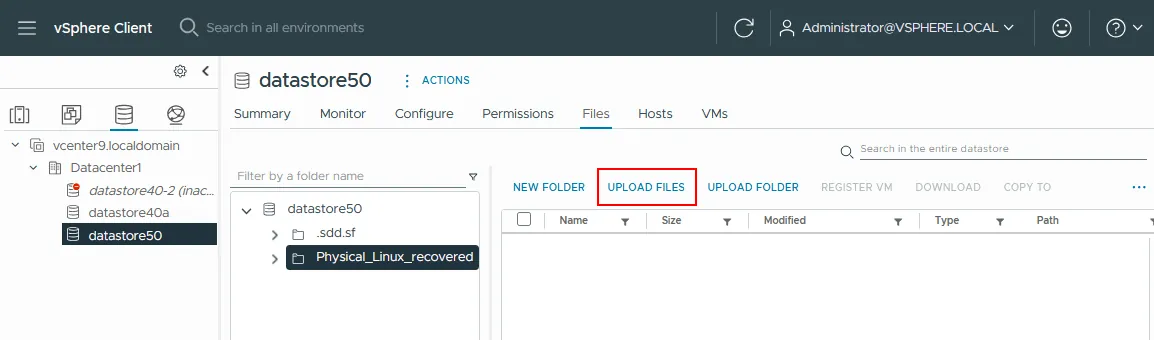
- Once both files are uploaded, only one virtual disk file will be visible even though the datastore contains two files. You can verify that there are two files by connecting to the ESXi host via SSH and checking the content of the directory.
You can see the two files of the virtual disk in the console.

If you want to convert a thick-provisioned disk to a thin-provisioned disk, you can use the following command in the ESXi command line:
vmkfstools -i /vmfs/volumes/DatastoreName/VMFolderName/SourceDisk.vmdk -d thin /vmfs/volumes/DatastoreName/VMFolderName/NewThinDisk.vmdkCreating a new target VM on ESXi
Now, you need to create a new virtual machine and set it to use the exported virtual disk. In VMware vSphere Client, go to Hosts and Clusters and select the ESXi host that contains the exported virtual disk files. Right-click the ESXi host and, in the context menu, select New Virtual Machine to create a new VM.
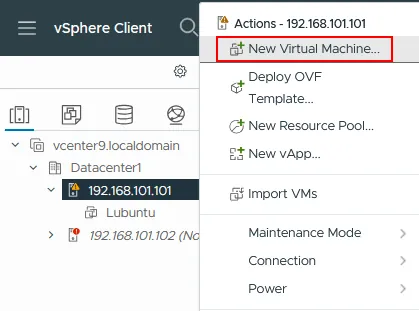
The New Virtual Machine wizard opens.
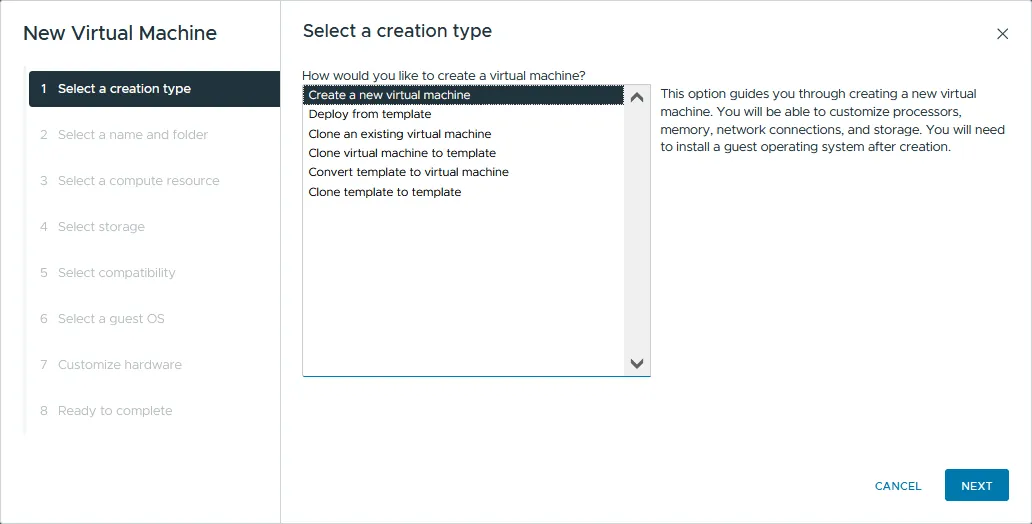
- Select a creation type. Select Create a new virtual machine. Click Next at each step to proceed.
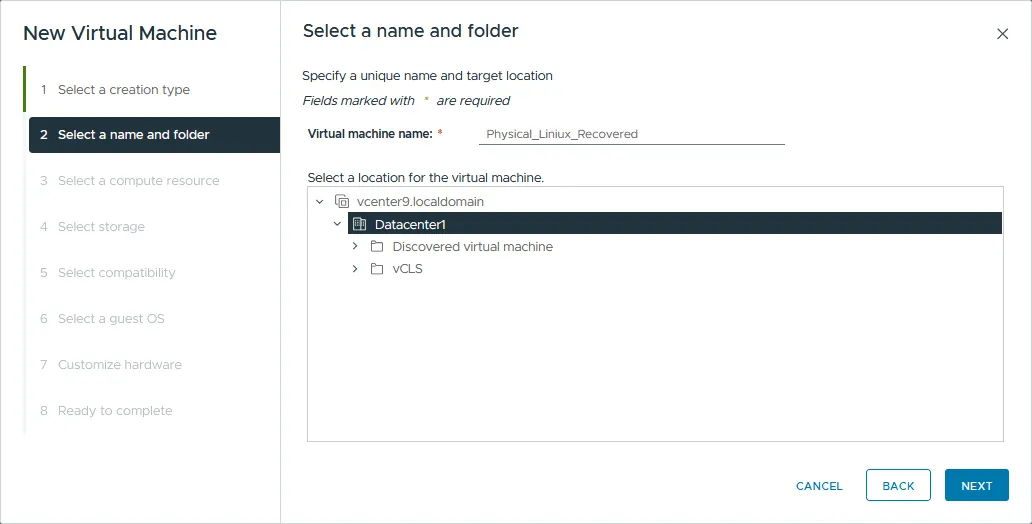
- Select a name and folder. You should specify a unique name for your VM and select a target location. In this example, the new VM name is Physical_Linux_Recovered, and the target datacenter name is PM.
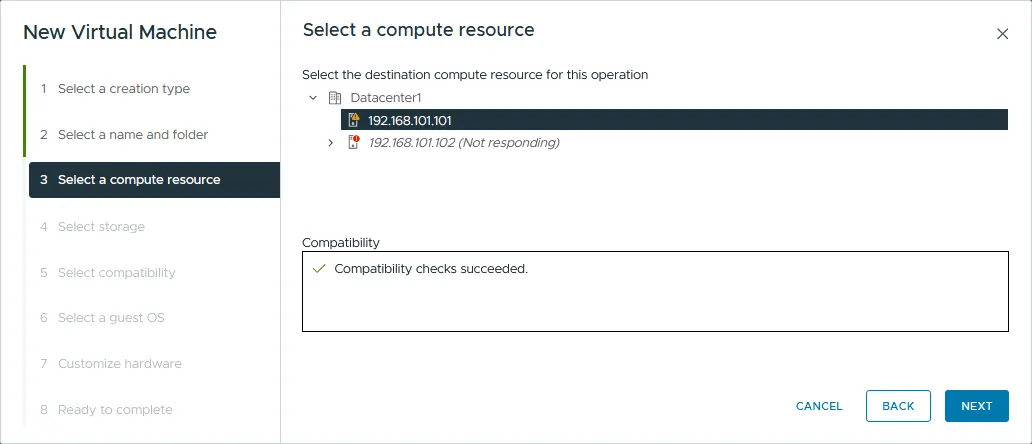
- Select a compute resource. Select the ESXi host connected to the datastore that contains the uploaded virtual disk file. The compute resource of this ESXi host will be used to run the virtual machine. In this example, the VM is created on the ESXi host with the IP address 192.168.101.101.
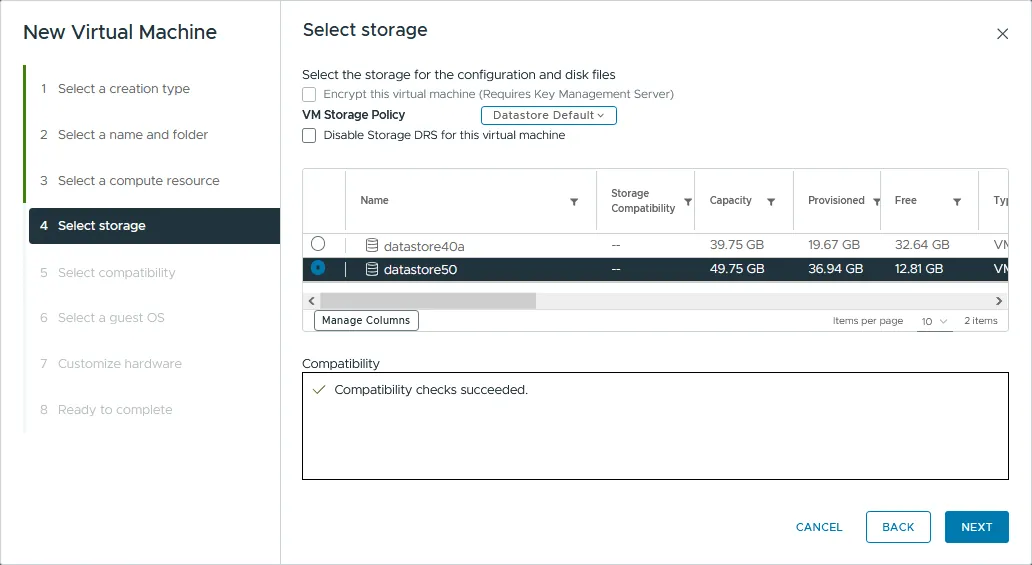
- Select storage. Select the datastore that contains the virtual disk files that were exported to recover. In this example, these files are stored on the datastore50.
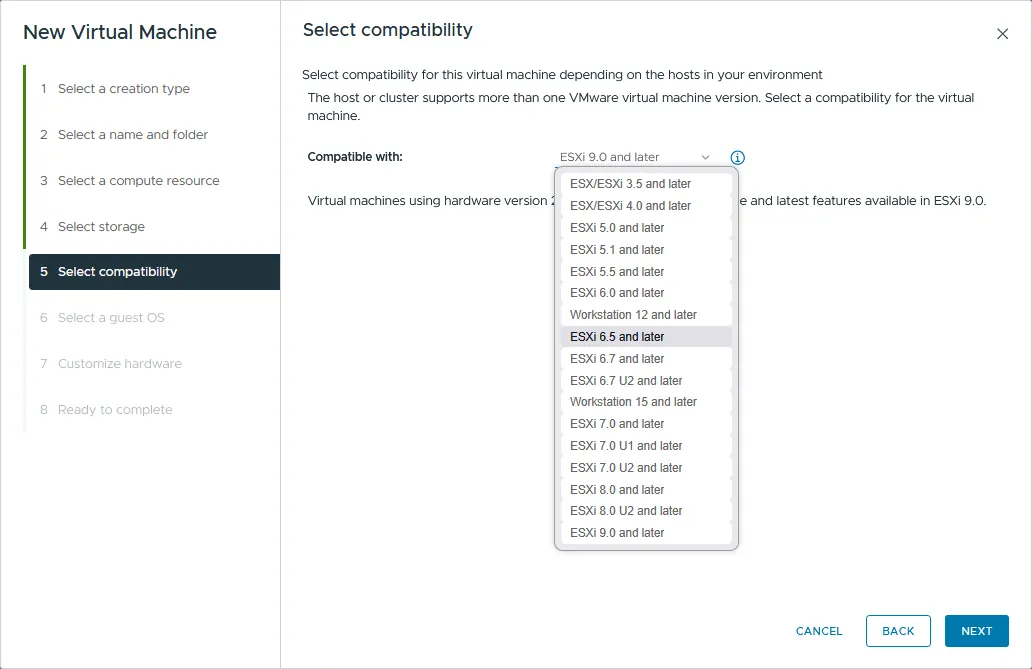
- Select compatibility. Select virtual machine hardware compatibility (VM hardware version). If you are planning to migrate the VM to other older ESXi hosts, select the lowest ESXi version. ESXi 6.5 and later is chosen in our case.
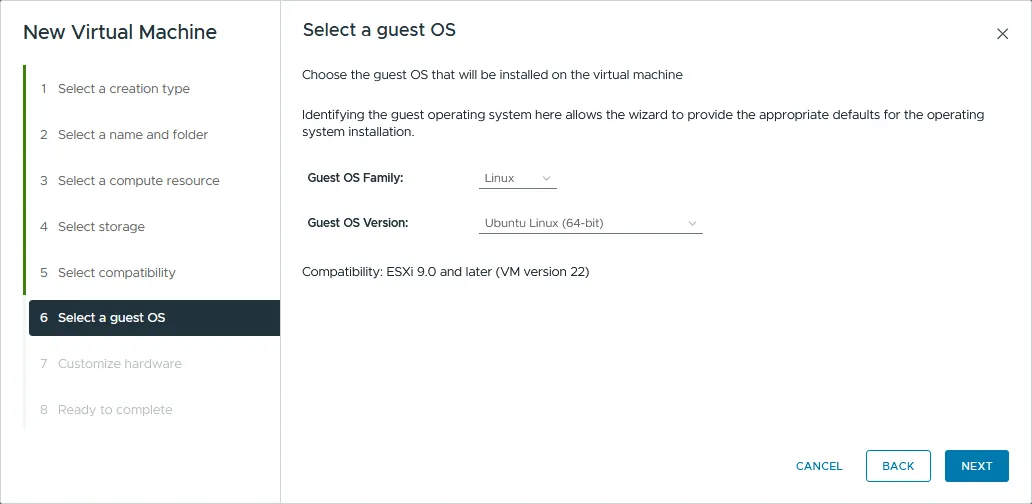
- Select a guest OS. Select the guest operating system (OS) family and version. Since there is an available virtual disk with a Linux machine (Ubuntu 24 x64) installed on it, we have to select Linux and Ubuntu Linux (64-bit).
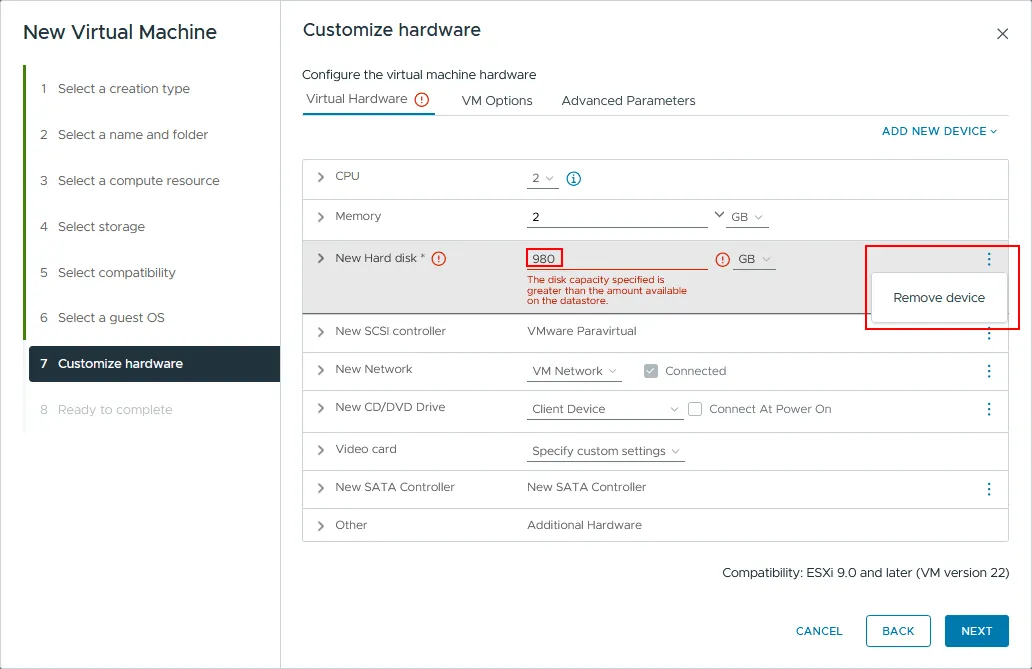
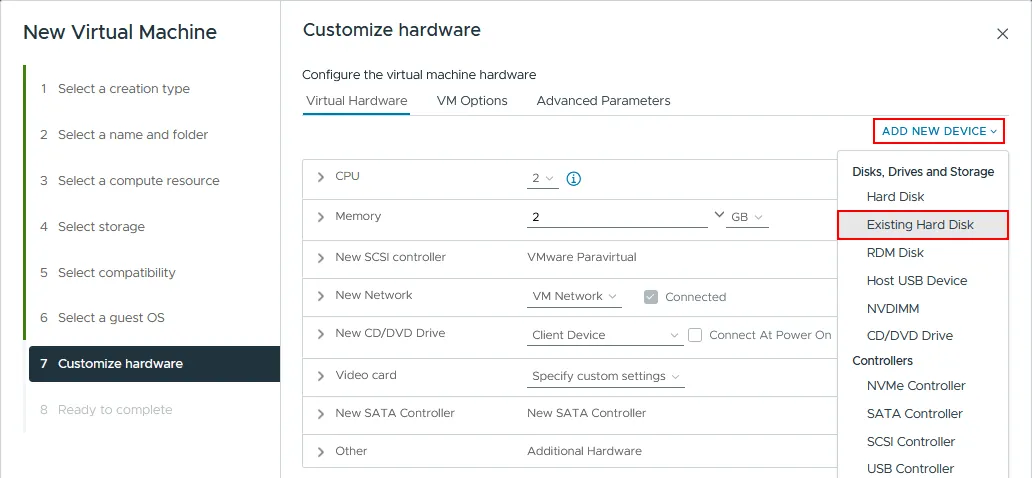
- Customize hardware. By default, the wizard suggests that you create a new empty virtual disk. Select it, click the three dots icon and hit Remove device (marked on the screenshot below).
- Next, click the Add New Device button and select Existing Hard Disk.
- In the Select file pop-up, select the directory to which you have uploaded the exported virtual disk files and select the virtual disk file. In our case, the virtual disk data file (
-flat.vmdk) and the virtual disk descriptor file (.vmdk) are stored on the datastore50 in the Physical_Linux_recovered directory. As mentioned above, two files of the virtual disk are uploaded to the datastore, but only one is displayed in VMware vSphere Client. Click OK to apply the file selection.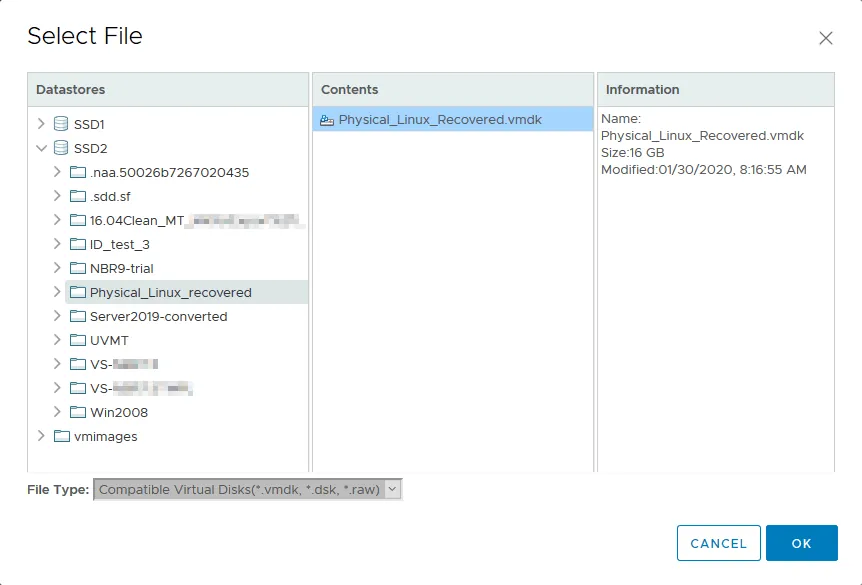
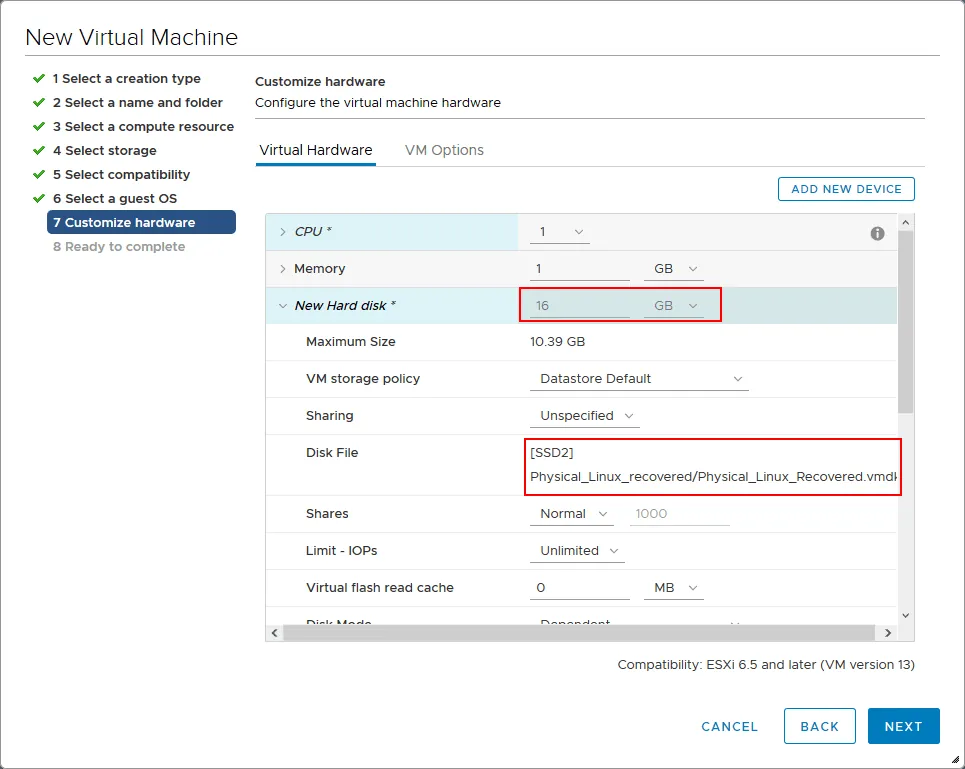
- Now you can see that the exported virtual disk has been added to the new VM’s virtual hardware.
Note: if the original backed-up machine uses BIOS, you should select BIOS in VM Options to boot the VM. If the original machine uses UEFI, select UEFI.
- Next, click the Add New Device button and select Existing Hard Disk.
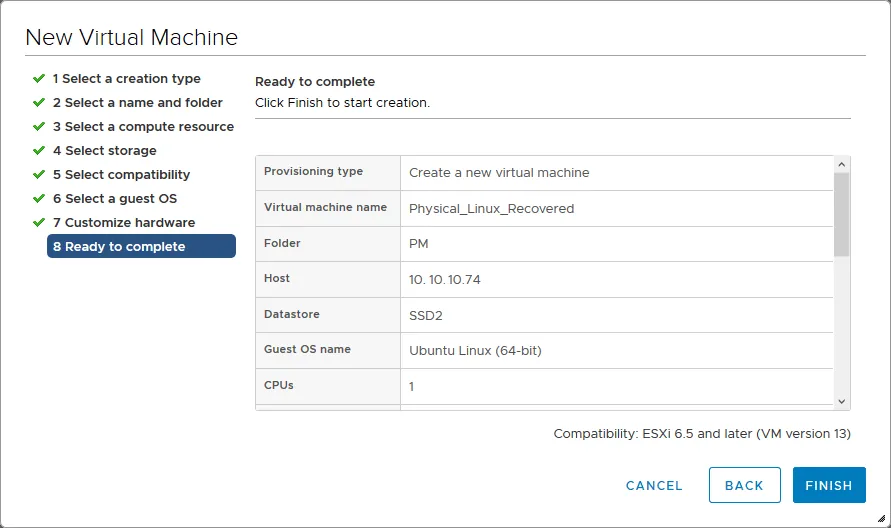
- Ready to complete. Check the new VM configuration summary and click Finish to complete the new VM creation.
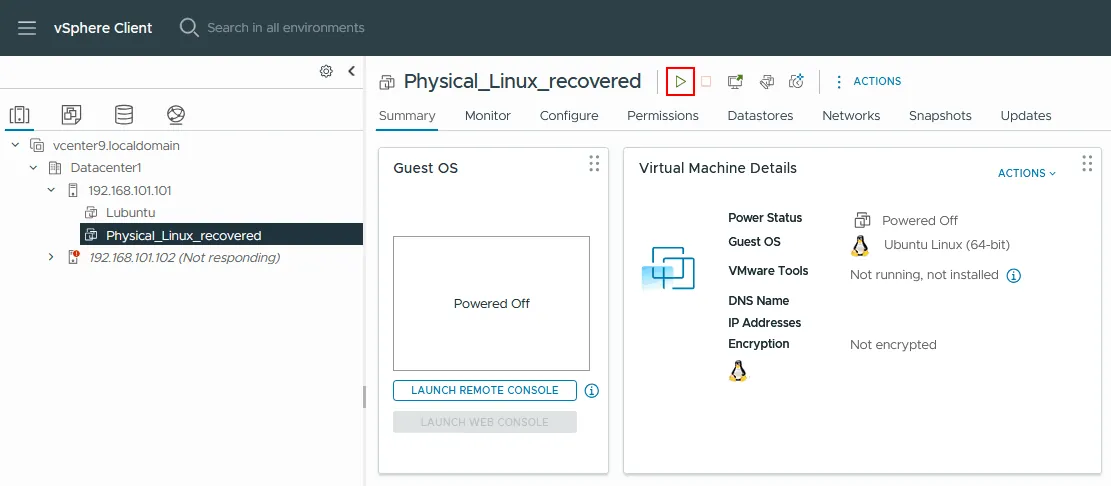
- Go to Hosts and Clusters, select the VM you have just created on the appropriate ESXi host (Physical_Linux_Recovered on 192.168.101.101), then click Actions > Power > Power On to start the virtual machine.
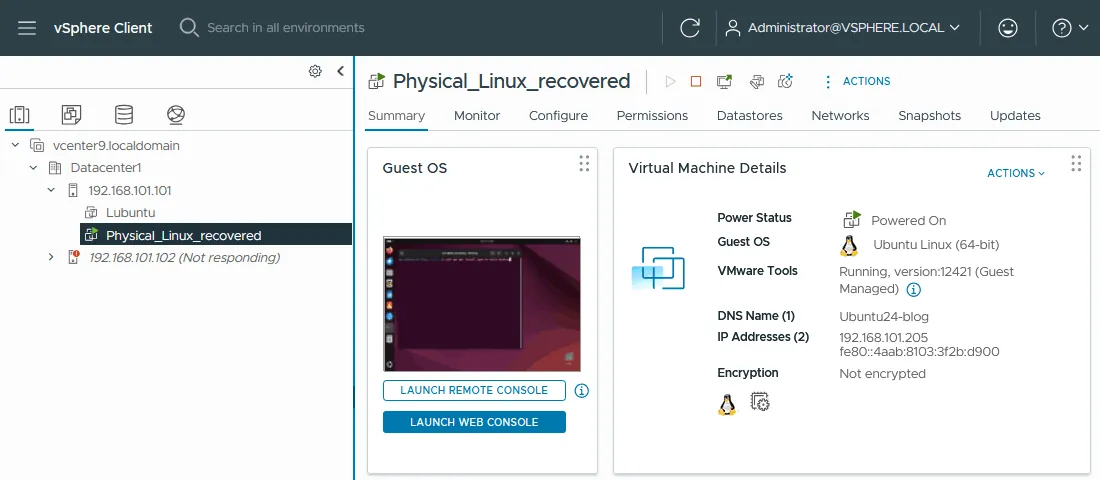
After the virtual machine boots, don’t forget to install VMware Tools. Finally, the physical Linux server is recovered to a VMware virtual machine from backup using NAKIVO Backup & Replication. In the screenshot below, you can see that Linux P2V conversion (P2V recovery) has been completed successfully.
Conclusion
Converting a Linux physical server to a virtual machine does not have to involve complex migration tools or manual rebuilds. With a structured, backup-based physical-to-virtual conversion approach, organizations can recover or migrate Linux workloads directly into VMware environments while preserving system configuration and data.
Whether used for temporary failover or permanent modernization, P2V recovery provides flexibility when managing infrastructure changes. By leveraging NAKIVO Backup & Replication as a P2V converter, IT teams can streamline the process and reduce operational disruption. Implementing regular backups ensures that your Linux servers are always ready for reliable P2V recovery when needed.