How to Back Up HPE Morpheus Software VMs
HPE Morpheus Software – VM essentials includes built-in snapshots and backup features for its virtual machines (VMs). They help with day-to-day operations, but they don’t replace independent copies held on separate storage. A dependable HPE Morpheus VM backup strategy adds them, sends some offsite and provides multiple recovery options.
Read this guide to learn how to back up HPE Morpheus VMs with NAKIVO Backup & Replication, from adding the HPE Morpheus manager to the inventory to restoring a full VM or a single file.
Key Takeaways
- HPE Morpheus Software – VM essentials runs VMs on the KVM-based HVM hypervisor, with hosts grouped into clusters and managed through the HPE Morpheus manager.
- NAKIVO Backup & Replication creates agentless, image-based backups of these VMs and stores independent recovery points on separate storage, so backup data survives a failure of the source platform. Immutable repositories add protection against ransomware and accidental deletion.
- Incremental backups with native change tracking shorten backup windows and save repository space for VMs with qcow2 disks. Raw disks are backed up in full on every run.
- Full VM recovery returns a VM to its original location, networking and storage when the required data is available, while file-level recovery restores individual files without recovering the whole VM.
- HPE Morpheus Software support is included in all NAKIVO Backup & Replication editions at no extra cost, and jobs run through a Transporter deployed on each HVM host during discovery.
What Is HPE Morpheus Software – VM Essentials?
NAKIVO Backup & Replication mirrors the platform’s structure in its inventory, so a quick look at the main components makes the backup setup easier to follow.
What is HPE Morpheus Software?
HPE Morpheus Software is HPE’s virtualization and private cloud management platform, which the company added through the acquisition of Morpheus Data. A single console provisions and manages workloads on HPE’s own KVM-based hypervisor and on existing VMware vSphere environments. The platform comes in three editions. The VM essentials variant covers core virtualization, while Advanced adds private cloud self-service for VMs, containers and Kubernetes. Enterprise extends management to hybrid and multicloud environments, including public cloud and bare metal.
The VM essentials variant is the virtualization-focused edition. It runs VMs on the HVM hypervisor, with hosts grouped into HVM clusters and managed through the HPE Morpheus manager, the control plane for clusters, VMs, networking, storage and policies.
One term matters before you set up backups. On the platform, a workload is an Instance, and an Instance can be backed by one or more VMs, which HPE documentation calls nodes. NAKIVO Backup & Replication discovers, protects and recovers each of them as an individual VM. The Instance itself is not an inventory object, which affects how you build jobs (see the requirements and limitations section).
HPE Morpheus Central
HPE Morpheus Central is a cloud-based control point for managing multiple HPE Morpheus Software environments across distributed sites, with a centralized view of their health, licensing and software versions. For backup, NAKIVO Backup & Replication connects to the HPE Morpheus manager to discover and protect the VMs running on its HVM clusters.
How NAKIVO Protects HPE Morpheus VMs
NAKIVO Backup & Replication provides agentless and application-aware HPE Morpheus VM backup with flexible storage targets and immutable recovery points.
Image-based backup
Image-based backup captures the whole VM, including the operating system (OS), applications, configuration and data, as a recovery point on separate storage. Backup and recovery data travels over the generic KVM/libvirt/QEMU path. HPE Morpheus application programming interfaces (APIs) come into play only for constructs that KVM can’t represent on its own, such as returning a VM to its original cloud, cluster and host.
Jobs run through a NAKIVO Transporter deployed on each HVM host during discovery. It reads the VM’s disks over the KVM/libvirt path and moves the data to the backup repository. Because the backup lives outside the source platform, it protects against failures that would take the VM and its native snapshots down together.
Backup repositories and backup copies
Backups are stored in a backup repository, which can reside on local storage, network-attached storage (NAS), a deduplication appliance or cloud object storage. A backup copy job then creates additional copies at another site, in the cloud or on tape in line with the 3-2-1 rule, so that a single-site failure doesn’t take out both the source VMs and their only backup.
Immutable and encrypted backups
You can make recovery points immutable for a set number of days when you schedule a backup job. Until that period expires, they can’t be modified or deleted, which helps protect backup data against ransomware and accidental deletion. In supported cloud repositories, not even the root user can shorten or lift the protection. Backups can also be encrypted, protecting the data at rest in the repository.
Application-aware backup
App-aware mode creates application-consistent backups of VMs running Microsoft SQL Server, Exchange Server and Active Directory. You enable it per job at the Options step of the backup job wizard.
How to Back Up HPE Morpheus Software VMs with NAKIVO
An HPE Morpheus Software VM backup takes two stages: Adding the HPE Morpheus manager to the inventory and creating a backup job. The steps below cover both.
Step 1: Add the HPE Morpheus manager to NAKIVO
Add your HPE Morpheus environment to the inventory so that the product can discover the VMs to protect.
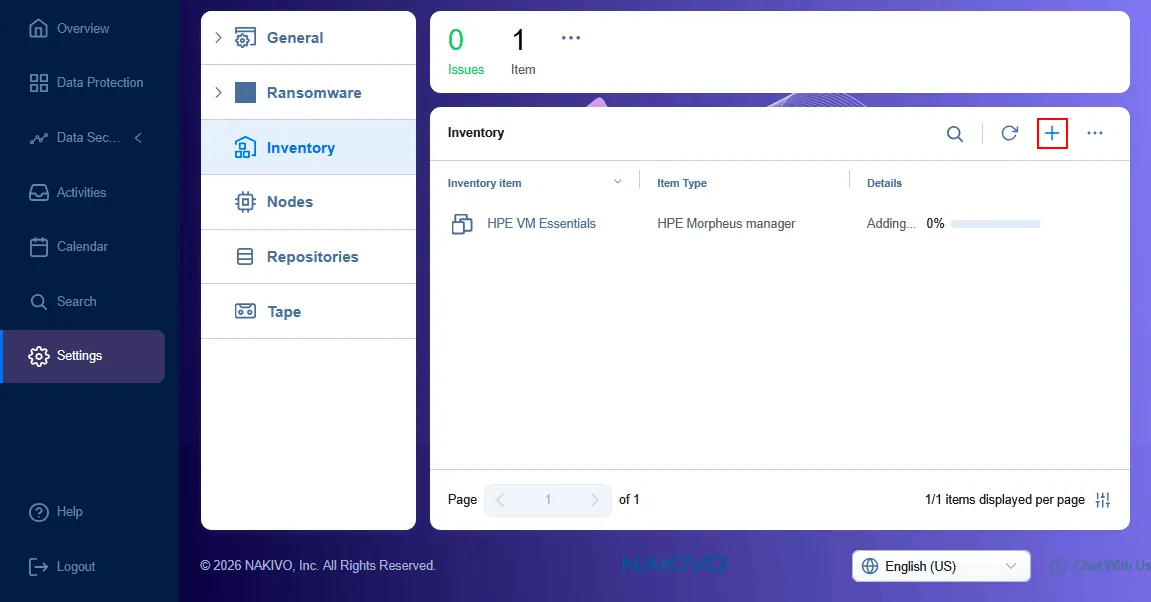
- Go to Settings > Inventory and click +.
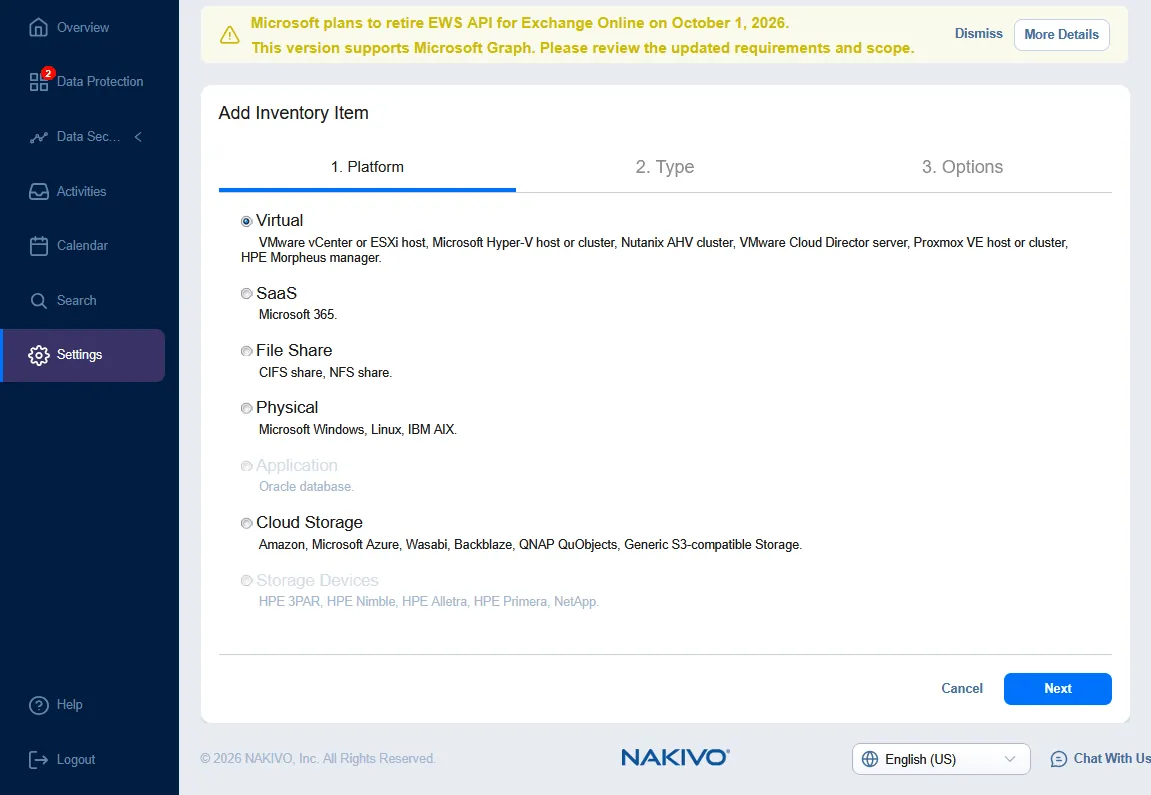
- Select Virtual as the platform. Click Next at each step to continue.
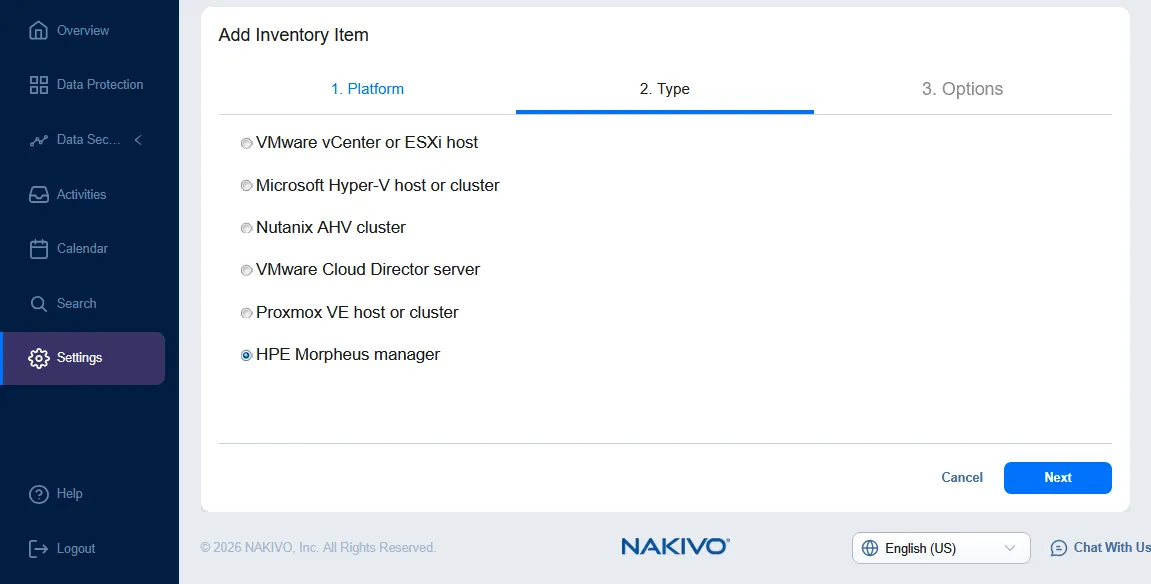
- At the Type step, select HPE Morpheus manager.
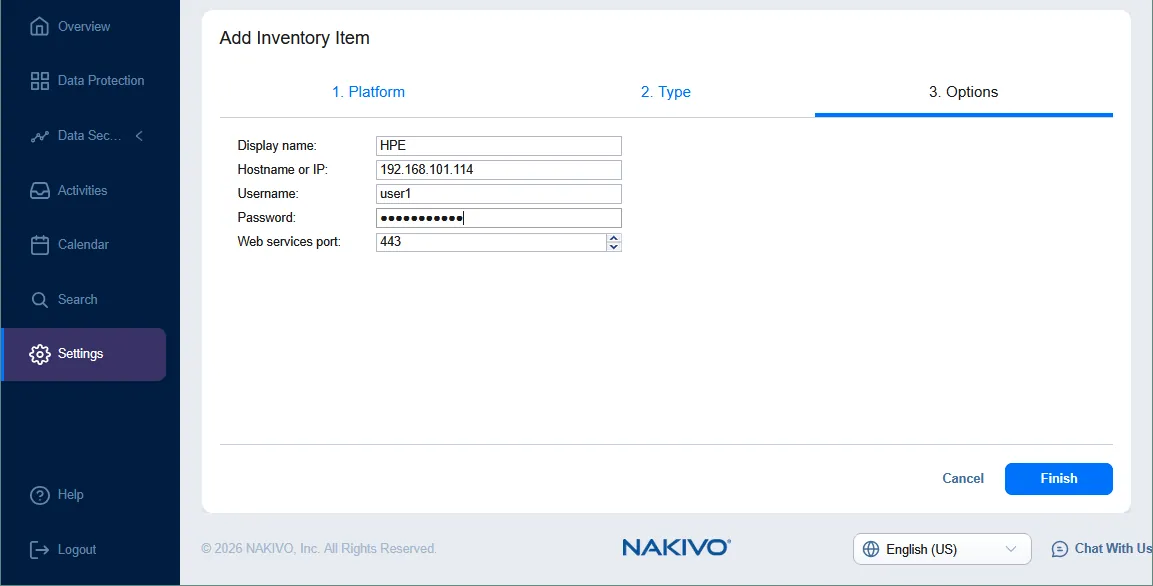
- On the Options page, enter a display name along with the HPE Morpheus manager’s hostname or IP address, username, password and web services port. Click Finish.
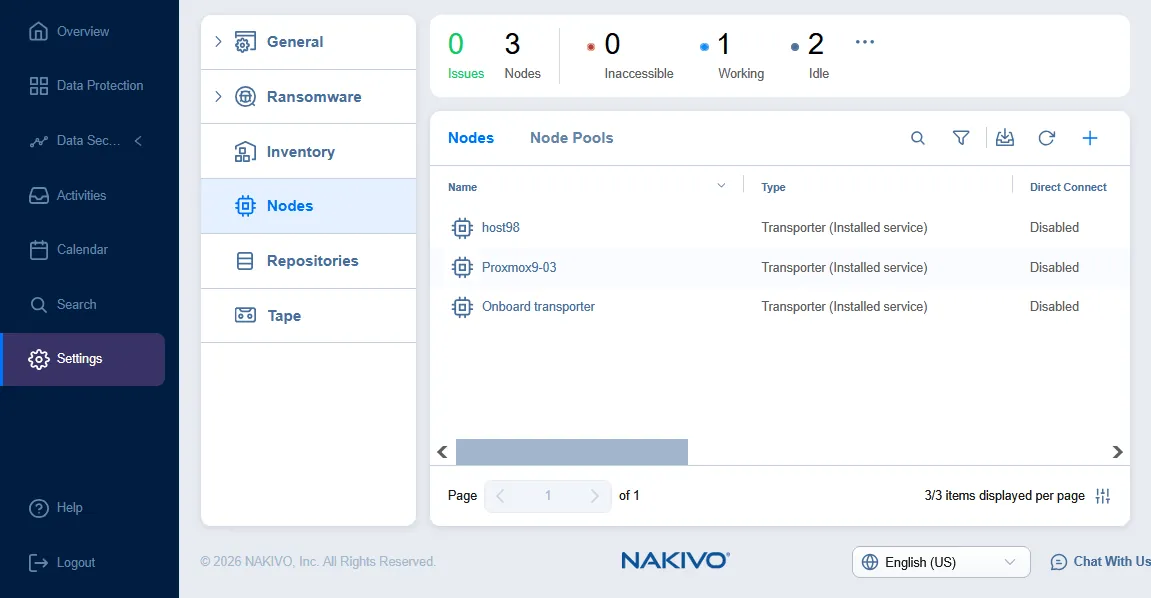
- Switch to the Nodes tab and confirm that a Transporter, which runs the backup and recovery jobs for HPE Morpheus VMs, was deployed automatically on the HVM host (host98 in this example).
Step 2: Create a backup job
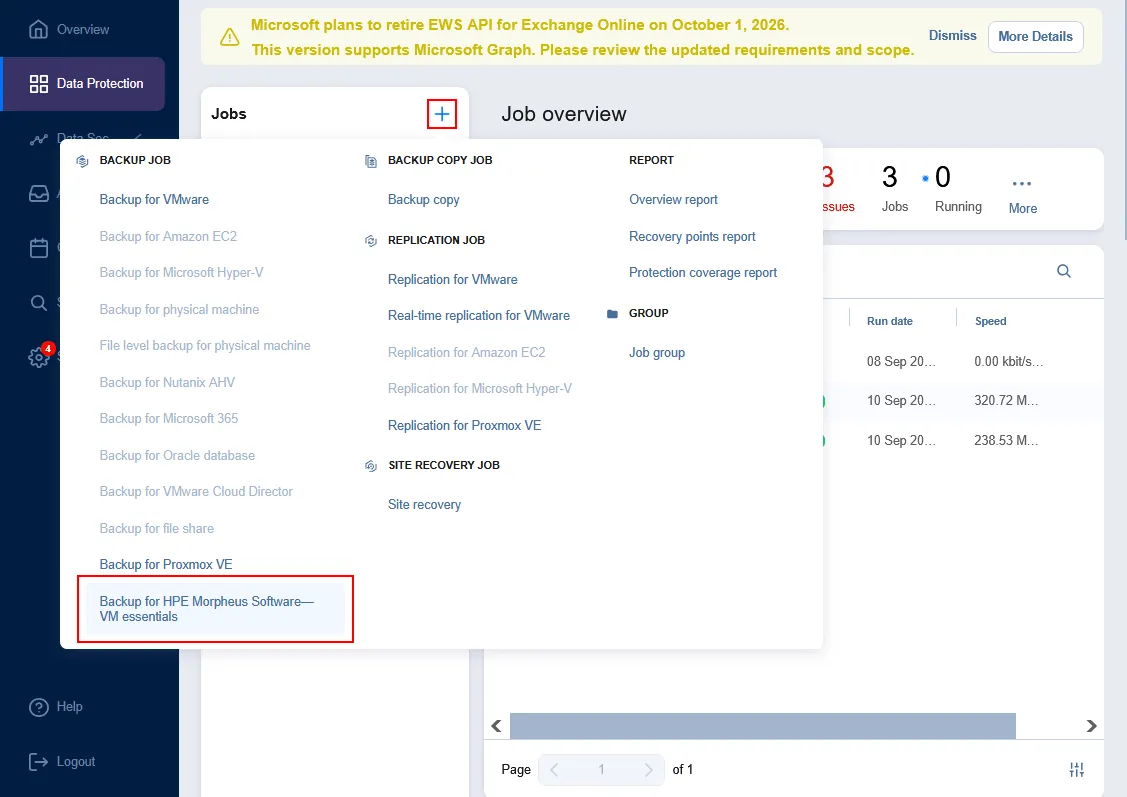
Once the HPE Morpheus environment is in the inventory, go to Data Protection, click + and select Backup for HPE Morpheus Software – VM essentials.
Step 3: Select the VMs
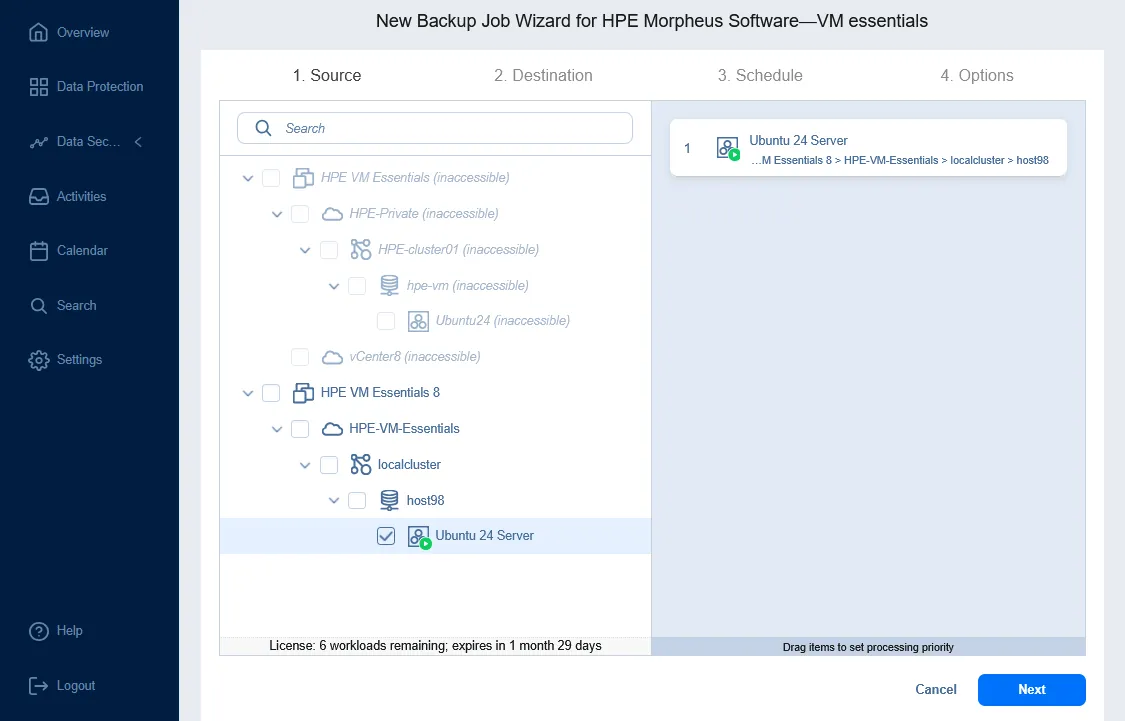
At the Source step, select the VMs you want to back up. Instances don’t appear in the inventory tree, so add each VM of a multi-VM Instance individually. Click Next at each step of the wizard to continue.
Step 4: Select a backup repository
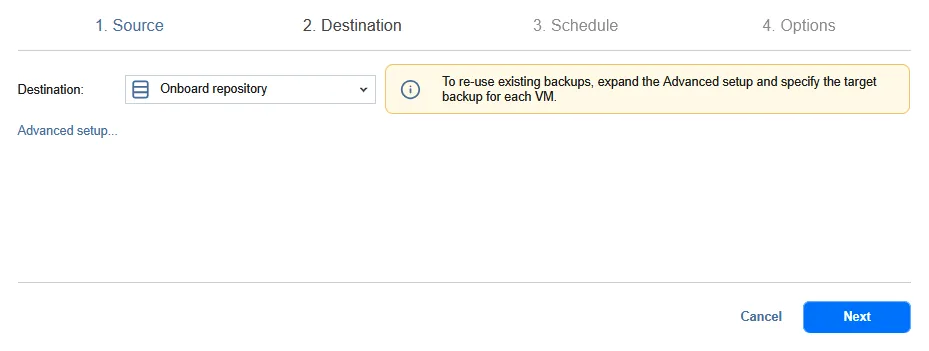
At the Destination step, choose the backup repository where the recovery points will be stored (Onboard repository in this example).
Step 5: Configure the schedule and backup options
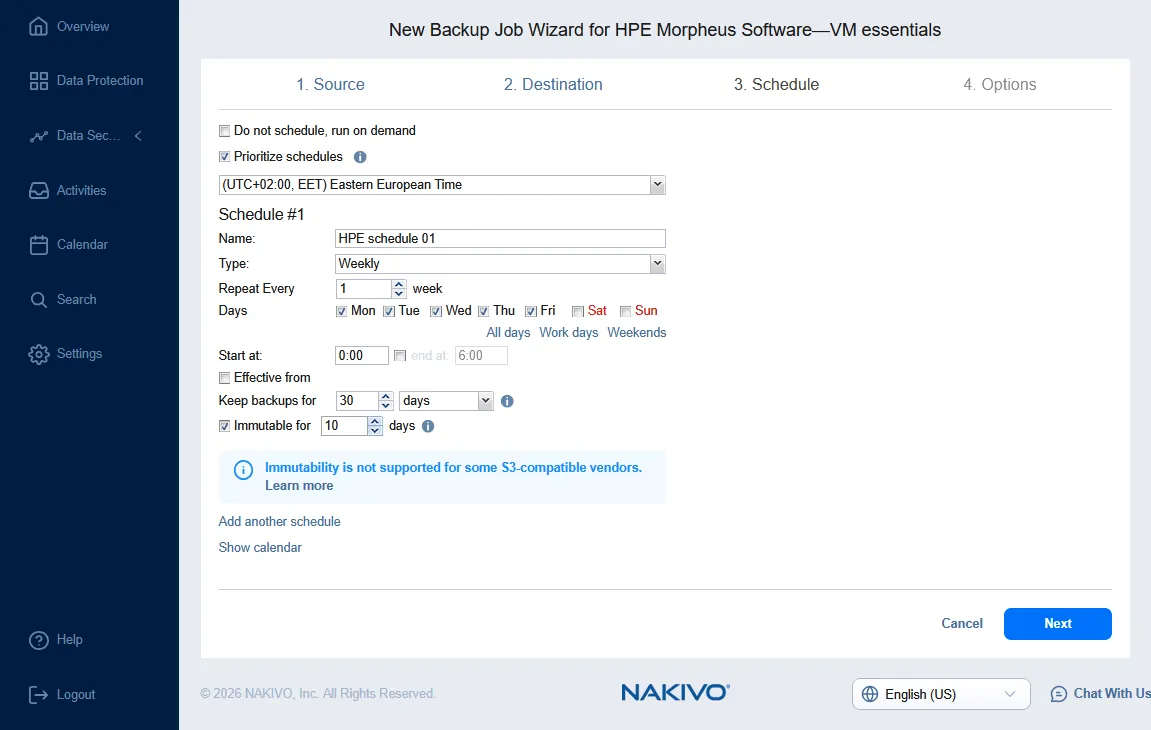
- At the Schedule step, set how often the job runs and how long to keep its recovery points. To lock them against changes, select Immutable for and enter the number of days.
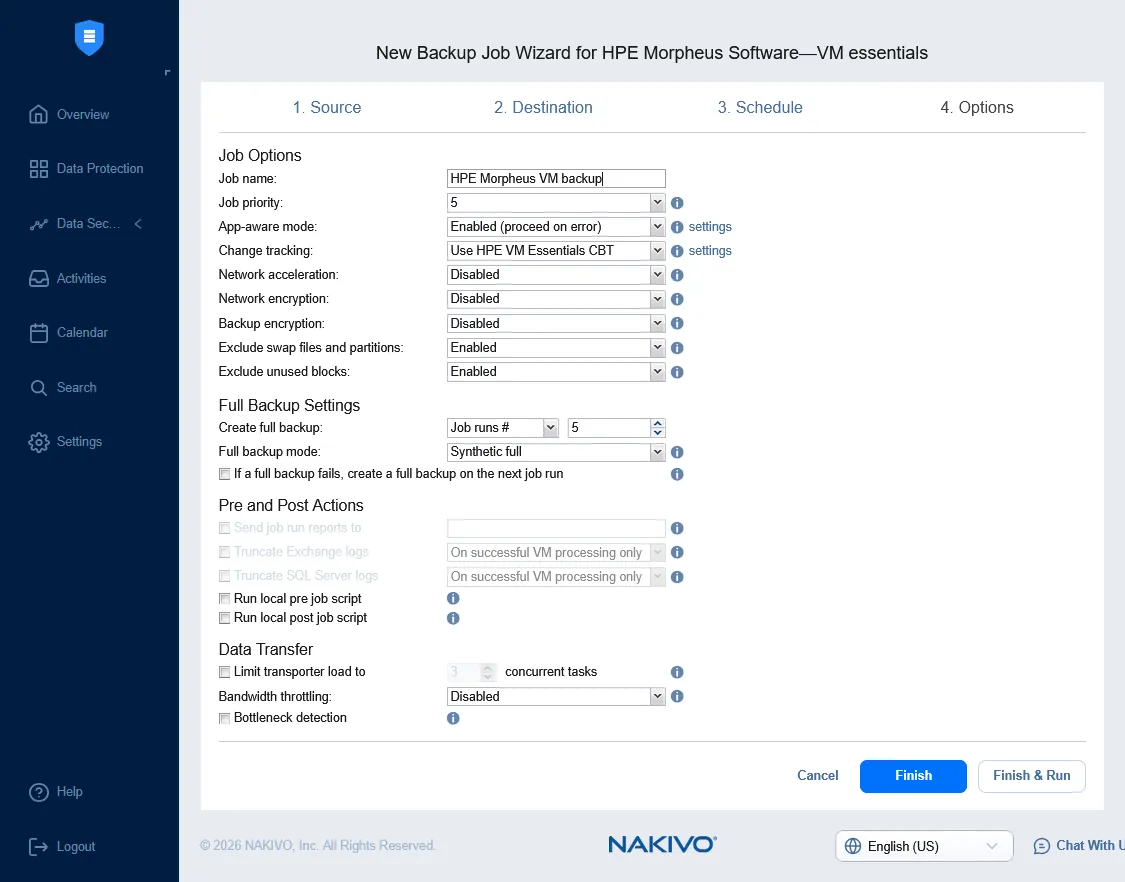
- When you get to the Options step, enter a job name and adjust settings such as app-aware mode and backup encryption. Native change tracking is applied automatically where the disk format allows: VMs with qcow2 disks are backed up incrementally, while those with raw disks get a full backup on every run.
Step 6: Run and verify the backup job
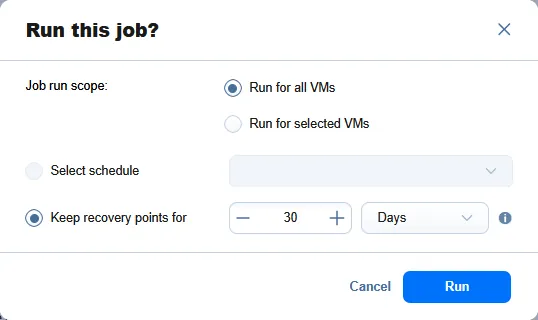
- Click Finish & Run. In the Run this job? dialog, choose whether to run the job for all VMs or only for selected ones, then click Run.
- After the first run, check the job dashboard to confirm that the job completed and review the results. Verify that the recovery points are usable before you need them.
How to Recover HPE Morpheus VMs with NAKIVO
NAKIVO Backup & Replication can recover an entire HPE Morpheus VM or only the files you need, from a backup repository or from tape.
Full VM recovery
Full VM recovery restores an entire VM from a recovery point to an HPE Morpheus environment. NAKIVO Backup & Replication returns the VM to its original functional state, including configuration, placement, networking and storage. Where needed, it uses the HPE Morpheus APIs to place the VM back into the same cloud, cluster and host.
Recovery is all-or-nothing: If the original state can’t be fully restored, the job fails rather than creating a partial VM. A VM that is missing a network mapping or a placement detail can be harder to deal with than an obvious failure, because it looks fine until you rely on it.
You can also use Cross-Platform Recovery to export the disks of an HPE Morpheus backup in VMDK, VHD or VHDX format for use on another platform.
Follow these steps to run a full recovery:
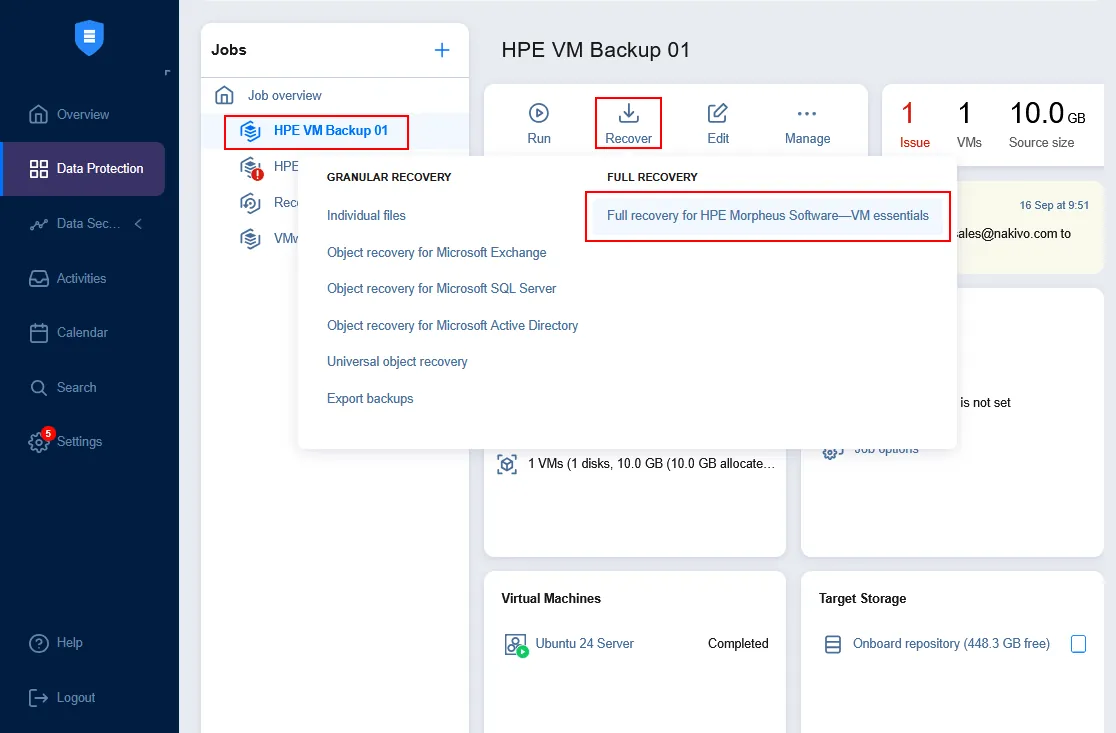
- Go to Data Protection, select the backup job, click Recover and choose Full recovery for HPE Morpheus Software – VM essentials.
- At the Source step, select the VM that you want to recover. Click Next at each step to continue.
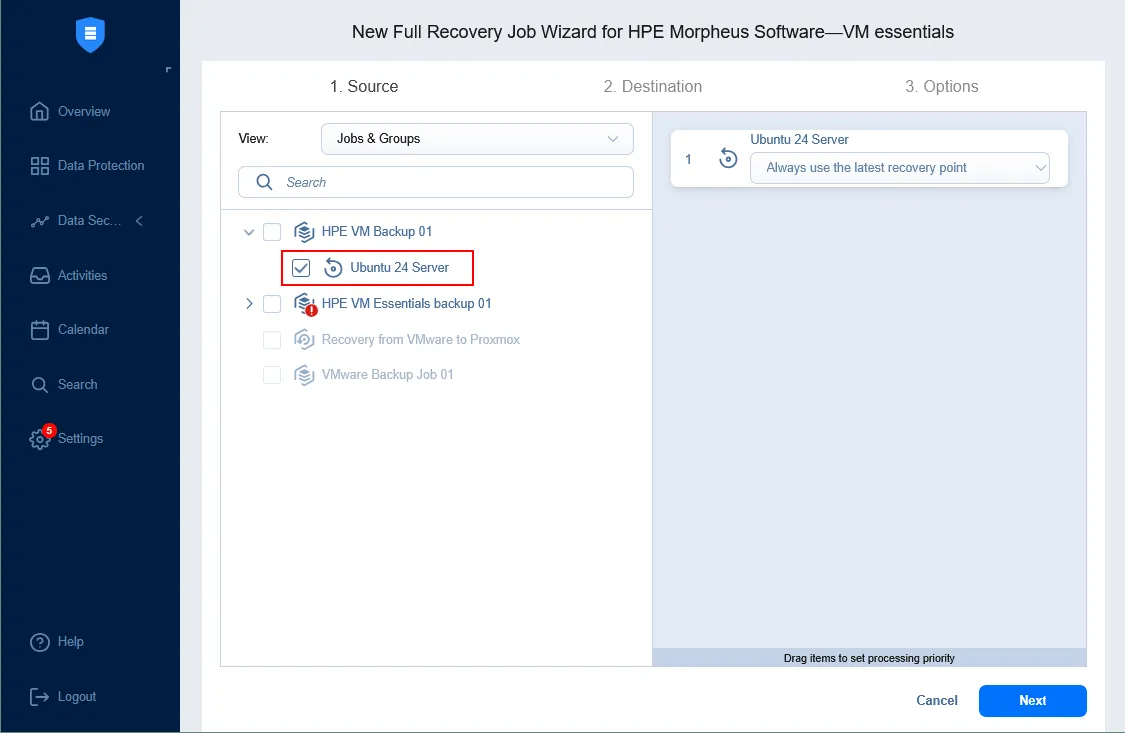
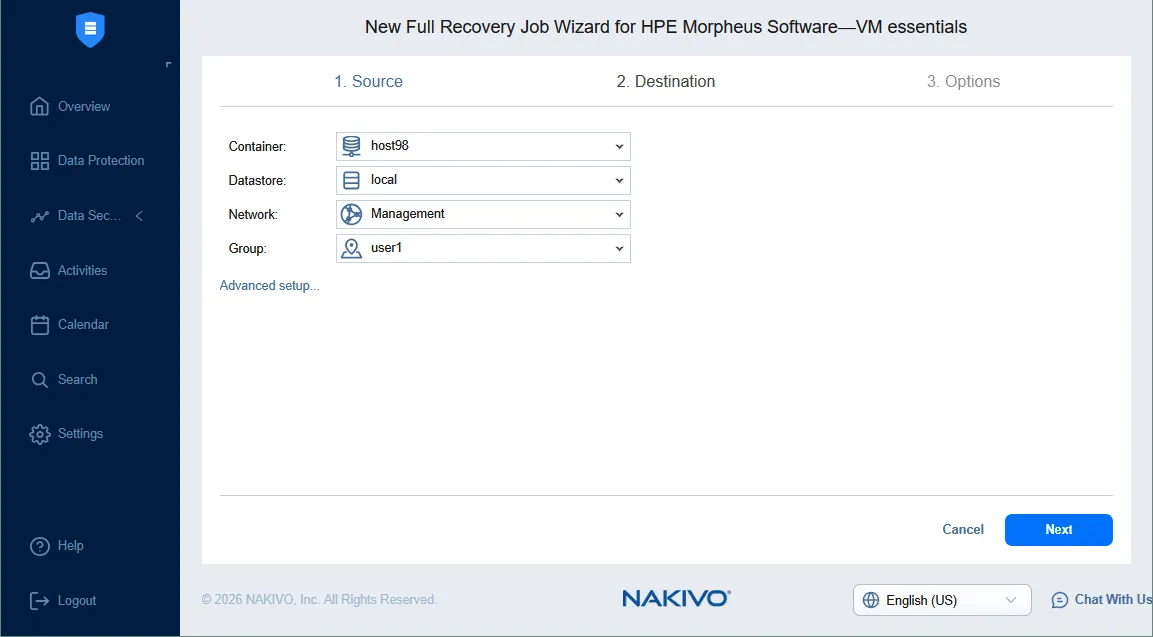
- On the Destination page, select the Container (the target host or cluster), Datastore, Network and Group for the recovered VM.
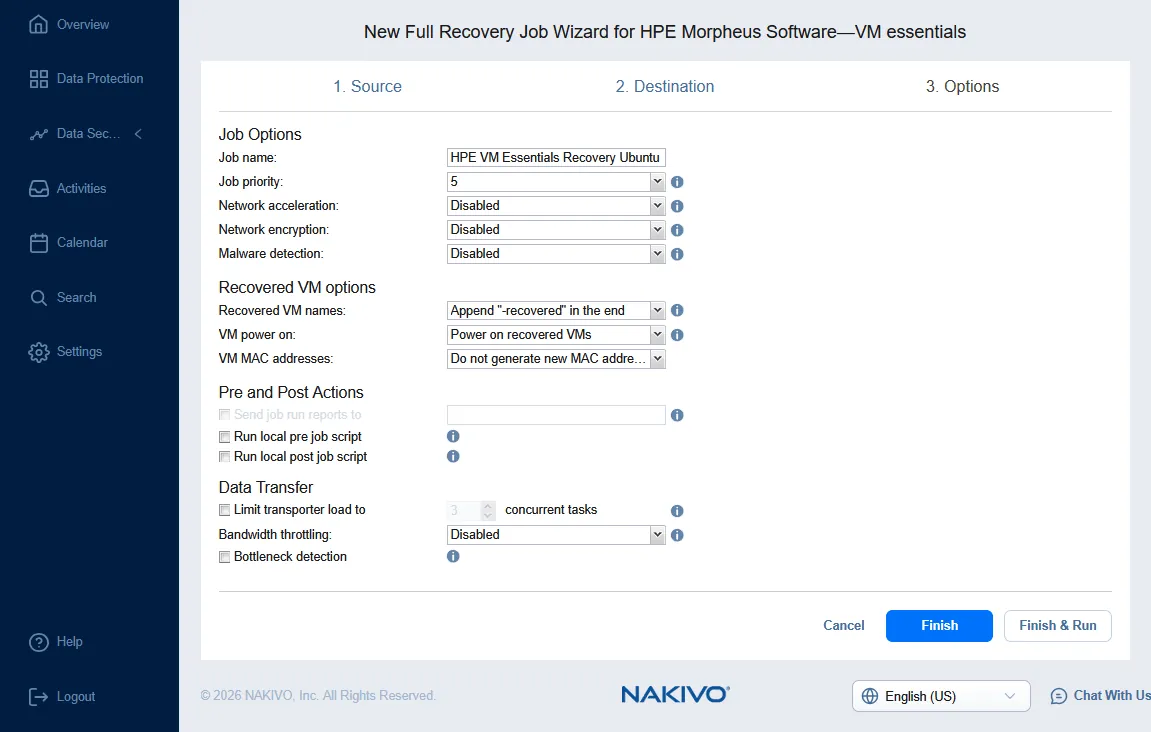
- Next come the job options. Enter a job name and adjust settings such as the recovered VM name, power-on behavior and media access control (MAC) addresses. Click Finish & Run to start the recovery immediately.
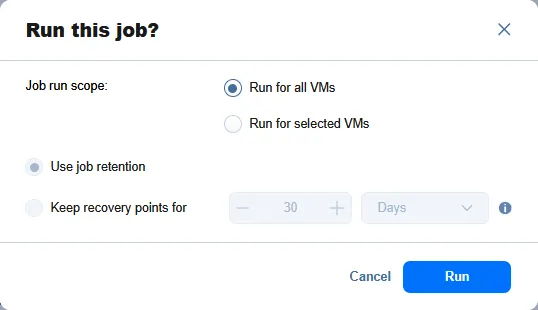
- In the Run this job? dialog, select the job run scope and click Run.
File-level recovery
File-level recovery restores individual files and folders from a VM backup without recovering the whole VM, which is useful when a user needs a single deleted file rather than a full rollback. NAKIVO Backup & Replication mounts the recovery point and presents the file system so that you can browse and restore specific items. The feature is supported for VMs with raw and qcow2 disks.
Recover files as follows:
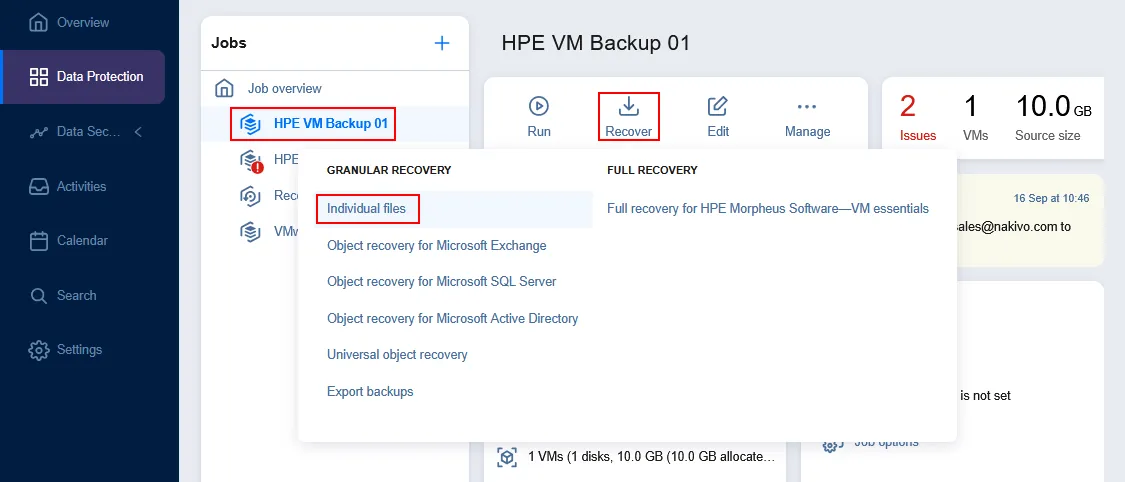
- Go to Data Protection, select the backup job, click Recover and choose Individual files.
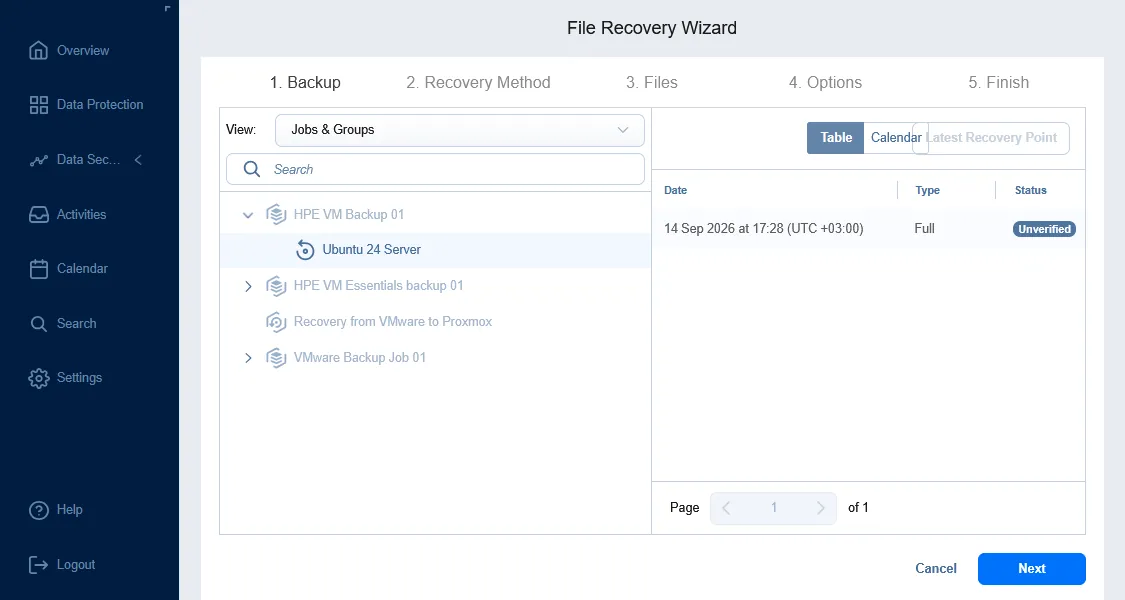
- At the Backup step of the File Recovery Wizard, select the VM that holds the files and a recovery point. You can choose multiple VMs. Click Next to continue.
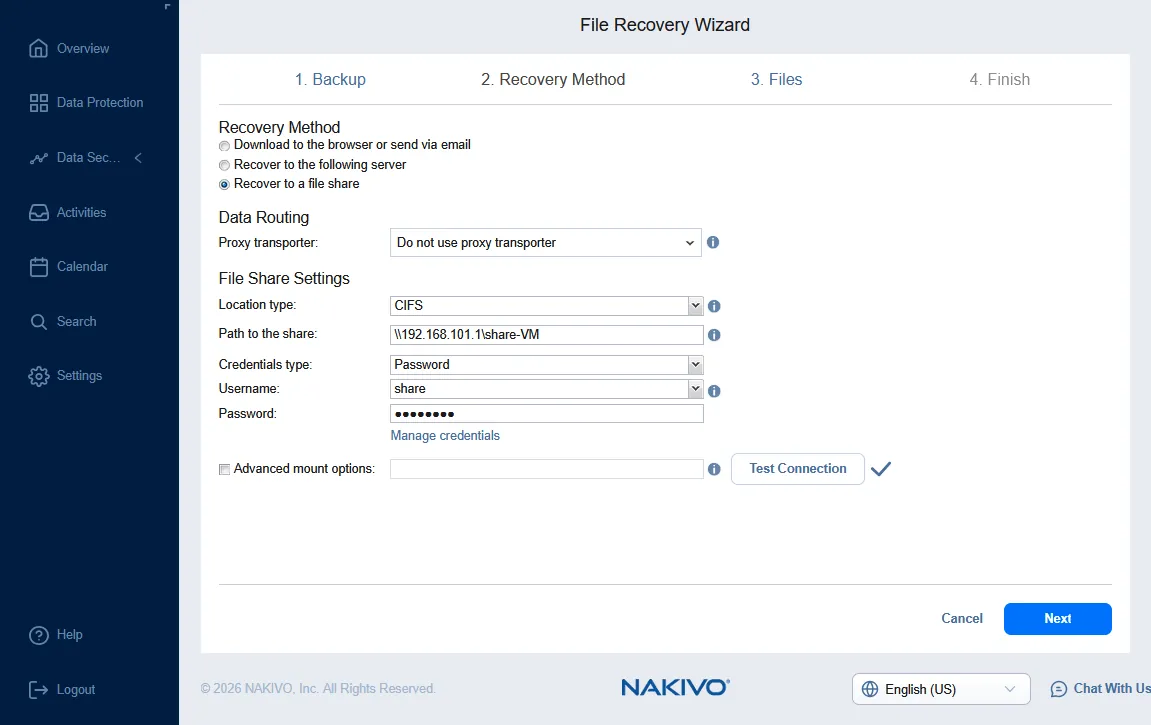
- On the Recovery Method page, choose where the recovered files should go:
- Download to the browser or send via email: Suits a few small files that you need right away.
- Recover to the following server: Returns the files directly to a machine you specify.
- Recover to a file share: Fits large sets of files or a central network location.
This example uses Recover to a file share. Select the Location type, enter the Path to the share and the credentials, then click Test Connection. Once the test passes, click Next.
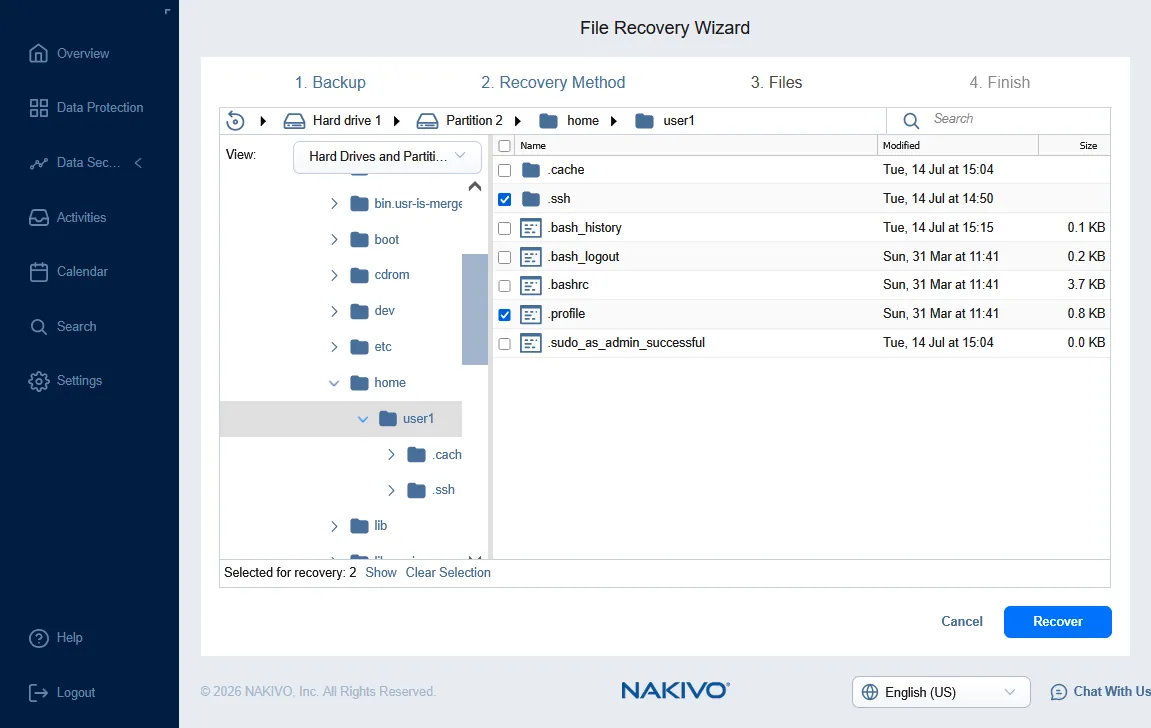
- Wait until the directory tree is loaded and select the files and folders to recover. Click Recover and wait until the files reach the destination you chose.
Recovery from tape
A backup copy job can send HPE Morpheus VM backups to tape, which gives you an offline copy isolated from the network. You can recover full VMs directly from tape with the standard recovery wizard. For file-level recovery, move the backup from tape to a backup repository first and run the recovery from there.
HPE Morpheus VM Backup Requirements and Limitations
Support for HPE Morpheus Software is added in NAKIVO Backup & Replication v11.3 and covers a defined set of platform versions and constructs.
Supported versions and editions
HPE Morpheus Software – VM essentials backup is available in NAKIVO Backup & Replication v11.3 for platform versions 8.0.3–8.0.13 and 9.0.0–9.0.2. It’s included in all editions at no extra cost, with the same licensing model as VMware vSphere.
Transporter operating system requirements
Backup and recovery for HPE Morpheus VMs use the KVM/libvirt data path, which depends on libvirt 10.0.0 (matching the version shipped by HPE Morpheus 8.0.x hosts) and a modern toolchain. For this reason, the Transporter that processes these jobs is supported only on the following Linux distributions:
- Red Hat Enterprise Linux (RHEL) 8 and later, plus RHEL-based distributions (CentOS, Oracle Linux, Rocky Linux, AlmaLinux)
- Ubuntu 20.04 LTS and later
- Debian 11 and later
- SUSE Linux Enterprise Server (SLES) 15 and later
This requirement applies only to HPE Morpheus backup and recovery. For every other feature, the Transporter continues to run on all currently supported operating systems, including older distributions.
Disk format and change tracking limitations
NAKIVO Backup & Replication v11.3 supports VM disks in raw and qcow2 formats for both backup and file-level recovery. Incremental backup with native change tracking is available only for qcow2 disks. This is a KVM/libvirt limitation, since checkpoints aren’t created for raw-format disks. VMs with raw disks are therefore backed up in full on every run, which is worth accounting for when you plan backup windows and repository capacity.
The Instance and VM model
NAKIVO Backup & Replication protects each VM individually, and the Instance is not an inventory object. This has several practical effects:
- An Instance with multiple VMs appears as several independent VMs, with nothing grouping them. You can’t select an Instance as a single job source, so add its VMs individually.
- The product doesn’t coordinate a single point in time across an Instance. VMs of the same Instance added to one job are processed independently.
- Recovering a VM that belonged to a multi-VM Instance creates a VM in an Instance of its own. The original Instance and its grouping aren’t recreated.
If you run multi-VM Instances that need application-consistent, coordinated protection across their members, plan around this behavior.
Network adapter and isolated recovery limitations
HPE Morpheus requires every network interface of a VM to resolve to a network. An adapter has no “not connected” state, unlike in Microsoft Hyper-V, and can’t be parked on a dummy network as in VMware vSphere. This affects recovery in three ways:
- A recovered VM can’t be created with an unconnected adapter or with no network adapter at all. An adapter set to “not connected to any virtual network” is dropped during recovery, and neither the adapter nor its MAC address is carried over.
- A recovery job in which every adapter is set to “not connected to any virtual network” can’t run. The platform rejects the request because at least one interface must resolve to a network.
- Recovery to an isolated network works differently. The malware detection option scans a backup before recovery, but its “Continue and recover to isolated network” action is disabled for HPE Morpheus backups, so “Fail the recovery job” is the only response when malware is found. To keep a recovered VM off the production network, map its adapters to an isolated HPE Morpheus network or virtual local area network (VLAN) instead.
Conclusion
Workloads on HPE Morpheus Software need protection that stands independent of the platform itself. Built-in snapshots handle short-term rollback, but only a backup kept on separate storage covers the failures they can’t. NAKIVO Backup & Replication provides image-based backup for HPE Morpheus VMs with immutable and encrypted recovery points and offsite backup copies. When you need the data back, full VM recovery returns a VM to its original location, networking and storage, while file-level recovery retrieves individual files.
FAQ
Can NAKIVO back up HPE Morpheus Software VMs?
Yes. NAKIVO Backup & Replication v11.3 backs up VMs running on HPE Morpheus Software – VM essentials versions 8.0.3–8.0.13 and 9.0.0–9.0.2. The product creates agentless, image-based backups of each VM over the KVM/libvirt data path and stores independent recovery points in a separate backup repository. HPE Morpheus Software backup is included in all editions.
How do I back up HPE Morpheus Software VMs with NAKIVO?
Add the HPE Morpheus manager to the NAKIVO Backup & Replication inventory and create an HPE Morpheus VM backup job. In the job wizard, select the VMs to protect, choose a backup repository, set the schedule and retention, configure the job options and run the job.
What backup repositories are supported for HPE Morpheus VMs?
HPE Morpheus VM backups can be stored in a backup repository on local storage, NAS, a deduplication appliance or cloud object storage. A backup copy job can then send additional copies to another repository, the cloud or tape. Recovery points in supported repositories can also be made immutable for a set period.
Can NAKIVO recover HPE Morpheus VMs?
Yes. NAKIVO Backup & Replication supports full VM recovery and file-level recovery for HPE Morpheus VMs. Full VM recovery returns the entire VM to its original location, networking and storage, and the job fails rather than creating a partial VM if a required mapping is missing. File-level recovery restores individual files and folders without recovering the whole VM.
What disk formats and change tracking does NAKIVO support for HPE Morpheus VMs?
NAKIVO Backup & Replication v11.3 supports HPE Morpheus VM disks in raw and qcow2 formats. Incremental backup with native change tracking works only for qcow2 disks. Raw disks are backed up in full on every run, because KVM/libvirt doesn't create checkpoints for raw-format disks.
What versions of HPE Morpheus Software does NAKIVO support?
NAKIVO Backup & Replication v11.3 supports HPE Morpheus Software – VM essentials versions 8.0.3–8.0.13 and 9.0.0–9.0.2. The Transporter that processes HPE Morpheus backup and recovery jobs must run on RHEL 8 or later (or a RHEL-based distribution), Ubuntu 20.04 LTS or later, Debian 11 or later or SLES 15 or later, because the data path depends on libvirt 10.0.0.