How to Convert Hyper-V to VMware: Complete Guide
Virtualization platforms like Hyper-V and VMware are essential for running flexible and scalable IT environments. As organizations evolve, the need to migrate workloads between these platforms often arises to improve performance, compatibility or management efficiency.
Among the available migration tools, VMware vCenter Converter Standalone stands out as the most effective for converting a Hyper-V VM to a VMware VM. This free utility supports both V2V (virtual-to-virtual) and P2V (physical-to-virtual) conversions, offering a smooth and reliable way to migrate systems. Read this step-by-step guide to learn how to convert Hyper-V to VMware.
Understanding VMware vCenter Converter Options
Before converting a Hyper-V VM to a VMware VM, let’s review the VMware vCenter Converter options. VMware vCenter Converter components can only be installed on Windows operating systems. The program is easy to use. The solution can help you automate the conversion process by creating multiple tasks that can be executed in priority order (tasks with lower-numbered job IDs are done first). You can set the number of tasks to run concurrently in the options of VMware vCenter Converter. This might be useful if you need to regulate the speed of running tasks, for example. Post-conversion VM configuration can also be performed with this tool.
The table below displays the types of machines that can be converted to VMware formats.
|
Source machines |
Destination machines |
|
Physical machines Hyper-V VMs VMware Workstation VMs |
VMs of the ESXi format VMs of the Workstation format |
VMware vCenter Converter can be used for converting physical machines running Windows or Linux. Linux machines must be converted remotely, because the converter can only be installed on Windows. Both local and remote Windows machines can be converted. Destination virtual machines can be of the VMware ESXi format or the VMware Workstation format (the latter can run in VMware Fusion and VMware Player).
The VMware vCenter Converter can be viewed in terms of its components: The client, the agent and the server, which includes a worker. The agent can be deployed on source physical machines running Windows or on the Hyper-V hosts. A snapshot is created on the running source Windows machine when conversion starts. The snapshot technique is used to preserve data consistency. The server performs the conversion process, and the worker is always installed with the server component. The client provides a user interface that is used for connecting to a local machine or a remote machine where a converter is running. The client interface provides access to Conversion and Configuration wizards.
When a physical machine running Linux needs to be converted, the agent is not installed on Linux; instead, a special, empty helper VM is deployed on the destination host. A connection with the physical Linux machine is established via SSH (Secure Shell). At the moment of creation, the helper VM is empty and boots from a Linux image. The data is copied from the source Linux machine to the helper VM. When the process is complete, the helper machine becomes the destination machine. The VM is ready to work normally as soon as it is restarted.
When converting Hyper-V VMs to VMware, the agent is installed on the Hyper-V Server during the process of configuring the conversion job. Hyper-V VMs in a powered-off state can be converted. If you want to convert running Hyper-V VMs (or VMs running on other hypervisors, such as KVM or XEN), use VMware vCenter Converter in the same way as described above for converting running physical machines.
Data copying can be disk-based or volume-based. VMware vCenter Converter does not support the following source disks/volumes:
- RAID disks;
- GPT/MBR hybrid disks (GUID Partition Table / Master Boot Record);
- RDM (Raw Device Mapping) disks;
- Volumes mounted by Device Mapper Multipath in Linux.
MBR disks, GPT disks as well as basic and dynamic volumes are supported. VM snapshots are not transferred from the source VM to the target VM.
Parameters preserved during conversion
By default, the following parameters are preserved by VMware vCenter Converter:
- Computer name;
- Security ID (SID);
- User accounts;
- Volume names for disk partitions;
- Application and data files.
Accordingly, running both the source and target machines in the same network can cause issues. Network conflicts might arise if the IP addresses, computer names and SID values are the same. To avoid this, you should disconnect the source VM from the network before powering on the VM created by the converter. Alternatively, you can customize Windows-based virtual machines using the Conversion or Configuration wizard in VMware vCenter Converter to adjust the relevant parameters.
Hardware changes in the target VM
Hardware virtualization works by emulating computer hardware to ensure that VMs function properly. Thus, some devices might change after conversion from a physical machine to a VM or after converting between hypervisor platforms. Hyper-V does not use the same emulated devices as VMware. Even Gen1 and Gen2 Hyper-V VMs use different virtual devices within the Hyper-V environment.
Hardware changes may render some software that is hardware-related inoperable after conversion. One common issue is the need to reactivate the software that uses activation algorithms linked to hardware. Converting machines running OEM (Original Equipment Manufacturer) licensed software may not be a wise decision in this case.
The following hardware might change after conversion:
- CPU model. This depends on the CPU model of the physical machine that hosts the new VMware VM.
- Ethernet adapters. The network adapters may change to VMXnet Ethernet adapters. The MAC address should also be changed in this case.
- USB adapters. These might be updated.
- Video card. This could change to a VMware SVGA card after migration.
- Disk controllers. The target disk controllers may differ from those of the source machine.
- Disks and partitions. The model and manufacturer strings of disk devices might change (to VMware Virtual disk SCSI Disk device, for example). The number of disks and partitions may also change during the conversion process.
Supported operating systems
VMware vCenter Converter 6.6 (released in 2025) supports various Windows and Linux-based operating systems.
The following Windows versions are officially supported:
- 32-bit and 64-bit versions of Windows 10 and 11.
- 64-bit versions of Windows Server 2012, 2012 R2, 2016, 2019 and 2022.
VMware vCenter Converter can be installed on any of the listed operating systems. The VMs running these operating systems can be converted in powered-on or powered-off states, with the machine configuration being supported.
If you want to install the converter on older Windows versions or convert older Windows versions, like Windows 7, you should install an older version of VMware Converter Standalone (version 6.0 or 6.1).
The following Linux distributions are officially supported:
- Ubuntu 12.04 LTS (32/64-bit), Ubuntu 14.04 LTS (32/64-bit), Ubuntu 16.04 LTS (32/64-bit), 18.04 LTS, 20.04 LTS, 22.04 LTS.
- CentOS 6.x (32/64-bit), CentOS 7.0 (64-bit).
- Red Hat Enterprise Linux (RHEL) 6.x (32/64-bit), RHEL 7.x (64-bit), RHEL 8.x (64-bit), RHEL 9.x (64-bit).
SUSE Linux Enterprise Server (SLES) 10.x (32/64-bit) and SLES 11.x (32/64-bit) were supported until version 5.0.1 of the converter.
VMware vCenter Converter can convert source machines (physical or virtual) with these Linux operating systems installed. The source machines can be converted whether they are powered on or off. The converter cannot be installed on Linux operating systems and cannot be used to configure target machines with a Linux OS. Only disk-based cloning is available for Linux machines, and VMware Tools cannot be automatically installed using the converter.
GRUB boot loader is supported for Linux machines. LILO is not supported.
Source machines running Windows/Linux with BIOS and UEFI are supported. The firmware interface is preserved after conversion. If a source machine uses BIOS, you can convert it to a VM that uses BIOS, but you cannot convert it to a VM that uses UEFI (and vice versa).
Network requirements
Make sure that no firewall is blocking the network connection, and VMware vCenter Converter Standalone can access the source machine and the destination host (check the table below). You may need to disable your antivirus software temporarily until the conversion process is complete. For Windows systems, File and Printer sharing must be enabled. UAC (User Access Control) must be disabled. Use an Administrator account to connect to the source and destination machines as well as to run VMware vCenter Converter. For a source physical Linux machine, the SSH server must be enabled.
|
Source (connecting from) |
Target (connecting to) |
Ports used for network connection |
|
Converter Standalone server |
Powered-on source machine |
TCP 445, 139, 9089; UDP 137, 138 |
|
Converter Standalone server |
vCenter Server |
TCP 443 |
|
Converter Standalone client |
vCenter Server |
TCP 443 |
|
Converter Standalone server |
Destination ESXi |
TCP 902 |
|
Powered-on source machine |
ESXi |
TCP 443, 902.# |
Downloading and Installing VMware vCenter Converter
Download VMware vCenter Converter Standalone from VMware’s website. You need a VMware account to access the download link. If you don’t have a VMware account, you can create one; the process is free and takes just a few minutes to complete.
The process may vary slightly for different versions of VMware Converter, but the workflow remains generally the same.
- After downloading the converter, you can install it using the GUI (graphical user interface) or the command line. Installation in GUI mode is straightforward – simply run the .EXE file of the downloaded installer and follow the installation wizard’s recommendations.
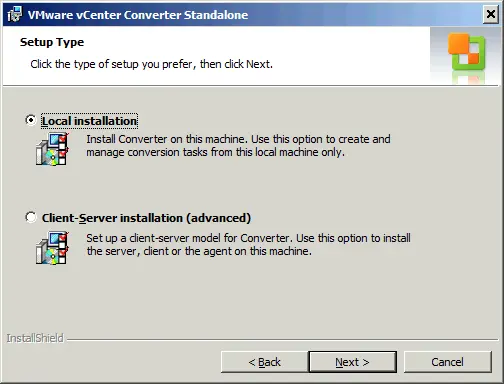
- The next step is to select your setup type – you can choose between Local Installation and Client-Server Installation. Local installation is used in this example for simplicity. All the necessary components of the converter are installed on the local machine to create tasks directly from it (e.g., remote access, converter server, converter agent and converter client). If you opt for the Client-Server installation option, you can fine-tune which components are installed.
Step-by-Step Example: Converting a Hyper-V VM to a VMware VM
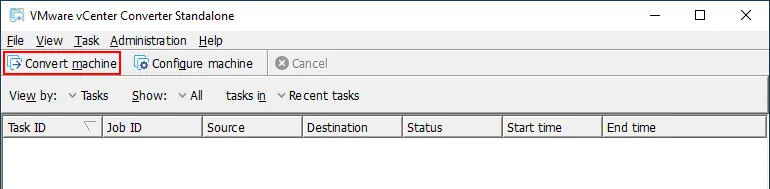
Once you have installed VMware vCenter Converter Standalone, run the converter (by default, a shortcut is created on your desktop). The converter launches in a new window. Let’s explore how to convert a Hyper-V VM to a VMware ESXi VM in the detailed walkthrough below.
- Click Convert machine.
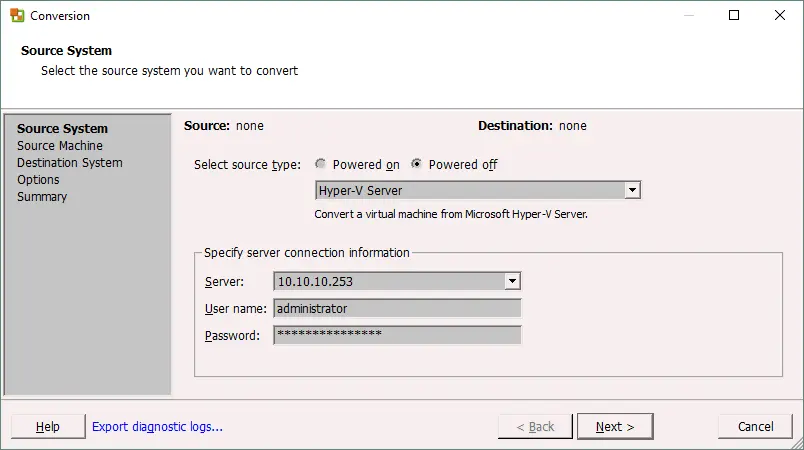
- The conversion wizard is launched. On the Source System screen, you can select a Powered on state (for a remote Windows machine, a remote Linux machine or this local machine) or a Powered off state (for a VMware Infrastructure virtual machine, a VMware Workstation virtual machine, another VMware virtual machine or Hyper-V Server) for the source type. In this example, we select the Powered off option and choose Hyper-V Server from the drop-down menu.
Specify the server connection information. Enter the IP address or the name of your Hyper-V server, then input the username and password of an account with administrative permissions for the Hyper-V server. Click Next to continue.
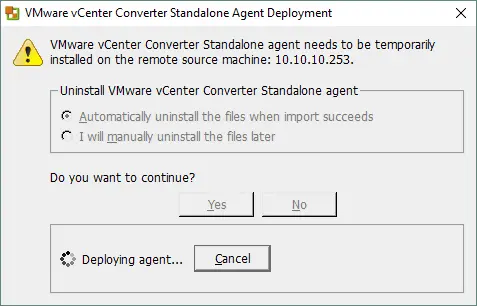
- A pop-up window appears. The VMware vCenter Converter Standalone agent must be temporarily installed on the instance of Hyper-V Server. VMware vCenter Converter prompts you to select how you want to uninstall the agent after conversion is complete (automatically or manually). Select your preferred option and click Yes to continue. Wait until the agent is deployed on the Hyper-V Server.
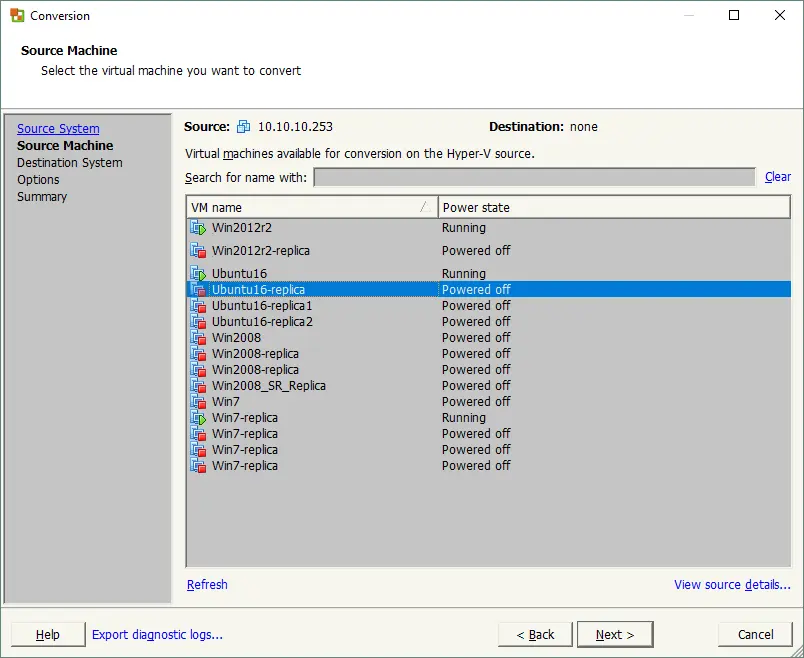
- Select the source machine. Once the agent is deployed, you can see a list of virtual machines residing on your Hyper-V Server. In this walkthrough, the Ubuntu16-replica VM is selected for conversion. This VM is powered off and meets the requirements. If you select a VM in a powered-on state, the Next button will be inactive and a “Power off the selected virtual machine to continue” warning will be displayed. After selecting your source VM, click Next.
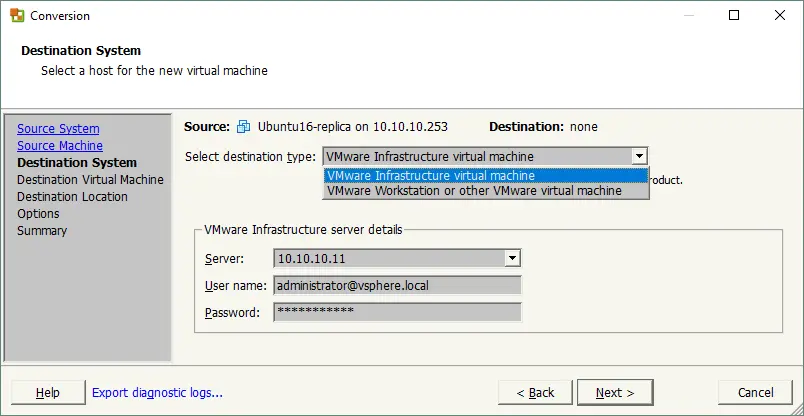
- Set your destination system by choosing from the following options: VMware Infrastructure virtual machine or VMware Workstation, or other VMware virtual machines.
Select the first option if you want to end up with a VM running on an ESXi host (as in this case).
Select the VMware Infrastructure server details:
- The IP address (or host name) of the vCenter Server or the standalone ESXi host;
- The name of the user who has administrative permissions;
- The password of that user.
Once done, click Next to proceed.
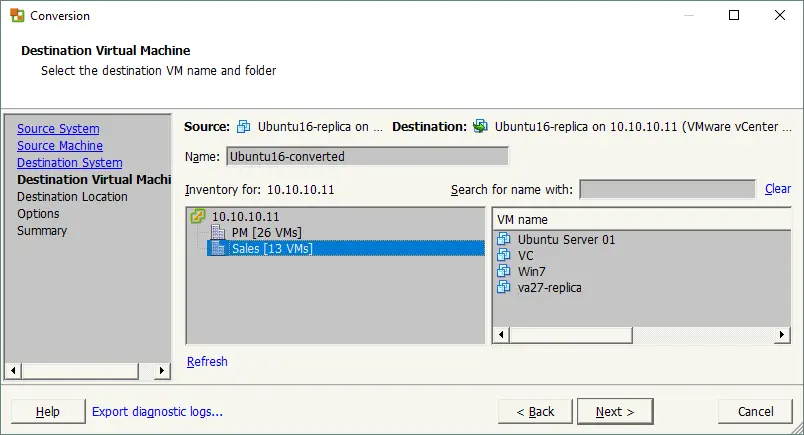
- Set the parameters for the destination virtual machine. Set the name and location of the VM (datacenter or folder). Then click Next to continue.
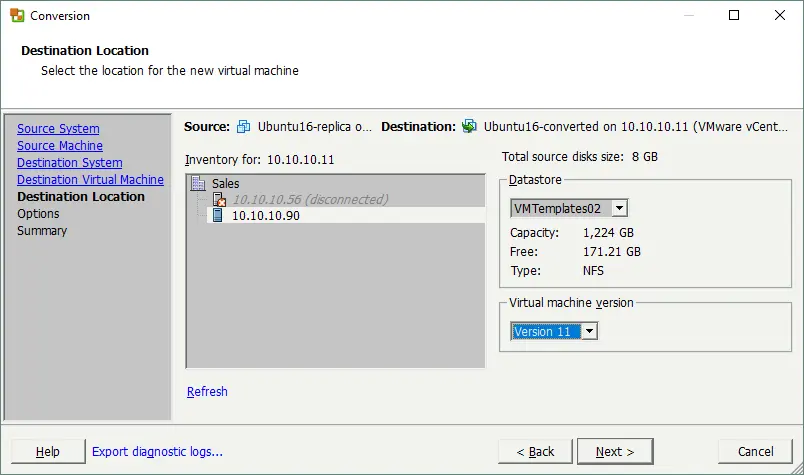
- If you selected vCenter Server in the previous steps, you must now select the ESXi host on which the VM should run. Select the datastore attached to that ESXi server and specify the version of the virtual machine. VM version 11 is suitable for ESXi 6.0 or later. In this example, the IP address of the ESXi host is 10.10.10.90, the datastore name is VMTemplates02 and the VM version is 11. You can select a newer VM version supported by your converter instance and destination host. Click Next.
- Set the parameters for the conversion task:
- Data to Copy. You can select the data copy type (disk-based or volume-based), the disk provisioning type (Thick or Thin) and the destination datastore for your virtual disks. The Thick disk type is selected by default.
- Devices. In this section, you can set the amount of virtual memory, the number of virtual processors, the number of cores per processor and the disk controller for the VM.
- Networks. You can select the number of virtual network adapters for the VM and specify the networks to which they should be connected as well as the type of virtual network controller.
- Services. This option is available only for Windows-based destination machines, allowing you to select a startup mode for each Windows service.
- Advanced options. These options can be configured for Windows OS machines. Tick the appropriate checkboxes for powering on the destination VM, installing VMware Tools, customizing guest preferences, removing System Restore checkpoints and/or reconfiguring the destination VM after conversion.
- Throttling. You can set up CPU throttling to control the CPU resources used by the converter for the current task. This option allows you to reserve sufficient processor resources to run other tasks if necessary. Network bandwidth throttling allows you to control network bandwidth, which can be useful if you want to ensure that your network-related services and applications function properly during conversion.
After configuring the parameters, click Next.
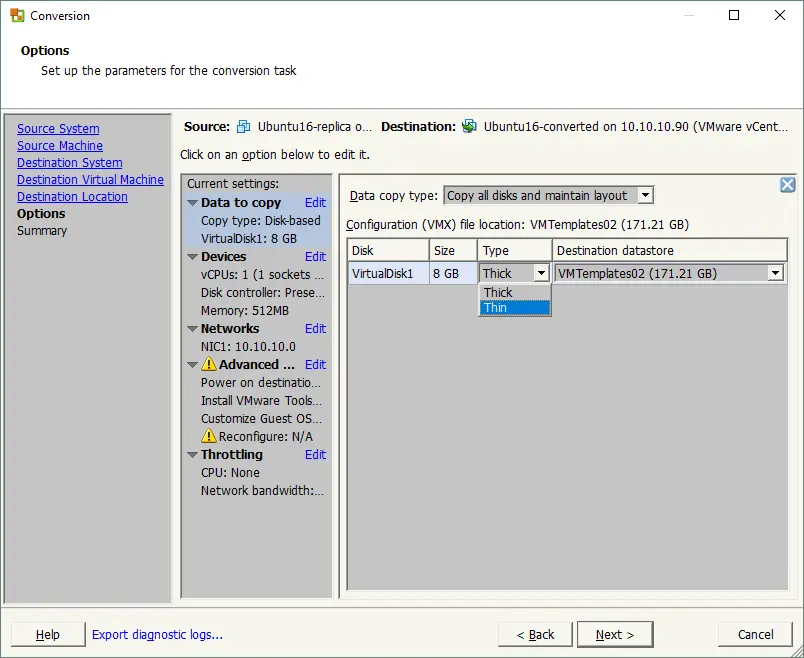
Note: You can set VMware vCenter Converter to use a Thin disk type by default. This may be useful if you need to convert a large number of machines and the destination machines must have thin-provisioned disks. To go with this option:
- Go to C:ProgramDataVMwareVMware vCenter Converter Standalone.
- Open the converter-worker.xml file in a text editor.
- Find the
- Change the default
falsevalue totruein the string:false - Save the converter-worker.xml file and restart the VMware vCenter Converter Standalone Worker service. To do so, open CMD and run the commands:
net stop "VMware vCenter Converter Standalone Worker service"net start "VMware vCenter Converter Standalone Worker service"
Alternatively, you could run
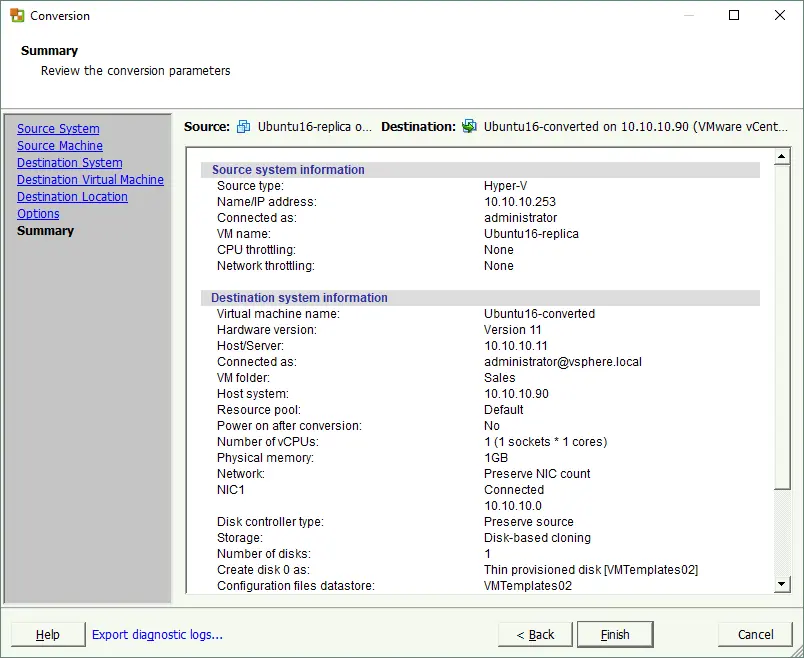
services.mscand use the GUI for service management. - Check the summary. If all the settings are correct, click Finish to start the conversion.
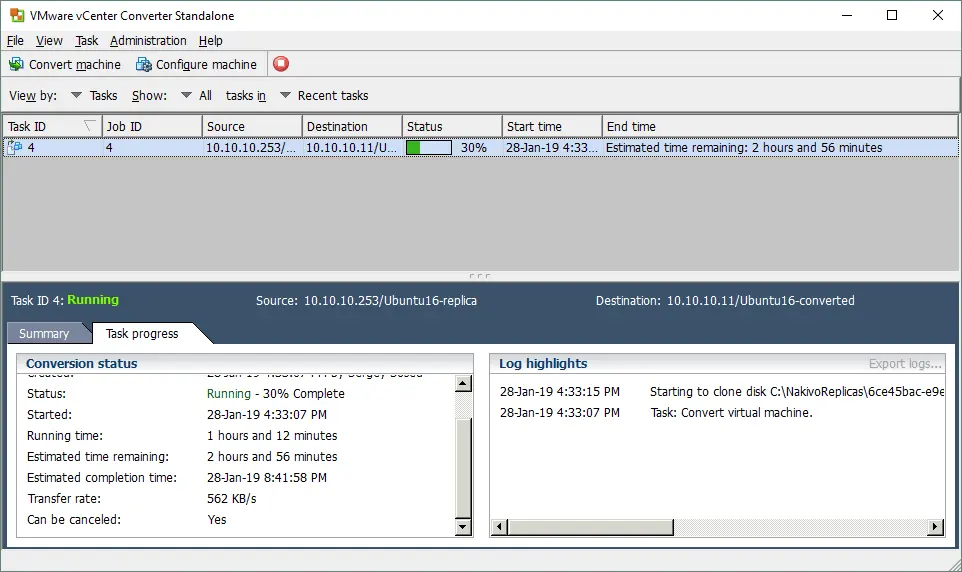
- You can now view the status of your conversion job in the main windows of VMware vCenter Converter. Similarly, you can add more conversion jobs. Wait until your job has finished, then start the VM you converted from Hyper-V format on your VMware ESXi host (use VMware vSphere Client, VMware vSphere Web Client, VMware Host Client, VMware Workstation or PowerCLI for this).
No matter which hypervisor you use, remember to protect your data. With NAKIVO Backup & Replication, you can easily and effectively back up your Hyper-V and VMware VMs. If you have already backed up your Hyper-V VMs with NAKIVO Backup & Replication, you can use the solution’s Cross-Platform Recovery feature to convert your Hyper-V VMs to VMware VMs.
Conclusion
Migrating from Hyper-V to VMware is a straightforward process when using VMware vCenter Converter Standalone. This free tool ensures that your virtual machines are transferred securely, preserving key configurations and minimizing downtime. By following the outlined steps and best practices, you can achieve a smooth and reliable conversion.