RAID vs JBOD: Best Storage Option for Hypervisor Backups
When configuring storage on local servers or Network Attached Storage (NAS) devices, RAID and JBOD are the two common options. Both involve combining multiple drives into a single volume, but they differ significantly in how data is distributed, protected and accessed. Choosing the wrong configuration can lead to performance degradation or data loss. This post covers the differences between JBOD and RAID and identifies the optimal storage types for backups and VM datastores.
RAID vs JBOD: Core Differences
RAID (Redundant Array of Independent Disks) combines multiple physical drives into a single logical unit for performance, redundancy or both. Different RAID levels offer varying trade-offs between speed and data protection that suit different scenarios.
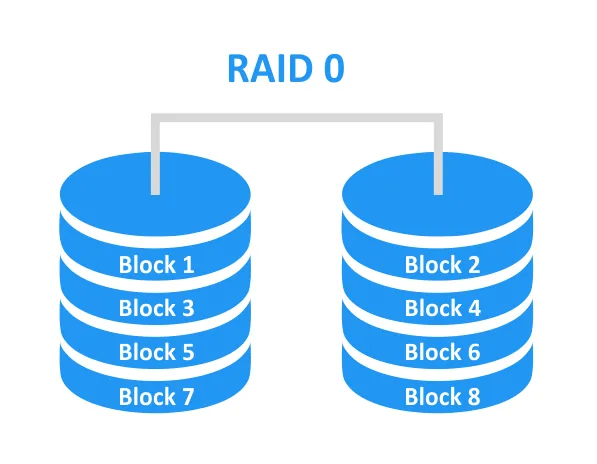
RAID 0 (Striping) combines disks for performance. Data is divided into chunks that are distributed across the disk drives and accessed in parallel, increasing read and write speed. There is no redundancy — if one drive fails, all data is lost. At least two disks are required for RAID 0.
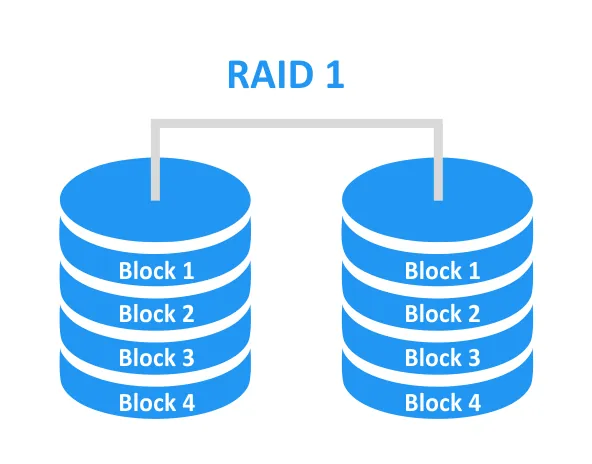
RAID 1 (Mirroring) is a reliable RAID level with 100% redundancy. Data is duplicated on two drives; this configuration provides high data protection, but storage capacity is halved (for example, if two 10-TB drives are used in RAID 1, the usable capacity is 10 TB). At least two disks are required for RAID 1.
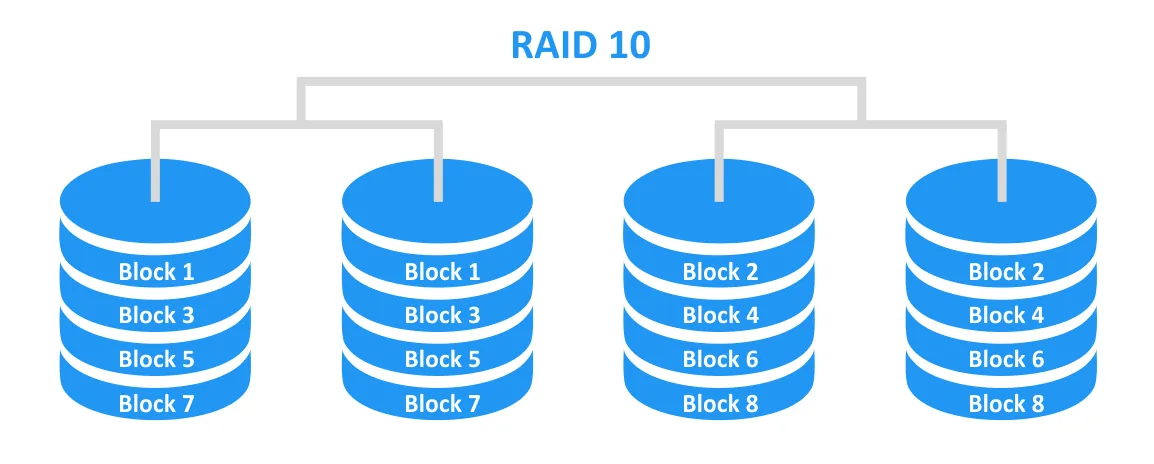
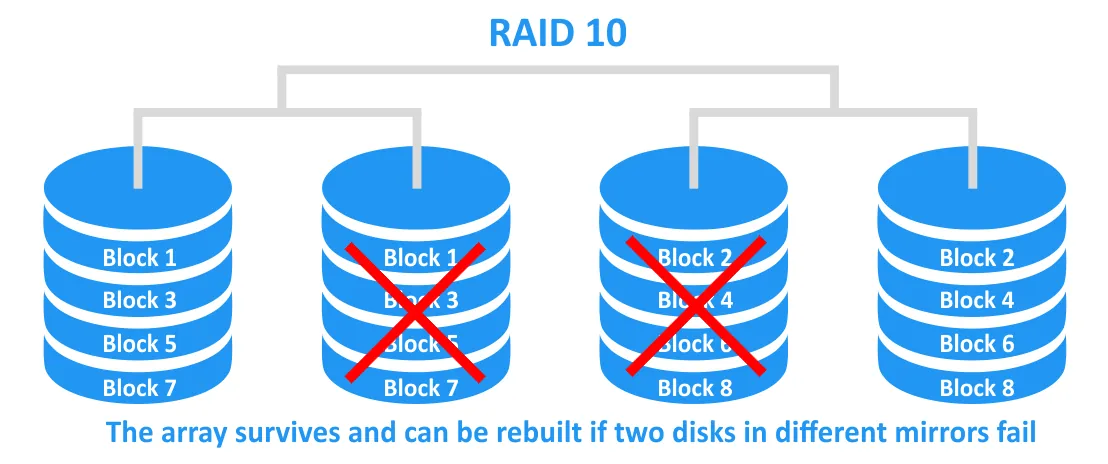
RAID 10 (1+0) combines high performance with 100% redundancy. Pairs of mirrored drives (1) are striped together (0), making this level well-suited for servers. RAID 10 requires at least 4 drives. The array is built in this order:
RAID 1 mirrors → RAID 0 stripes the mirrors.
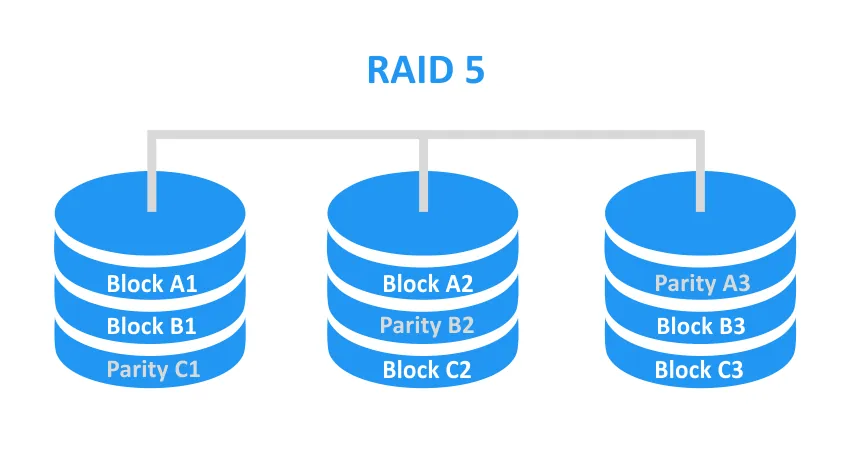
RAID 5 (Striping + Parity) balances performance, capacity and redundancy. Data is striped across multiple disks alongside parity information that can be used for data recovery and array rebuild. The configuration is designed to tolerate one disk failure through distributed parity — one parity-disk-equivalent for RAID 5 and two for RAID 6. At least 3 disks are required for RAID 5.
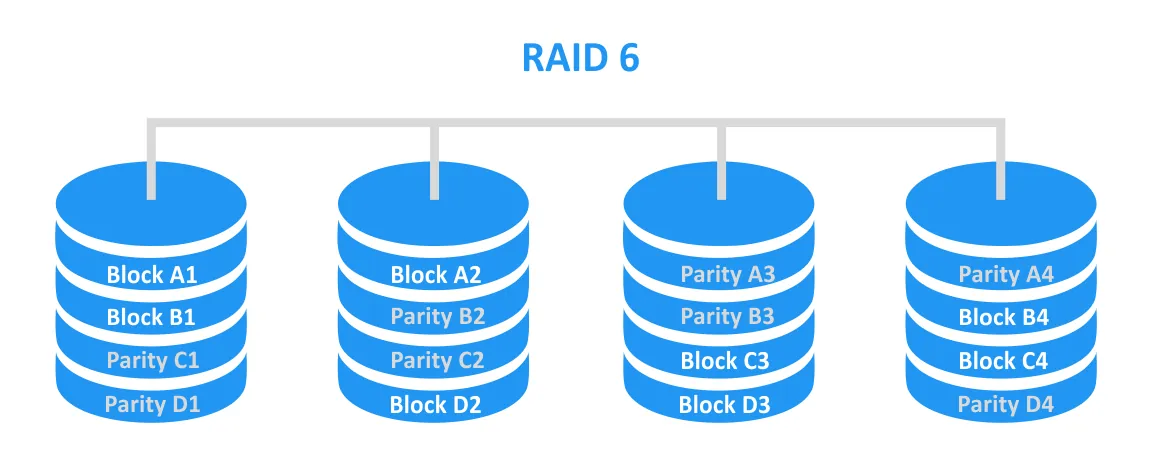
RAID 6 is similar to RAID 5 but uses dual parity, allowing the array to theoretically survive two drive failures. At least 4 drives are required for RAID 6.
JBOD (Just a Bunch of Disks) is not a RAID level. It describes a configuration where multiple drives operate independently or are combined without RAID logic or redundancy.
There are two forms of JBOD:
- Independent disks (true JBOD): Each drive appears separately. For example, JBOD with three drives looks like:
- Drive 1 (2 TB)
- Drive 2 (4 TB)
- Drive 3 (1 TB)
- Spanning/concatenation: Multiple disks are merged into one large logical volume (also called disk spanning, linear mode or concatenation). In this case, a 2 TB + 4 TB + 1 TB set of disks appears as a single 7 TB volume. Files on a spanned JBOD volume fill the first disk and then spill over to the next. Because spanning writes sequentially, new files try to fill the lowest available logical address block.
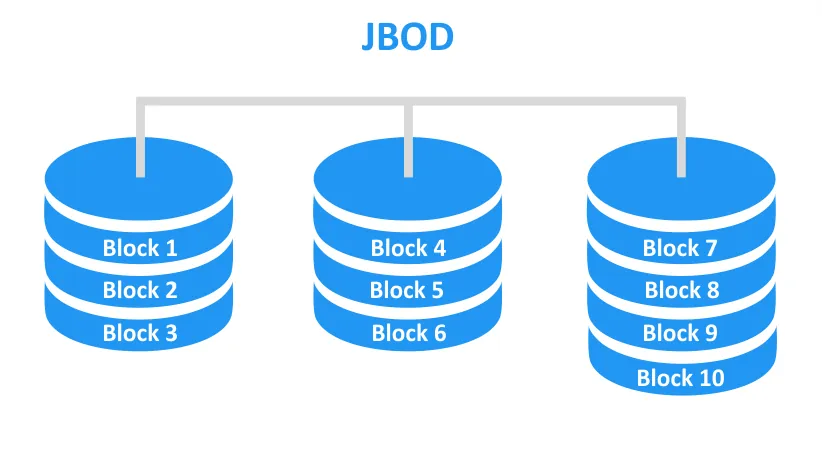
This sequential behavior works cleanly in theory, where files fill one disk before the system moves to the next. In practice, files are continuously created, modified and deleted, especially on servers and heavily loaded systems. As a result, data can rarely stay neatly confined to a single disk in a spanning JBOD setup.
When a file is deleted, the corresponding blocks are marked as free in the file system. These deletions create gaps between the remaining files. New writes may then be fragmented, with their blocks scattered across multiple disks of the spanning JBOD volume. If one disk in the volume fails, any file with blocks on that disk is lost — even if other parts reside on healthy drives.
When a large new file is written, the first part might fill a gap on Disk 1, while the remaining parts can be split across the sequential free space on Disk 2 and Disk 3. The data becomes fragmented both logically (within NTFS) and potentially physically (across multiple disks). Smaller new files may simply fill a gap left by a deletion on one of the existing disks.
Note: NOTE: JBOD, LVM and spanned (extended) NTFS volumes all create a single large volume spanning multiple disks, but they differ in the abstraction layer, flexibility, failure domain and management capabilities. LVM, used in Linux-based systems, provides a more advanced, dynamic and flexible approach. JBOD operates at the file system layer (for example, NTFS), while LVM introduces a volume manager layer between the physical disks and the file system. This allows LVM to support dynamic volume resizing, non-sequential writes and software RAID 1 (disk mirroring).
Defragmentation, supported by NTFS, can reduce fragmentation and improve the chances of recovering files from healthy disks in a JBOD volume if a disk fails after the defragmentation process completes. However, defragmentation places a heavy load on all drives and takes considerable time on large volumes. If a disk fails during defragmentation, files may be lost or the entire volume may fail.
Note: NOTE: Defragmentation applies to hard disk drives but not to solid-state drives.
The main JBOD vs RAID differences are:
- RAID is designed for redundancy, performance or both. Setup is more complex and hardware requirements are higher. If a disk fails, RAID needs time to rebuild the array.
- JBOD provides maximum usable capacity and supports combining drives of different sizes into one volume. Setup is simple, but there is no redundancy or fault tolerance.
When comparing RAID with JBOD, the closest parallel is between RAID 0 and spanning JBOD, since neither offers redundancy. Throughout this post, “JBOD” refers to the spanning/concatenation form unless stated otherwise.
Backup and Recovery Performance Comparison
JBOD does not improve performance, regardless of how it is used. Only RAID can boost speed.
In a spanning JBOD configuration, data fills one disk before writing to the next:
- A file stored entirely on Disk 1 reads and writes at Disk 1’s native speed.
- A file that spans multiple disks is limited by the slowest disk. Increased inter-disk seek time and higher latency can make JBOD slower than a single standalone disk.
JBOD provides maximum capacity without any performance gain, parallelism or striping.
RAID performance depends on the configured RAID level (type).
RAID 0 (Striping) provides the fastest performance because data is split across multiple disks and accessed in parallel. For example, with two drives in RAID 0, sequential reads and writes can reach up to 2× single-disk speed. If two 200 MB/s hard disk drives are used, JBOD delivers up to 200 MB/s, while RAID 0 can reach up to 400 MB/s.
RAID 1 (Mirroring) keeps identical data on two drives. Read operations are often faster — a controller can read from either disk and reach up to 2× single-disk speed in good implementations. Write speed is equivalent to a single disk, since every write must go to both drives.
RAID 10 (Striped Mirrors) combines RAID 1 and RAID 0, delivering excellent input/output operations per second (IOPS) performance.
- Reads: Up to N × disk speed.
- Writes: Usually about ½ of RAID 0 performance (but still significantly faster than a single disk).
RAID 10 offers the best combination of performance and redundancy among RAID levels and outperforms JBOD across all performance metrics.
RAID 5 (Striping + Single Parity) requires three or more disks. Read and write performance differ:
- Reads: Fast, though not as fast as RAID 0 (N–1 disks worth of parallelization).
- Writes: Slower due to parity calculation and the “write penalty”.
Write speeds on RAID 5 are typically around half of RAID 0 with the same disk count.
RAID 5 outperforms JBOD in read-heavy workloads, but write-heavy workloads may be slower than RAID 0 and, in some cases, slightly slower than JBOD.
RAID 6 (Dual Parity) behaves similarly to RAID 5 but carries an even higher write penalty:
- Reads: Comparable to RAID 5.
- Writes: Typically the slowest among common RAID levels.
Read performance still exceeds JBOD, though write performance may fall below it.
In summary:
- RAID 0 delivers the highest raw performance.
- RAID 10 offers the best balance between performance and reliability.
- JBOD is suitable for large storage volumes where speed and redundancy are not priorities.
Keep these characteristics in mind when choosing RAID or JBOD as source or destination storage for backup and recovery operations.
Note: NOTE: Avoid using fake RAID, a feature built into motherboards with SATA ports and configured through UEFI/BIOS settings. This hybrid form of software RAID relies on the host CPU. Fake RAID does not work in Linux and requires special drivers on Windows. It lacks the reliability of true hardware RAID, and SMART data cannot be accessed while fake RAID is enabled. If issues arise, data loss can follow. When hardware RAID is not an option, consider genuine software RAID alternatives such as Linux LVM, mdadm or ZFS.
Performance and reliability of RAID
Performance matters, but reliability becomes equally important when the goal is data protection and recovery. Each RAID level offers a different profile, with RAID 5 and RAID 6 deserving particular attention.
RAID 0 is fast for reading, writing and storing backups used in recovery operations. However, if one drive fails, all backups on the array are lost. The same risk applies to primary data stored on RAID 0 when no separate backup exists.
A second recovery scenario involves rebuilding the array on the disks themselves — without restoring data from external media. All RAID levels except RAID 0 provide self-healing capabilities that reconstruct the array from redundant or parity data on the remaining healthy disks. After replacing the failed drive, the rebuild process starts automatically.
RAID 1 with two drives can survive one drive failure and is highly reliable. Rebuild is fast, with no parity calculation required.
RAID 10 tolerates the failure of any single drive and can even survive two drive failures, provided the failed disks belong to different mirrored pairs. Reliability and fault tolerance are high, and rebuilds are fast because no parity calculation is required (unlike RAID 5).
RAID 5 can theoretically survive if one drive fails, and RAID 6 can survive if two drives fail, but the real-world reliability of these levels is lower than it appears. The risk of total array failure rises significantly during the rebuild process. RAID 5 in particular warrants scrutiny, despite its declared redundancy.
RAID 5 was developed in 1987, when disk capacity was low (about 20 MB) and the probability of a successful rebuild after a single disk failure was high, given the rebuild speeds of the era. Modern drives now ship at capacities of 30 TB and beyond. While capacities have grown by orders of magnitude, mechanical drive speeds have not kept pace — especially for HDDs.
When one drive fails in RAID 5, the array enters a degraded state. In principle, data remains accessible after the array is rebuilt. The amount of data to reconstruct equals the capacity of one disk, using parity data distributed across the remaining healthy disks. During the rebuild, disk performance across the array degrades significantly because the controller must run additional parity calculations and consistency checks.
After a failed disk is replaced, the RAID controller starts the rebuild. It reads the remaining data from the surviving disks and, based on parity information, writes reconstructed content to the new drive. Rebuild times are often long and depend on the number of disks, the controller CPU, the amount of data in the array and similar factors. If the server continues to handle I/O-intensive workloads during the rebuild, both array performance and rebuild speed drop, extending the process further.
As drive capacities scale faster than drive speeds (especially for HDDs), RAID 5 rebuild times keep growing. For example, rebuilding a five-disk RAID 5 array of 4 TB HDDs on a busy server can take more than a day, and arrays built from 20 TB drives can stretch to several days. Multiply those figures further for 30 TB drives.
During a RAID 5 rebuild, the array effectively operates without redundancy, just like RAID 0. Even a small disruption — a disk read error, signal interference, cable issue — can cause the rebuild to fail. If a second disk fails during this window, all data on the array is lost.
The Bit Error Ratio (BER) parameter is used by vendors to estimate drive reliability. BER for desktop-class disks is 10^14, while enterprise-class disks reach 10^15. The 10^14 value means the probability of an unrecoverable read error is no higher than 1 in 100,000,000,000,000 bits (14 zeros). 10^14 bits is equal to 11 TB of data. It means that after reading about 11 TB from a desktop-class HDD, the probability of at least one bit-level read error is close to 100%. In practice, drives often fail earlier than their theoretical Mean Time to Failure (MTTF) would suggest.
With enterprise-class HDDs, the situation improves by an order of magnitude: The cumulative read-error probability reaches nearly 100% after about 110 TB of data is read. Given that commercially available HDDs in 2026 exceed 30 TB per drive, a 10^15 BER no longer feels particularly comfortable for large arrays. The probability of failure is lower for disks with lower capacity and higher for disks with higher capacity.
Keep in mind that much of the data stored on disk arrays is cold data — rarely accessed, often untouched for 1-2 years. Since systems do not continuously scan every disk sector for health and consistency, some files may sit on blocks that can no longer be read. This latent corruption stays invisible until the RAID 5 rebuild surfaces it — at which point it becomes fatal.
Using RAID 5 is not recommended, especially in production systems or for business-critical data. If RAID 5 is still required, do not pair it with low-cost controllers or consumer-grade disks. Opt for enterprise-grade RAID controllers and drives with higher reliability ratings. RAID 6 fares slightly better than RAID 5, but the risk of data loss remains significant.
Data stored on RAID 5 should always be backed up to external storage to protect against array failure. The same principle applies to RAID 0 and JBOD storage.
Reliability and performance for JBOD
In a spanning JBOD configuration, if one disk fails, any file with blocks on the damaged drive becomes unreadable and unrecoverable. Only files stored entirely on healthy drives can potentially be recovered.
In specific configurations, a single disk failure can cause the entire JBOD volume to fail, even if most data lives on healthy disks, similar to RAID 0. The reason is file system metadata: If critical structures such as the Master File Table (MFT) reside on the failed drive, the operating system can no longer map logical addresses back to physical blocks, making data on healthy disks inaccessible. If the write pattern of your JBOD setup is unknown, treat the storage as zero-fault-tolerance.
RAID Performance for VMware and Hyper-V
RAID storage delivers higher performance, but not every RAID level suits VM datastores or virtual machine storage.
RAID 0 is fast but not safe. A single disk failure causes downtime until the affected VMs are restored from backup or failed over to pre-existing VM replicas. RAID 0 in a VM datastore requires a solid backup and replication strategy. Using RAID 0 without additional data protection measures is strongly discouraged in production environments. It may be acceptable for temporary workloads such as labs and test environments.
RAID 1 works well for VM storage in VMware, Hyper-V and other virtualization platforms. Performance is adequate, and 100% data redundancy prevents downtime after a single disk failure while the array rebuilds. RAID 1 is a reasonable choice for smaller virtual environments with a limited number of VMs.
RAID 10 provides the highest performance and reliability. Strong IOPS, low latency, fast reads and writes, robust fault tolerance and quick rebuilds make it the recommended RAID level for VMware, Hyper-V and other virtualization platforms in production environments.
RAID 5 delivers moderate read performance, but write performance is slower. Despite some read advantage under normal operation, RAID 5 should not be used to store virtual machines or any mission-critical data. As discussed earlier, rebuild risk is high and performance degradation during rebuild is severe.
RAID 6 offers read performance similar to RAID 5, but slower writes. Reliability improves slightly over RAID 5, but all of its weaknesses still apply. RAID 6 is not recommended for storing virtual machines or critical data.
JBOD Performance for VMware and Hyper-V
Unlike backup storage, VM storage has far stricter performance requirements. VM workloads are highly sensitive to IOPS, latency and throughput. In this context, RAID and JBOD behave very differently, and even the choice of RAID level significantly affects how VMs on that array perform.
VM workloads generate many small reads and writes and demand high IOPS, particularly for virtual disks hosting operating systems, databases and file servers. Swap files, paging, snapshots and delta disks create heavy write amplification. Periodic I/O bursts are common during normal VM operation.
Because JBOD is one of the slowest storage configurations, it is not recommended for VMware, Hyper-V or other virtual machine files, especially in production environments.
VMware vs Hyper-V Storage Considerations
Both VMware and Hyper-V rely heavily on storage performance and consistency, but they differ in how they access storage, optimize workloads and protect data.
VMware vSphere is more sensitive to storage performance because of how VMFS, vMotion, snapshots and DRS interact with datastores. Supported VMware vSphere storage types are:
- Storage Area Network (SAN): iSCSI, Fibre Channel, FCoE
- Network Attached Storage (NAS): NFS v3/v4.1
- Directly Attached Storage (DAS): Local RAID, NVMe, SSD
- vSAN (hyper-converged storage)
- Cloud Datastores (vVols, NFS cloud shares)
NFS provides shared file-level storage, while iSCSI and DAS operate at the block level.
VMFS datastores are the most used VM storage type in VMware vSphere environments due to their reliability, convenience and ease of configuration. VMFS is a clustering file system that allows multiple ESXi hosts to access the same datastores, blocks and files simultaneously — a requirement for cluster configurations. Key characteristics of VMware VMFS datastores include:
- Excellent for high-IOPS workloads
- Supports multiple hosts accessing the same datastore
- Requires strong backend storage throughput
- Thin and thick provisioning are available
- Performs best with RAID 10 for VM boot and write activity
VMFS datastores can be created on local disks (including local RAID arrays via DAS) or on iSCSI LUNs exposed by SAN and NAS devices over the network. In both cases, RAID is typically configured on the underlying SAN or NAS device for performance and reliability. RAID can also be used to configure NFS file shares on a file server.
The RAID level selection principles outlined earlier apply. SSDs deliver the highest performance, while HDDs are adequate for less demanding workloads. RAID 10 is the optimal choice for VMware VM storage, with RAID 1 as an acceptable alternative. VMware ESXi only supports hardware RAID for locally attached storage.
Microsoft Hyper-V uses NTFS or ReFS on Cluster Shared Volumes (CSV); its storage behavior differs significantly from VMware vSphere. Storage types supported in Hyper-V are:
- DAS: RAID arrays (the most common)
- SAN: iSCSI/Fibre Channel
- SMB 3.0/3.02 (Scale-Out File Server — SOFS)
- Storage Spaces/Storage Spaces Direct (S2D)
- Azure-based cloud storage
SMB is a file-sharing protocol native to Microsoft environments.
Hyper-V stores VHDX virtual disk files on direct-attached NTFS/ReFS volumes, Cluster Shared Volumes (CSV) and SMB 3.0 file shares. CSV allows multiple hosts to access the same LUN simultaneously, which is required for cluster configuration. Hyper-V on Windows Server supports hardware RAID, fake RAID and software RAID. The RAID recommendations for Hyper-V match those for VMware: RAID 10 is the best option for hosts running VM workloads, and RAID 1 is a reasonable alternative. Hardware RAID remains the preferred implementation.
Storage Costs and Expansion
RAID generally increases storage costs because redundancy reduces usable capacity — you pay for more hardware than the effective space you get. For example:
- RAID 0: No capacity reduction
- RAID 1: 50% usable capacity (two drives mirror each other)
- RAID 10: 50% usable (mirrored stripes)
- RAID 5: One disk’s worth of capacity lost (N disks → N−1 usable)
- RAID 6: Two disks’ worth of capacity lost (N disks → N−2 usable)
A high-quality RAID controller (with a battery and cache) is required for the best performance and reliability, and commands a premium price.
JBOD is the cheapest option because no additional drives are needed for redundancy and no special controller hardware is required. You can add any number of disks to build a large volume, unlike RAID 1, which is limited to two drives. JBOD also works with mixed drives — different vendors, capacities and speeds — but this flexibility comes at the cost of performance and reliability.
Expansion is where the two configurations diverge sharply. Most RAID configurations cannot be grown easily or support only limited expansion. You typically need to replace all member disks with larger equal-capacity drives, or set up a separate RAID array, which requires free ports on the RAID controller or an additional controller altogether. Advanced RAID controllers can expand RAID 10 by adding disk pairs. RAID 5 and RAID 6 can grow through disk addition, but the process is risky and time-consuming.
JBOD offers the greatest flexibility and the simplest expansion path. You can add a drive at any time, regardless of manufacturer, capacity, model or other parameters. New disks become available immediately, with no rebuild or parity calculation required.
Optimizing Backup Performance with NAKIVO
JBOD can serve as low-cost, expandable storage for backups. Backup speed is typically limited by the network connection, with additional overhead from compression and encryption, meaning JBOD’s raw-speed limits are rarely the bottleneck. Even so, remember the 3-2-1 backup rule and maintain additional backup copies that can rescue you if the primary backup storage fails.
Even with reliable RAID levels such as RAID 1 and RAID 10, the data on these arrays still needs to be backed up. RAID 1 tolerates one drive failure, and RAID 10 can survive two, provided the failed disks belong to different mirrored pairs. But redundancy is not protection against every failure mode. Accidental deletion, ransomware attacks, software corruption and physical disasters can destroy data or the server itself. Mirrored RAID is a form of redundancy, not a substitute for a proper backup strategy.
NAKIVO Backup & Replication includes a wide range of features designed to make data protection fast, secure, reliable and convenient.
- Agentless VM backup for VMware vSphere, Microsoft Hyper-V, Proxmox VE and Nutanix AHV. Native hypervisor APIs are used to back up data at the host level.
- LAN-Free Data Transfer: NAKIVO Backup & Replication automatically selects the optimal data transfer mode, such as VMware Hot Add or Direct SAN Access, to reduce network load and accelerate backups.
- Network Acceleration: Data is compressed before it is sent over the network to the destination backup storage, improving transfer speed and reducing storage footprint.
- Backup Scheduling and Automation: Flexible scheduling and retention options allow backup jobs to run automatically, saving time.
- Deduplication Appliance Integration: Using supported deduplication appliances and their native data transfer protocols maximizes backup speed and minimizes backup storage usage. Supported appliances include Dell EMC Data Domain (DD Boost), HPE StoreOnce (Catalyst) and NEC HYDRAstor (Universal Express).
- Incremental Backup: Only data changes since the last full or incremental backup are transferred, saving time and improving performance compared to full-only backups.
- Native Changed Tracking for VMware and Hyper-V: VMware Changed Block Tracking (CBT) and Hyper-V Resilient Change Tracking (RCT) accelerate incremental backups.
- Swap Data Exclusion: Swap files and partitions store temporary OS data and add unnecessary bulk to backups. NAKIVO Backup & Replication excludes them, improving backup speed and saving storage space.
- Log Truncation: Database systems create log files to ensure transaction consistency and support recovery. These logs can grow large. The Log Truncation feature keeps backups more compact.
Conclusion
Despite its low cost and scalability, JBOD storage is not suited to critical data or performance-demanding workloads. A single disk failure can lead to data loss. JBOD can work as backup storage, but only when at least one additional backup copy exists on separate storage. RAID 5 and RAID 6 should be avoided for important data. RAID 10 and RAID 1 remain the most reliable options, with RAID 10 providing the highest performance, making it ideal for VM storage with full redundancy. Even on the best RAID level, backing up data from the array remains essential, since many data loss scenarios occur without any array failure at all.
FAQ
What is the difference between JBOD and RAID?
RAID combines multiple drives into one logical unit using striping, mirroring or parity to improve performance, redundancy or both. JBOD (Just a Bunch of Disks) merges drives into a single volume without any of these mechanisms. RAID requires matching drives and a controller; JBOD accepts mixed drives with no special hardware. RAID protects against disk failure (except RAID 0); JBOD offers no fault tolerance.
Is JBOD good enough for storing backups?
JBOD can work as low-cost backup storage because backup speed is usually limited by the network, not disk performance. However, a single disk failure can destroy files spread across multiple drives. If you use JBOD for backups, follow the 3-2-1 rule and keep at least one additional backup copy on separate storage.
Which RAID level is best for VMware and Hyper-V virtual machines?
RAID 10 is the recommended level for VM storage on both VMware and Hyper-V. It combines striping and mirroring for high IOPS, low latency, fast rebuilds and full redundancy. RAID 1 is acceptable for smaller environments. RAID 5 and RAID 6 should be avoided for VM workloads due to slow writes, high rebuild risk and performance degradation during recovery.
Why is RAID 5 not recommended for production data?
RAID 5 was designed in 1987 for small-capacity drives. With modern drives exceeding 30 TB, rebuild times stretch to days. During the rebuild, the array runs without redundancy. A single read error, cable issue or second disk failure during this window results in total data loss. Enterprise-grade controllers and drives reduce the risk, but RAID 10 remains a safer choice.
Can JBOD be used for VMware or Hyper-V datastores?
JBOD is not recommended for VM storage. VM workloads require high IOPS, low latency and consistent throughput. JBOD offers no performance gain over a single disk, no parallelism and no fault tolerance. A disk failure in a JBOD volume can take down running VMs with no recovery path beyond restoring from backup.