How to Set CPU Cores per Socket in VMware vSphere: Best Practices
When configuring processor settings for a new virtual machine, it’s important to understand several core concepts. These include how to calculate the number of CPU cores per socket and how this configuration can influence VM performance. It’s also essential to understand the impact of using fewer processors with more cores versus more processors with fewer cores. Clarifying these relationships can help you choose a layout that aligns with your workload and host capabilities.
Read on to learn about these concepts and the basic principles of CPU configuration for virtual machines on ESXi hosts.

Terminology
Let’s start with the definitions of the terms you should know when configuring CPU settings for virtual machines to help you understand the working principle.
A CPU (Central Processing Unit, microprocessor chip, or processor) is a key computer component. It is the electronic circuitry with transistors that is connected to a socket. A CPU executes instructions to perform calculations, run applications and complete tasks. When the clock speed of processors approached the heat barrier, manufacturers altered the processor architecture and began producing processors with multiple CPU cores. To avoid confusion between physical and logical processors or processor cores, some vendors refer to a physical processor as a socket.
A CPU Socket is a physical connector on the motherboard to which a single physical CPU is connected. A motherboard has at least one CPU socket. Server motherboards usually have multiple CPU sockets that support several multicore processors. CPU sockets are standardized for different processor series. Intel and AMD use different CPU sockets for their processor families.
A CPU core is the part of the processor containing the L1 cache. It performs computational tasks independently without interacting with other cores and external components of a “big” processor that are shared among cores. Basically, a core can be considered a small processor built into the main processor connected to a socket. Applications should support parallel computations to use multicore processors rationally.
Hyper-threading is a technology developed by Intel to enable parallel computation on processors with a single processor core. The debut of hyper-threading was in 2002 with the release of the Pentium 4 HT processor, which was positioned for desktop computers. The operating system detects a single-core processor with hyper-threading as a processor with two logical cores (not physical cores). Similarly, a four-core processor with hyper-threading appears to an OS as a processor with 8 cores. The more threads run on each core, the more tasks can be done in parallel. Modern Intel processors have both multiple cores and hyper-threading. It is usually enabled by default and can be enabled or disabled in the BIOS. AMD Simultaneous Multi-Threading (SMT) is the analog of hyper-threading for AMD processors.
A vCPU is a virtual processor that is configured as a virtual device in the virtual hardware settings of a VM. It can use multiple CPU cores. A vCPU is connected to a virtual socket.
CPU overcommitment occurs when you provision more logical processors (CPU cores) for VMs residing on a physical host than the total number of logical processors available on the host.
NUMA (Non-Uniform Memory Access) is a computer memory design used in multiprocessor computers. The idea is to provide separate memory for each processor (unlike UMA, where all processors access shared memory through a bus). At the same time, a processor can access memory that belongs to other processors by using a shared bus (all processors access all memory on the computer). A CPU has the performance advantage of accessing its own local memory faster than other memory on a multiprocessor computer.
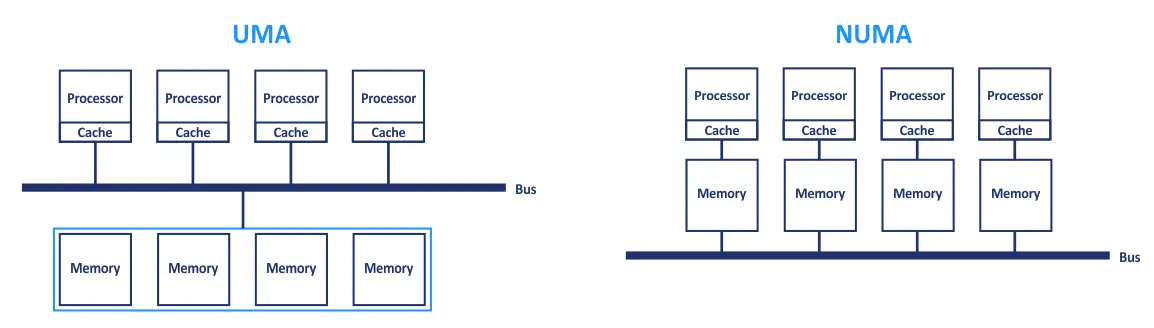
These basic architectures are mixed in modern multiprocessor computers. Processors are grouped on a multicore CPU package or node. Those that belong to the same node share access to memory modules, similar to the UMA architecture. Also, processors can access memory from the remote node via a shared interconnect. They do so in the NUMA architecture, but with slower performance, through the CPU that owns that memory rather than directly.
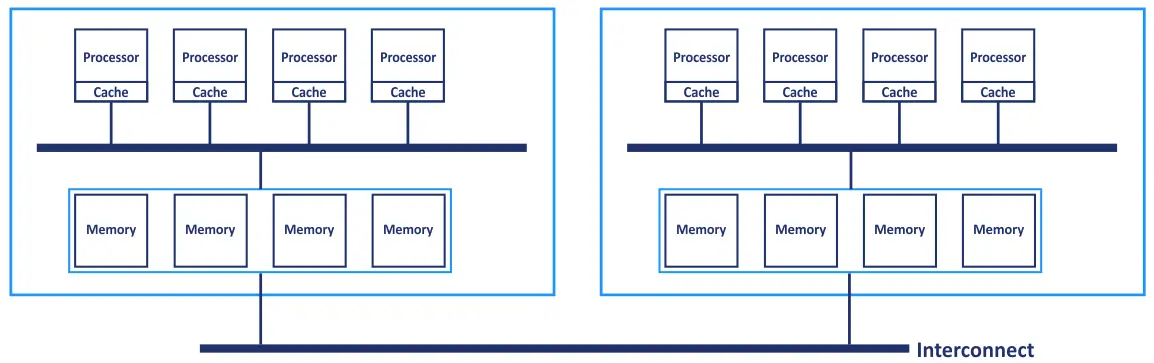
NUMA nodes are CPU/Memory couples that consist of a CPU socket and the closest memory modules. NUMA is usually configured in BIOS as the node interleaving or interleaved memory setting.
Virtual NUMA (vNUMA) is the analog of NUMA for VMware virtual machines. A vNUMA consumes hardware resources of more than one physical NUMA node to provide optimal performance. The vNUMA technology exposes the NUMA topology to a guest operating system. As a result, the guest OS is aware of the underlying NUMA topology. The virtual hardware version of a VM must be 8 or higher to use vNUMA.
Handling of vNUMA was significantly improved in VMware vSphere 6.5, 8.0 and 9.0. This feature is no longer controlled by the CPU cores per socket value in the VM configuration. By default, vNUMA is enabled for VMs that have more than 8 logical processors (vCPUs). You can enable vNUMA manually for a VM by editing the VMX configuration file of the VM and adding the line numa.vcpu.min=X, where X is the number of vCPUs for the virtual machine.
While the “Cores per Socket” value doesn’t control vNUMA activation, manually configuring this setting to match the host’s physical NUMA node topology remains a best practice for achieving optimal performance on large virtual machines with high vCPU counts.
Calculating the Number of Cores
Let’s find out how to calculate the number of physical CPU cores, logical CPU cores and other parameters on a server.
- The total number of physical CPU cores on a host machine is calculated with the formula:
(The number of Processor Sockets) x (The number of cores/processor) = The number of physical processor cores
Note: Only processor sockets with installed processors must be considered.
- If hyper-threading is supported, you can calculate the number of logical processor cores by using the formula:
(The number of physical processor cores) x (2 threads/physical processor) = The number of logical processors
- Finally, use this formula to calculate the available processor resources that can be assigned to VMs:
(CPU sockets) x (CPU cores) x (threads)
For example, if you have a server with two processors, each with 4 cores and supporting hyper-threading, then the total number of logical processors that can be assigned to VMs is:
2(CPUs) x 4(cores) x 2(HT) = 16 logical processors
One logical processor can be assigned as either a single processor or a single CPU core for a VM.
As for virtual machines, due to their hardware emulation features, they can use multiple processors and CPU cores in their configuration. One physical CPU core can be configured as a virtual CPU or as a virtual CPU core for a VM.
- The total amount of clock cycles available for a VM is calculated as:
(The number of logical sockets) x (The clock speed of the CPU)
For example, if you configure a VM to use 2 vCPUs with 2 cores when you have a physical processor with a clock speed of 3.0 GHz, then the total clock speed is 2 x 2 x 3 = 12 GHz. If CPU overcommitment is used on the ESXi host, the available frequency for the VM can be less than calculated if VMs perform CPU-intensive tasks.
Limitations for CPU Cores Per Socket
The CPU/core limitations in vSphere 7.0 Update 1, vSphere 8.0 and vSphere 9.0 are listed below:
- The maximum number of virtual processor sockets that can be assigned to a VM is 768. If you want to assign more, configure the VM to use multicore processors.
- The maximum number of processor cores that can be assigned to a single VM is 768 in vSphere 8.0 (virtual hardware version 18) and increases to 960 in vSphere 9.0 (virtual hardware version 22). A virtual machine cannot use more CPU cores than the number of logical processor cores on the physical machine.
- CPU Hot-Add. If a VM has 128 vCPUs or fewer, you cannot use the CPU Hot-Add feature, nor can you edit the CPU configuration while the VM is running.
- OS CPU restrictions. If an operating system has a limit on the number of processors, and you assign more virtual processors to a VM, the additional processors are not identified or used by the guest OS. The OS technical design and OS licensing restrictions can cause these limits. Note that there are operating systems licensed per-socket and per CPU core (for example, Windows Server 2019 or Windows Server 2025).
CPU (CPU sockets) support limits for some operating systems:
- Windows 10 Pro – 2 CPUs
- Windows 10 Home – 1 CPU
- Windows 10 Workstation – 4 CPUs
- Windows 11 Home/Pro x64 – 2 CPUs (max logical processors or vCPUs/cores is 256)
- Windows 11 Pro for Workstations – 4 CPUs (max logical processors or vCPUs/cores is 256)
- Windows Server 2022 (Standard/Datacenter) – 64 CPUs (up to 640 logical processors or CPU cores)
- Windows Server 2025 (Standard/Datacenter) – 64 CPUs (up to 2048 logical processors or CPU cores)
- Windows Server 2019 Standard/Datacenter – 64 CPUs
- Windows XP Pro x64 – 2 CPUs
- Windows 7 Pro/Ultimate/Enterprise – 2 CPUs
- Windows Server 2003 Datacenter – 64 CPUs
Configuration Recommendations
For older vSphere versions, it’s recommended to use sockets over cores in VM configuration. Initially, you may not notice a significant difference in CPU sockets or CPU cores, which can affect VM performance. Be aware of some configuration features. Remember NUMA and vNUMA when considering setting multiple virtual processors (sockets) for a VM to achieve optimal performance.
If vNUMA is not configured automatically, mirror the NUMA topology of the physical server. Here are some recommendations for VMs in VMware vSphere 6.5 and later (including vSphere 8.0 and 9.0):
- When you define the number of logical processors (vCPUs) for a VM, choose the cores-per-socket configuration. Continue until the count exceeds the number of CPU cores on a single NUMA node on the ESXi server. Use the same logic until you exceed the amount of memory that is available on a single NUMA node of your physical ESXi server.
- Sometimes, the number of logical processors in your VM configuration exceeds the number of physical CPU cores on a single NUMA node, or the amount of RAM is higher than the total memory available for a single NUMA node. Consider dividing the count of logical processors (vCPUs) across the minimum number of NUMA nodes for optimal performance.
- Don’t set an odd number of vCPUs if the CPU count or amount of memory exceeds the number of CPU cores. The same applies in the case where memory exceeds the amount allocated for a single NUMA node on a physical server.
- Don’t create a VM that has more vCPUs than the count of physical processor cores on your physical host.
- If you cannot disable vNUMA due to your requirements, don’t enable the vCPU Hot-Add feature.
If vNUMA is enabled in vSphere before version 6.5, and you have defined the number of logical processors (vCPUs) for the VM, select the number of virtual sockets while keeping the cores-per-socket amount equal to 1 (the default value). The one-core-per-socket configuration enables vNUMA to automatically select the best vNUMA topology for the guest OS. This automatic configuration is optimal on the underlying physical topology of the server.
If vNUMA is enabled, and you’re using the same number of logical processors (vCPUs) but increasing the number of virtual CPU cores and reducing the number of virtual sockets by the same amount, then vNUMA cannot set the optimal NUMA configuration for the VM. As a result, VM performance is affected and can degrade.
If the guest operating system and other software installed on the VM are licensed on a per-processor basis, configure the VM to use fewer processors with more CPU cores. For example, Windows Server 2012 R2 is licensed per socket, and Windows Server 2016 (and later versions) is licensed on a per-core basis.
If you use CPU overcommitment in the configuration of your VMware virtual machines, keep in mind these values:
- 1:1 to 3:1 – There should be no problems in running VMs;
- 3:1 to 5:1 – Performance degradation is observed;
- 6:1 – Significant performance degradation is expected.
CPU overcommitment with normal values can be used in test and development environments without risks.
Configuration of VMs on ESXi Hosts
First, determine the total number of logical processors (the total number of CPUs) required for your physical host to run a virtual machine properly and achieve sufficient performance. Then, define the number of virtual sockets with processors (the number of sockets in vSphere Client) and the number of CPU cores (cores per socket) you should set for the VM, keeping in mind the previous recommendations and limitations. The table below can help you select the needed configuration.

If you need to assign more than 8 logical processors for the VM, the logic remains the same. To calculate the number of logical CPUs in vSphere Client, multiply the number of sockets by the number of cores. For example, if you need to configure a VM to use 2-processor sockets, each with 2 CPU cores, then the total number of logical CPUs is 2 * 2= 4. This means that you should select 4 CPUs in the virtual hardware options of the VM in vSphere Client to apply this configuration.
Configuring Cores per CPU in vSphere Client
Let’s explain how to configure CPU options for a VM in VMware vSphere Client. The configuration process is identical in vSphere 6.x, 7.0, 8.0 and 9.0.
- Enter the IP address of your vCenter Server in a web browser, and open VMware vSphere Client.
- In the navigator, open Hosts and Clusters, and select the needed virtual machine that you want to configure. Make sure that the VM is powered off to change the CPU configuration.
- Right-click the VM, and then select Edit Settings from the context menu to open the virtual machine settings.
- Expand the CPU section in the Virtual Hardware tab of the Edit Settings window.
- CPU. Click the drop-down menu in the CPU string, and select the total number of needed logical processors for this VM. In this example, we select 4 logical processors for the Ubuntu VM (blog-Ubuntu1).
- Cores per Socket. In this string, click the drop-down menu and select the needed number of cores for each virtual socket (processor).
- CPU Hot Plug. To use this feature, select the Enable CPU Hot Add checkbox. Remember the limitations and requirements.
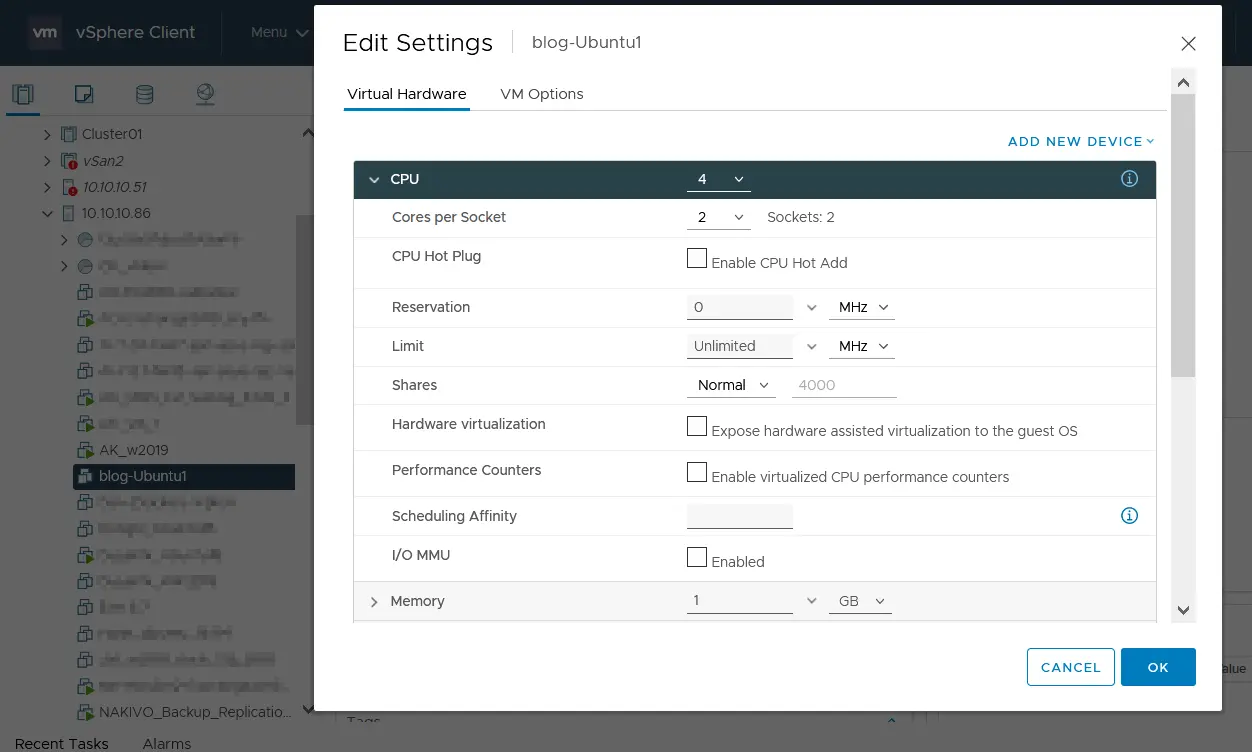
- Reservation. Select the guaranteed minimum allocation of CPU clock speed (frequency, MHz or GHz) for the virtual machine on an ESXi host or cluster.
- Limit. Select the maximum CPU clock speed for the VM processor. This frequency is the maximum frequency for the virtual machine, even if this VM is the only one running on the ESXi host or cluster with more free processor resources. The set limit applies to all virtual processors of the VM. If it has 2 single-core processors, and the limit is 1000 MHz, then both virtual processors work with a total clock speed of one million cycles per second (500 MHz for each core).
- Shares. This parameter defines the priority of resource consumption by virtual machines (Low, Normal, High, Custom) on an ESXi host or resource pool. Unlike the Reservation and Limit parameters, the Shares parameter is applied for the VM only if there is a lack of CPU resources within an ESXi host, resource pool or DRS cluster.
Available options for the Shares parameter:
- Low – 500 shares per virtual processor
- Normal – 1000 shares per virtual processor
- High – 2000 shares per virtual processor
- Custom – set a custom value
The higher the Shares value is, the more CPU resources are provisioned for the VM within an ESXi host or a resource pool.
- Hardware virtualization. Select this checkbox to enable nested virtualization. This option is useful if you want to run a VM inside another VM for testing or educational purposes.
- Performance counters. This feature enables the debugging and optimization of an application installed within the virtual machine after measuring its CPU performance.
- Scheduling Affinity. This option is used to assign a VM to a specific processor. The value can be like this: “0, 2, 4-7”.
- I/O MMU. This feature allows VMs to have direct access to hardware input/output devices such as storage controllers, network cards and graphics cards (rather than using emulated or paravirtualized devices). I/O MMU is also called Intel Virtualization Technology for Directed I/O (Intel VT-d) and AMD I/O Virtualization (AMD-V). I/O MMU is disabled by default. This option is deprecated in vSphere 7.0. If I/O MMU is enabled, the VM cannot be migrated with vMotion and is not compatible with snapshots, memory overcommit, suspended VM state, physical NIC sharing and NSX network virtualization.
If you use a standalone ESXi host and VMware Host Client to configure VMs in a web browser, the configuration principle is the same as for VMware vSphere Client.
Configuring Cores per CPU in VMware Workstation
If you connect to a vCenter Server or ESXi host in VMware Workstation and open the settings of a vSphere VM, you can edit the basic configuration of virtual processors.
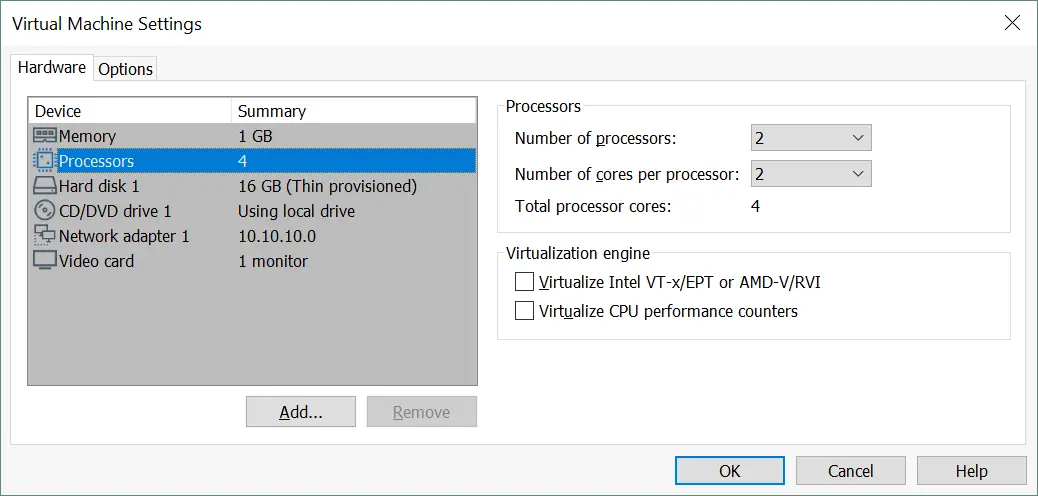
- Click VM > Settings, select the Hardware tab and click Processors.
- Select the number of virtual processors (sockets) and the number of cores per processor.
In the following screenshot, you can see the processor configuration for the same Ubuntu VM that was configured before in vSphere Client.
The number of total processor cores (logical cores of physical processors on an ESXi host or cluster) is calculated and displayed below automatically. In comparison, in the interface of vSphere Client, you set the number of total processor cores (the CPUs option), select the number of cores per processor and then the number of virtual sockets is calculated and displayed.
Configuring VM Processors in PowerCLI
If you prefer using the command-line interface to configure components of VMware vSphere, use Power CLI to edit the CPU configuration of VMs. Let’s find out how to edit the CPU configuration for a VM (Ubuntu 19) in Power CLI. Use these commands for powered-off VMs.
- To configure a VM to use two single-core virtual processors (two virtual sockets are used), use the command:
get-VM -name Ubuntu19 | set-VM -NumCpu 2Enter another number if you want to set another number of processors (sockets) for the VM.
- In the following example, you can see how to configure a VM to use two dual-core virtual processors (2 sockets are used):
$VM=Get-VM -Name Ubuntu19$VMSpec=New-Object -Type VMware.Vim.VirtualMachineConfigSpec -Property @{ “NumCoresPerSocket” = 2$VM.ExtensionData.ReconfigVM_Task($VMSpec)$VM | Set-VM -NumCPU 2Once a new CPU configuration is applied to the virtual machine, it is saved in the VMX configuration file of the VM. In this example, we check the Ubuntu19.vmx file located in the VM directory on the datastore (/vmfs/volumes/datastore2/Ubuntu19/). The lines with the new CPU configuration are located at the end of the VMX file.
numvcpus = “2”
cpuid.coresPerSocket = “2”
- If you need to reduce the number of processors (sockets) for a VM, use the same command as shown before with fewer quantities. For example, to set one processor (socket) for a VM, use this command:
get-VM -name Ubuntu19 | set-VM -NumCpu 1
The main advantage of using Power CLI is the ability to configure multiple VMs in bulk. Task automation is important if the number of virtual machines to configure is high. Use VMware cmdlets and the syntax of Microsoft PowerShell to create scripts.
Conclusion
Configuring virtual sockets and cores per socket in VMware vSphere allows you to define how a VM’s CPU topology is presented to the guest operating system. These settings help ensure that the VM layout matches the requirements of the installed OS and applications. VMware provides flexible options for adjusting cores per socket, making it possible to align the configuration with administrative or licensing needs. Understanding how vSphere exposes CPU topology is essential when planning VM deployments.