VMware Log Analysis for Troubleshooting
Every VMware vSphere component writes timestamped log files that record what happened and when. These VMware logs are often the fastest route to the root cause when something breaks. This guide covers the ESXi and vCenter logs that matter most, shows where each one is stored, and explains how to access and read them to diagnose and resolve issues in your virtual environment.
What’s New
We keep this guide current as VMware vSphere evolves. Since our last update, we’ve revised it to reflect the latest features and best practices:
- Refreshed the ESXi and vCenter log lists and file paths for vSphere 8.x, including which vCenter service logs to check first on current versions
- Added guidance on persistent log storage and the deprecation of USB/SD boot devices from vSphere 8.0 onward
- Updated log-analysis tooling references to VMware’s current log platform name
- Expanded the troubleshooting examples for common ESXi and vCenter errors
ESXi Logs
VMware ESXi generates a range of logs that capture events, errors and performance data across the hypervisor. These records help administrators and support teams pinpoint issues and keep the virtual infrastructure stable. To use them efficiently, you need to know each VMware log location and which file addresses which problem. The essential ESXi logs are explained below.
VMkernel logs
/var/log/vmkernel.logThis log records VMkernel activities, including device driver events, storage, networking and other kernel-related activities. It provides information about low-level system operations and is crucial for diagnosing hardware-related issues. The vmkernel log location is the /var/log/ directory.
/var/log/vmkwarning.logThe vmkwarning log contains warning messages generated by the VMkernel, the core of the ESXi hypervisor. It records events and conditions that may require attention but are not critical errors.
/var/log/vmksummary.logThe vmksummary.log is a summary log that provides an overview of the ESXi host’s operational state, including startup and shutdown events, system resource usage and key performance statistics.
Host management logs
/var/log/hostd.logThis log contains entries related to the ESXi host management service (hostd). It captures events related to virtual machine power operations, task and event processing and communication with the vCenter Server if applicable.
Virtual machine logs
/vmfs/volumes/datastore_name/vm_name/vmware.logEach virtual machine maintains a log file capturing events specific to that VM, such as power operations, virtual hardware changes and application events from within the guest OS. The vmware.log file location is a VM directory on a datastore.

Storage logs
/var/log/vobd.logThis log focuses on issues related to storage and iSCSI operations.
/var/log/vmkernel.logAs mentioned earlier, VMkernel logs also capture storage-related events.
Network logs
/var/log/vobd.logThis log includes network-related events, such as vMotion, network connectivity and communication errors.
/var/log/vmkernel.logVMkernel logs also contain network-related messages.
Authentication and user logs
/var/log/auth.logThis log records authentication events, including user logins and logouts.
ESXi shell and SSH logs
/var/log/shell.logThis log captures ESXi Shell (TSM) commands executed by users.
/var/log/ssh.logIf SSH is enabled on the ESXi host, this log records SSH-related events.
System messages
/var/log/syslog.logThe syslog.log contains a comprehensive log of system messages from the VMkernel and various services running on the ESXi host. It captures a wide range of information, including boot messages, hardware events, network activities and more.
Firewall logs
/var/log/firewall.logThis log tracks events related to the ESXi firewall, including allowed and denied connections.
vCenter Server logs on ESXi (if connected to a vCenter Server)
/var/log/vpxa.logThis log file is specific to ESXi hosts managed by the vCenter Server. The vpxa.log is related to the vCenter Agent (vpxa) running on the ESXi host. It records interactions between the ESXi host and the vCenter Server, including tasks initiated from vCenter, such as VM power operations, migrations and configuration changes, as well as host status updates, task and event execution and communication with the vCenter Server.
fdm.log
Location: /var/log/fdm.log
The Fault Domain Manager (FDM) log is critical for vSphere High Availability (HA) troubleshooting. It contains information about host and VM failures, HA configuration, heartbeat data and the election of the master host in an HA cluster.
ESXi update logs
/var/log/esxupdate.logThe esxupdate.log contains logs related to ESXi host patching and updates. This log file records information about the installation, upgrade and removal of software packages (VIBs) on the ESXi host.
USB logs
/var/log/usb.logThe usb.log file records events related to USB devices connected to the ESXi host. It tracks the detection, connection and disconnection of USB devices, as well as any issues related to USB passthrough or the USB arbitrator service.
Where VMware Logs Are Stored
Knowing where VMware log files are stored, that is, on which partition and in which directories, is essential for diagnosing errors. In a default VMware ESXi installation, logs are stored across several directories on different partitions. The typical location of VMware logs, such as VMkernel logs on an ESXi host, is:
/scratch/log/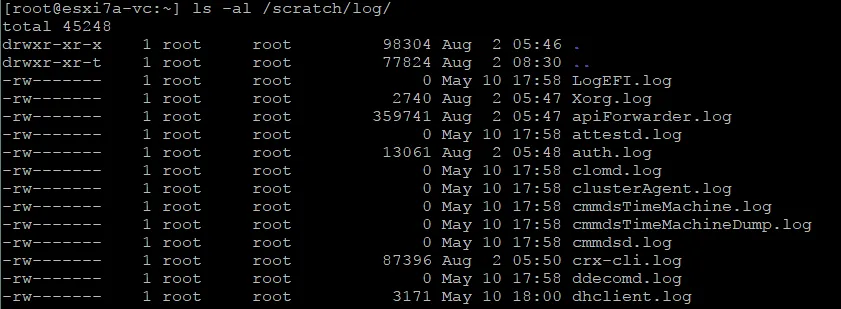
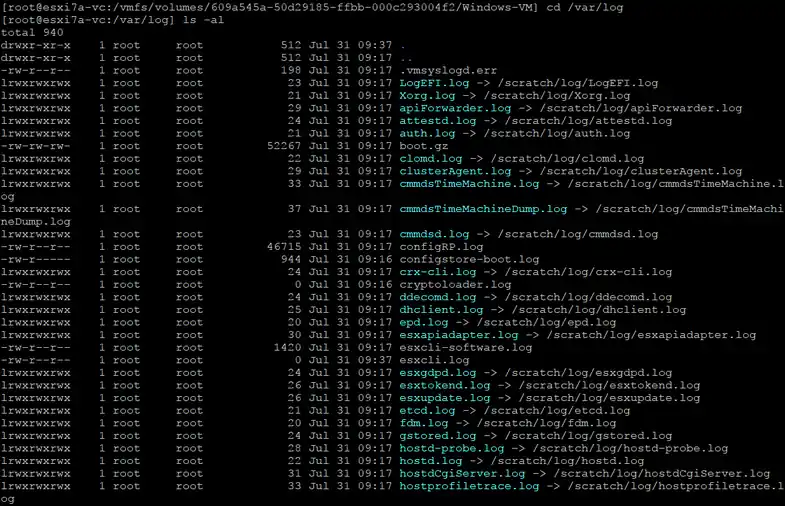
Symlinks are located in /var/log/, but log files are stored on an ESXi scratch partition (see the screenshots above and below). We covered the scratch partition and temporary storage when we explained how to install ESXi on a USB flash drive. Note that starting from vSphere 8.0, installing ESXi on a USB device or SD flash card is deprecated and high-endurance boot devices (NVMe/SSD) are strongly recommended.
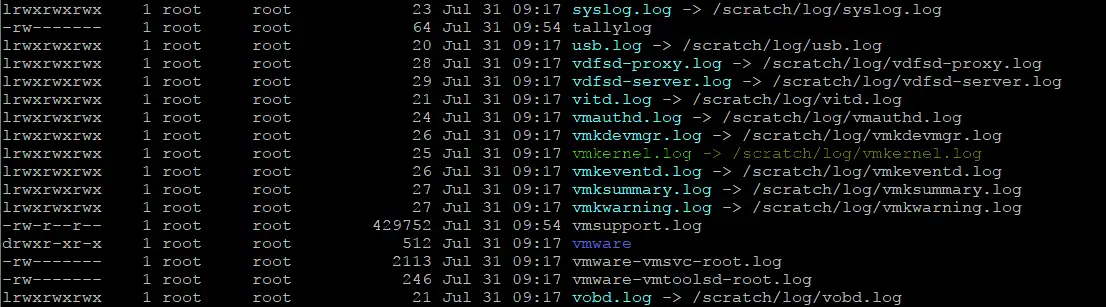
For example, you can access host management logs at /var/log/hostd.log through the symlink, but the hostd.log file is located in the log directory on the /scratch partition.
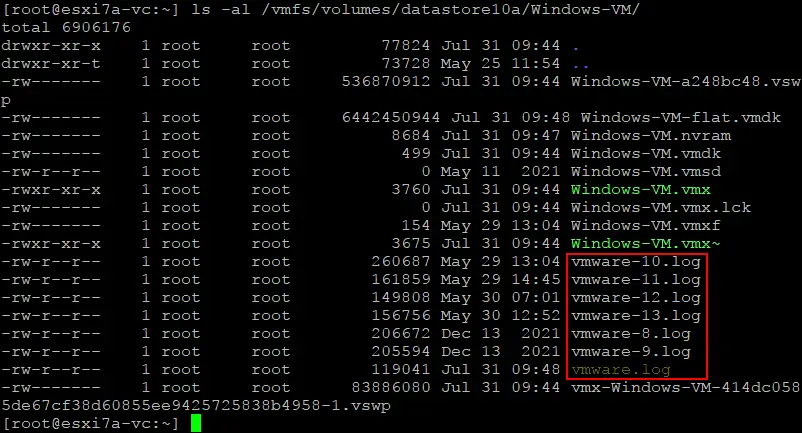
Virtual machine logs are usually located on a VM datastore in the VM directory and are not deleted after an ESXi server reboot, for example: /vmfs/volumes/datastore_name/vm_name/vmware.log.
When a VM log file (vmware.log) is full, it is renamed to vmware-1.log, vmware-2.log, and so on.
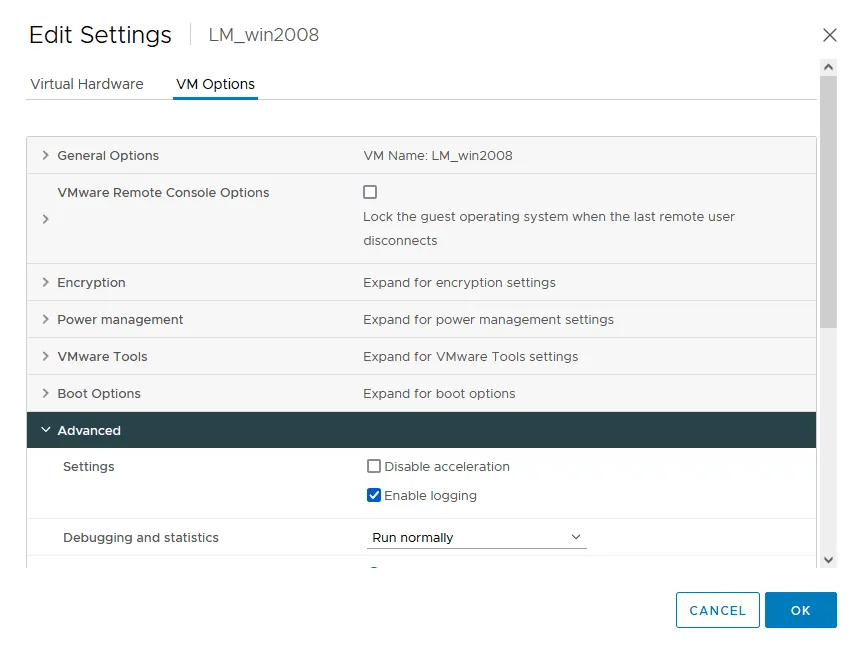
You can enable or disable VM logs in VMware vSphere Client: open VM settings > VM options, expand Advanced, and use the Enable logging checkbox.
The /scratch partition is used for storing logs and other temporary files on an ESXi host. In some installations, the /scratch partition is configured as an in-memory file system (tmpfs). If you need to preserve logs across reboots, configure a persistent storage location for logs with the following command (and the related commands explained below):
esxcli system syslogKeep in mind that the locations of ESXi logs might vary depending on the ESXi version and configuration. Logs might also be stored on a persistent storage device if the system administrator configures one explicitly.
Location of vCenter logs
Most vCenter log files are located in the /var/log/vmware/ directory and can also be found in /storage/log/vmware/. VMware vCenter Server does not store logs on a temporary (non-persistent) partition like ESXi. Instead, vCenter Server logs are typically stored on the operating system’s local disk or a mounted storage volume, so they persist across reboots. The VMware vCenter Server Appliance (VCSA) is based on Photon OS and is the standard vCenter deployment model used in the latest vSphere versions.
The location of vCenter logs for the Linux-based installation (VCSA) is:
/var/log/vmware/vpx/The exact VMware vCenter log location depends on the operating system on which vCenter Server is installed. Windows-based vCenter Server, used up to VMware vSphere 6.7 and now deprecated, stored logs in the following default location:
C:\ProgramData\VMware\vCenterServer\logs\Different vCenter versions may use different log locations, which can also depend on the vCenter configuration. Refer to the official VMware documentation for the specific vCenter Server version to find the exact log locations.
Because VMware vCenter Server is a central management platform, it uses persistent logs to keep historical information for troubleshooting and performance analysis over time. Unlike ESXi, which uses an in-memory file system for temporary logs in some default configurations, vCenter Server logs are designed to be persistent and stored on permanent storage. As for non-persistent storage on ESXi, you can change the log storage location on the host.
How to Access VMware Logs
You now know what VMware logs are and where they live. The next step is accessing them for analysis. You can reach VMware ESXi logs in several ways, each explained below.
VMware Host Client
Perform the following steps to view ESXi logs in VMware Host Client:
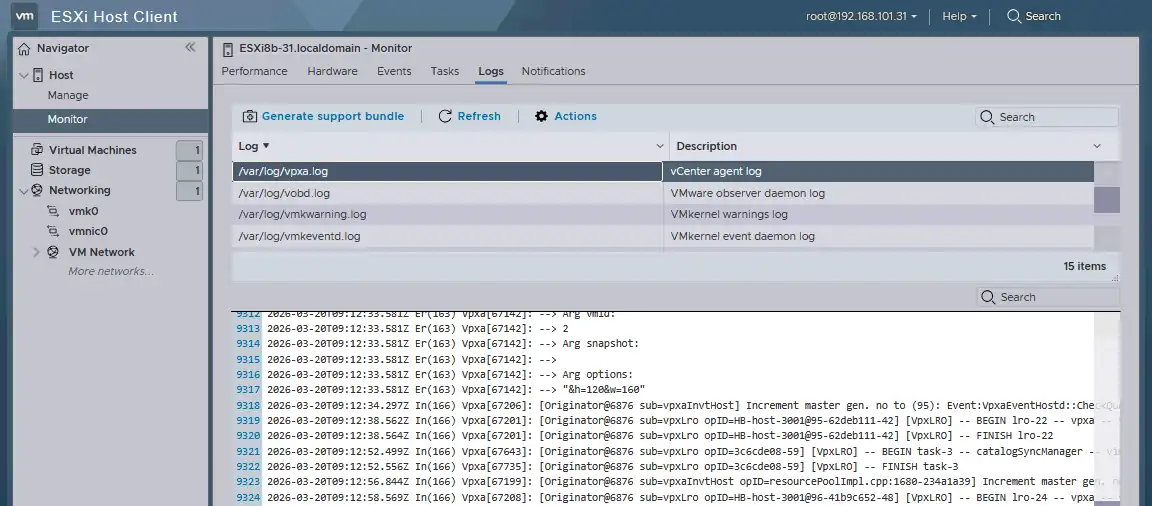
- Log in to VMware Host Client in your web browser.
- Click Host > Monitor in the Navigator pane, then select the Logs tab.
- Select one of the ESXi logs to view the logged information. Use the Search field to find a specific string.
DCUI (ESXi)
You can use the direct console user interface on ESXi to view logs. You need physical access to an ESXi host, including a monitor and keyboard, or you can use a KVM switch or similar technology.
- Log in to the ESXi direct console user interface (DCUI).
- Select View System Logs in the System Customization menu.
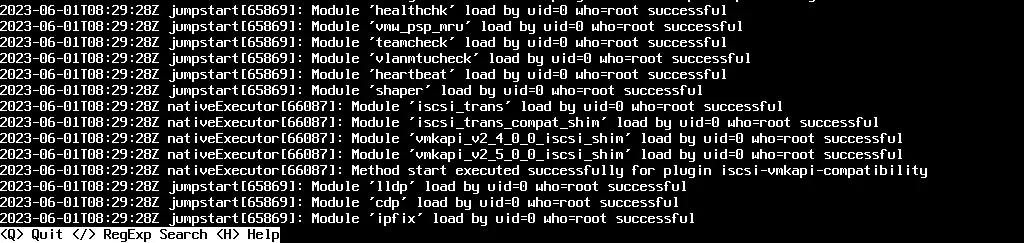
- Press a key from 1 to 6 to view the appropriate VMware log on your ESXi server. The explanation for each digit is displayed in the right pane of the interface.
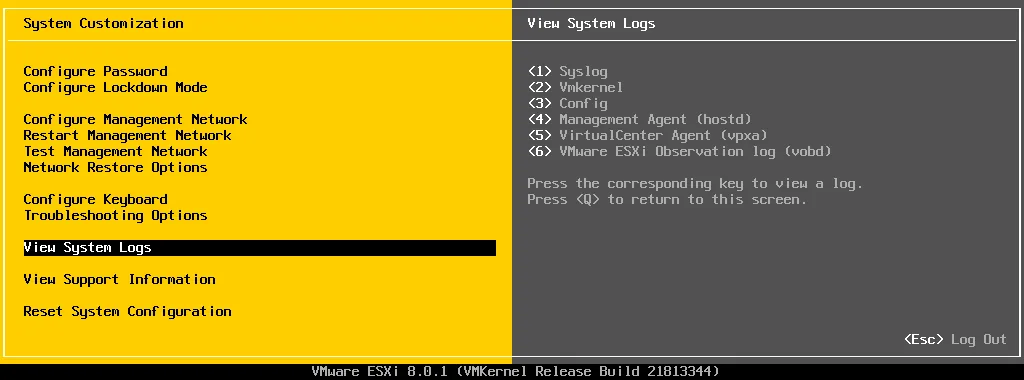
- After you enter the digit, a full-screen page with logs appears. Type / and enter a search string to display only the lines you need. Press q to quit this mode and return to the previous DCUI menu.
Web browser
Use a link in a web browser to open a page with links to download log files. You must enter credentials with administrative permissions for the ESXi host to access this page.
https:///host 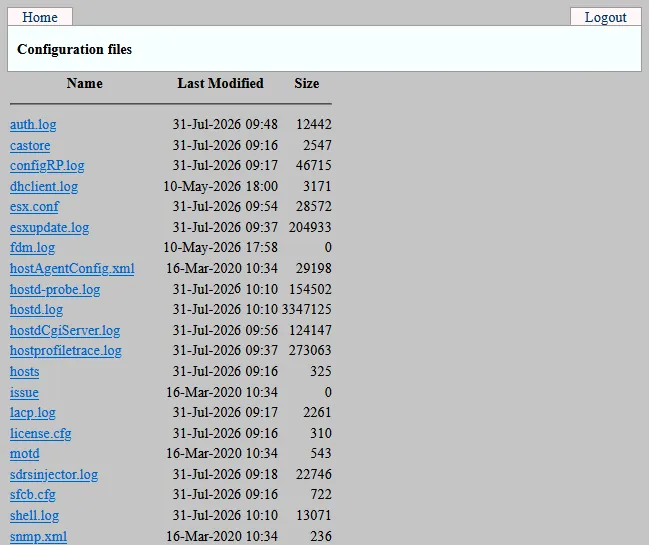
ESXi command line
The ESXi command line, like DCUI, can be used to view ESXi logs when the network connection is unavailable and you cannot use remote methods.
- Ensure that ESXi Shell is enabled in DCUI (Troubleshooting Options > Enable ESXi Shell).
- Press Alt+F1 to open the ESXi shell.
- Use commands to view ESXi logs.
SSH
Remote SSH access is one of the most convenient and powerful methods to view and analyze VMware logs.
- Enable SSH in DCUI (Troubleshooting Options > Enable SSH) or in VMware Host Client to allow remote SSH access to an ESXi host.
- Connect to the ESXi host using an SSH client (for example, PuTTY when connecting from Windows).
- Use commands to view ESXi logs and to perform VMware log analysis.
VMware Log Analysis with Examples
With the names, locations and access methods covered, here are practical examples of using VMware logs for troubleshooting.
Identifying ESXi host connectivity issues
Problem: Virtual machines on an ESXi host experience intermittent network connectivity problems.
Logs to check:
/var/log/vmkernel.log/var/log/vobd.log/var/log/hostd.log
Troubleshooting steps: Check the VMkernel logs for network-related messages and look for errors or dropped packets. Review the hostd logs for host management service issues. The vobd.log can reveal storage-related problems that might be affecting VM networking.
VM snapshot creation failure
Problem: An attempt to create a snapshot of a virtual machine fails.
Logs to check:
/vmfs/volumes/datastore_name/vm_name/vmware.log/var/log/vmkernel.log
Troubleshooting steps: Examine the vmware.log of the specific virtual machine for snapshot-related errors or warnings. Concurrently, check the VMkernel logs for storage-related issues that might prevent the snapshot operation.
VM performance degradation
Problem: A virtual machine experiences performance issues, such as high CPU or memory usage.
Logs to check:
/vmfs/volumes/datastore_name/vm_name/vmware.log/var/log/vmkernel.log
Troubleshooting steps: Analyze the vmware.log of the affected VM for application-specific errors or resource utilization spikes. At the same time, check the VMkernel logs for performance-related messages and confirm that the ESXi host has sufficient resources available.
vCenter service startup failure
Problem: The vCenter Server service fails to start.
Logs to check:
/var/log/vmware/vpxd/vpxd.log (on vCenter Server)/var/log/vpxa.log (on an ESXi host)
Troubleshooting steps: Review the vpxd.log for errors or exceptions during vCenter Server startup. Check the vpxa.log on managed ESXi hosts to confirm proper communication between vCenter and the hosts.
VMware High Availability (HA) cluster failover issue
Problem: Virtual machines fail to restart on other hosts in an HA cluster after an ESXi host failure.
Logs to check:
/var/log/fdm.log
Troubleshooting steps: Analyze the fdm.log on the affected hosts to identify errors with the HA cluster. Look for heartbeat messages, the master host election process and possible reasons for VM failover failures.
vMotion failure
Problem: VMware vMotion fails when migrating a VM between hosts.
Logs to check:
/var/log/vmkernel.log/var/log/vobd.log
Troubleshooting steps: Inspect the vmkernel.log for vMotion-related messages and network connectivity issues. Check the vobd.log for storage-related problems that might affect vMotion.
VMware Tools installation problems
Problem: VMware Tools installation fails on a virtual machine.
Logs to check:
/vmfs/volumes/datastore_name/vm_name/vmware.log
Troubleshooting steps: Review the vmware.log inside the VM (this VMware log location is the VM directory on the datastore) for VMware Tools-related errors or installation messages.
When troubleshooting with VMware logs, check events across multiple files to build a complete picture of the issue. Log-analysis tools, such as VCF Operations for Logs (known as VMware Aria Operations for Logs in version 8.x and formerly as vRealize Log Insight), can streamline the review process and enable more efficient VMware troubleshooting in complex environments.
Common VMware Errors and What to Look for in Logs
Here are common VMware errors and the logs to check for each.
Datastore UUID/URL conflicts when adding hosts or mounting storage
This error text is displayed: “Datastore ‘datastore_name’ conflicts with an existing datastore … same URL … backed by different physical storage.” It occurs when there are duplicate VMFS signatures (a replica, snapshot or cloned LUN presented alongside the original). Check the following logs to troubleshoot and fix the datastore signature conflict:
- ESXi:
/var/log/vmkernel.logfor storage device discovery and VMFS signature messages;vobd.logfor datastore/volume warnings. - vCenter:
vpxd.logoften shows inventory/attach failures around datastore registration.vCenter UI login and authentication failures (SSO/STS/Identity Provider issues)
Symptoms include a vSphere Client login loop, a “500 error fetching identity providers,” failed authentication or failing tokens. You may also see a “No healthy upstream” error. Check these VMware logs on VCSA: the SSO/Identity services logs (in their service directories) and vpxd, depending on the failure stage. In practice, you diagnose the specific symptom first, then dig into the referenced service logs.
VM “Power On failed” due to file locks / stale locks / inaccessible files
You see errors such as “Failed to lock the file” or “Cannot open the disk,” and a VM won’t power on, especially after a storage interruption. Check the VM and ESXi logs:
- VM: vmware.log in the VM directory (often the clearest source for VM lock messages)
- ESXi: vmkernel.log (storage backing) and hostd.log (power operation attempts)
Troubleshooting Storage Issues
You can use VMware logs to track and analyze storage-related events and errors, including problems with hard disk drives (HDDs) or solid-state drives (SSDs) such as bad blocks on an HDD.
- Review VMkernel logs (
/var/log/vmkernel.log):VMkernel logs provide low-level system information, including storage-related events. Look for messages indicating disk I/O errors or SCSI sense codes.
Error example: “Device I/O errors,” “Medium Error Detected” or “Uncorrectable error in data.”
- Check storage-specific logs (
/var/log/vobd.log):The vobd.log contains storage-related messages, including errors encountered by the storage subsystem.
Error example: “Storage Error: Device ‘naa.xxxxxxxxxxxxxx’… Sense: Unrecovered read error.”
- Examine virtual machine logs (
/vmfs/volumes/datastore_name/vm_name/vmware.log):
Virtual machine logs can reveal disk I/O errors encountered by a particular VM.
Error example: “Disk I/O error occurred on one or more virtual disks,” “Disk error detected” or “Error Stack: Unable to read partition table.”
Recommendations: What to use in addition to VMware logs
For better, more detailed diagnostics when detecting storage issues, combine VMware logs with the following:
- Monitor vCenter alarms and events. Watch vCenter Server alarms and events related to storage. Alarms triggered by storage issues can point to potential disk problems.
- Use VMware health checks. VMware provides various health checks that you can run through the vSphere Client. These checks can identify storage-related problems and offer recommendations.
- Use third-party monitoring tools. Deploy dedicated IT monitoring and log-analysis tools to centralize and correlate log data from multiple hosts and VMs. These tools help identify disk-related issues across the entire virtual infrastructure.
When identifying bad blocks on HDDs, pay attention to error messages and patterns, especially those indicating media or read/write errors. Bad blocks can lead to data corruption or performance degradation, and early detection can prevent more severe issues. If data on failed disk devices is lost, data recovery from a VMware backup to healthy disks is essential.
Troubleshooting VMware Cluster Issues (HA, DRS)
ESXi and vCenter logs help you identify cluster-related issues, which may show up as VM performance problems, HA failover failures, vMotion errors or other cluster operations.
- Review vCenter Server logs:
- Access vCenter logs, such as vpxd.log at
/var/log/vmware/vpxd/vpxd.log(vCenter-side cluster logs) and vpxa.log at/var/log/vpxa.logon ESXi hosts (host-side vCenter agent telemetry for ESXi-side HA/agent logs). - Look for errors or warnings related to cluster operations, resource management and communication between vCenter and ESXi hosts.
- Pay attention to events during cluster creation, configuration changes and issues with cluster services.
- Access vCenter logs, such as vpxd.log at
- Inspect ESXi host logs (vmkernel.log, hostd.log and fdm.log):
- vmkernel.log: Review for cluster-related events, such as vMotion attempts, HA heartbeat issues or errors during resource sharing.
- hostd.log: Look for cluster-related messages tied to tasks and events handled by the host management service.
- fdm.log: Examine for HA-related events, including host failures, VM restarts and master election events.
- Inspect virtual machine logs:
- Access VM logs, such as vmware.log, to identify issues specific to individual VMs in the cluster.
- VM logs can reveal VM performance, resource constraints or failures during vMotion operations.
- Monitor cluster-specific alarms and events:
- Use vCenter to create alarms and events specific to cluster performance and health.
- Configure alarms for issues like excessive resource usage, cluster partitioning or VM failures.
- Check vCenter’s Events tab for cluster-related events, such as VM migrations, cluster reconfigurations or HA events.
Combining ESXi logs, vCenter logs, performance metrics and cluster events gives you a comprehensive understanding of cluster health and surface issues affecting VM performance, high availability and stability. Regular log analysis and proactive monitoring help you prevent cluster problems or resolve them quickly.
VMware Network Troubleshooting Using Logs
Network problems can disrupt virtual machines and communication between ESXi hosts. ESXi and vCenter logs help you pinpoint these issues. The examples below show network troubleshooting with ESXi and vCenter logs, along with commands to extract the relevant information.
Identifying VM network connectivity issues
Problem: A virtual machine is unable to access the network.
A command to check VMkernel logs (on an ESXi host):
cat /var/log/vmkernel.log | grep -E 'Failed to send packet|dropped|no network'This command filters the VMkernel logs for messages related to packet failures, dropped packets or network unavailability.
A command to check VM network configuration (on an ESXi host):
esxcfg-vmknic -lThis command lists the configured VMkernel network interfaces and IP addresses on the ESXi host. Verify that the VM’s network is correctly configured.
Troubleshooting vMotion issues
Problem: vMotion fails between two ESXi hosts.
A command to check VMkernel logs (on both source and destination hosts):
cat /var/log/vmkernel.log | grep -E 'Migration to host|vMotion'This command helps find vMotion-related messages on both the source and destination ESXi hosts.
A command to check vCenter events (on vCenter Server):
vim-cmd vmsvc/get.eventlog | grep 'Migrate' Replace
Identifying network performance bottlenecks
Problem: Virtual machines experience network performance degradation.
A command to check esxtop statistics (on an ESXi host):
esxtopInside esxtop, press n to switch to the networking view. Monitor metrics such as network throughput (MbTx/Rx), network packets/s and network dropped/s to identify potential bottlenecks. This command (and the ones that follow) shows real-time data rather than reading a VMware log file. You can also see ESXi uptime with the esxtop command.
Troubleshooting vSphere Distributed Switch (VDS) issues
Problem: Connectivity issues with VMs on a vSphere Distributed Switch.
A command to check VDS health (on vCenter Server):
net-dvs -lThis command lists all distributed virtual switches (VDS) and their status.
A command to check VDS port status (on vCenter Server):
net-dvs -p Replace
Network troubleshooting often requires analyzing logs and performance data from multiple sources, including VMkernel logs, vCenter logs, performance metrics and network configurations. The examples above serve as starting points; adjust the commands to the specific problem you encounter in your vSphere environment.
Regular Expressions for VMware Log Analysis
As the examples above show, the ESXi shell (accessed via SSH) and its command line are powerful tools for viewing and analyzing VMware logs. ESXi ships with native utilities familiar to Linux users:
- cat concatenates and displays the contents of one or more text files. It is handy for viewing an entire file at once, though for large files the output can scroll off the screen quickly.
- less is a pager utility that displays one screen of text at a time with forward and backward navigation. Unlike cat, it is well suited to reading large files.
- grep stands for “global regular expression print.” It searches text patterns (regular expressions) in one or more files and displays the matching lines, which makes it ideal for log analysis.
- tail displays the last lines of a file (ten by default). With the -f option it follows a file in real time, showing new entries as they are written.
- head displays the first lines of a file (ten by default). Use the -n option to set the number of lines.
Combine these utilities with each other and with regular expressions (regex) to analyze logs efficiently. The examples below show how to analyze VMware logs with regex on ESXi.
Filtering logs for specific events
Suppose you want to find all occurrences of a specific event, such as “Disk I/O error,” in the vmkernel.log file.
cat /var/log/vmkernel.log | grep -E 'Disk I/O error'This command displays all lines containing the phrase “Disk I/O error” in the vmkernel.log.
Extracting IP addresses from logs
To extract IP addresses from the hostd.log file, use a regex pattern that matches IPv4 addresses.
cat /var/log/hostd.log | grep -E -o '([0-9]{1,3}\.){3}[0-9]{1,3}'This command displays all IPv4 addresses found in the hostd.log.
Finding patterns with quantifiers
Suppose you want to find all lines in the vmware.log file that contain any number of consecutive digits.
cat /vmfs/volumes/datastore_name/vm_name/vmware.log | grep -E '[0-9]+'This command displays all lines containing one or more digits in the vmware.log.
Searching for multiple patterns
To find lines in the vpxd.log file containing either “error” or “warning,” use the OR operator | in the regex pattern.
cat /var/log/vmware/vpxd/vpxd.log | grep -E 'error|warning'This command displays all lines containing either “error” or “warning” in the vpxd.log.
Matching with wildcards
Suppose you want to find all lines in the vobd.log file that contain the word “failed” regardless of case.
cat /var/log/vobd.log | grep -i 'failed'This command displays all lines containing “failed,” “FAILED,” “Failed” and so on in the vobd.log.
Using capturing groups
To extract date and time information from lines in the sms.log file, use capturing groups in the regex pattern.
cat /var/log/vmware/sms/sms.log | grep -Eo '([0-9]{4}-[0-9]{2}-[0-9]{2}) ([0-9]{2}:[0-9]{2}:[0-9]{2})'This command displays all occurrences of date and time in the sms.log.
Note: You can change the path to the log you need for your particular use case.
As these examples show, grep combined with regular expressions is a powerful way to search, filter and find patterns in logs from the ESXi command line. The exact patterns vary with each log’s content and what you are looking for, so adapt these examples to your own VMware log analysis needs.
How to Export VMware Logs and Download Support Bundle
When log analysis alone doesn’t resolve an ESXi or vCenter issue, you can export the logs or download a support bundle and send it to VMware support. Support engineers can help resolve environment issues if you have a licensed version of VMware vSphere.
VMware Host Client
To generate a support bundle and export VMware logs:
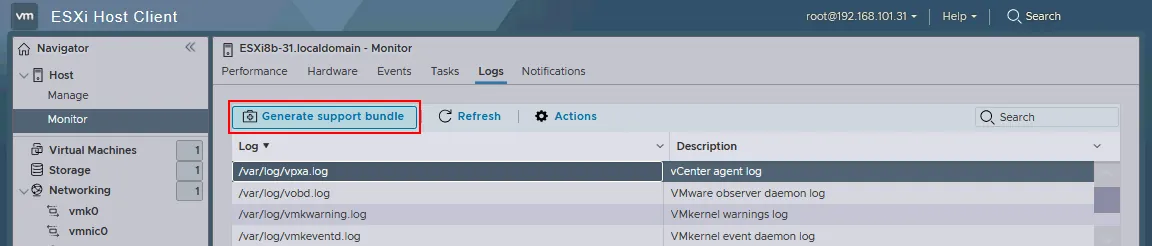
- Click Monitor in the Navigator pane.
- Select the Logs tab.
- Click Generate support bundle.
- Save the downloaded bundle archive in your web browser.
VMware vSphere Client
To export VMware system logs in vSphere Client:
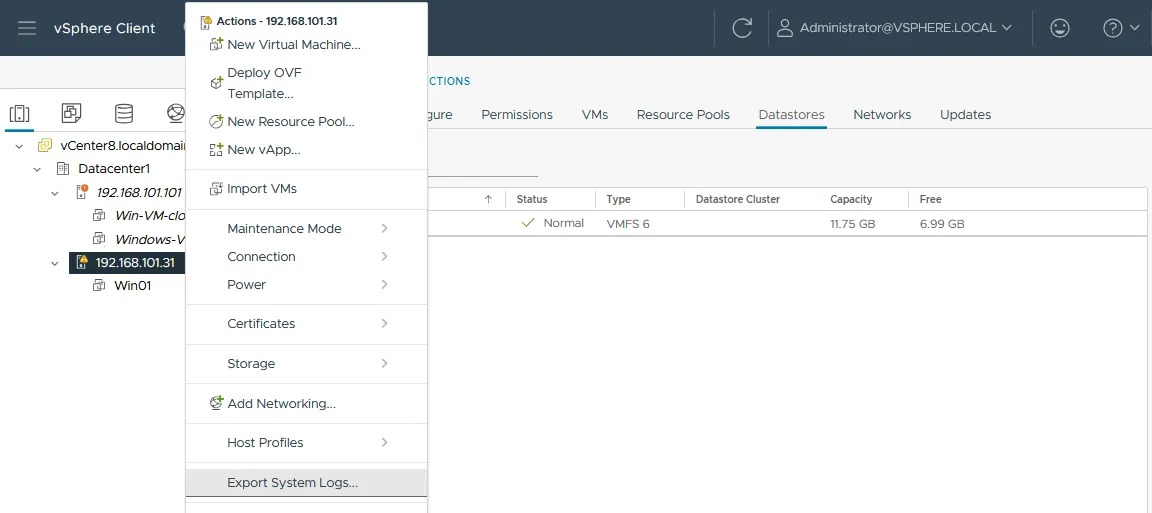
- In the Hosts and Clusters view, select the ESXi host whose logs you want to export from the navigation pane on the left.
- Right-click the ESXi host and click Export system logs in the context menu.
- Select which ESXi logs you want to export and click Export logs.
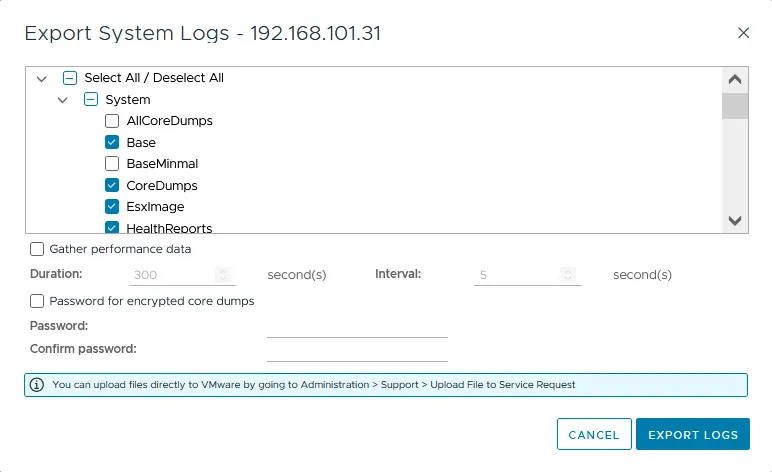
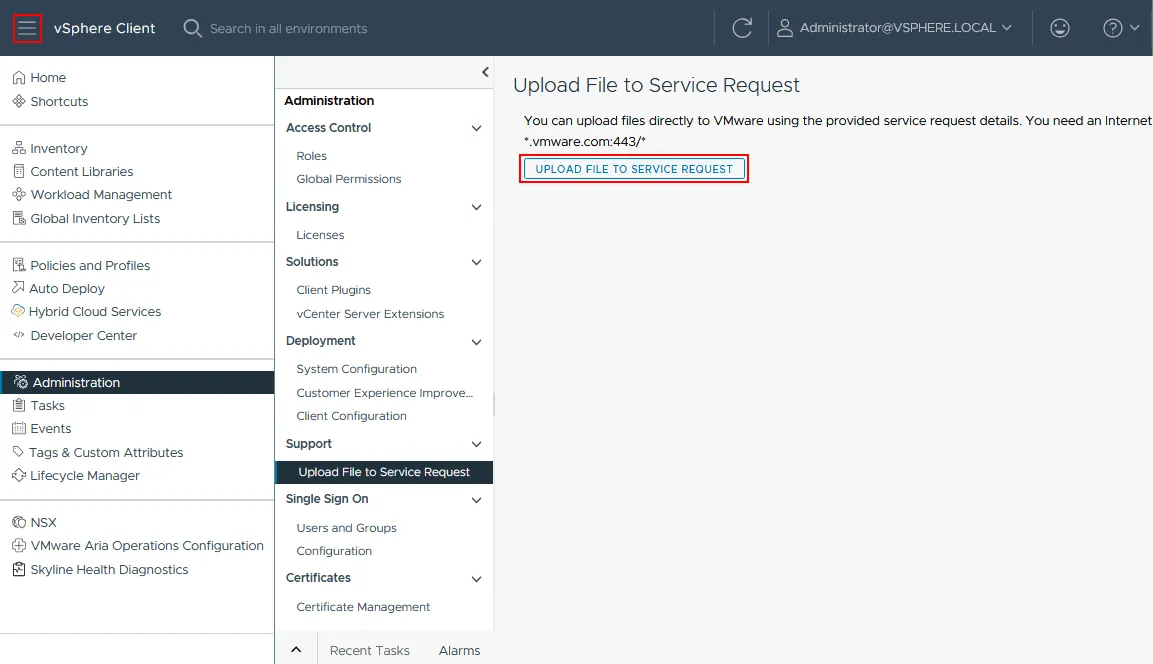
To upload the bundle to VMware support in vSphere Client:
- Click the Menu icon in the top-left corner.
- Go to Administration > Support > Upload File to Service Request and click Upload File to Service Request.
Link in a web browser
Use the link to the cgi script on the ESXi host:
http:///cgi-bin/vm-support.cgi Download and save the bundle with exported ESXi logs (a .tgz file).
Generate a bundle in ESXi shell (command line)
Run this command in the ESXi shell to generate a support bundle containing ESXi logs:
/usr/bin/vm-support
Conclusion
When you troubleshoot VMware vSphere, including ESXi and vCenter, analyzing the logs helps you identify the root cause of a problem and take the right corrective action. The built-in command-line tools are powerful for pinpointing issues, and reviewing logs regularly is key to proactive management and a stable, reliable environment. Pairing log analysis with automated infrastructure monitoring and dependable VM backups helps you catch problems early and avoid data loss.

FAQ
What are the most important VMware logs for troubleshooting?
The most important VMware logs on ESXi are:
- VMkernel logs (
/var/log/vmkernel.log) - host management logs (
/var/log/hostd.log) - virtual machine logs (
/vmfs/volumes/datastore_name/vm_name/vmware.log) - the storage and network log (
/var/log/vobd.log)
Important vCenter logs include:
- the vCenter Server vpxd service log (
/var/log/vmware/vpxd/vpxd.log) - the VCSA syslog service log (
/var/log/vmware/vmsyslogd.log) - catalina.log (
/storage/log/vmware/vsphere-ui) - the Storage Monitoring Service (SMS) log (
/var/log/vmware/sms/sms.log)
Where are VMware ESXi and vCenter logs located?
VMware ESXi logs are stored in a few standard locations:
- the
/var/log/directory on ESXi, where each log has its own name - the virtual machine directory for VM logs (such as
/vmfs/volumes/datastore_name/vm_name/vmware.log)
On vCenter Server Appliance, the main vCenter logs are stored in these directories:
/var/log//var/log/vmware//var/log/vmware/service_name
How do I access VMware logs on ESXi hosts?
Access ESXi logs through the command line or the GUI. For the CLI, connect to the host over SSH, go to the log directory (such as /var/log/) and view a file with cat, less, head or tail. You can chain tools with the pipe operator and use regular expressions, as in Linux. For the GUI, open VMware Host Client and go to Host > Monitor > Logs, then select a log and search for the entries you need.
What is vmkernel.log in VMware and when should I use it?
The vmkernel.log is a key ESXi log for VMware diagnostics and troubleshooting. This VMware log stores device driver events, storage, networking and other kernel-related activities. Use it to find information about low-level system operations and to diagnose hardware-related errors.
How do I analyze VMware logs effectively?
Use the ESXi command line and standard Linux tools such as cat, less, head, tail and grep. Chain them with the pipe operator to filter output down to the entries you need, and apply regular expressions for more precise searches across log files.