VMware Distributed Switch Configuration: A Complete Guide
A virtual switch is the software equivalent of a physical network switch, connecting the virtual network adapters of virtual machines (VMs) to a network at Layer 2 of the Open Systems Interconnection (OSI) model. VMware provides vSwitches across its virtualization platforms, but how you manage them depends on the type you choose.
A standard vSwitch has to be set up by hand on every ESXi host. In a large environment, those switches usually share identical settings port groups, virtual local area networks (VLANs) and connected networks so adding a single VLAN-backed port group means repeating the same manual steps host after host. That quickly becomes tedious and error-prone.
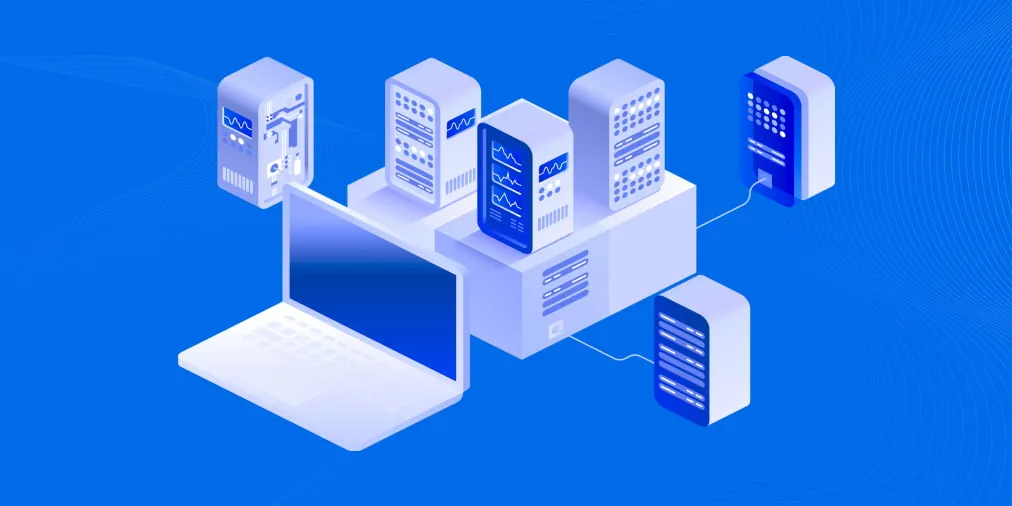
A VMware distributed switch solves this. It is a logical switch defined once on vCenter Server and pushed to many hosts at once, removing the need to touch each ESXi host individually. This guide explains how a distributed virtual switch (also called a dvSwitch or VDS) works and walks through the full VMware distributed switch configuration in vSphere.
What s New
We keep this guide current as VMware vSphere evolves. Since our last update, we ve revised it to reflect the latest features and best practices:
- Refreshed the screenshots and interface steps to match the current vSphere 8.0 and 9.0 clients.
- Added coverage of data processing unit (DPU) offload introduced in vSphere 8.0 and the vSphere 9.0 subscription licensing model (VMware Cloud Foundation and vSphere Foundation).
- Expanded the configuration walkthrough and added Common Issues, Best Practices and FAQ sections.
What Is a VMware Distributed Virtual Switch (VDS)?
A distributed virtual switch is a logical switch created on vCenter Server and applied to every ESXi host added to it. Like a physical switch, a virtual switch provides Layer 2 network connectivity.
A distributed virtual switch works like a template stored in vCenter. When you create one, identical hidden standard vSwitches are created on all ESXi hosts added to the VDS configuration. If you create a port group for a VLAN on the VDS, the same port group appears on every associated host s vSwitch. You only need to create it once, which is a significant advantage. The VDS you manage in vCenter is the control plane, while the hidden standard vSwitches on the hosts are the I/O plane that carries network traffic.
When a VM migrates from one ESXi host to another, it stays connected to the same port of the vSphere distributed switch. This capability is known as network vMotion, which keeps VM network connectivity consistent.
vCenter is the management system for a vSphere environment, including the VDS. If vCenter Server becomes unavailable, you cannot change the VMware distributed switch configuration, such as reconnecting VMs to other port groups. The network keeps running, though, because the hidden standard vSwitches (the I/O plane) handle network operation. Keep in mind that vCenter should not be connected to a distributed virtual switch. Technically, it can, but doing so is too risky for connectivity loss and recovery.
The VDS configuration lives on vCenter Server, and ESXi hosts refresh a local cached copy every five minutes. This cached state is stored in the host-local VDS database at /etc/vmware/dvsdata.db; you can read it with the net-dvs utility located in /usr/lib/vmware/bin/, which is useful for troubleshooting. The cached ESXi host configuration lets a host keep running its switches when vCenter is offline.
Benefits of VMware Distributed Switch Over Standard vSwitch
Several capabilities are available only on a distributed virtual switch, not on a standard vSwitch:
- Network I/O Control: Inbound and outbound traffic shaping and bandwidth reservations.
- Port mirroring: Sends copies of frames seen on one switch port to another port for monitoring, traffic analysis and debugging.
- Network health check: Checks settings such as VLAN, maximum transmission unit (MTU) and network interface card (NIC) teaming every minute by default.
- Protocol support: Private VLAN (PVLAN), Link Aggregation Control Protocol (LACP), NetFlow and Link Layer Discovery Protocol (LLDP).
- VM port blocking: Blocks sending or receiving data on a selected port, which is useful for security.
- Network vMotion: Keeps a VM s virtual network adapter connected to the same VDS port; the VDS preserves port state when vCenter operations move a VM.
- vNetwork switch API: Provides interfaces for third-party virtual switch implementations.
- Backup and restore of the network configuration.
Requirements for VMware Distributed Switch Configuration
The assigned license must support the VDS. VMware distributed switching is available only with the vSphere Enterprise Plus license for ESXi hosts in vSphere 8.0 and earlier. In vSphere 9.0, a distributed virtual switch is included in the VMware Cloud Foundation and VMware vSphere Foundation subscription licenses. A free trial license unlocks all vSphere features, including the VDS, for a 60-day period. The ESXi free edition does not support a distributed virtual switch. Read more about vSphere licensing in our guide. Note that a datacenter must exist in the vCenter inventory.
Note: In older releases, there was a confusing distinction between the standard VDS and the NSX-managed N-VDS. NSX now integrates directly with the native VDS (version 7.0 or later), and support for N-VDS on ESXi hosts was removed starting with NSX 4.0, the version included in VMware Cloud Foundation 9.
VMware Distributed Switch Configuration
Let s review how to create and configure a VMware distributed switch in VMware vSphere 8.0. In this example, vCenter 8.0 is used and two ESXi 8.0 hosts are managed by vCenter:
- ESXi1 192.168.101.31 (the IP address of the management interface)
- ESXi2 192.168.101.101
- vCenter 192.168.101.103
The VMware distributed switch configuration in vSphere 9.0 is identical.
Step 1 Creating a VMware distributed switch
To create a distributed virtual switch, open the VMware HTML5 vSphere Client and go to the Hosts and Clusters section. Your ESXi hosts should sit in a datacenter, the logical organization unit in vCenter. In this example, the hosts belong to Datacenter1. Right-click your datacenter and select Distributed Switch > New Distributed Switch.
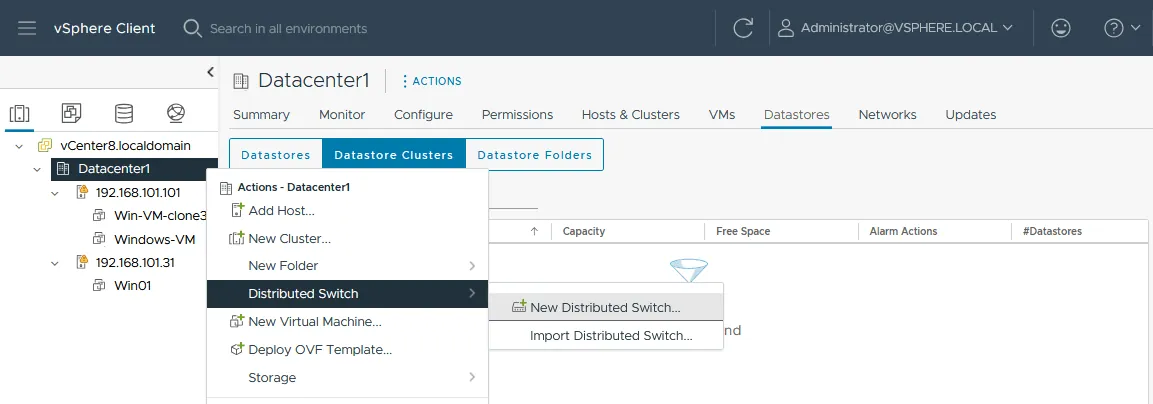
The New Distributed Switch wizard opens.
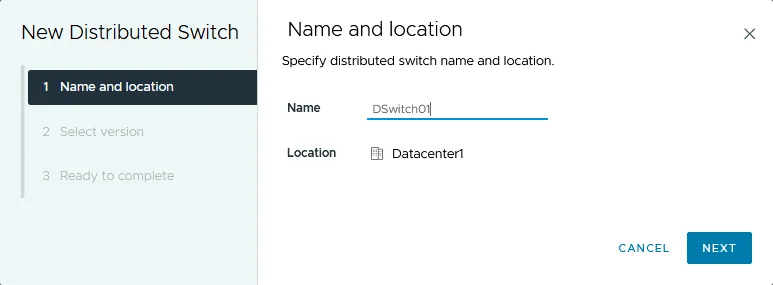
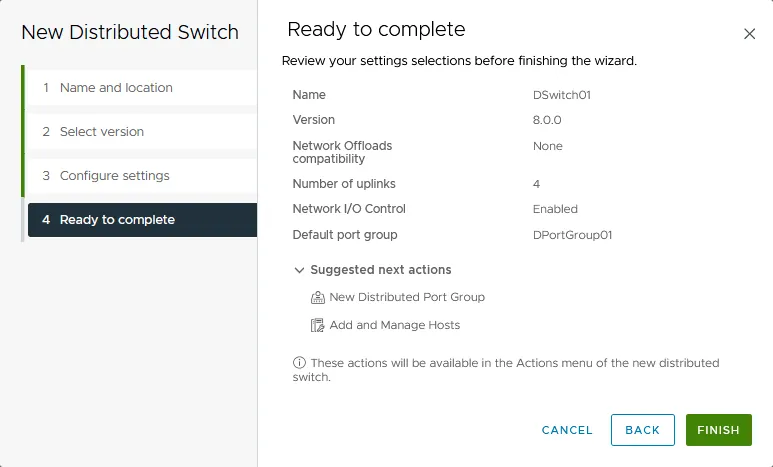
- Name and location. Specify the distributed switch name and location. Here the VMware DVS name is DSwitch01 and the location is Datacenter1. Click Next on each wizard step to continue.
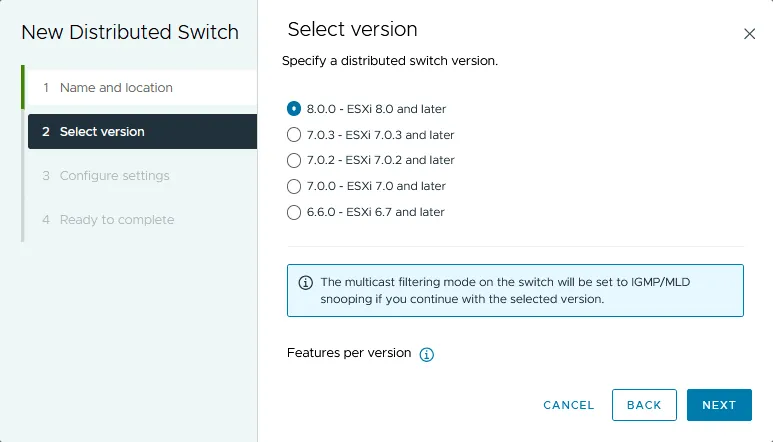
- Select version. Specify the distributed virtual switch version. Because all hosts run ESXi 8.0, use the latest VDS version, 8.0.0. If at least one host runs ESXi 6.7, you must select VDS version 6.6.0 for all hosts (always choose the lowest version). Features introduced with VDS 7.0 and later are unavailable when version 6.6.0 is selected. A lower VDS version still works on newer ESXi hosts, so with mixed versions, match the version to your oldest host. Where possible, upgrade older hosts so every host runs the same version.
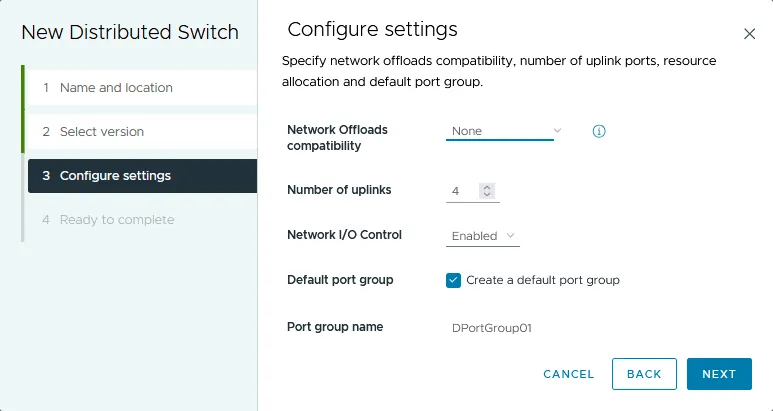
- Configure settings. Specify the number of uplink ports, set Network I/O Control, and tick Create a default port group. Enter the port group name, for example DPortGroup01.
VMware vSphere 8 introduced support for data processing units (DPUs), such as those from NVIDIA and AMD (Pensando). During the VDS creation wizard, you can offload networking functions (like NSX or firewalling) from the host CPU to the DPU to improve performance. Network I/O Control version 3 also provides improved reservation and allocation models across the switch.
- Ready to complete. Review the settings for the new VDS and, if everything is correct, click Finish to create the switch.
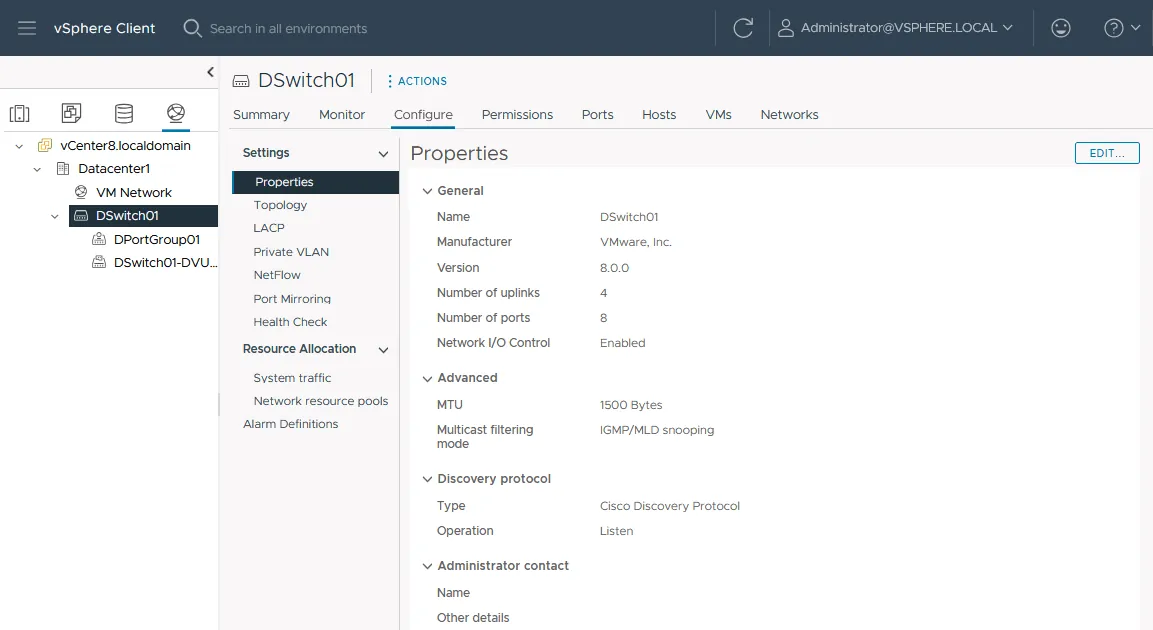
- The distributed virtual switch is now created. Go to Networking > [your datacenter] > VM Network to see it (DSwitch01 here). Select the VDS and open the Configure tab to edit the VMware distributed switch configuration.
Step 2 Adding ESXi hosts to a VMware distributed switch
After creating the VDS, you must add ESXi hosts to its configuration so VMware distributed switching works. In the Networking section, right-click your VDS and select Add and Manage Hosts.
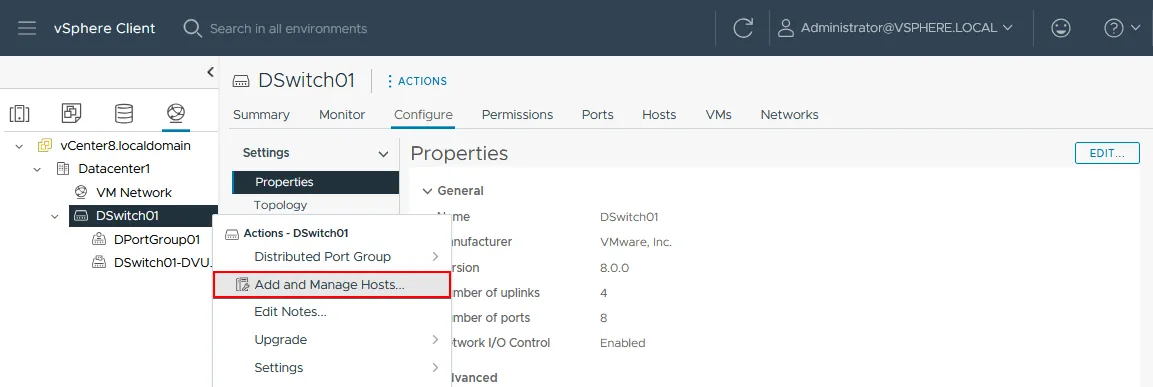
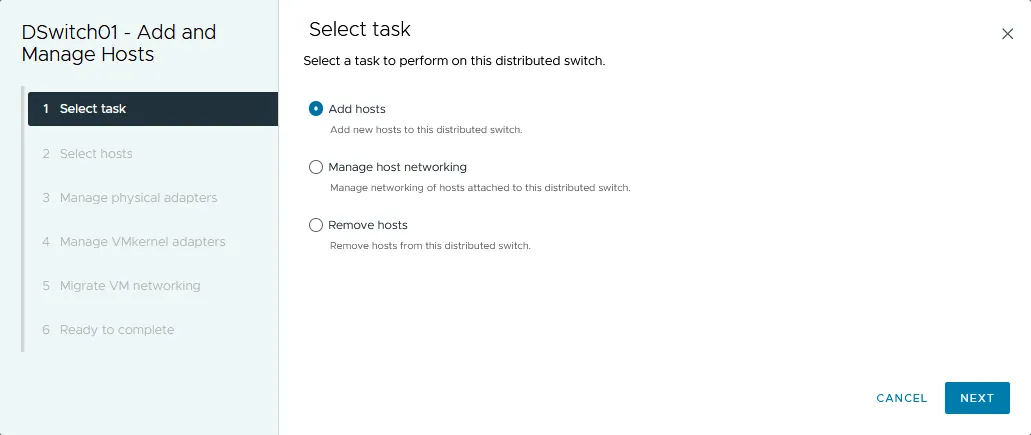
The Add and Manage Hosts wizard opens.
- Select task. As you need to add hosts, select Add hosts (the first option).
- Select hosts. Select the ESXi hosts that will participate in VMware distributed switching and check compatibility in the last column.
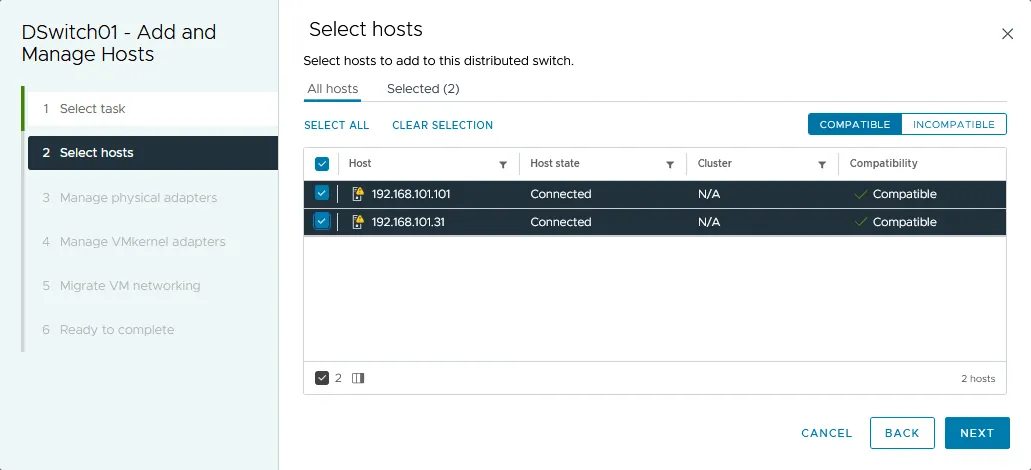
The hosts are now selected and their status reads Connected.
- Manage physical adapters. Select the physical network adapters (NICs) and assign uplinks to them. You can use either the per-host view or the view across all hosts.
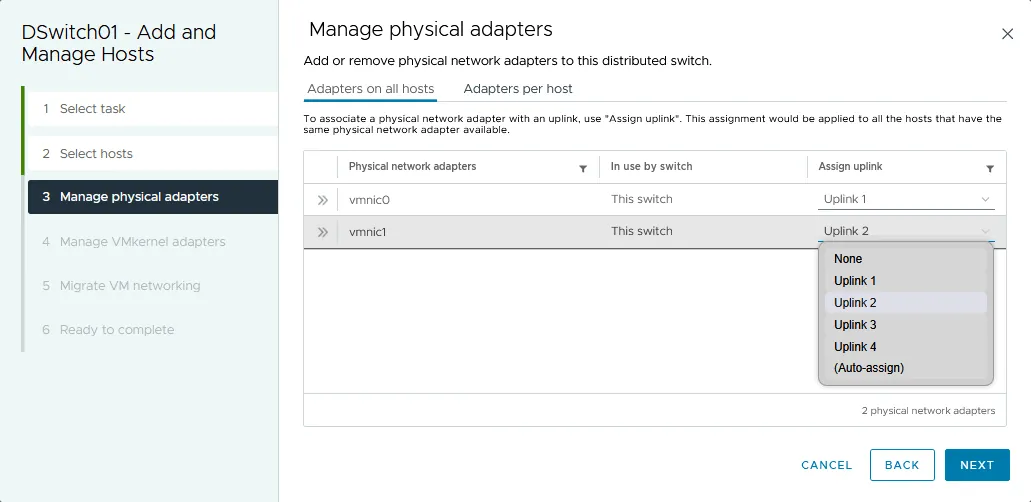
- Manage VMkernel adapters. In this step, assign VMkernel adapters to the distributed switch. The vmk0 adapter is the default VMkernel adapter used by each host s standard vSwitch as the management interface; here, the vmk0 adapters stay connected to vSwitch0 on each host. Click Assign port group for each VMkernel interface.
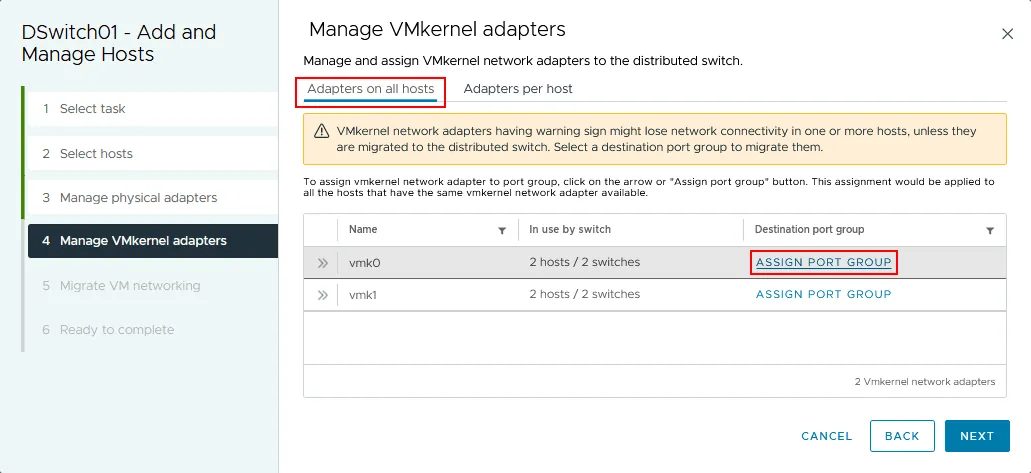
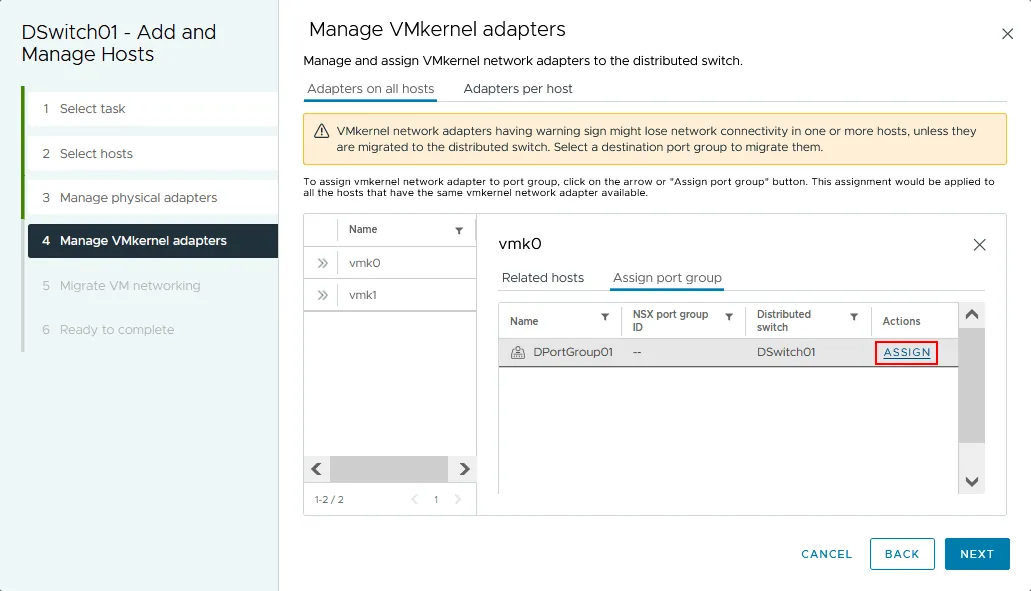
In the Assign port group tab, click Assign for the appropriate VMkernel interface (vmk0) and distributed port group (DPortGroup01). Once you have assigned port groups for all needed VMkernel interfaces, proceed to the next step.
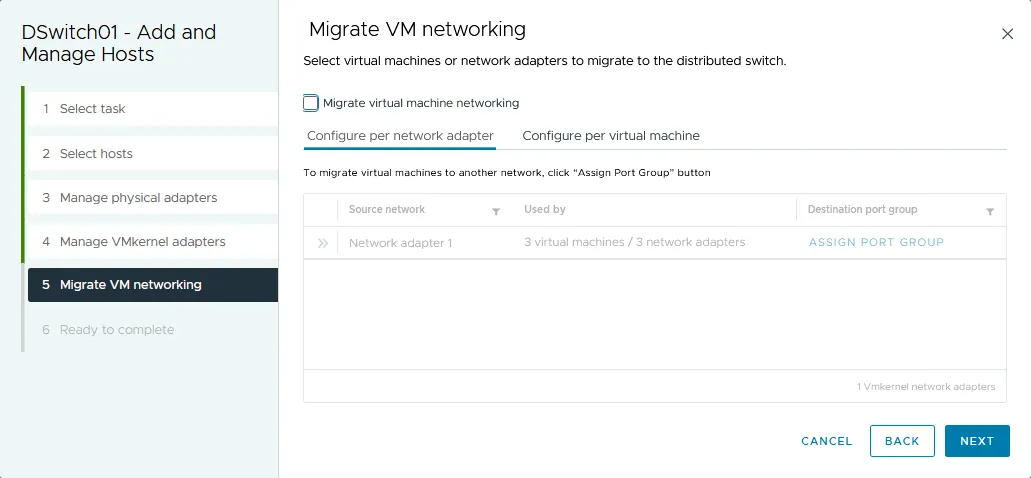
- Migrate VM networking. In this step, you can migrate VMs or other network adapters to the VDS if needed. In this example, no network adapters are migrated.
- Ready to complete. Review your configuration and click Finish.
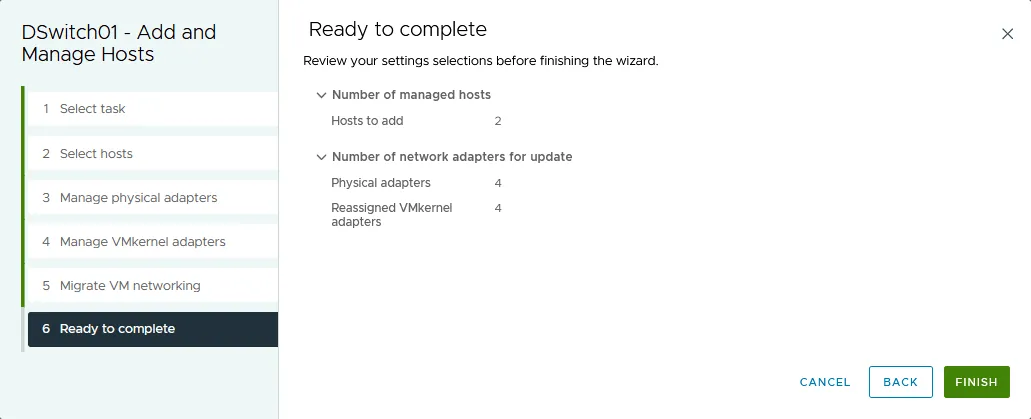
The ESXi hosts are now added to the VMware distributed switch configuration. You can add VMkernel network adapters to a VDS port group to use features such as vMotion. Let s add a VMkernel adapter to a port group for vMotion connectivity.
Step 3 Adding VMkernel adapters
In the Network section of vCenter, select your VDS and the port group (DPortGroup01 here). Right-click the port group name and select Add VMkernel Adapters.
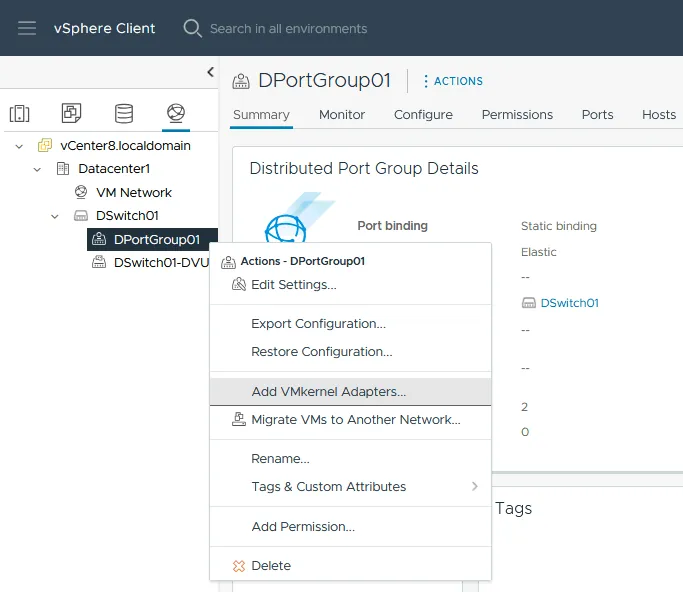
The Add VMkernel Adapters wizard opens.
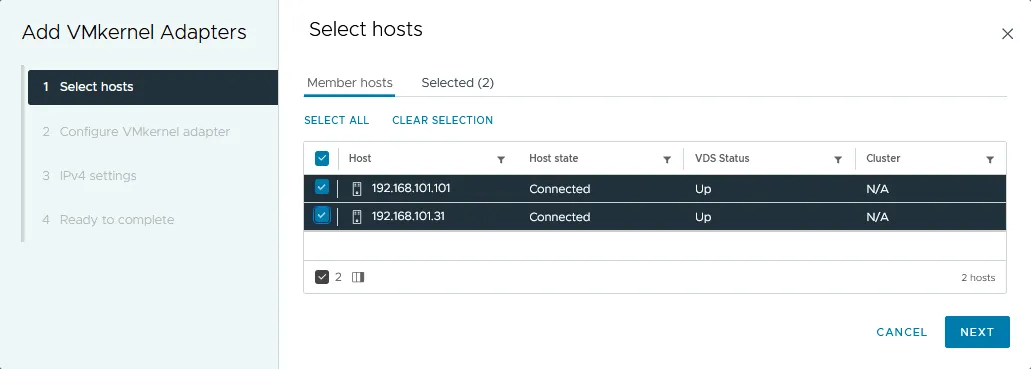
- Select hosts. Select the ESXi hosts using the checkboxes, or click Select All to add every host.
- Configure VMkernel adapter. You can change the port group MTU from 1500 to 9000 bytes to use jumbo frames; by default, the MTU value is inherited from the VDS settings. Select the available services vMotion, Provisioning, Fault Tolerance logging or Management. Let s select vMotion.
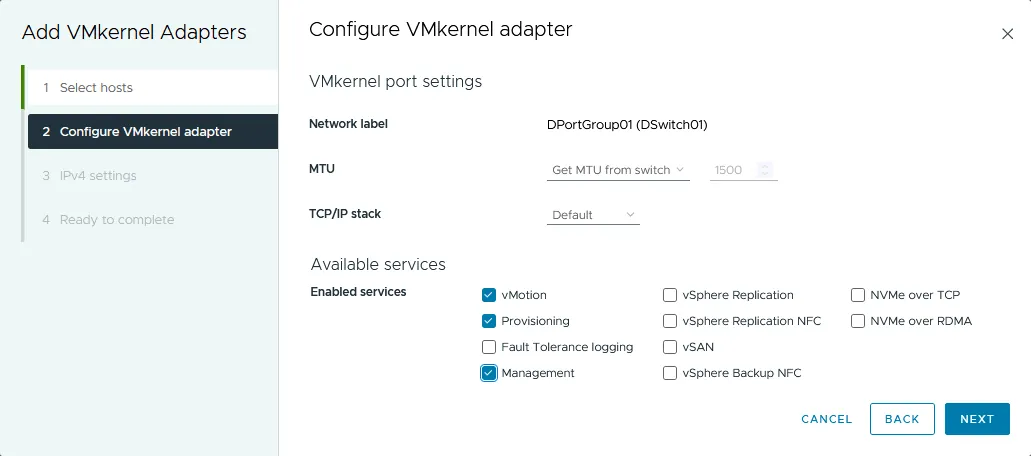
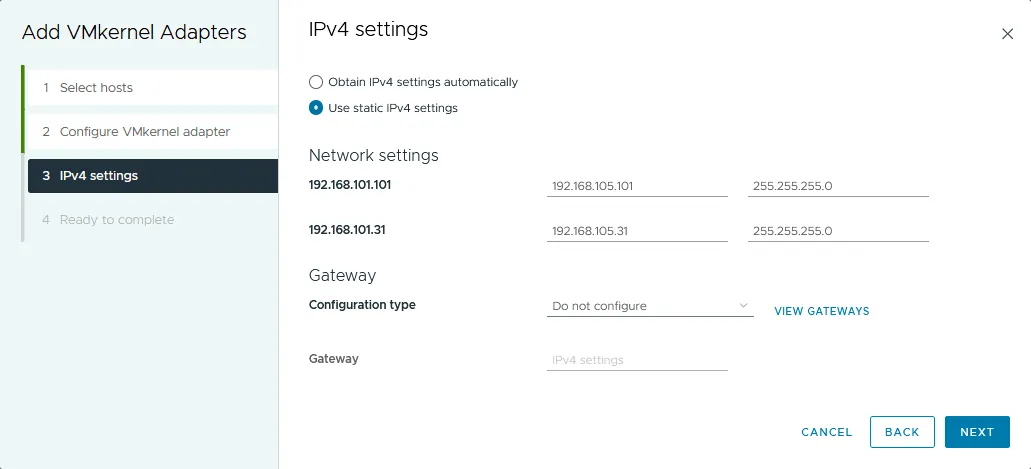
- IPv4 settings. In this step, set the IP addresses for the VMkernel adapters. Static IP addresses are generally recommended for servers. In this example, the new VMkernel configuration is:
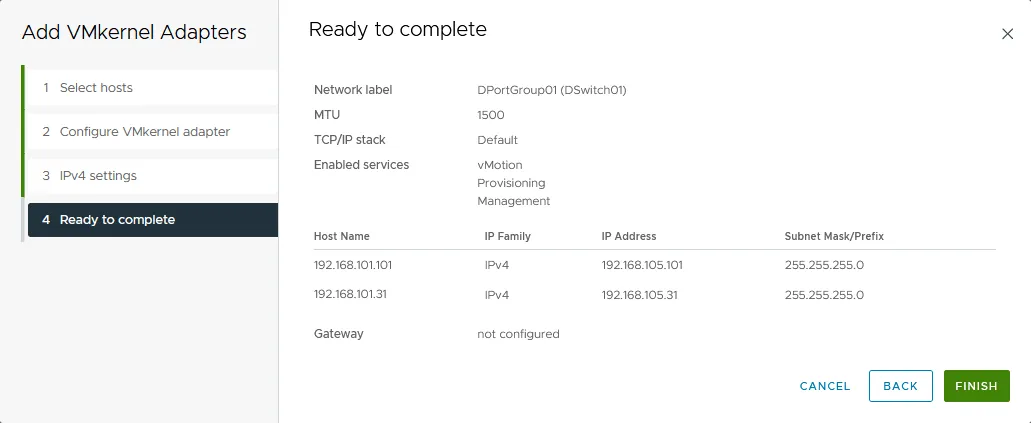
- ESXi1 (192.168.101.31) 192.168.105.31
- ESXi2 (192.168.101.101) 192.168.105.101
The last octet stays the same for convenience. The vMotion network is 192.168.105.0/24, and the gateway is 192.168.105.1.
- Ready to complete. Check your configuration and click Finish.
Step 4 Checking the VMware DVS configuration
After configuring the VMkernel adapters, select your VDS and go to Configure > Settings > Topology to view the graphical topology of your VDS.
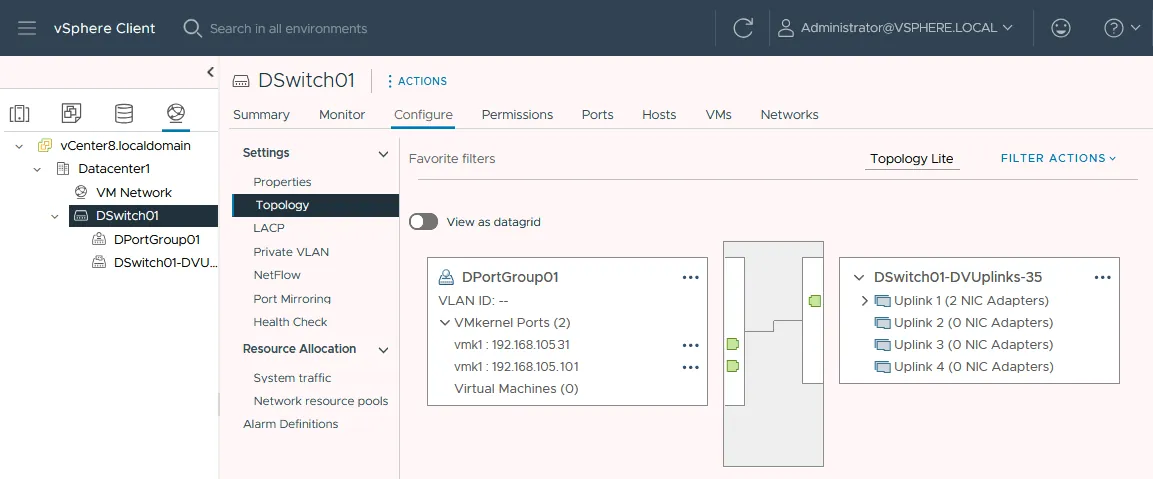
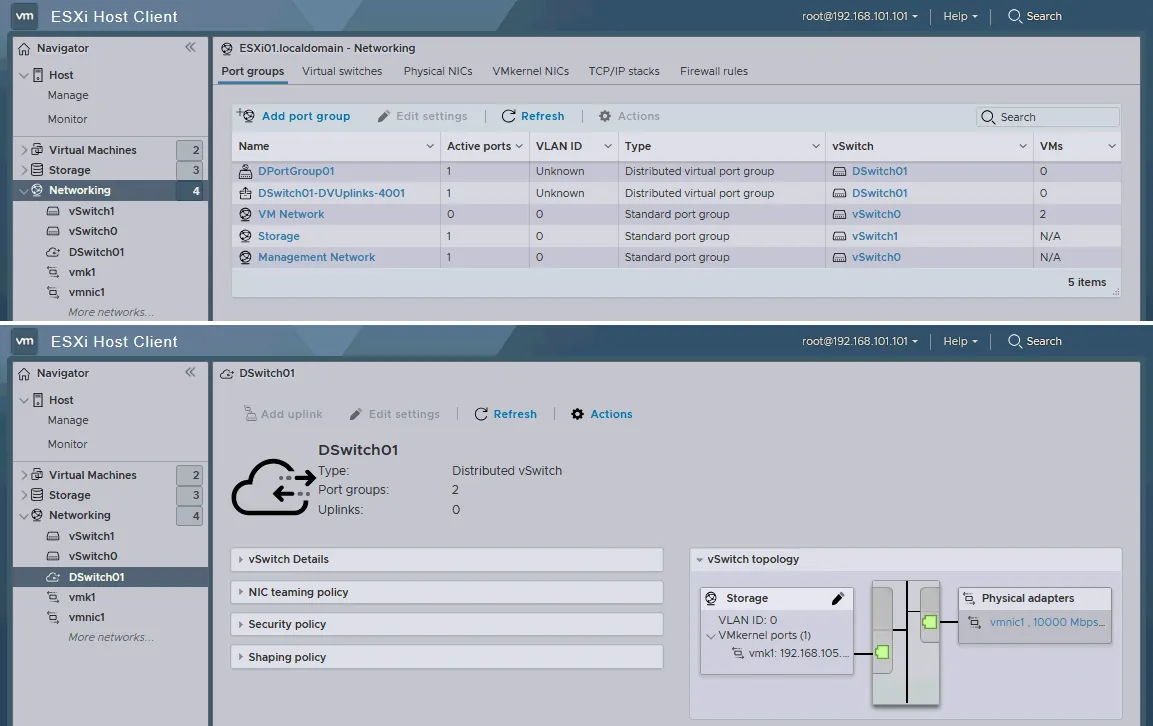
Recall that the VDS acts as a template applied to every ESXi host added to it. You can check each host s virtual switches after creating and configuring the VDS in vCenter. Let s open the VMware Host Client and check the network configuration of the first ESXi host (192.168.101.101).
In the screenshot below, a new virtual switch and port group have already been created (in the Navigator, go to Networking and open the Port groups tab). Select your distributed switch name to view the topology. The topology matches the VDS topology shown above.
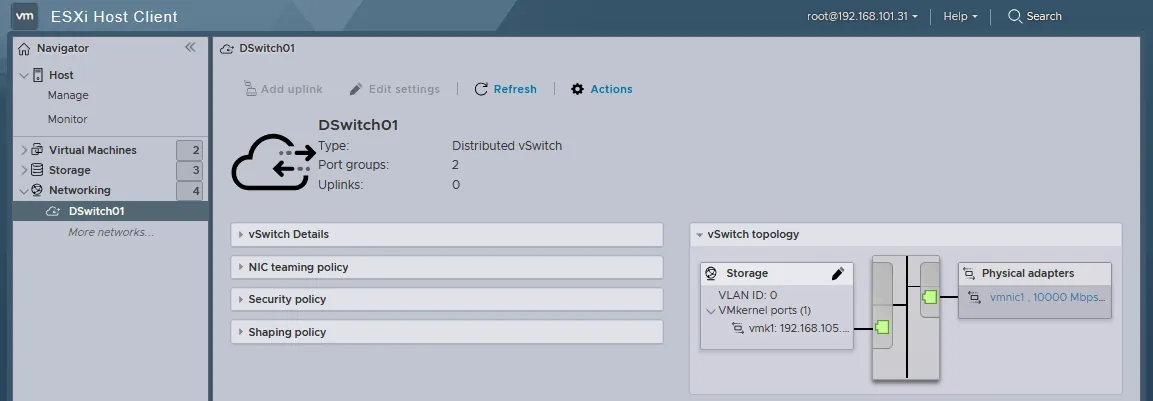
If you log in to the second ESXi host (192.168.101.31 in this example) with the VMware Host Client, you will see an identical topology.
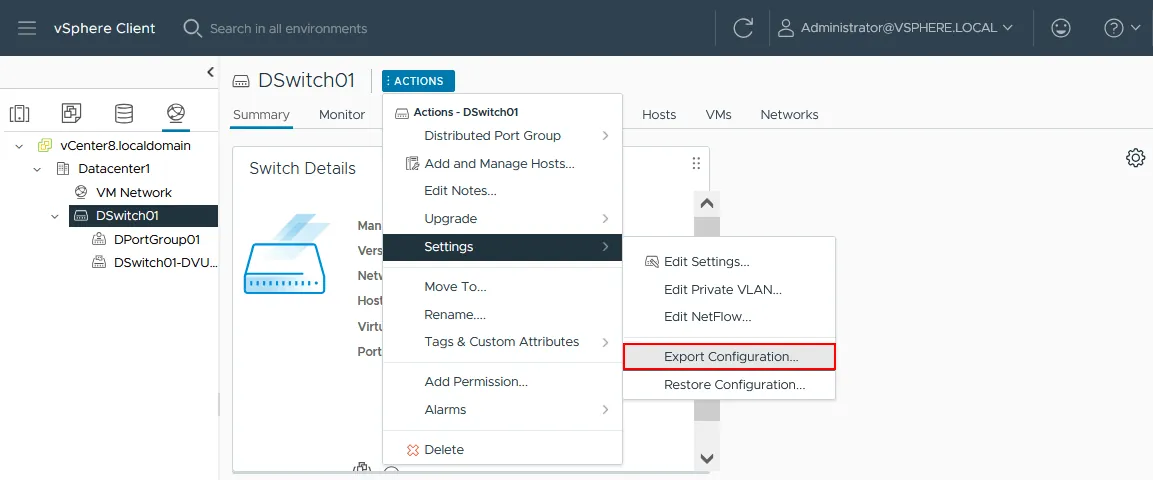
You can export and import your VMware distributed switch configuration, which saves time and lets you restore the VDS quickly. To export the configuration, select your distributed switch and click Actions > Settings > Export Configuration. The same menu holds the Restore Configuration option.
Beyond the basics covered above, you can refine the VDS set up link aggregation, enable traffic shaping, choose the discovery protocol, and define VLANs, port binding and port allocation for port groups. You can also migrate existing standard vSwitches on your ESXi hosts to the VDS and manage all of vSphere networking from one place.
Common Issues in VMware Distributed Switch Configuration and How to Fix Them
A distributed virtual switch is a complex feature that depends on ESXi hosts, vCenter and the network in between, so misconfiguring any one of them can cause errors. The most common problems and their fixes are below.
An ESXi host fails to join the distributed switch
Symptom: Adding a host to a VDS fails, or the host shows leftover/stale VDS state even after removal.
Cause: A corrupt or stale local VDS cache database (dvsdata.db) on the host, often after a network outage or an incomplete removal from the vCenter inventory.
Fix: Restore the dvsdata.db file. Back up /etc/vmware/dvsdata.db on the affected host, then copy the same file from a healthy ESXi host onto the problematic one.
Traffic doesn t pass after migrating from a standard switch to a VDS
Symptom: After migrating VMkernel adapters or VM NICs to the VDS, you lose management, vMotion or storage traffic, or only some hosts work.
Causes:
- Uplink mapping mistakes (a VM NIC assigned to the wrong dvUplink).
- A VLAN mismatch between the old vSphere Standard Switch (vSS) port group and the new dvPortGroup.
- An MTU mismatch introduced during migration.
Fix (low-risk order):
- Validate the dvUplink-to-physical-NIC mappings per host.
- Confirm the dvPortGroup VLAN and security policy match the old design.
- Check MTU end to end (VMkernel NIC > VDS > physical switch).
- Use VDS Health Check to pinpoint VLAN/MTU/teaming mismatches.
You can t attach or move a VM while vCenter is down (static port-binding trap)
Symptom: You cannot connect or move a VM NIC to a dvPortGroup while vCenter is unavailable, and an error appears when you try. This often happens when vCenter runs on a VM connected to the VDS, creating a circular dependency.
Cause: The dvPortGroup uses static (non-ephemeral) binding, which needs vCenter to assign ports during reconfiguration.
Fix: Create an ephemeral dvPortGroup on the same VLAN as your management network and move the stranded VM (often the vCenter VM) onto it. Set a teaming policy that matches the original port group with the appropriate active uplinks, then migrate the vCenter Server Appliance (VCSA) to the ephemeral port group. Static binding is fine for normal workloads, but keep an ephemeral recovery option ready for vCenter down events.
VMware Distributed Switch Best Practices
Following a few best practices when configuring a VDS reduces the risk of failures and makes problems easier to recover from.
- Plan for vCenter being unavailable. Design the infrastructure so losing vCenter never strands the management plane. VMs already on static (non-ephemeral) dvPortGroups keep running if vCenter-to-host communication drops, but you usually cannot move VMs onto those port groups without vCenter to assign ports.
- Keep an ephemeral dvPortGroup ready for emergencies. Use it to move a stranded VM (commonly the vCenter VM) and restore management connectivity. As a tested recovery alternative, create a temporary standard vSwitch on a host to bring vCenter back, then fix the VDS and migrate back.
- Standardize the dvPortGroup policy. Define VLAN, teaming/failover, security and shaping at the dvPortGroup level, and keep one dvPortGroup per traffic type (management, vMotion, vSAN/iSCSI/NFS, VM networks). This limits the one change breaks everything risk.
- Use VDS Health Check to catch VLAN/MTU/teaming mismatches. Enable it at least during rollout and major changes. Treat it as a deployment validation tool turn it on, fix any drift, then decide whether to keep it on. If it generates noise, disable it only after correcting the underlying mismatch.
- Back up the VDS configuration and change it safely. Export the configuration before any significant change, make high-impact changes (VLAN, MTU, uplink policy) during a maintenance window, and change one thing at a time so rollback is obvious. Always keep a recovery plan.
- Keep MTU consistent everywhere. If you change the MTU, match it on every switch and network device, and confirm the adapters and equipment support the value. MTU mismatches are among the most common VDS incidents (especially vMotion, vSAN and iSCSI); if you set MTU 9000 on the VDS/VMkernel NIC, make sure the physical switch ports and VLAN path support it too.
Conclusion
A VMware distributed switch gives you one place to manage networking across every ESXi host attached to it. You define the configuration once in vCenter, and vCenter pushes it out as matching standard vSwitches that each host creates automatically the part you edit acts as the control plane, while those per-host switches form the I/O plane that actually carries traffic.
For large environments and vSphere clusters, that central control saves time and keeps networking consistent. Just plan your licensing: a distributed switch requires vSphere Enterprise Plus on vSphere 8.0 and earlier, and is included with the VMware Cloud Foundation and vSphere Foundation subscriptions on vSphere 9.0.
FAQ
What is a VMware distributed switch (VDS)?
A VMware distributed switch (VDS) is a virtual switch you configure once in vCenter and apply to many ESXi hosts at once. It acts as a central template, so every connected host gets the same network settings a major advantage for keeping large vSphere environments consistent.
What is the difference between a standard vSwitch and a distributed switch?
A standard vSwitch is set up separately on each ESXi host. A distributed switch is defined centrally in vCenter Server and applied to every attached host at once, so you don t repeat the same setup by hand. That makes it the better fit for large vSphere environments.
How do I configure a VMware distributed switch?
In the vSphere Client, right-click a datacenter and select New Distributed Switch, then set the version, uplinks and a port group. Next, right-click the new switch and choose Add and Manage Hosts to attach your ESXi hosts, assign uplinks and VMkernel adapters, and migrate VM networking if needed. Finally, add VMkernel adapters to the relevant port group.
What are the requirements for a VMware distributed switch?
You need a vSphere license that includes distributed switch functionality: vSphere Enterprise Plus on vSphere 8.0 and earlier, or a VMware Cloud Foundation or vSphere Foundation subscription on vSphere 9.0. vCenter Server is also required, and your ESXi hosts and vCenter must run compatible versions.