Hyper-V vs VMware: Which One to Choose?
Two major players dominate the virtualization market: Microsoft Hyper-V and VMware vSphere. Selecting one of them to run virtual machines depends on various factors, including the requirements in your environment. The Hyper V vs VMware topic includes two main comparison categories:
- Hyper-V and VMware for servers
- Hyper-V and VMware for desktop users
In this blog post, we highlight the main differences between VMware and Hyper-V solutions for server environments, but also for individual users, so you can determine which platform best meets your needs.
What Is Hyper-V?
Hyper-V is a type-1 or native hypervisor designed by Microsoft. It allows you to create and manage multiple virtualized versions of a computer, called virtual machines (VMs). Hyper-V provides a virtualization platform to build a virtual IT infrastructure for different scenarios. Each VM, in this case, is running in its own isolated space, without interfering with the processes in other VMs, with physical resources shared among the VMs.
You can use Hyper-V on Windows in two main implementations:
- Hyper-V on Windows Server versions, such as Windows Server 2016, 2019, 2022 and 2025. The standalone Hyper-V server is discontinued starting with Windows Server 2022 – the latest version was Hyper-V Server 2019.
- Hyper-V on workstations (on Windows 8.1, Windows 10 and Windows 11 top editions such as Pro and Enterprise).
Note: The Microsoft Azure cloud uses a modified version of Hyper-V on its servers to run Azure virtual machines.
What Is VMware?
VMware is a reputable software vendor that provides multiple products in the virtualization market. VMware ESXi, like Hyper-V, is also a type-1 hypervisor that is installed on a physical server (bare metal).
VMware vSphere is a server virtualization platform with the ESXi hypervisor as its main component. Basically, VMware vSphere includes:
- VMware ESXi
- VMware vCenter
- VMware vSphere Client
All of these products combined constitute the VMware infrastructure, which enables centralized management of the created virtual environment. VMware vSphere also includes additional products such as NSX, vSAN and vRealize Operations Manager that extend the vSphere functionality.
In addition to server products, there are also VMware type-2 hypervisors that can be installed on user computers to run virtual machines:
- VMware Workstation
- VMware Fusion (Pro)
- VMware Player (deprecated)
- VMware Fusion Player (deprecated)
VMware vs Hyper-V Comparison Table
Below is a table summarizing the differences between VMware and Hyper-V for all the categories that we will cover later in this post.
| Hyper-V on Windows Server 2025 | VMware ESXi in vSphere 9.0 | Hyper-V on Windows 11 | VMware Workstation 17 | |
| Hypervisor type | Type 1 | Type 1 | Type 1 | Type 2 |
| How a hypervisor is installed | Windows Server role | Installed as a separate OS | Windows feature | Installed on a supported OS |
| Supported host OS | Windows | N/A | Windows | Windows, Linux |
| Supported guest OS | Windows Linux Free BSD |
Windows Linux Free BSD Unix macOS* other |
Windows Linux Free BSD |
Windows Linux Free BSD Unix macOS* other |
| Management Tools and UI | Hyper-V Manager Failover Cluster Manager SCVMM PowerShell VM Connect |
DCUI VMware Host Client VMware vSphere Client PowerCLI ESXCLI VMRC |
Hyper-V Manager PowerShell VM Connect |
The Application GUI made by VMware Command line |
| Guest Operating System Services | Hyper-V Integration Services | VMware Tools | Hyper-V Integration Services | VMware Tools |
| Attaching USB devices to VMs | Only USB storage devices | Yes, any USB devices | Only USB storage devices | Yes, any USB devices |
| Shared Clipboard | Yes | Yes, limited | Yes | Yes |
| Drag & Drop | No | No | No | Yes |
| Shared Folders | No | No | No | Yes |
| Supported file systems | NTFS ReFS |
VMFS | NTFS ReFS |
File systems supported by the host OS |
| Sharing protocols | iSCSI SMB 3.0 |
iSCSI NFS |
iSCSI SMB 3.0 |
Protocols supported by the host OS |
| Virtual disk files | VHD VHDX |
VMDK | VHD VHDX |
VMDK |
| Free space reclamation for thin disks | No | Yes | No | No |
| VM snapshots | Yes, max 50; linear hierarchy | Yes, max 32 in a chain; tree structure is supported | Yes, max 50; linear hierarchy | Yes, tree structure is supported |
| Change tracking | Resilient Change Tracking | Changed Block Tracking | No | No |
| Memory Management | Dynamic memory Memory Hot Add |
Memory compression Memory Ballooning Transparent Page Sharing Memory Oversubscription/Overcommit Memory Hot Add |
Dynamic memory Memory Hot Add |
Memory compression Memory Ballooning Memory Oversubscription/Overcommit |
| Workload Migration | Live Migration Storage Live Migration Shared-nothing live migration |
vMotion Storage vMotion |
No | No |
| Clustering | Failover cluster Load balancing |
High Availability cluster Distributed Resource Scheduler cluster Fault tolerance for the HA cluster |
No | No |
| Storage Clusters | Storage Space Direct Scale-out file server |
VMware vSAN | No | No |
| Security | Guarded Fabric Host Guardian Service Shielded VMs |
Virtual Machine Encryption Role-Based Access Control NSX Network Virtualization |
Secure Boot VM encryption |
Secure Boot VM encryption |
| Licensing | Per core | Per core, subscription, bundled | Included in Windows | Free |
| Advanced data protection mechanisms | Yes, built-in and via APIs | Yes, native and via APIs | No | No |
VMware vs Hyper-V Architecture
The following section outlines the main components that both platforms offer, as well as the similarities and differences between Hyper-V and VMware solutions.
Hyper-V
Microsoft Hyper-V exists in two modes for Windows and as a standalone solution:
- As Hyper-V Role, which is a built-in Windows Server feature that a server administrator can enable.
- As a Windows feature in Windows 11 and other client Windows versions. The user or administrator can turn this feature on or off.
- As a standalone Microsoft product (also known as Hyper-V Server) with limited functionality and Hyper-V management components.
Note: At the time of writing this post, the latest version of Hyper-V Server as a standalone solution is Hyper-V Server 2019. You can use Windows Server 2025 for the latest version of Hyper-V.
When a Hyper-V role/feature is enabled, Hyper-V boots first, and only then does the host operating system boot. Not knowing that can confuse users who think that a hypervisor running on a physical Windows machine can be only a type-2 hypervisor. Hyper-V is a real type-1 hypervisor.
The architecture of Hyper-V is based on micro-kernelized hypervisors, meaning that a host server (also called the parent partition) provides direct access to hardware and computing resources (virtualization stack). Hyper-V allows you to isolate VMs into logical units (partitions), including operating systems (OSes) and applications. Logical units of isolation called partitions are used for this purpose.
Partitions are divided into the parent and the child partitions. Each Hyper-V environment can have only one parent partition, which should run a supported version of Windows Server. The parent partition can create multiple child partitions for hosting guest OSes. Child partitions can’t directly access hardware resources, but they can present a virtual view of the resources in the form of virtual devices.
The communication between the parent and the child partitions is conducted via the VMBus, which lets you manage the requests directed to virtual devices. The parent partition also includes a Virtualization Service Provider (VSP), which enables the connection to the VMBus for managing device access requests from child partitions.
Hyper-V can host two types of OSes in child partitions: Enlightened and unenlightened. The main difference is that the enlightened child partition has Hyper-V integration components and a Virtualization Service Client (VSC). This lets you avoid device emulation and enable direct communication with the virtualization layer. At the same time, the unenlightened child partition does not have the same components and simply emulates software.
VMware
VMware vSphere is a virtualization platform consisting of multiple components that must be installed and set up. Essentially, vSphere is a suite of virtualization products that, when combined, allow you to build a computing platform. At the core of VMware vSphere lies VMware ESXi, which is a type-1 or native hypervisor used to manage host servers and run multiple guest VMs directly. VMware ESXi enables direct access to the physical machine’s computing resources, which are shared by the VMs running in the system.
The earlier version of VMware ESXi – VMware ESX – ran on a Linux kernel, which acted as the primary VM. Later, the ESXi hypervisor was introduced to minimize the overhead imposed by VMware ESX. VMware ESXi requires a minimum amount of hardware resources and enables a small footprint of 130 MB (ESXi 7, 8, 9) for the ESXi kernel and main components. The virtualization process in ESXi is supported by VMkernel, which runs directly on hosts and enables communication between VMs and the physical hardware, ensuring high performance.
VMware vSphere Client or VMware vCenter Server are vSphere components that are available to manage the VMware virtualization platform. They function as the management tools used for running ESXi hosts. We will explain and compare them with the Hyper-V analogs below.
VMware also provides VMware Workstation and VMware Fusion, which are type-2 hypervisors that can be installed on computers with the running operating system for individual users.
Supported Operating Systems
When you compare Hyper-V vs VMware, it is important to know which operating systems are supported. In this category, you should pay attention to the operating systems from two points of view:
- Supported host operating systems are the operating systems on a physical computer or server, on which you can install a hypervisor.
- Supported guest operating systems are operating systems that you can install on a virtual machine running on a hypervisor.
Host OS support
Supported host operating systems for the different hypervisors:
Hyper-V:
- Windows is the only operating system on which you can install Hyper-V.
ESXi:
- ESXi operates as an operating system itself and doesn’t require any other operating system to be installed on the server.
VMware Workstation and Player:
- Windows
- Linux
VMware Fusion (Pro) and Fusion Player:
- macOS
Guest OS support
Guest OSes supported by VMware and Hyper-V can vary.
Hyper-V
The number of supported guest OSes is limited in Hyper-V:
- Windows
- Linux
- FreeBSD
Note that the oldest Windows operating systems are not supported. Windows is supported starting from Windows Vista.
VMware
VMware hypervisors (ESXi, VMware Workstation and VMware Fusion) support more guest operating systems to install on VMs:
- Windows
- Linux
- Unix
- FreeBSD
- macOS, also known as Mac OS X*
*macOS is supported in VMware Fusion by default. As for other VMware hypervisors, make sure that the license agreement allows you to install macOS as a guest OS. Read how to install macOS on VMware ESXi. The same approach is applicable to VMware Workstation.
VMware hypervisors also support other old operating systems such as DOS, Windows 95, Novell Netware, etc.
You can deploy ESXi on VMware VMs for testing and educational purposes. Hyper-V doesn’t support that. You can install ESXi on Hyper-V, but with limitations and only using older ESXi versions.
Thoughts
VMware supports multiple host OS versions available on the market. Hyper-V, on the other hand, places more emphasis on the Microsoft OS, which is the most widely used OS in the world.
VMware ESXi doesn’t require a host OS. In general, the VMware infrastructure is not tied to Windows only and provides more flexibility when ESXi is installed on servers. VMware Workstation is installed on Linux and Windows computers, and Fusion is installed on user computers running macOS.
As for guest operating systems, VMware provides more options than Hyper-V and supports more guest OSes, both old and new ones.
In this category of the Hyper V vs VMware comparison, VMware provides more options for both server and client hypervisors.
Management Tools and UI
Different management tools manage VMware and Hyper-V.
Hyper-V Manager
The basic management tool for Hyper-V is Hyper-V Manager. This is the graphical user interface (GUI) in Windows Server and client Windows versions, which allows you to create VMs, run VMs and edit VM and Hyper-V configuration. You can connect to a remote Hyper-V host using Hyper-V Manager.
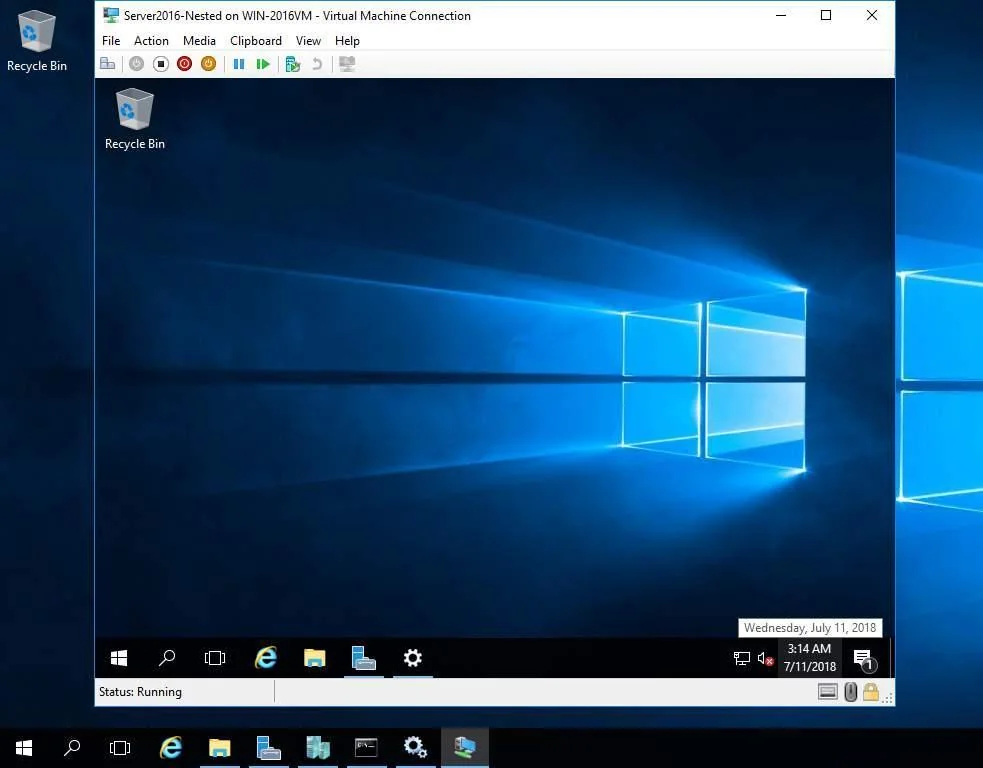
Hyper-V Virtual Machine Connection (VM Connect) is a tool found in the interface of a VM that you would find on a virtual monitor of the VM. VMConnect sends your keyboard and mouse actions to the VM. This tool is based on the Windows Remote Desktop functionality (RDP).
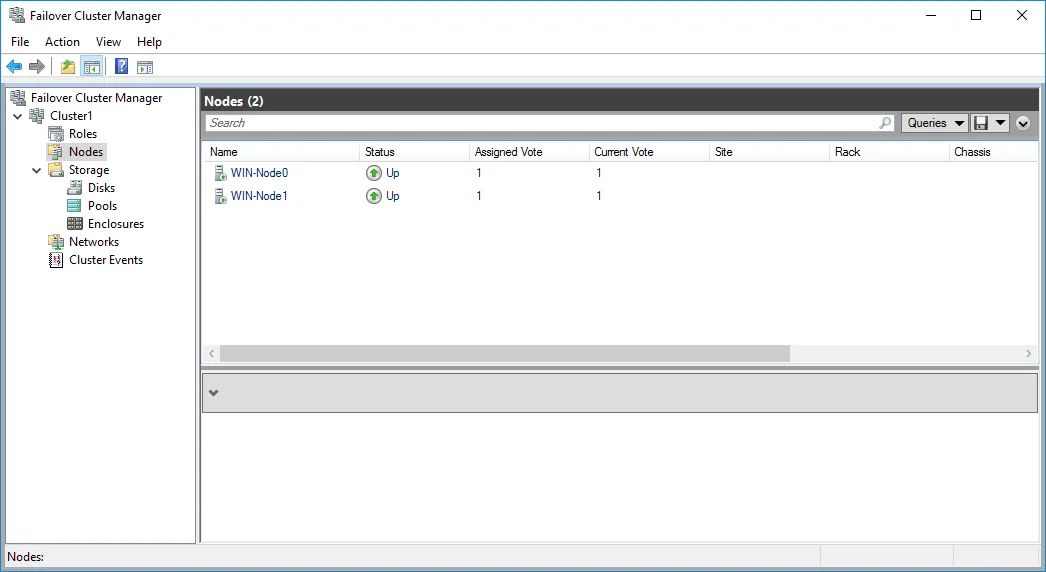
Note that if you deploy a cluster, you can manage it in another tool called Failover Cluster Manager and not in Hyper-V Manager.
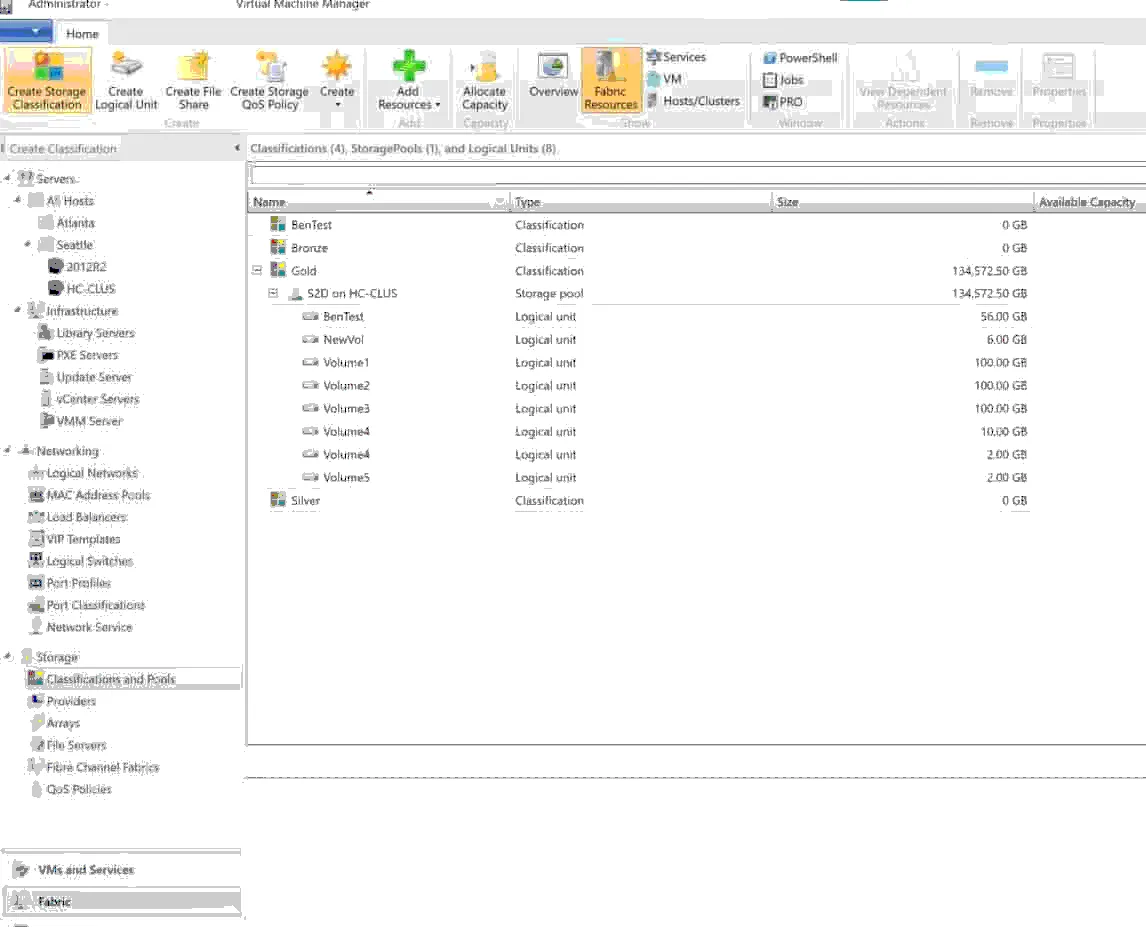
System Center Virtual Machine Manager
System Center Virtual Machine Manager (SCVMM) is a management tool designed by Microsoft for operating multiple VMs existing in the same Hyper-V virtual environment on Windows servers. SCVMM is not installed by default with Hyper-V. This is a massive solution that you can install separately.
SCVMM allows you to create, migrate, control and delete VMs. The tool manages the processes within the VMs by providing access to necessary hardware resources, such as memory, drivers, storage and others. Some users view SCVMM as a Hyper-V vCenter equivalent.
PowerShell
PowerShell is a command-line interface to manage Windows and Hyper-V. There are special PowerShell cmdlets for Hyper-V. Some advanced options can be configured only in PowerShell. There are numerous useful PowerShell commands for Hyper-V administrators. Using PowerShell for Hyper-V management is available on the server and client versions of Windows.
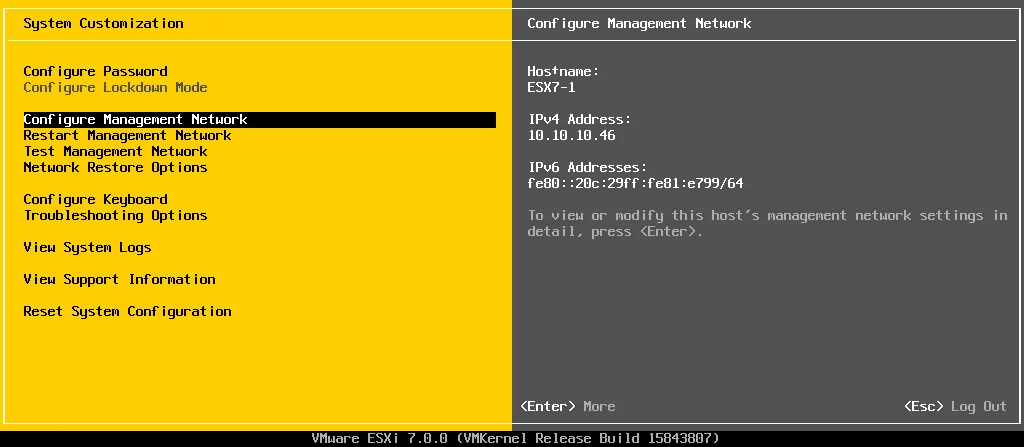
VMware DCUI for ESXi
VMware Direct Console User Interface (DCUI) is a simple interface with a DOS-like style that allows you to configure basic ESXi settings such as hostname, network settings, etc. Opening DCUI is the starting point for ESXi configuration. After configuring basic options in DCUI, you can open VMware Host Client.
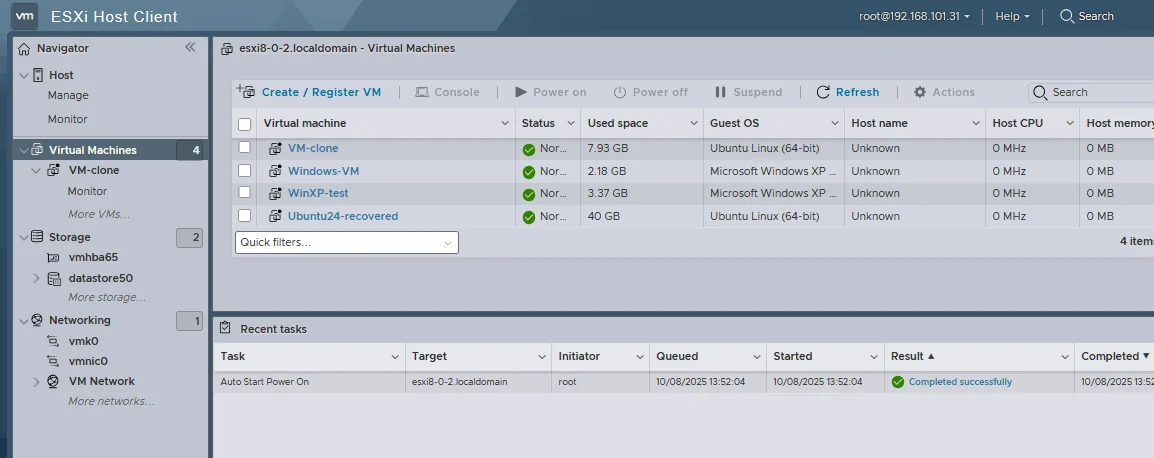
VMware Host Client
VMware Host Client is the built-in web interface to manage ESXi remotely. This interface is user-friendly and allows you to configure many options on the ESXi host. You can create, run and delete VMs and edit VM configuration. You can also open the user interface of a guest OS running on the VM (this tool is known as VMware Web Console).
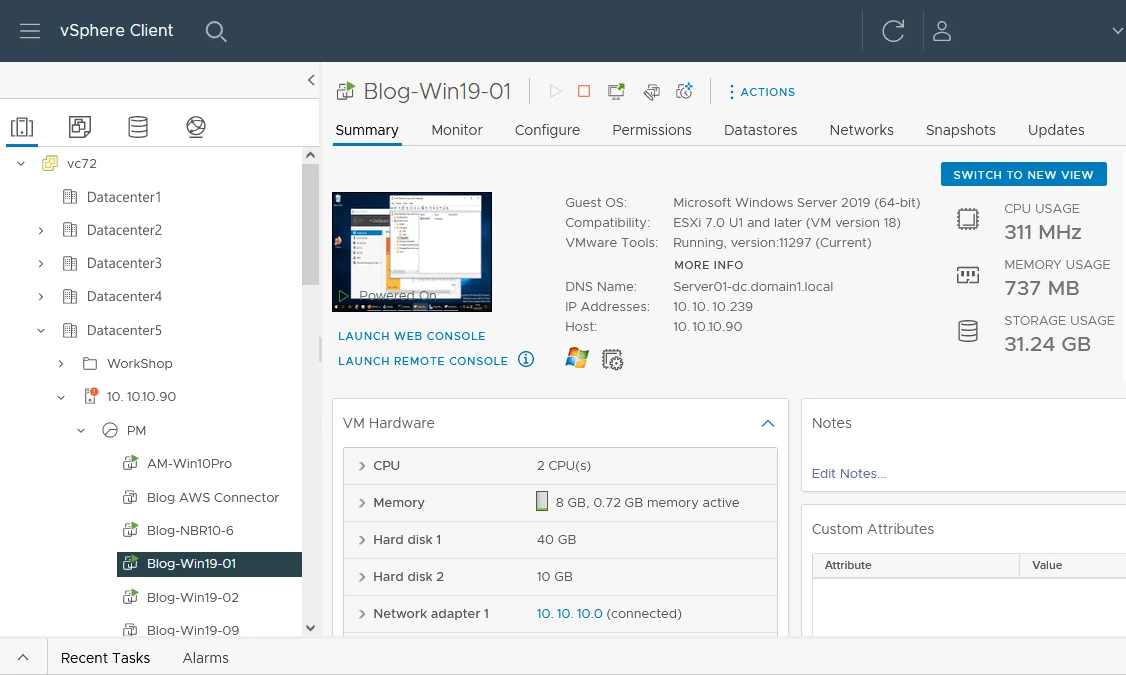
VMware vCenter and VMware vSphere Client
VMware vCenter Server is the solution for centralized management of VMware vSphere, including ESXi hosts. VMware vSphere Client is the web interface to use vCenter for vSphere management. This interface is powerful and user-friendly. You can install other vSphere components, such as vSAN, and manage them in vCenter as well.
VMware vCenter is usually installed when you have more than one ESXi host in your VMware environment. It is required to use advanced vSphere features such as VM migration, networking features, load balancing and failover clustering. As a result, you can control ESXi hosts and clusters with VMs from a single interface, thus simplifying management.
When you open the guest OS interface of a VM, you can use the VMware web console in a web browser, or install VMware Remote Console for more convenience. If you have VMware Workstation installed on your local machine, there is no need to install VMware Remote Console (VMRC).
ESXCLI
ESXCLI is a command-line interface available after you install ESXi. You can access it directly on an ESXi server by pressing Alt+F1. Alternatively, you can enable remote SSH access to the ESXi host in DCUI or VMware Host Client and use ESXCLI commands remotely. Read more about ESXCLI and ESXi shell commands.
vSphere PowerCLI
VMware vSphere PowerCLI is a set of PowerShell cmdlets to manage ESXi hosts and vCenter in VMware vSphere. You should install PowerCLI manually, and you can use online repositories to do this. PowerCLI allows you to automate configuration and management tasks in VMware vSphere virtual environments.
The user interface of VMware Workstation
VMware Workstation provides a convenient, powerful and user-friendly interface to manage virtual machines on a user’s computer. Moreover, you can connect to a remote ESXi host or vCenter and manage VMs. You can create and delete VMs, change the VM state and edit VM configuration. The range of options is less than in VMware vSphere Client for vCenter, but it is convenient to work in an integrated VMware environment.
VMware Workstation can act as a VMware Workstation Server and share VMs.
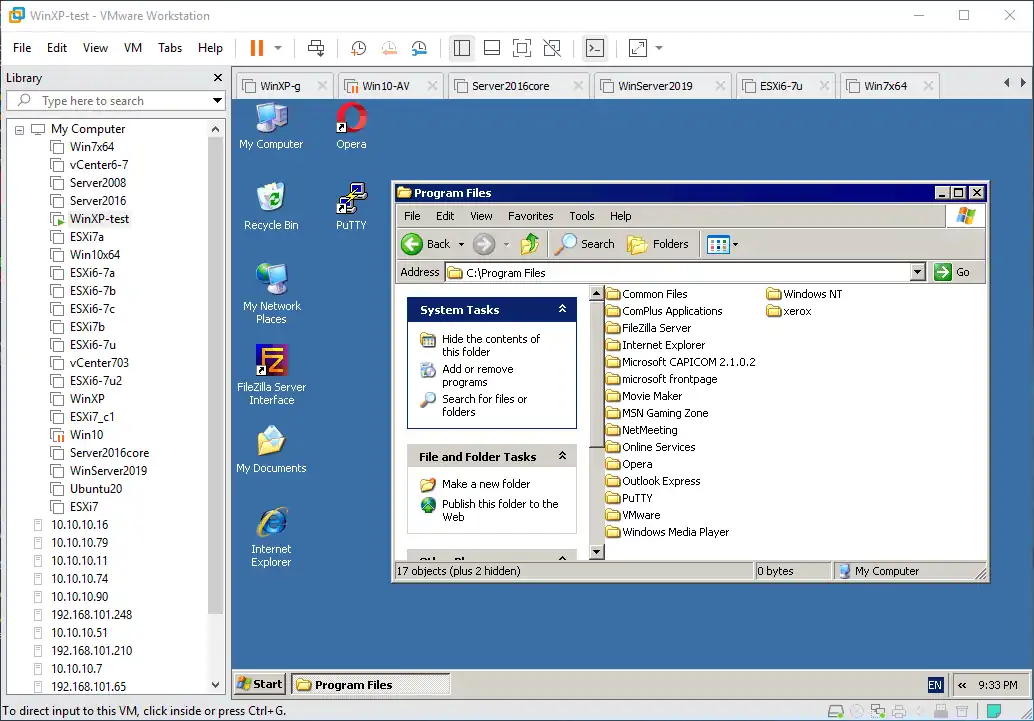
VMware Workstation also supports the command-line interface that includes a standardized set of commands for Windows, Linux and macOS to manage the hypervisor and VMs on that local physical machine. vmware is the main command for this command-line interface.
Thoughts
As you can see, there is a significant difference between Hyper-V and VMware user interfaces. They use completely different approaches. The VMware interfaces and management tools can be more convenient to use and deploy. If you’re used to Microsoft products, then the management interfaces and tools for Hyper-V may be better for you.
Guest Operating System Services
To ensure efficient performance within a virtual environment, both VMware and Hyper-V provide a set of system services and tools that can be easily installed in virtual machines.
Hyper-V Integration Services
Hyper-V Integration Services (also known as integration components) are a set of services that allow a VM to communicate with the Hyper-V host. Many of these services are highly recommended to make the VM function correctly. Hyper-V Integration Services include utilities and drivers, especially to work with virtual devices in a virtual environment.
Hyper-V Integration Services include:
- Hyper-V Guest Shutdown Service to trigger the correct virtual machine shutdown.
- Hyper-V Time Synchronization Service to synchronize the VM clock with the host’s clock.
- Hyper-V Heartbeat Service to report that a VM is working correctly.
- Hyper-V Data Exchange Service (KVP) to exchange basic metadata.
- Hyper-V Volume Shadow Copy Requestor to back up the VM data correctly with VSS.
- Hyper-V PowerShell Direct Service to manage a VM directly without a network connection.
- Hyper-V Guest Service Interface to copy files from a VM.
VMware Tools
VMware Tools is a set of utilities and drivers that provide seamless integration between the host and the guest systems in addition to efficient management of VM data. VMware Tools also improve VM performance and user experience. They are installed on supported guest OSes on any VMware VM (running on VMware ESXi, VMware Workstation and Fusion).
VMware Tools include many useful components such as:
- VMware Tools Control Panel provides a graphical overview of the tools and permits users to configure them.
- VMware Tools Services enables the communication between the host and the guest OSes.
- With VMware User Process, you can copy/paste text and drag/drop files between the host and guest OSes.
- VMware Device Drivers provides a set of drivers for installation, which can enhance mouse operations, networking performance as well as sound and graphics quality.
Installing VMware Tools offers multiple benefits, including:
- Enhanced graphics performance;
- High-level synchronization between the host and guest file systems;
- Shared access to files and folders within the virtual environment.
It is highly recommended that you install VMware Tools in guest operating systems running on VMware VMs.
Thoughts
Hyper-V Integration Services and VMware Tools are not interchangeable and can be used only in their own native virtual environment.
VMware Tools can be installed on a wider range of guest operating systems than Hyper-V Integration Services, even when comparing the same operating system families (Windows and Linux) supported by both virtualization vendors. Some features are common for Hyper-V Integration Services and VMware Tools. However, the latter supports more unique features because it is supported in VMware hypervisors.
Data Exchange with VMs
When you run a virtual machine, you may need to exchange some data between your host or a local computer and the guest operating system running on the VM. For example, you may need to copy text, images, files, folders or other data types.
Hyper-V
Attaching USB storage devices to a VM. Hyper-V VM Connect is based on the Windows Remote Desktop functionality. This means that only storage devices can be connected via USB to VMs. You can select a disk volume of the device attached to your local machine on which Hyper-V is installed.
Shared clipboard functionality is available when you use the Enhanced Session Mode for VM connection. You can copy and paste the data copied from your host OS to the guest OS running on a VM and vice versa.
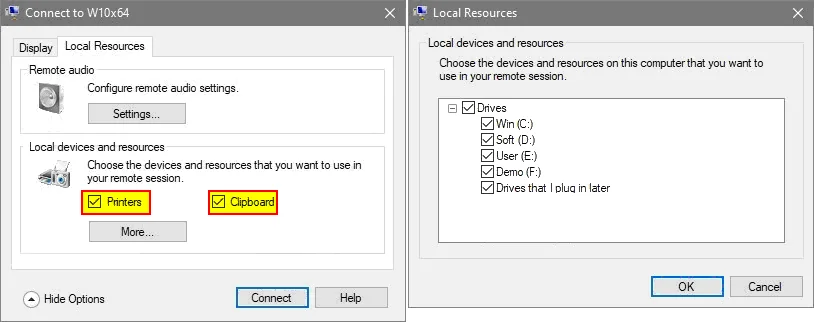
To use shared folders and the SMB protocol for file exchange, you must configure a shared folder manually in Windows (or another operating system).
VMware
USB passthrough. Attaching diverse USB devices to a VM (not only storage devices) by using the USB passthrough feature. This feature is available on VMware ESXi, VMware Workstation and VMware Fusion. You can connect any USB device to a VM, including a USB printer, scanner, web camera, hardware protection key, etc.
Shared Clipboard. Shared clipboard support for VMs running on ESXi hosts is limited and allows you to copy and paste text data. This limitation is there for security reasons. As for VMware Workstation and Fusion, you can copy and paste any data, including images, files and more.
Drag & Drop. This feature allows users to drag and drop files similarly to how it is done between different windows in Windows, macOS or other operating systems. Drag & Drop works only on VMware type-2 hypervisors (VMware Workstation and Fusion) but not for VMs running on ESXi (for security reasons).
Shared Folders. This is another feature for VMware type-2 hypervisors that allows you to share a folder in a few clicks and exchange files between your host and guest. Using this feature is faster than configuring a shared folder manually in an operating system with available OS tools. Shared Folders are not available on ESXi.
Thoughts
In the case of servers, VMware ESXi provides better data exchange options with VMs compared to Hyper-V for Windows Server. When it comes to data sharing options between hosts and guests, VMware hypervisors for desktops, such as VMware Workstation and VMware Fusion (Pro), provide even more options than ESXi compared to Hyper-V client Windows versions, such as Windows 11. As a result, VMware virtualization solutions perform better in this category.
Storage Deployment – Supported File Systems
Hyper-V
Hyper-V supports NTFS and ReFS file systems for virtual machine storage. These file systems are available in new Windows Server versions such as Windows Server 2012, 2016, 2019, 2022 and 2025.
NTFS (New Technology File System) is a proprietary journaling file system released by Microsoft for Windows NT. It was selected by default for Windows versions of the NT Windows family (client and server versions). This is a well-known universal file system used on the server and client Windows versions.
ReFS (Resilient File System) was introduced as a built-in feature of Windows Server 2012. ReFS is based on its earlier file system – NTFS – and was designed to eliminate some existing issues and address modern data storage requirements. ReFS gives users access to VM files directly from the host server.
ReFS can detect and promptly fix data corruption. This can be done online, thus causing no volume downtime. Moreover, through the new features of Block Cloning and Sparse VDL (Valid Data Length), the operations running in VMs can be considerably accelerated.
However, when it comes to clustering, Hyper-V doesn’t provide the same level of flexibility. Even though Hyper-V includes Cluster Shared Volume (CSV), this functionality is much more complex than the one in VMware VMFS.
VMware ESXi
VMware VMFS (Virtual Machine File System) is the clustered file system used for storage virtualization of the data contained in a virtualized environment on ESXi servers. A single VMFS volume can be utilized by multiple VMs as virtualized storage concurrently, which results in less management overhead and better resource utilization. Support for simultaneous file system access is required for clusters.
VMFS provides high performance, reliability and effective space usage for VM storage. It has the on-disk locking feature, which ensures that the data can be accessed only by one user or process at a time to avoid data corruption.
Read about all features of VMFS 6 and learn how to migrate from VMFS 5 to VMFS 6. It is also possible to mount VMFS in Linux in some cases.
NFS is a file sharing protocol, also known as a network file system, which is widely used in Linux environments. VMware also supports NFS on shared storage to store VMs.
VMware Workstation and Fusion
Any file system supported by a host OS is supported by VMware Workstation and Fusion (for example, NTFS, ext4, APFS).
Thus, if you use VMware Workstation on Windows, you can store VM files on NTFS volumes. The old FAT32 file system is also supported. There is an option to split VM virtual disks into 2 GB files for compatibility with FAT32.
If you use VMware Workstation on Linux, you can use any file system you like (for example, ext4) since Linux supports many file systems.
Users who run VMware Fusion on macOS can store VMs on APFS or Mac OS Extended (HFS Plus or HFS+) and other file systems supported by macOS.
Shared Storage
Shared storage is useful when you need to store VM files outside your virtualization server on which the hypervisor is installed. It is required to configure a cluster in Hyper-V and VMware vSphere environments. Shared storage can be configured on a dedicated storage server, NAS (network attached storage) and SAN (storage area network).
Hyper-V
Hyper-V supports file shares that can be accessed via the following protocols:
- iSCSI is a block-level sharing protocol. Windows includes an iSCSI initiator and iSCSI target. You can configure one Windows Server as a storage server with an iSCSI target and connect to this target from a Windows Server running Hyper-V with an iSCSI initiator.
- SMB 3.0 is a new version of the SMB file sharing protocol that has been widely used in Windows for many years. Hyper-V supports storing VM files on SMB 3.0 file shares.
There are additional Windows Server features to deploy shared storage for Hyper-V:
- Cluster Shared Volumes (CSV) is a more complex solution compared to the cluster-ready VMFS file system. CSV is used to create shared storage for a Hyper-V cluster.
- Scale–out file server is a Windows Server feature that builds clustered storage to store and share files. The SMB 3.0 file sharing protocol can be used for this purpose.
Virtual Fibre Channel for Hyper-V is a feature that allows you to connect to Fibre Channel storage (SAN) from within a VM.
VMware
Fibre Channel. VMware ESXi hosts that have an FC host bus adapter installed can connect to a Fibre Channel SAN as the enterprise-class storage. Fibre Channel SAN is the most supported solution for large environments, including clusters. VM files can be stored on FC SAN storage where the LUN is formatted to the VMFS file system.
iSCSI. VMware ESXi hosts can connect to an iSCSI target that you can configure on SAN, NAS or a server running Linux or another operating system. iSCSI is a block-based sharing protocol. You can format a LUN attached to an ESXi host with VMFS.
NFS. The alternative way to configure shared storage for ESXi hosts to store files is to create an NFS share on a server or NAS. You can connect a file share via the NFS protocol to an ESXi host.
Thoughts
Both Hyper-V and VMware ESXi solutions support iSCSI, but there are file sharing protocols that are supported only by one of these platforms. The approach to accessing Fibre Channel storage differs. Using VMFS on shared storage can be more convenient than the complex configuration of Cluster Shared Volumes.
Storage Deployment – Virtual Disks
With virtualization, the software is abstracted from the hardware and all the VM data is stored in virtual disk files. In this case, a virtual disk file functions as the hard disk of a VM. Both platforms use virtual hard disks for storing VM data. Virtual disk files of VMs in the virtual environment are stored and organized via the file system of the underlying physical storage. Both Microsoft and VMware hypervisor solutions have introduced their native file systems for managing data on a storage device.
Hyper-V
Hyper-V supports two virtual disk file formats:
- VHD – an older format used for Hyper-V Generation 1 VMs.
- VHDX – a newer format that supports higher limits and is used for Generation 2 VMs.
Hyper-V supports two virtual disk provisioning types:
- Fixed disk. You allocate size when creating the virtual disk and this size is occupied on the underlying storage right after creation.
- Dynamically allocated disk. You set the maximum virtual disk size when creating the virtual disk, but the virtual disk size grows after you write data into the disk.
Note: Fixed and dynamically allocated virtual disks are analogs of thick and thin provisioned virtual disks in VMware vSphere.
Free space reclamation. Dynamic disks grow as you write data into them. However, they don’t shrink automatically after you delete data. You need to reclaim free space in dynamic virtual disks manually in this case.
Passthrough disks. You can attach a disk LUN or partition directly to a virtual machine instead of attaching a virtual disk image file.
Hyper-V virtual disk options explained in this section are applicable to Hyper-V on both server and client Windows versions.
VMware
The virtual hard disk format for VMware hypervisors is VMDK.
Note: The VMDK virtual disk format is different for VMware ESXi and VMware Workstation/Fusion. The difference is in how the virtual disk descriptor is stored – inside the virtual disk file or as a separate file (.vmdk and -flat.vmdk). Read how to extract data from VMDK virtual disk files.
VMware supports two virtual disk provisioning types:
- Thick provisioning. You set the maximum disk size when creating the virtual disk. The space that is equal to the defined virtual disk size is occupied on the storage once disk creation is finished. A thick-provisioned disk can be lazy-zeroed and eager-zeroed.
- Thin provisioning. You define the maximum virtual disk size when creating the virtual disk. The virtual disk size is just a few megabytes after creation and starts growing when you write data into this virtual disk.
Thin provisioning is a VMFS feature. To check that for yourself, you can copy a thin-provisioned virtual disk from a VMFS file system (mounted to an ESXi host) to a computer with any other file system, for example, NTFS or ext4. You notice that the size of a virtual disk that was thin-provisioned is maximum, as it would be thick-provisioned after you copied this file. However, you can open these virtual disks in VMware Workstation and Fusion.
VMware Workstation and VMware Fusion have analogs of thick and thin provisioned disks (you cannot see these names in the user interface) to create fixed-size and dynamically growing virtual disks. It is possible to split a virtual hard disk into 2-GB files.
Free space reclamation. VMFS 6 reclaims free space automatically (UNMAP) when data is deleted inside thin-provisioned disks. This feature is convenient and allows you to use storage more efficiently for VMs running on ESXi servers. In VMware Workstation and VMware Fusion, automatic free space reclamation for dynamically grown disks is not supported.
Raw device mapping (RDM) is a disk pass-through feature for VMware hypervisors. As a result, the VM has direct access to a LUN or partition. RDM is supported in VMware ESXi, VMware Workstation and VMware Fusion.
Thoughts
VMware and Hyper-V virtualization solutions provide two identical virtual disk allocation types – pre-allocated (thick) and dynamically growing (thin). Virtual disk file formats are different for VMware and Hyper-V, and there is no cross-platform support for them for any of the considered products. Hypervisors of both vendors support raw disk device pass-through. VMware provides more virtual disk-related features. Automatic free space reclamation for thin-provisioned disks on VMFS datastores is a significant advantage.
Snapshot Technology
The snapshot technology allows you to save the VM state at the moment the snapshot was created and capture a point-in-time copy of the VM and all the data that it contains. Then you can revert the VM state to the needed snapshot if something goes wrong. This feature is primarily used for testing purposes.
VM snapshots also allow applications to take a point-in-time image of the VM for data protection. Snapshot technology is used by third-party backup software to freeze the VM state to copy application/database data consistently for VM backup and replication.
Snapshots in VMware and Hyper-V not only work differently (including using different files) but also have different names. VMware uses the term snapshots, whereas in Hyper-V, they are called checkpoints.
Hyper-V checkpoints
Hyper-V has two types of checkpoints: Standard and Production. Both are available starting from Windows 10 and Windows Server 2016.
- Standard checkpoints save the virtual machine’s state, virtual disk data and VM hardware configuration. This type of checkpoint can be used for testing.
- Production checkpoints provide a more efficient and reliable way to capture the virtual machine’s state. The improved mechanism of production checkpoints allows third-party backup software to use them for Hyper-V VM data backup in production environments.
The main aspects of Hyper-V checkpoints that should be mentioned in the VMware vs Hyper-V comparison include:
- Hyper-V production checkpoints don’t capture the VM’s memory state.
- The linear hierarchy for multiple checkpoints.
- Checkpoint configuration and differencing disk files are stored in two different locations.
- Automatic checkpoints are a Hyper-V feature that creates a VM checkpoint automatically each time before you start a VM. It allows you to roll back to the previous VM state if undesired changes are made.
VMware snapshots
VMware snapshots are powerful when used in testing and production environments. The main VMware snapshot features are:
- VMware supports the creation of a snapshot tree and managing multiple snapshots, making them more flexible than Hyper-V checkpoints.
- VMware snapshots are not divided into multiple types. The approach to quiescing VM data when taking a snapshot depends on installing VMware Tools and running the Volume Shadow Copy Service.
- All snapshot-related files are stored in one directory, which is a VM directory by default.
- VMware ESXi, VMware Workstation and VMware Fusion Pro support automatic snapshots (that are also called auto-protect snapshots).
- VMware uses convenient naming for snapshot files. The file names are similar to the names of the VM’s virtual disks. Hyper-V uses the VM GUID to name the files of VM checkpoints. Visually, it is easier to find the needed file by a name similar to the VM name rather than remember the 36-character GUID (for instance, e5d330d7-a01e-4ce8-bed1-05deaa0d3989).
For example, in a VMware environment, the virtual disk snapshot file name would look like this: windbserver-001.vmdk
While in Hyper-V: windbserver-e5d330d7-a01e-4ce8-bed1-05deaa0d3989
Also note that Hyper-V snapshot configuration files don’t include the VM name prefix at the beginning of the file name.
- Snapshots in VMware Workstation and Fusion Pro work identically as in VMware ESXi.
Administrators working in Hyper-V or VMware environments should be aware of how the snapshot technology works to improve memory space management.
The main differences between snapshots and checkpoints are presented in the table below:
| Hyper-V | VMware ESXi | |
| Max. number of snapshots per VM | 50 | 32 (in a chain) |
| Snapshot hierarchy | Linear | Tree |
| Running snapshot in production | Yes | Yes |
| Files associated with snapshots | .avhdx .xml .bin .vsv |
-delta.vmdk .vmsd .vmsn -sesparse.vmdk |
| Snapshot file location (default) | 2 locations | 1 location |
| Automatic snapshots | Yes | Yes |
Note that checkpoints and snapshots can’t be used instead of backups because they aren’t suitable for long-term storage and can be lost if the VM’s virtual disk is damaged.
Thoughts
VMware snapshots can be more convenient due to the tree-like structure. You can revert to any previous snapshot, restore that VM state and create a new snapshot in a new tree branch without deleting existing snapshots. File naming and location are clearer in VMware environments.
The maximum number of snapshots is higher in Hyper-V. However, using many snapshots for a long time is not recommended in practice because it results in performance degradation (especially for a VM with a large virtual disk size).
Change Tracking
Change tracking lets you identify block-level changes that have occurred in the VM storage system and is useful for data protection applications to create incremental backups of VM data. When you enable changed block tracking, the backup solution only copies blocks that have changed since the previous backup instead of copying all data. The same is true for VM replication. Using the native changed block tracking mechanisms of hypervisors is better than using third-party change tracking technologies, as native mechanisms have better performance and lower resource consumption.
VMware CBT
Changed Block Tracking (CBT) was first introduced in VMware vSphere 4.0 in 2009. It is a feature designed to enable incremental backup, meaning that the initial VM backup is full, and only the new data is backed up in the subsequent backups. CBT speeds up the backup process considerably and provides maximum efficiency.
Note: If a power failure or hard shutdown occurs, you may need to reset VMware CBT.
Changed Block Tracking is not available for VMware Workstation and VMware Fusion.
Hyper-V RCT
Resilient Change Tracking (RCT) is Hyper-V’s own change tracking technology, which was introduced with Windows Server 2016 and Windows 10, and it functions in the same way as CBT. Note that if you had been running a VM on Windows Server 2012 R2 or earlier versions, and later moved it to the host server with Windows Server 2016, you should upgrade the VM to the latest version before backing it up. This can be done in the Hyper-V Manager.
RCT is more resilient to events such as storage migrations or snapshots and does not require a manual reset like CBT.
Thoughts
In the change tracking section of the VMware vs Hyper-V comparison, we observe that the CBT and RCT features are similar and make VM backup and replication processes more efficient. The main difference is that Hyper-V RCT does not need as much resetting as VMware CBT.
Memory Management
Both VMware and Hyper-V apply a variety of memory-management techniques.
VMware
Below are the main techniques used by VMware ESXi to achieve a high level of RAM optimization:
- Memory compression is used as a more efficient and less expensive alternative to disk swapping. When there is little space left on RAM, virtual pages are compressed and made small enough to fit in memory. Moreover, compressed files can be accessed faster and will not interrupt the workflow. Memory compression is enabled by default.
- Memory Ballooning is a VMware memory reclamation technique that can be applied when there is no free memory on an ESXi host. This technology artificially increases memory “pressure” inside the guest. It enables a VM of your choice to extract the unused memory from other VMs and distribute it to the ones that lack RAM resources. The balloon driver required to use memory ballooning is installed as part of VMware Tools.
- Transparent Page Sharing. Essentially, this is a deduplication technique used for memory management. When no programs are using the CPU, this technique allows you to track the VM memory pages that are identical and then share them among other VMs. This way, space being filled by redundant memory pages gets freed up.
- VMware Oversubscription/Overcommit. This technique allows you to assign more RAM resources than available on the physical host to the VMs running on that host. The system actively monitors the VMs and the amount of memory that they are currently using. With the Idle Memory Tax feature, the hypervisor can estimate the amount of idle memory and active memory used by each VM. VM memory that is not in active use will then be “taxed” and reassigned to other VMs that need it more.
- Memory Hot Add (hot plug) is a feature that allows you to increase the amount of memory for a virtual machine while the VM is running.
VMware Workstation doesn’t support memory Hot Add or Transparent Page Sharing.
Hyper-V
Hyper-V supports two main memory management features: Dynamic Memory and Memory Hot Add.
- Dynamic memory is a Hyper-V feature that allows you to provision memory for virtual machines more rationally. Hyper-V interacts with the memory managers inside the guest OS and understands how much memory applications inside the VM are requesting. You need to set five parameters to define how the VM memory can vary depending on demands.
Dynamic Memory allows you to set up a specific amount of memory, memory priority and other memory optimization settings. Hyper-V then defines how much memory should be allocated to a particular VM. Dynamic memory can be configured in Hyper-V Manager, where you can specify the following values:
- Memory Hot Add is a feature that, similarly to hot add in VMware, allows you to add more memory to a running VM. Hyper-V memory Hot Add is not compatible with Dynamic Memory, and you can use only one of these features at a time.
Thoughts
As you can see, VMware provides a wide variety of memory management techniques. However, Hyper-V provides Dynamic Memory, which functions in the same way as the VMware Oversubscription feature. Both VMware ESXi and Hyper-V support VM memory hot add.
You can have more freedom when operating with Dynamic Memory in Hyper-V than with VMware memory management techniques. Even though the oversubscription technique isn’t as advanced as its counterpart in VMware, you can optimize the VM memory management process and adjust it to your specific needs.
Workload Migration
Workload migration has long been a necessity when operating in a virtual environment. Both VMware and Hyper-V have their own tools, which enable the migration of production workloads across the infrastructure. Thus, VMware vMotion and Hyper-V Live Migration should be considered as separate entities.
Hyper-V
Hyper-V Live Migration is the modern migration tool designed for transferring a running VM with applications between physical hosts without downtime. Live migration is supported in Hyper-V for Windows Server 2012 and later server versions. Live migration is not supported in Hyper-V for Windows 10, 11 and other client Windows versions.
The main Hyper-V features for workload migration are:
- Quick migration. A VM is put in hibernation during migration between Hyper-V hosts, which causes downtime.
- Live migration is a VM migration feature in Hyper-V, similar to VMware vMotion in terms of results. Hyper-V Live Migration moves VMs without putting them into hibernation mode. Starting with Windows Server 2016, configuring a Hyper-V failover cluster is not required for VM Live Migration.
Processor and memory workloads of VMs are migrated from one Hyper-V host to another with Live Migration (the same processors or one-family processors must be used on Hyper-V hosts). The moment when VM accessibility can be interrupted is when the MAC address is changed and ARP tables are updated. To use Live Migration, both Hyper-V hosts must have processors of the same family installed.
- Storage Live Migration. This feature allows you to migrate virtual machine files, including virtual disk files, to other storage devices without powering off the VM.
- Shared-nothing live migration can be done for VMs that have files on local or other storage but not on shared storage (storage shared for both Hyper-V hosts). Configuring a cluster with shared storage is not required. Processor and memory workloads of the VM are migrated when using this feature.
Note that the implementation of Live Migration is much more complex than for VMware vMotion.
VMware vMotion
VMware vMotion is part of VMware vSphere starting version 5.0. It enables the seamless migration of workloads between ESXi servers in terms of CPU and memory workloads of VMs. The workload migration doesn’t interfere with the processes within the virtual environment, and all applications can still be accessed. Thus, there is zero downtime, and VM productivity is not affected.
The same processors (or the processors of the same family) are required to use vMotion for the migration of VM processor and memory workloads between ESXi hosts. If you cannot install identical processors, you can configure VMware EVC mode.
Administrators can use VMware vCenter to initiate VM migration. You cannot use Live migration between standalone ESXi hosts that are not managed by vCenter.
VMware Storage vMotion allows you to migrate VM data between datastores attached to ESXi hosts. VM storage migration can be performed while the VM is running without any downtime.
VMware Workstation and Fusion don’t support VM live migration features.
Thoughts
Hyper-V and VMware vSphere support VM live migration features to migrate CPU and memory workloads as well as VM files, while the VM is running. VMware can provide more seamless VM migration techniques without any downtime. VMware vSphere supports EVC mode for better compatibility. Hyper-V VM Migration can be more complicated.
Clustering
Both VMware and Hyper-V virtualization solutions that are installed on servers support clustering. Hosts in the cluster are called nodes. VMware delivered the clustering features earlier than Hyper-V.
Hyper-V
Hyper-V supports a VM failover cluster with load balancing. There are two main features of a Hyper-V cluster:
- Failover cluster provides VM failover in case of hardware failure of a cluster node. VMs are migrated to a healthy Hyper-V host automatically in this case. Some time is required for VMs to start on the healthy node after migration.
- Load balancing is a cluster feature to migrate VMs from one cluster node to another if there are not enough resources on one Hyper-V host. Hyper-V load balancing works by using the built-in feature of Windows Server Failover Clustering.
Hyper-V cluster configuration
- Hyper-V clustering is based on the Windows Server clustering functionality.
- You need to configure a witness host to make the Hyper-V cluster work.
- The Hyper-V cluster configuration requires configuring Cluster Shared Volumes (CSV). CSV is a Hyper-V feature that provides simultaneous read-write access to the same LUN (Logical Unit Number) provided as an NTFS or ReFS volume.
VMware ESXi
VMware supports two main features for clustering:
- High Availability (HA): VMware vSphere continuously monitors VM health in the cluster. The resources of multiple ESXi hosts are pooled into the cluster. If failure on one ESXi host (node) in the cluster occurs, then VMs are automatically restarted on another healthy host.
- Distributed Resource Scheduler (DRS) is a load-balancing feature for VMs running in the vSphere cluster. VMware vSphere monitors resource consumption on all cluster nodes. Multiple parameters can be used as metrics to define when to migrate a VM to another ESXi host. The conditions can be free/used resources on an ESXi host and VM happiness (when the amount of resources is enough or not for proper VM functioning).
Hyper-V Load Balancing cluster and VMware Distributed Resource Scheduler (DRS) cluster are two different approaches to managing resource utilization and balancing in a virtualized environment.
- Hyper-V Load Balancing cluster uses the built-in load balancing feature of Windows Server Failover Clustering to balance virtual machines across multiple hosts. The load-balancing feature monitors resource utilization on the hosts and moves virtual machines to other hosts in the cluster to balance the load.
- VMware DRS cluster, on the other hand, provides dynamic resource allocation and balancing for virtual machines in a vSphere cluster. DRS continually monitors resources and balances virtual machine loads across multiple hosts in real time to ensure optimal resource utilization. DRS also provides recommendations and can automatically move virtual machines to different hosts to balance the load.
VMware cluster configuration
- The cluster configuration is intuitive and is performed in VMware vCenter.
- Shared storage is required to configure a cluster in VMware vSphere, but there is no need to configure complex structures such as Cluster Shared Volumes in Hyper-V.
- Cluster configuration is simpler than in Hyper-V. As for shared storage for a cluster, the VMFS file system is optimized for clustering and supports simultaneous read-write access out of the box without the need to configure additional features.
- There is no need to configure a witness manually. VMware vSphere can manage cluster health automatically. You need to configure a witness host if you deploy a VMware vSAN cluster.
VMware Fault Tolerance
Fault Tolerance is a feature for VMware HA clusters that provides seamless VM failover without any downtime in case of an ESXi host failure. A VM clone (also called a ghost VM) is an identical copy of the original VM that is updated in real-time to reflect the state of the original VM. Networking for this ghost VM is inactive until the primary VM fails. VM failover is performed instantly. The only thing you should notice is slightly slower network latency for a moment (if you ping your VM, for example).
Note that clustering is supported only on Hyper-V for Windows Server and ESXi in VMware vSphere. Clustering is not supported in Hyper-V for Windows 11 and other client Windows. Clustering is not supported in VMware Workstation and Fusion.
Thoughts
The main purpose of Hyper-V and VMware clusters is similar. However, when comparing VMware vSphere vs Hyper-V clustering features, we can mention that a vSphere cluster provides more features and is more flexible. It’s easier to configure a vSphere cluster because you don’t need to configure additional features, such as CSV for the cluster shared storage. VMware vSphere provides Fault Tolerance for mission-critical VMs for an HA cluster, and there is no Hyper-V analog.
Storage Clusters
Hyper-V and VMware vSphere virtualization platforms provide clustering solutions to use software-defined storage in virtual environments. Both solutions allow you to pool storage resources from multiple physical servers to create a shared storage pool for virtual machines. This approach is defined to configure the hyper-converged environment. In this regard, there are key differences between these two solutions.
Microsoft’s solution is called Storage Spaces Direct (S2D), and VMware’s solution is called VMware vSAN. Let’s compare them below:
- Architecture. S2D uses server-attached storage, such as Direct-Attached Storage (DAS) or just a bunch of disks (JBOD) to create the storage pool. vSAN uses locally attached storage devices to create a distributed storage pool.
- Scalability. vSAN is more scalable than S2D, as it supports up to 64 nodes in a cluster, while S2D is limited to 16 nodes.
- Performance. S2D is optimized for high performance, especially in read-intensive workloads, while vSAN focuses on providing consistent performance across different workloads.
- Integration. S2D is fully integrated with the Windows Server operating system and can be managed using the Server Manager and Windows PowerShell tools. vSAN is a standalone product that requires a separate license and management interface.
- Cost. S2D is a free feature of Windows Server, while vSAN requires a separate license and may be more expensive for larger deployments.
Thoughts
Each software-defined storage solution is optimized for its native platform, but VMware vSAN is more scalable. The choice between the two solutions depends on the needs of each organization.
Scalability
Businesses must take into account the scalability of their virtual infrastructure when selecting a hypervisor. Since an organization’s workload can vary and increase over time, it’s essential to be ready for any situation and consider the available scalability options.
The table below explains the difference between VMware and Hyper-V for server implementations of hypervisors in terms of scalability.
| System | Resource | Hyper-V on Windows Server 2025 | VMware vSphere 9.0 |
| Host | Logical CPUs (per VM) | 2048 | 1024 |
| Physical RAM per host | 4 PB | 24 TB | |
| Virtual CPUs per Host | 2048 | 4096 | |
| VMs per Host | 1024 | 1024 | |
| VM | Virtual CPUs per VM | 240 for generation 2 VMs 64 for generation 1 VMs 320 available to the host OS (root) |
768 |
| Memory per VM | 240 TB for generation 2 VMs 1 TB for generation 1 VMs |
24 TB | |
| Maximum Virtual Disk Size | 64 TB (VHDX format) 2040 GB (VHD format) |
62 TB | |
| Number of Virtual SCSI disks | 256 | 256 | |
| Cluster | Maximum number of VMs per cluster | 8000 | 12000 |
| Maximum number of nodes (hosts per cluster) |
64 | 128 |
Note: Refer to VMware configuration maximums for details about your VMware version. Refer to Hyper-V configuration maximums to check all Hyper-V limits for Windows Server.
Thoughts
As you can see, Hyper-V excels in certain areas while VMware takes the lead in others. Therefore, when choosing between Hyper-V and VMware, consider your infrastructure needs and priorities, the physical resources available and the budget.
Security
A virtual environment needs to be securely protected against any malicious attacks or viruses and avoid data leaks. Both Hyper-V and VMware ensure security with the help of various services and tools.
Hyper-V
Given that Hyper-V functions as a Windows Server role, it can be managed via Active Directory. Hyper-V also provides a set of advanced security components, such as:
- Guarded Fabric. Guarded Fabric is a data-protection technique that lets you build a safe environment for VMs. A guarded fabric includes Host Guardian Service (HGS) and several shielded VMs.
- Host Guardian Service. HGS helps monitor the state of shielded VMs and protect the keys used for decrypting the VMs. If HGS is not enabled, the shielded VM cannot be powered on and will remain encrypted.
- Shielded VMs. This feature helps you secure virtual machines by encrypting their configuration files and using a Trusted Platform Module (TPM) for secure key storage. Hyper-V provides a virtual TPM (vTPM) to secure VMs by encrypting their data.
The latest additions to the data protection system of Hyper-V are Windows Defender Advanced Threat Protection (ATP), which allows you to detect cyberattacks and respond to threats in advance with the help of machine learning. In addition, Windows Defender Exploit Guard (EG) protects against ransomware attacks and reduces the attack surface of critical applications.
VMware
VMware vSphere applies VM Encryption, which is designed to ensure data protection at rest and in motion and prevent unauthorized access to the system. Moreover, data protection is guaranteed during workload migration. When Encrypted vMotion is enabled, you can protect data when it is moved between physical servers and even across a hybrid cloud environment.
VMware vSphere supports several security features, including:
- Virtual Machine Encryption. VMware vSphere provides virtual machine encryption to secure VM data and ensure data privacy. UEFI Secure Boot, Virtual Trusted Platform Modules and Virtualization-based Security (VBS) are supported.
- Role-Based Access Control. VMware vSphere provides role-based access control to restrict access to virtual machines and other vSphere resources based on predefined roles and permissions. You can configure roles and permissions in vCenter for different scenarios. VMware vSphere supports integration with Active Directory for user authentication.
- NSX Network Virtualization. NSX network virtualization allows you to create secure virtual networks and isolate virtual machines from each other.
VMware is focused on protection with a growing number of security features and settings. You can configure ESXi firewall, lockdown mode and other settings in the interface.
Note: Security features for Hyper-V for Windows 10 and VMware Workstation are quite similar (Secure Boot, VM encryption, etc.), but there are fewer of them than what’s available for server versions.
Thoughts
It is worth noting that vSphere 6.7 introduced support for a vast number of Hyper-V security components released with Windows 10 and Windows Server 2016. The vendors continue to improve security features in vSphere 9.0 and Windows Server 2025. Both Hyper-V and VMware have worked together to ensure seamless integration for the VMs running on Windows OS in a vSphere environment.
Licensing and Costs
Hyper-V and VMware provide free versions of their virtualization platforms. This way, you can see how the product works and what kind of benefits it offers. However, the trial version includes only basic-level functionality, meaning that you won’t be able to test all of the components.
It is difficult to compare the pricing policies of Hyper-V and VMware, given that VMware ESXi 9.0 is now licensed per physical processor core on a subscription basis (per socket perpetual licensing was discontinued), whereas Hyper-V has been licensed per core since 2016. Below we detail the main differences between Hyper-V and VMware in terms of licensing.
Microsoft Hyper-V
Microsoft’s licensing model calculates the price based on the number of physical cores on the host. Depending on how many hosts are installed on the software, you can identify the total number of cores for which licenses are required. Each license is a two-core pack. Note that the minimal number of cores that can be licensed is 4, meaning that processors with one and two cores would be counted as four-core processors.
The main Hyper-V licensing features are:
- Hyper-V for Windows Server is included as part of the Windows Server operating system license.
- You can enable the Hyper-V role in Windows without any additional costs.
- The advantage of Windows Server licensing for Hyper-V when running Windows on virtual machines is:
- Windows Server 2025 Standard includes two licenses for VMs running Windows on Hyper-V.
- Windows Server 2025 Datacenter includes an unlimited number of licensed Windows-based VMs running under Hyper-V.
Another feature of Hyper-V licensing is using Client Access Licenses (CAL) in addition to the per-core licensing scheme.
Read more about Windows Server licensing and editions and Windows Server licensing with Windows VMs.
VMware vSphere
VMware vSphere 9.0 is licensed per physical processor core and provides only a subscription-based licensing model. VMware vSphere 8.0 was licensed on a per-processor basis with perpetual licenses. These changes were implemented after Broadcom acquired VMware. New capabilities (NVMe Tiering and Monster VMs) are exclusive to these new bundles, and the focus is now on integrated solutions.
The licenses are bundled into two main offerings: VMware vSphere Foundation and VMware Cloud Foundation. The price for VMware Cloud Foundation (VCF) is higher with further cost variations for specific editions like VCF for Edge.
The main VMware vSphere licensing features are:
- VMware vSphere 9 uses a per-core licensing model on a subscription basis with bundled offerings. Each physical processor core requires a vSphere license.
- The vSphere license includes access to the vSphere hypervisor, vCenter Server and a set of vSphere features such as vMotion, High Availability and vSphere Replication.
- There are two main editions/bundles of VMware vSphere 9.0: VMware vSphere Foundation and VMware Cloud Foundation.
- VMware vSphere doesn’t include licenses for Windows operating systems installed on virtual machines. You need to license Windows on VMs separately.
Read more about VMware vCenter licensing.
The table below shows the differences in pricing of Hyper-V vs VMware that are valid at the moment of writing the blog post (vSphere 9.0 vs Hyper-V 2025).
| Editions | Pricing | |
| Hyper-V | Windows Server Datacenter | $6,771 |
| Windows Server Standard | $1,176 | |
| Windows Server Essentials | $410 to $445 for a 10-core pack | |
| VMware | VMware vSphere Foundation | $190 per core for 1 year $150 per core for a multiyear term |
| VMware Cloud Foundation | Around $350 per core per year |
As for VMware Workstation and Hyper-V for Windows 11 (and other client Windows), you don’t need to pay for Hyper-V because it is included in Windows. VMware Workstation and Fusion Pro are available for free in 2025 for personal and commercial use after implementing VMware licensing changes (starting November 11, 2024). The VMware Player version was discontinued.
- You don’t need to buy a license for VMware Workstation or Fusion, and you can use the product as long as you want. You can upgrade the product when a new version is released.
- The price for Windows 11 Pro is about $200 per device, while Windows 11 Enterprise provides custom pricing and volume licensing. The price depends on the region.
Please re-check the licensing terms and price on the official websites of VMware and Microsoft before buying a product because licensing and pricing may change.
Thoughts
The bundled subscription-based, per-core licensing model in VMware vSphere may not be convenient for customers who want to buy only what they need without buying redundant bundled products included in VMware vSphere Foundation or Cloud Foundation. The pricing policy is generally aimed at large enterprise organizations.
The advantages of the Hyper-V licensing model are that the license for Windows guests is included in the Windows Server license (the number depends on the edition). You don’t need to pay for Hyper-V separately, but keep in mind that it is not recommended to run other services except Hyper-V on a physical Windows Server.
If you run primarily Windows on physical and virtual machines in your environment, choosing Hyper-V may have advantages in terms of licensing.
If your environment includes different operating systems, especially on virtual machines, choosing VMware vSphere can be more effective.
VMware and Hyper-V VM Protection with NAKIVO Backup & Replication
Hyper-V and VMware vSphere provide native data protection features and APIs for third-party solutions to back up, replicate and restore VMs.
It is important to consider all the aspects of a hypervisor, both strengths and weaknesses. Despite all the benefits that both platforms provide, they are still exposed to security risks and threats that might impact their performance and result in data loss and downtime.
To ensure that your system is protected, it is advisable to find and install a reliable data protection solution. NAKIVO Backup & Replication is perfect for any organization that wants to protect its virtual environment against security risks and threats.
Conclusion
To conclude the Hyper-V vs VMware comparison, we can provide some suggestions on which hypervisor you can choose. It is recommended to pick Hyper-V in the following cases:
- If Windows is the dominant operating system in your environment, including physical servers, workstations and virtual machines.
- If you use Windows and want to run newer versions of Windows or Linux on VMs without paying for a hypervisor.
- If you want to have integration with the Azure cloud.
Alternatively, VMware can be the better option in the following scenarios:
- If you need the ultimate scalability, performance and a wide set of options for mission-critical applications.
- If you need to deploy a complex software-defined network for a high number of VMs, use VMware vSphere and NSX.
- If you are looking for a hypervisor for a personal computer with many features, or you want to run VMs on your computer and ESXi hosts with maximum compatibility, consider selecting VMware Workstation.
When you select a hypervisor for workstations, define which ecosystem is preferred for you. If you are focused on Windows only or Hyper-V is already installed on your other machines, then Hyper-V can be the better choice. If you need a convenient multi-platform solution and integration with vSphere, select VMware Workstation or VMware Fusion.
The final decision will depend on your needs, the needs of your organization and the budget for the appropriate configuration. Whatever you choose, you should implement a complete data protection solution to ensure recovery in case of data loss and minimize downtime.